github.com/marp-team/marp-cli @v4.4.0
Chat with this repoWhat it actually does AI analysis from the code graph — generated when you open this
README
@marp-team/marp-cli






A CLI interface, for Marp (using @marp-team/marp-core) and any slide deck converter based on Marpit framework.
It can convert Marp / Marpit Markdown files into static HTML / CSS, PDF, PowerPoint document, and image(s) easily.

Try it now!
npx
npx (npm exec) is the best way to use the latest Marp CLI if you wanted
one-shot Markdown conversion without install. Just run below if you have
installed Node.js v18 and later.
# Convert slide deck into HTML
npx @marp-team/marp-cli@latest slide-deck.md
npx @marp-team/marp-cli@latest slide-deck.md -o output.html

# Convert slide deck into PDF
npx @marp-team/marp-cli@latest slide-deck.md --pdf
npx @marp-team/marp-cli@latest slide-deck.md -o output.pdf

# Convert slide deck into PowerPoint document (PPTX)
npx @marp-team/marp-cli@latest slide-deck.md --pptx
npx @marp-team/marp-cli@latest slide-deck.md -o output.pptx

# Watch mode
npx @marp-team/marp-cli@latest -w slide-deck.md

# Server mode (Pass directory to serve)
npx @marp-team/marp-cli@latest -s ./slides
[!IMPORTANT] You have to install any one of Google Chrome, Microsoft Edge, or Mozilla Firefox to convert slide deck into PDF, PPTX, and image(s).
Container image
Don't you like installing Node.js and Chrome to local? We have an official container image that is ready to use CLI.
⏩ Please refer how to use at Docker Hub.
Docker Hub
docker pull marpteam/marp-cli
GitHub Container Registry
docker pull ghcr.io/marp-team/marp-cli
Install
Use package manager
You can use the package manager to install and update Marp CLI easily.
Disclaimer: Package manifests are maintained by the community, not Marp team.
macOS / Linux: Homebrew
brew install marp-cli
Windows: Scoop
scoop install marp
Use Node.js
Node.js v18 and later is required to use Marp CLI.
Local installation
We recommend to install Marp CLI into your Node.js project. You may control the CLI version (and engine if you want) exactly.
npm install --save-dev @marp-team/marp-cli
The installed marp command is available in npm-scripts or npx marp.
Global installation
You can install with -g option if you want to use marp command globally.
npm install -g @marp-team/marp-cli
Standalone binary
We also provide standalone binaries for Linux, macOS (Apple Silicon), and Windows. These have bundled Marp CLI with Node.js binary, so no need to install Node.js separately.
⏩ Download the latest standalone binary from release page.
[!NOTE] The standalone binary only supports specific architectures, and cannot load configuration files or engines written as ES Module. For the best experience, we recommend installing Marp CLI through Node.js or Homebrew whenever possible.
Basic usage
[!IMPORTANT] Several kind of conversions with 🌐 icon require to install any of compatible browsers, Google Chrome, Microsoft Edge, or Mozilla Firefox. When an unexpected problem has occurred while converting, please update your browser to the latest version. Check out browser options too.
Convert to HTML
The passed markdown will be converted to HTML file by default. In the below example, a converted slide-deck.html will output to the same directory.
marp slide-deck.md
You can change the output path by --output (-o) option.
marp slide-deck.md -o output.html
Marp CLI supports converting multiple files by passing multiple paths, directories, and glob patterns. In this case, --output option cannot use.
When you want to output the converted result to another directory with keeping the origin directory structure, you can use --input-dir (-I) option. --output option would be available for specify the output directory.
Convert to PDF (--pdf) 🌐
If you passed --pdf option or the output filename specified by --output (-o) option ends with .pdf, Marp CLI will try to convert Markdown into PDF file through the browser.
marp --pdf slide-deck.md
marp slide-deck.md -o converted.pdf
PDF output options
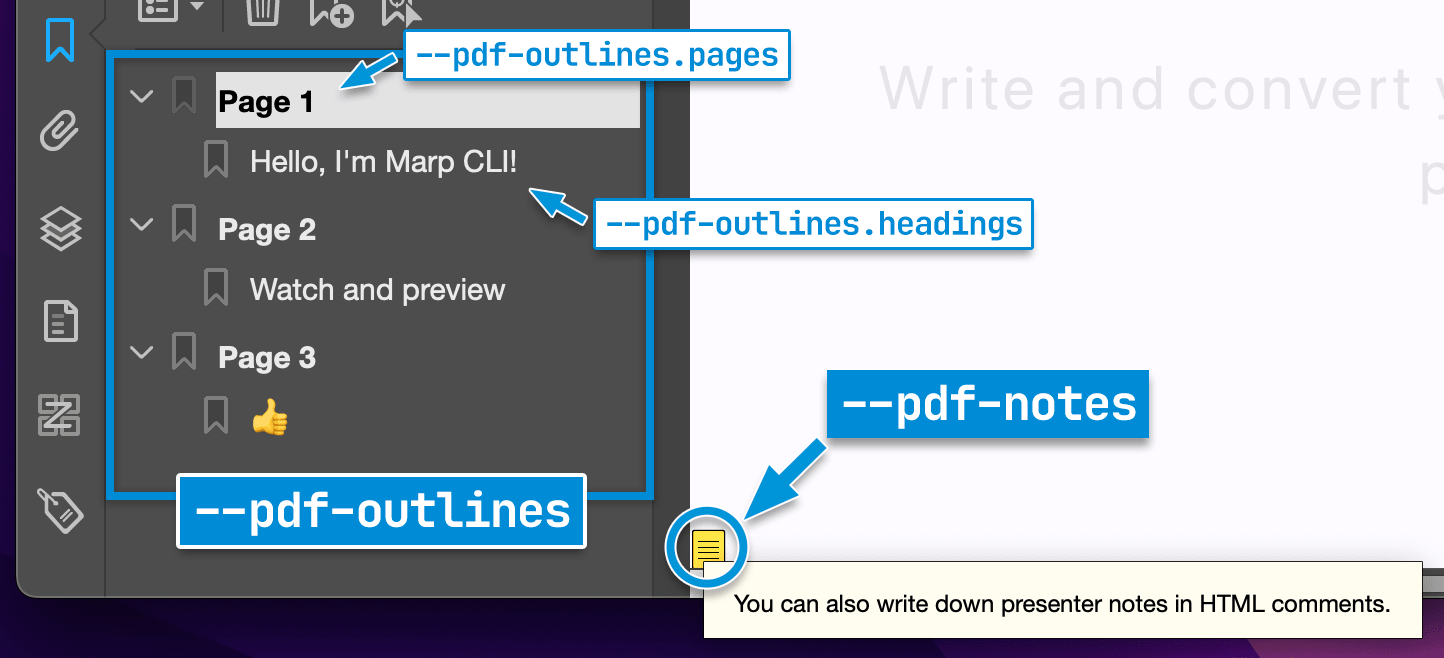
--pdf-notes: Add PDF note annotations to the lower left when the slide page has Marpit presenter notes.--pdf-outlines: Add PDF outlines/bookmarks.
--pdf-outlines will make outlines based on slide pages and Markdown headings by default. If necessary, you may prevent making outlines from one of them, by setting --pdf-outlines.pages=false or --pdf-outlines.headings=false.
Convert to PowerPoint document (--pptx) 🌐
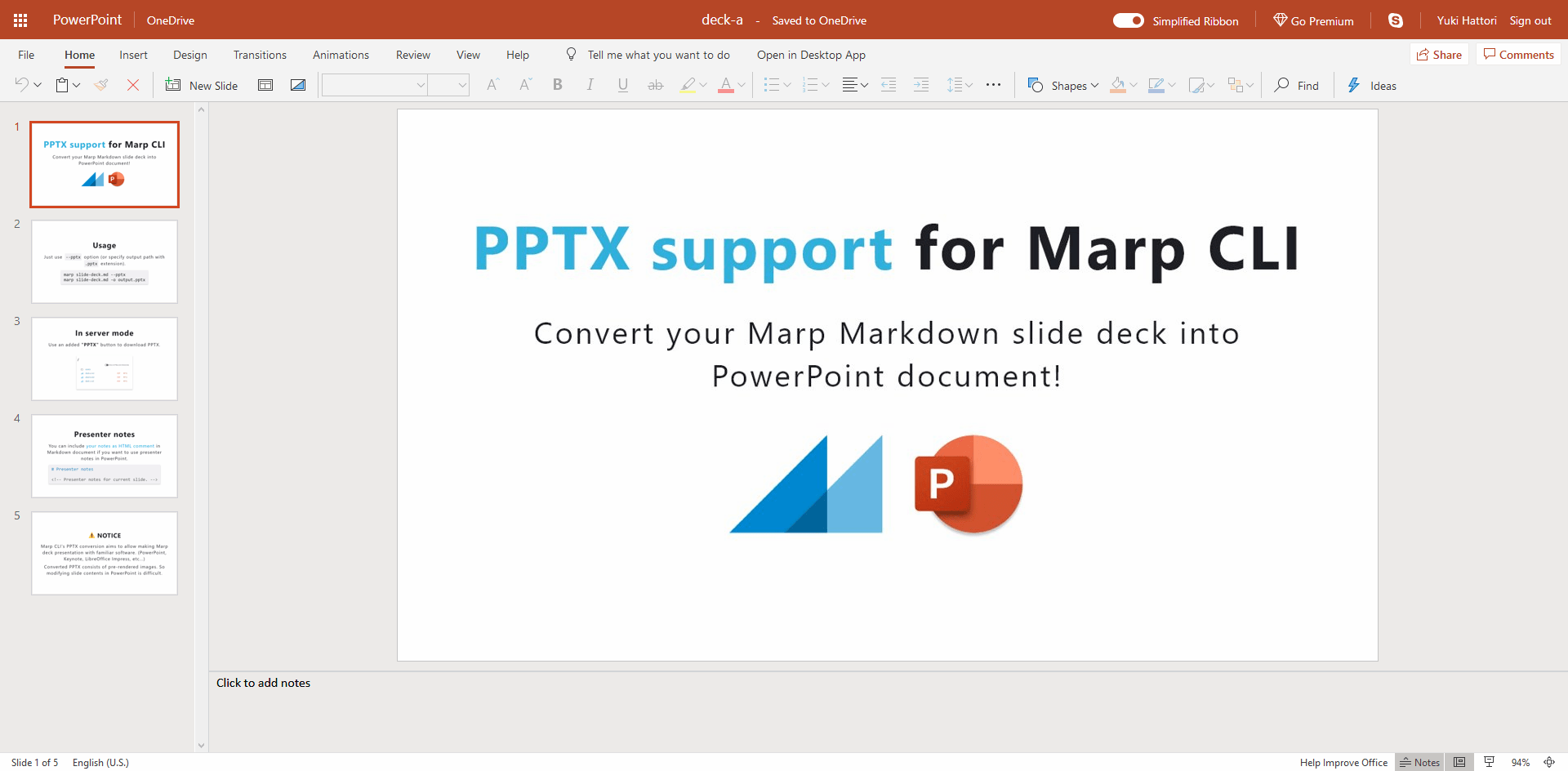
Do you want more familiar way to present and share your deck? PPTX conversion to create PowerPoint document is available by passing --pptx option or specify the output path with PPTX extension.
marp --pptx slide-deck.md
marp slide-deck.md -o converted.pptx
A created PPTX includes rendered Marp slide pages and the support of Marpit presenter notes. It can open with PowerPoint, Keynote, Google Slides, LibreOffice Impress, and so on...
[EXPERIMENTAL] Generate editable pptx (--pptx-editable)
A converted PPTX usually consists of pre-rendered background images, that is meaning contents cannot to modify or re-use in PowerPoint. If you want to generate editable PPTX for modifying texts, shapes, and images in GUI, you can pass --pptx-editable option together with --pptx option.
marp --pptx --pptx-editable slide-deck.md
[!IMPORTANT]
The experimental
--pptx-editableoption requires installing both of the browser and LibreOffice Impress.If the theme and inline styles are providing complex styles into the slide,
--pptx-editablemay throw an error or output the incomplete result. (e.g.gaiatheme in Marp Core)[!WARNING]
Conversion to the editable PPTX results in lower slide reproducibility compared to the conversion into regular PPTX and other formats. Additionally, presenter notes are not supported. We do not recommend to export the editable PPTX if maintaining the slide's appearance is important.
Convert to PNG/JPEG image(s) 🌐
Multiple images (--images)
You can convert the slide deck into multiple images when specified --images [png|jpeg] option.
# Convert into multiple PNG image files
marp --images png slide-deck.md

# Convert into multiple JPEG image files
marp --images jpeg slide-deck.md
Output files have a suffix of page number, like slide-deck.001.png, slide-deck.002.png, and so on.
Title slide (--image)
When you passed --image option or specified the output path with PNG/JPEG extension, Marp CLI will convert only the first page (title slide) of the targeted slide deck into an image.
# Convert the title slide into an image
marp --image png slide-deck.md
marp slide-deck.md -o output.png
It would be useful for creating [Open Graph] image that can specify with image global directive and --og-image option.
Scale factor
You can set the scale factor for rendered image(s) through --image-scale option. It is useful for making high-resolution image from the slide.
# Generate high-resolution image of the title slide
marp slide-deck.md -o title-slide@2x.png --image-scale 2
[!TIP]
--image-scaleis not affect to the actual size of presentation.The scale factor is also available for PPTX conversion. By default, Marp CLI will use
2as the default scale factor in PPTX, to suppress deterioration of slide rendering in full-screen presentation.
Export presenter notes (--notes)
You can export presenter notes in Marp / Marpit Markdown as a text file by using --notes option or specifying the output path with TXT extension.
# Export presenter notes as a text
marp --notes slide-deck.md
marp slide-deck.md -o output.txt
Security about local files
Because of the security reason, conversion that is using the browser cannot use local files by default.
Marp CLI would output incomplete result with warning if the blocked local file accessing is detected. We recommend uploading your assets to online.
If you really need to use local files in these conversion, --allow-local-files option helps to find your local files. Please use only to the trusted Markdown because there is a potential security risk.
marp --pdf --allow-local-files slide-deck.md
Conversion modes
Parallelism
When converting multiple files, Marp CLI will process them in parallel with 5 concurrency by default. You can set the number of concurrency by --parallel (-P) option, or disable parallelism by --no-parallel.
Watch mode (--watch / -w)
Marp CLI will observe a change of Markdown and using theme CSS when passed with --watch (-w) option. The conversion will be triggered whenever the content of file is updated.
While you are opening the converted HTML in browser, it would refresh the opened page automatically.
Server mode (--server / -s)
Server mode supports on-demand conversion by HTTP request. We require to pass --server (-s) option and a directory to serve.

In this mode, the converted file outputs as the result of accessing to server, and not to disk.
You would get the converted PDF, PPTX, PNG, JPEG, and TXT by adding corresponded query string when requesting. e.g. http://localhost:8080/deck-a.md?pdf returns converted PDF.
[!TIP]
You can set the server port by setting the environment variable
PORT. For example,PORT=5000 marp -s ./slideswould listen on port number 5000.
index.md / PITCHME.md
Marp CLI server will provide the list of served files by default, but you can place the default Markdown deck like a common web server's index.html.
Place Markdown named index.md or PITCHME.md (GitPitch style) to served directory. It would be redirected just accessing to http://localhost:8080/.
Preview window (--preview / -p)
When conversions were executed together with --preview (-p) option, Marp CLI will open preview window(s) to check the converted result immediately.
Unlike opening with browser, you may present deck with the immersive window. Watch mode is automatically enabled while using preview window.
[!NOTE]
--previewoption cannot use when you are using Marp CLI through official Docker image.
Browser options
Choose browser (--browser)
You can specify the kind of browser for conversion by --browser option. Available browsers are chrome, edge, and firefox. If set comma-separated browsers, Marp CLI will try to use the first available browser among them.
# Use Firefox for image conversion
marp --browser firefox ./slide.md -o slide.png

# Prefer to use Firefox first, then Chrome
marp --browser firefox,chrome ./slide.md -o slide.png
The default is a special value auto, which means to use the first available browser from chrome,edge,firefox.
[!WARNING]
Firefox support is still early stage. The PDF output generated by Firefox may include some inc
Extension points exported contracts — how you extend this code
Options (Interface)Core symbols most depended-on inside this repo
conversionShape
Languages
Modules by API surface
Dependencies from manifests, versioned
For agents
$ claude mcp add marp-cli \
  -- python -m otcore.mcp_server <graph>