github.com/tebelorg/RPA-Python @v1.50.0 sqlite
README
RPA for Python :snake:
v1.50 • Use Cases • API Reference • About & Credits • Try on Cloud • PyCon Video • Telegram Chat • 中文 • हिन्दी • Español • Français • عربى • বাংলা • Русский • Português • Bahasa • Deutsch • More..
To install this Python package for RPA (robotic process automation) -
pip install rpa
To use it in Jupyter notebook, Python script or interactive shell -
import rpa as r
Notes on operating systems and optional visual automation mode - - :rainbow_flag: Windows - if visual automation is faulty, try setting your display zoom level to recommended % or 100% - :apple: macOS - due to tighter security, install PHP manually and see solutions for PhantomJS and Java popups - :penguin: Linux - visual automation mode requires special setup on Linux, see how to install OpenCV and Tesseract - :grapes: Raspberry Pi - use this setup guide to run the package on Raspberry Pies (low-cost automation servers)
Use Cases
RPA for Python's simple and powerful API makes robotic process automation fun! You can use it to quickly automate away repetitive time-consuming tasks on websites, desktop applications, or the command line.
As a bonus and token of my appreciation, any new bug reported will be appreciated with a US$200 gift card from your preferred merchant. Any feature suggestion accepted will be appreciated with a US$100 gift card.
WEB AUTOMATION :spider_web:
r.init()
r.url('https://duckduckgo.com')
r.type('//*[@name="q"]', 'decentralisation[enter]')
r.wait() # ensure results are fully loaded
r.snap('page', 'results.png')
r.close()
VISUAL AUTOMATION :see_no_evil:
r.init(visual_automation = True)
r.dclick('outlook_icon.png')
r.click('new_mail.png')
...
r.type('message_box.png', 'Hi Gillian,[enter]This is ...')
r.click('send_button.png')
r.close()
OCR AUTOMATION 🧿
r.init(visual_automation = True, chrome_browser = False)
print(r.read('pdf_report_window.png'))
print(r.read('image_preview.png'))
r.hover('anchor_element.png')
print(r.read(r.mouse_x(), r.mouse_y(), r.mouse_x() + 400, r.mouse_y() + 200))
r.close()
KEYBOARD AUTOMATION :musical_keyboard:
r.init(visual_automation = True, chrome_browser = False)
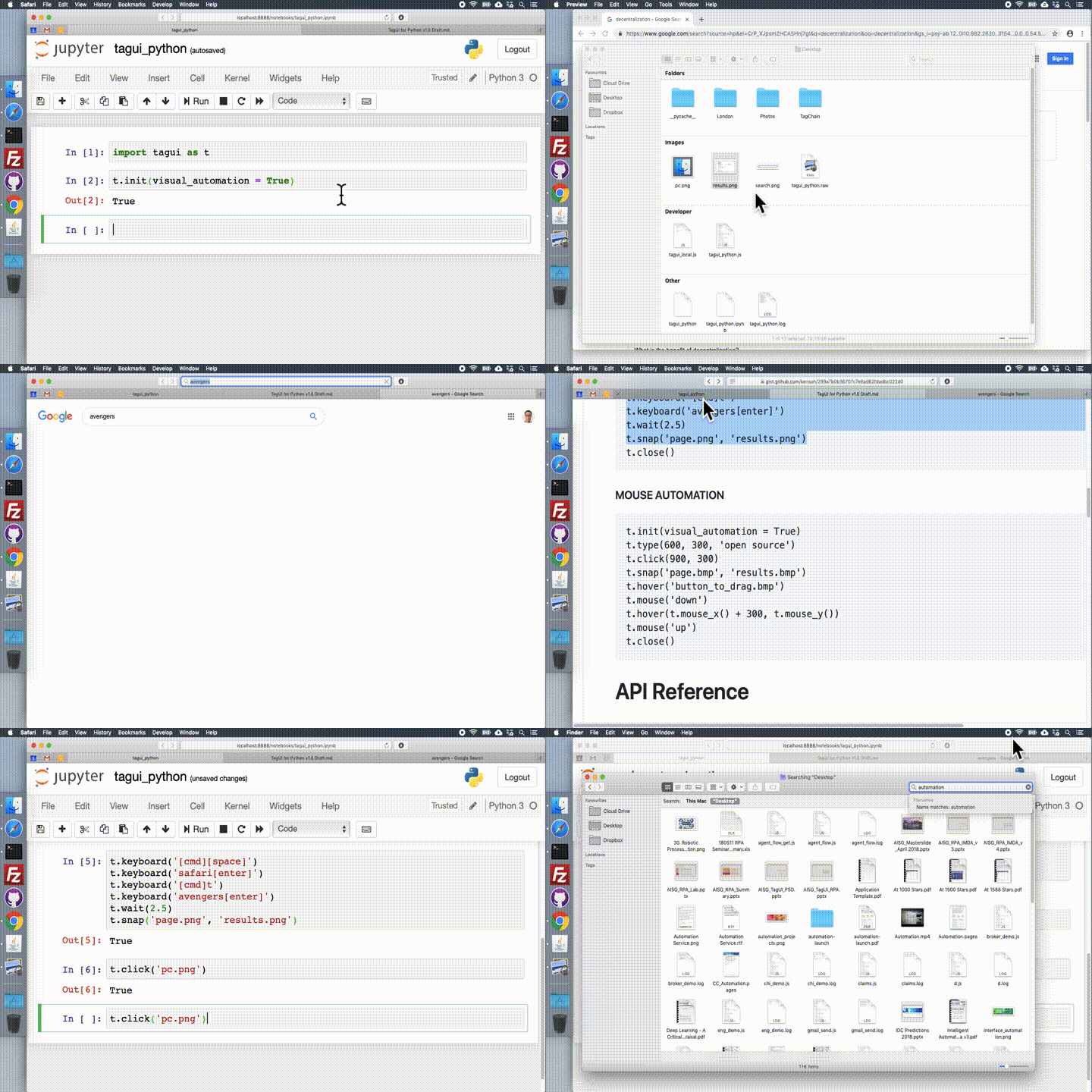
r.keyboard('[cmd][space]')
r.keyboard('safari[enter]')
r.keyboard('[cmd]t')
r.keyboard('snatcher[enter]')
r.wait(2.5)
r.snap('page.png', 'results.png')
r.close()
MOUSE AUTOMATION :mouse:
r.init(visual_automation = True)
r.type(600, 300, 'neo kobe city')
r.click(900, 300)
r.snap('page.png', 'results.png')
r.hover('button_to_drag.png')
r.mouse('down')
r.hover(r.mouse_x() + 300, r.mouse_y())
r.mouse('up')
r.close()
TELEGRAM NOTIFICATION :phone:
first, look up @rpapybot on your Telegram app to approve receiving messages
r.telegram('1234567890', 'ID can be string or number, r.init() is not required')
r.telegram(1234567890, 'Hello World. Olá Mundo. नमस्ते दुनिया. 안녕하세요 세계. 世界,你好。')
r.telegram(1234567890, 'Use backslash n for new line\nThis is line 2 of the message')
SECURE TEMPORARY STORAGE :package:
securely share files up to 100 MB on PrivateBin, which will self-destruct after 1 week
bin_url = r.bin('secret_agent_report.pdf', 'optional password')
r.telegram(1234567890, 'Access confidential report at ' + bin_url)
API Reference
Notes • Element Identifiers • Core Functions • Basic Functions • Pro Functions • Helper Functions
GENERAL NOTES
See sample Python script, the RPA Challenge solution, and RedMart groceries example. To send a Telegram app notification, simply look up @rpapybot to allow receiving messages. To automate Chrome browser invisibly, use headless mode. To run 10X faster instead of normal human speed, use turbo mode (read the caveats!). Some CAPTCHAs can be solved using services like 2Captcha or directly by replicating user actions.
Securely share files up to 100 MB with built-in temporary online storage, on a dedicated PrivateBin server. You can even run RPA on your phone browser using this Colab notebook (eg datascraping with up to 5 Colab sessions). By design this package has enterprise security and you can install, update and use it without the internet.
Fully control error handling by setting error(True) to raise Python exception on error, and manage with try-except. For fine-grained control on web browser file download location, use download_location(). For overriding default folder location to install and invoke TagUI (a forked version optimised for rpa package), use tagui_location().
If you are using non-English operating system and get "invalid continuation byte" error, you can set code page to support UTF-8 or change your Python script's encoding to your OS encoding. See this example for Chinese.
ELEMENT IDENTIFIERS
An element identifier helps to tell RPA for Python exactly which element on the user interface you want to interact with. For example, //*[@id='email'] is an XPath pointing to the webpage element having the id attribute 'email'.
-
:globe_with_meridians: For web automation, the web element identifier can be XPath selector, CSS selector, or the following attributes - id, name, class, title, aria-label, text(), href, in decreasing order of priority. Recommend writing XPath manually or simply using attributes. There is automatic waiting for an element to appear before timeout happens, and error is returned that the element cannot be found. To change the default timeout of 10 seconds, use timeout(). PS - if you are using a Chrome extension to read XPaths, use SelectorsHub.
-
:camera_flash: An element identifier can also be a .png or .bmp image snapshot representing the UI element (can be on desktop applications, terminal window or web browser). If the image file specified does not exist, OCR will be used to search for that text on the screen to act on the UI element containing the text, eg r.click('Submit Form.png'). Transparency (0% opacity) is supported in .png images. x, y coordinates of elements on the screen can be used as well. Notes for visually automating 2 monitors, and macOS Retina display issue.
-
:page_facing_up: A further image identifier example is a png image of a window (PDF viewer, MS Word, textbox etc) with the center content of the image set as transparent. This allows using read() and snap() to perform OCR and save snapshots of application windows, containers, frames, textboxes with varying content. See this image example of a PDF frame with content removed to be transparent. For read() and snap(), x1, y1, x2, y2 coordinates pair can be used to define the region of interest on the screen to perform OCR or capture snapshot.

CORE FUNCTIONS
| Function | Parameters | Purpose |
|---|---|---|
init() |
visual_automation=False,chrome_browser=True |
start TagUI, auto-setup on first run |
close() |
close TagUI, Chrome browser, SikuliX | |
pack() |
for deploying package without internet | |
update() |
for updating package without internet | |
error() |
True or False |
set to True to raise exception on error |
debug() |
True or False or text_to_log |
print & log debug info to rpa_python.log |
by default RPA for Python runs at normal human speed, to run 10X faster use init(turbo_mode = True)
BASIC FUNCTIONS
| Function | Parameters | Purpose |
|---|---|---|
url() |
webpage_url (no parameter to return current URL) |
go to web URL |
click() |
element_identifier (or x, y using visual automation) |
left-click on element |
rclick() |
element_identifier (or x, y using visual automation) |
right-click on element |
dclick() |
element_identifier (or x, y using visual automation) |
double-click on element |
hover() |
element_identifier (or x, y using visual automation) |
move mouse to element |
type() |
element_identifier (or x, y), text ('[enter]'/'[clear]') |
enter text at element |
select() |
element_identifier (or x, y), value or text (or x, y) |
choose dropdown option |
read() |
element_identifier ('page' is web page) (or x1, y1, x2, y2) |
return element text |
snap() |
element_identifier ('page' is web page), filename_to_save |
save screenshot to file |
load() |
filename_to_load |
return file content |
dump() |
text_to_dump, filename_to_save |
save text to file |
write() |
text_to_write, filename_to_save |
append text to file |
ask() |
text_to_prompt |
ask & return user input |
to wait for an element to appear until timeout() value, use hover(). to drag-and-drop, do it this way
PRO FUNCTIONS
| Function | Parameters | Purpose |
|---|---|---|
telegram() |
telegram_id, text_to_send (first look up @rpapybot) |
send Telegram message |
keyboard() |
keys_and_modifiers (using visual automation) |
send keystrokes to screen |
mouse() |
'down' or 'up' (using visual automation) |
send mouse event to screen |
focus() |
app_to_focus (full name of app) |
make application in focus |
wait() |
delay_in_seconds (default 5 seconds) |
explicitly wait for some time |
table() |
table number or XPath, filename_to_save |
save webpage table to CSV |
bin() |
file_to_bin, password (optional but recommended) |
secure temporary storage |
upload() |
element_identifier (CSS), filename_to_upload |
upload file to web element |
download() |
download_url, filename_to_save (optional) |
download from URL to file |
unzip() |
file_to_unzip, unzip_location (optional) |
unzip zip file to specified location |
frame() |
main_frame id or name, sub_frame (optional) |
set web frame, frame() to reset |
popup() |
string_in_url (no parameter to reset to main page) |
set context to web popup tab |
run() |
command_to_run (use ; between commands) |
run OS command & return output |
dom() |
statement_to_run (JS code to run in browser) |
run code in DOM & return output |
vision() |
command_to_run (Python code for SikuliX) |
run custom SikuliX commands |
timeout() |
timeout_in_seconds (blank returns current timeout) |
change wait timeout (default 10s) |
keyboard() modifiers and special keys -
_[shift] [ctrl] [a
Core symbols most depended-on inside this repo
show_errorShape
Languages
Modules by API surface
For agents
$ claude mcp add RPA-Python \
  -- python -m otcore.mcp_server <graph>