github.com/peco/peco @v0.6.0 sqlite
README
peco
Simplistic interactive filtering tool
NOTE: If you are viewing this on GitHub, this document refers to the state of peco in whatever current branch you are viewing, not necessarily the state of a currently released version. Please make sure to checkout the Changes file for features and changes.
If you use peco, please consider sponsoring the authors of this project from the "Sponsor" button on the project page at https://github.com/peco/peco. Sponsorship plans start at $1 :)
Description
peco (pronounced peh-koh) is based on a python tool, percol. percol was darn useful, but I wanted a tool that was a single binary, and forget about python. peco is written in Go, and therefore you can just grab the binary releases and drop it in your $PATH.
peco can be a great tool to filter stuff like logs, process stats, find files, because unlike grep, you can type as you think and look through the current results.
For basic usage, continue down below. For more cool elaborate usage samples, please see the wiki, and if you have any other tricks you want to share, please add to it!
Demo
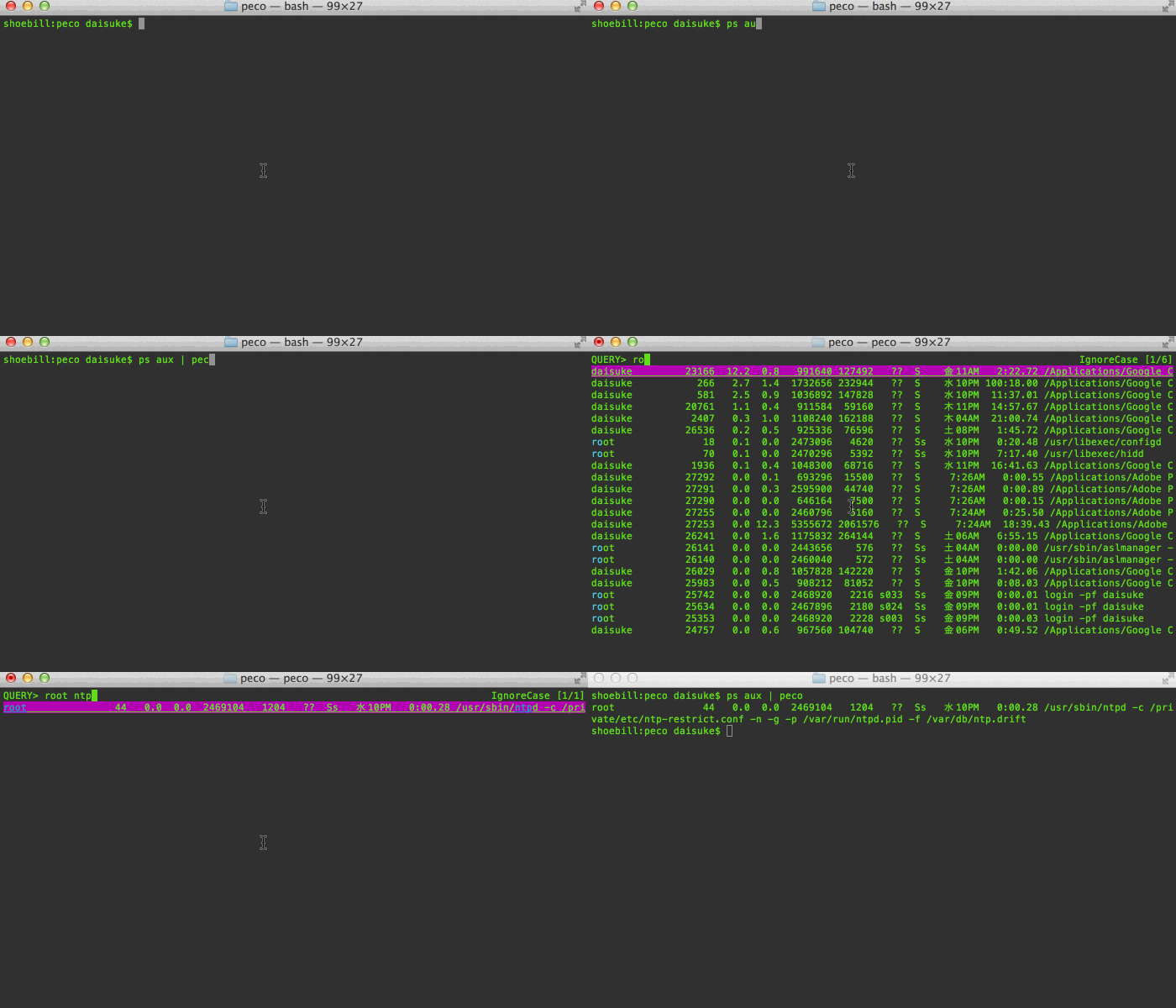
Demos speak more than a thousand words! Here's me looking for a process on my mac. As you can see, you can page through your results, and you can keep changing the query:
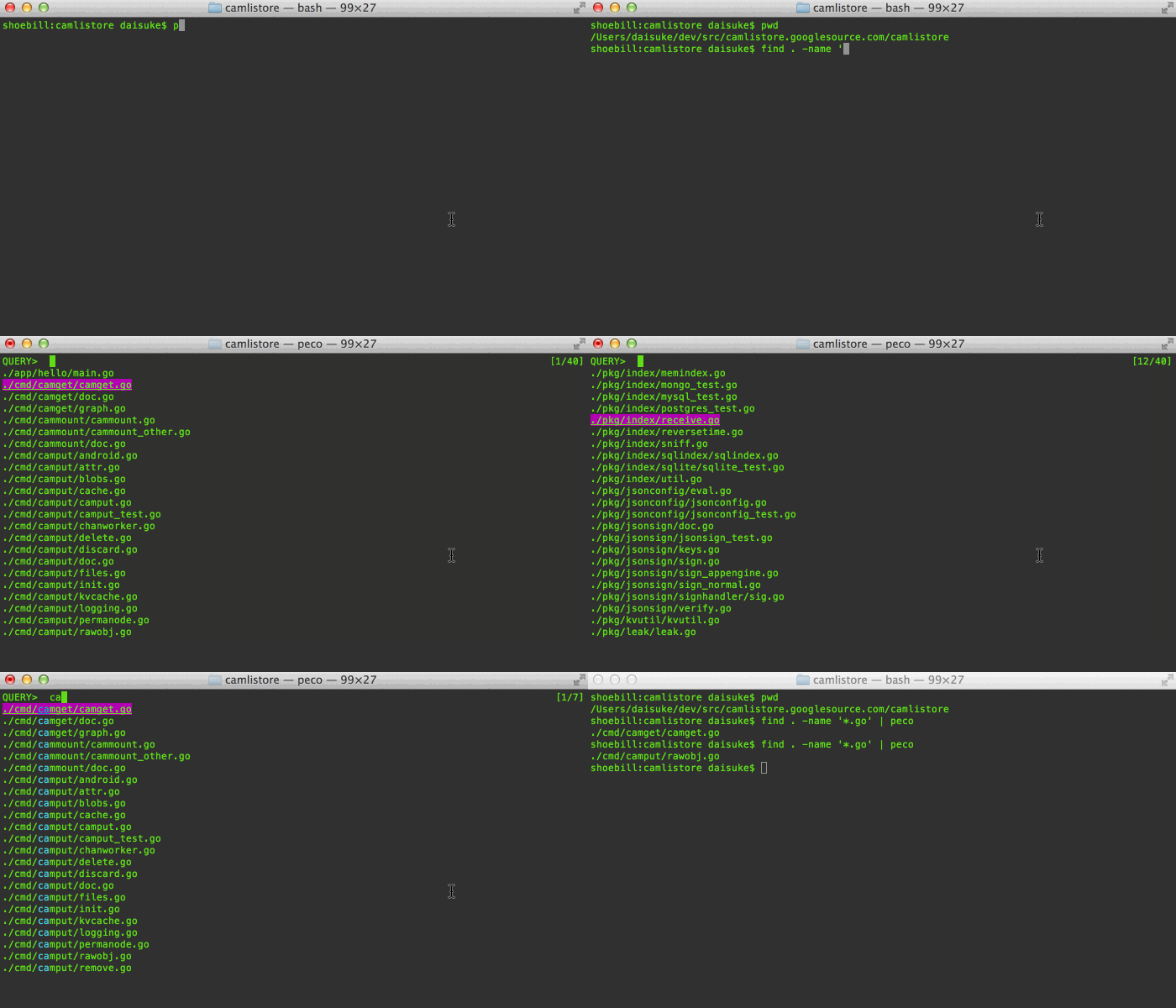
Here's me trying to figure out which file to open:
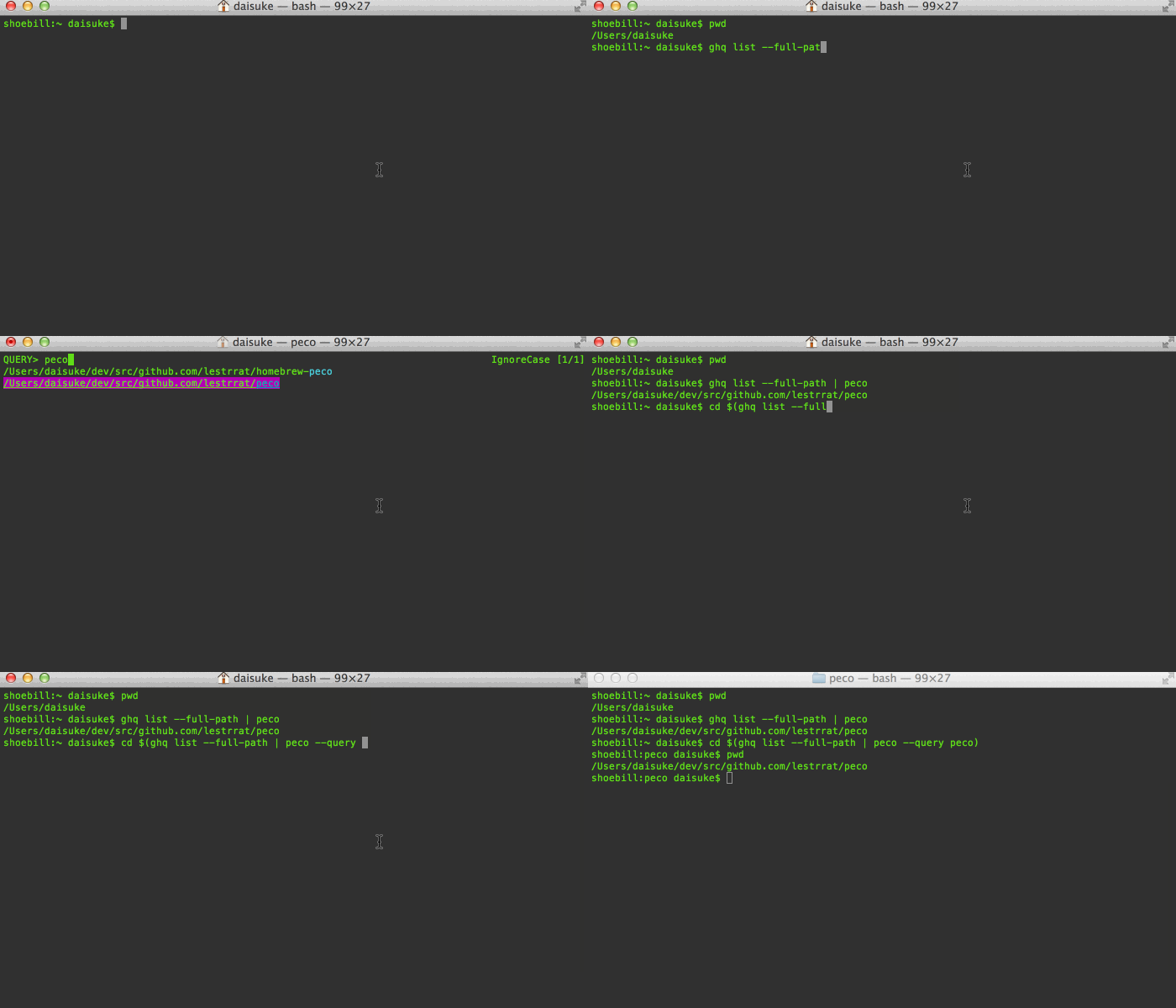
When you combine tools like zsh, peco, and ghq, you can make managing/moving around your huge dev area a piece of cake! (this example doesn't use zsh functions so you can see what I'm doing)
Features
Incremental Search
Search results are filtered as you type. This is great to drill down to the line you are looking for
Multiple terms turn the query into an "AND" query:
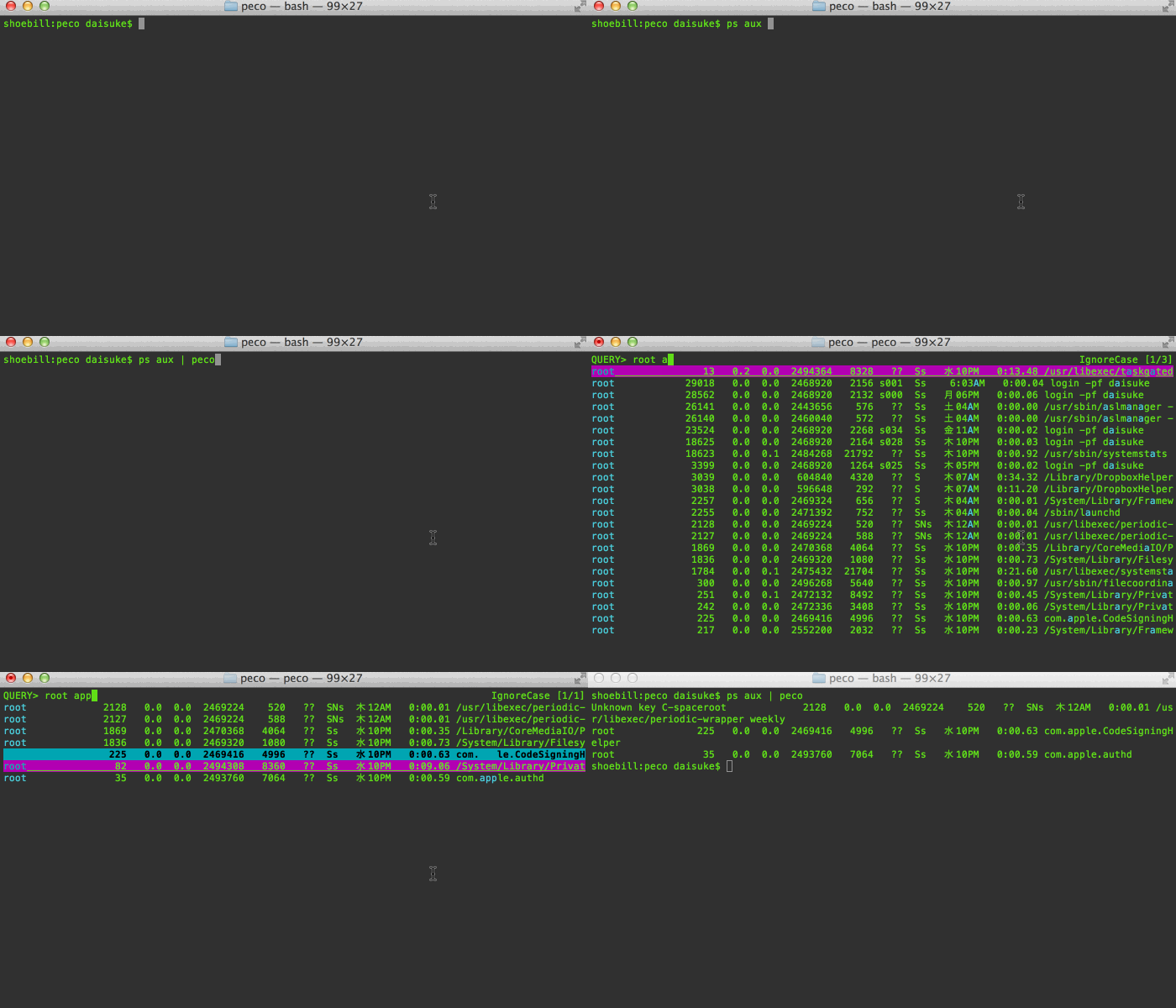
When you find that line that you want, press enter, and the resulting line is printed to stdout, which allows you to pipe it to other tools
Negative Matching
You can exclude lines from the results by prefixing a term with -. For example, the query SSO -tests -javadoc shows lines matching "SSO" that do NOT contain "tests" or "javadoc".
| Query | Meaning |
|---|---|
foo -bar |
Lines matching "foo" but not containing "bar" |
-foo -bar |
All lines not containing "foo" or "bar" |
\-foo |
Literal match for "-foo" (escaped with backslash) |
- |
Literal match for a hyphen character |
Negative matching works with all built-in filters (IgnoreCase, CaseSensitive, SmartCase, Regexp, IRegexp, and Fuzzy). For the Fuzzy filter, negative terms use regexp-based exclusion rather than fuzzy matching. External custom filters receive the query as-is and are responsible for their own parsing.
Only positive terms produce match highlighting. Lines matched solely by negative exclusion (e.g. an all-negative query like -foo) are shown without highlighting.
Note: When using the SmartCase filter with negative terms, results may be incomplete if the query transitions from all-lowercase to mixed-case (e.g. typing foo -bar then adding an uppercase character). If this happens, clearing the query and retyping it will produce the correct results.
Upgrading from v0.5.x: In v0.5.x, a query like test -v matched lines containing both "test" and literal "-v". From v0.6.0 onwards, -v is treated as a negative term, so the query matches "test" while excluding lines containing "v". To search for a literal hyphen-prefixed term, escape it with a backslash (e.g. \-v).
Select Multiple Lines
You can select multiple lines! (this example uses C-Space)
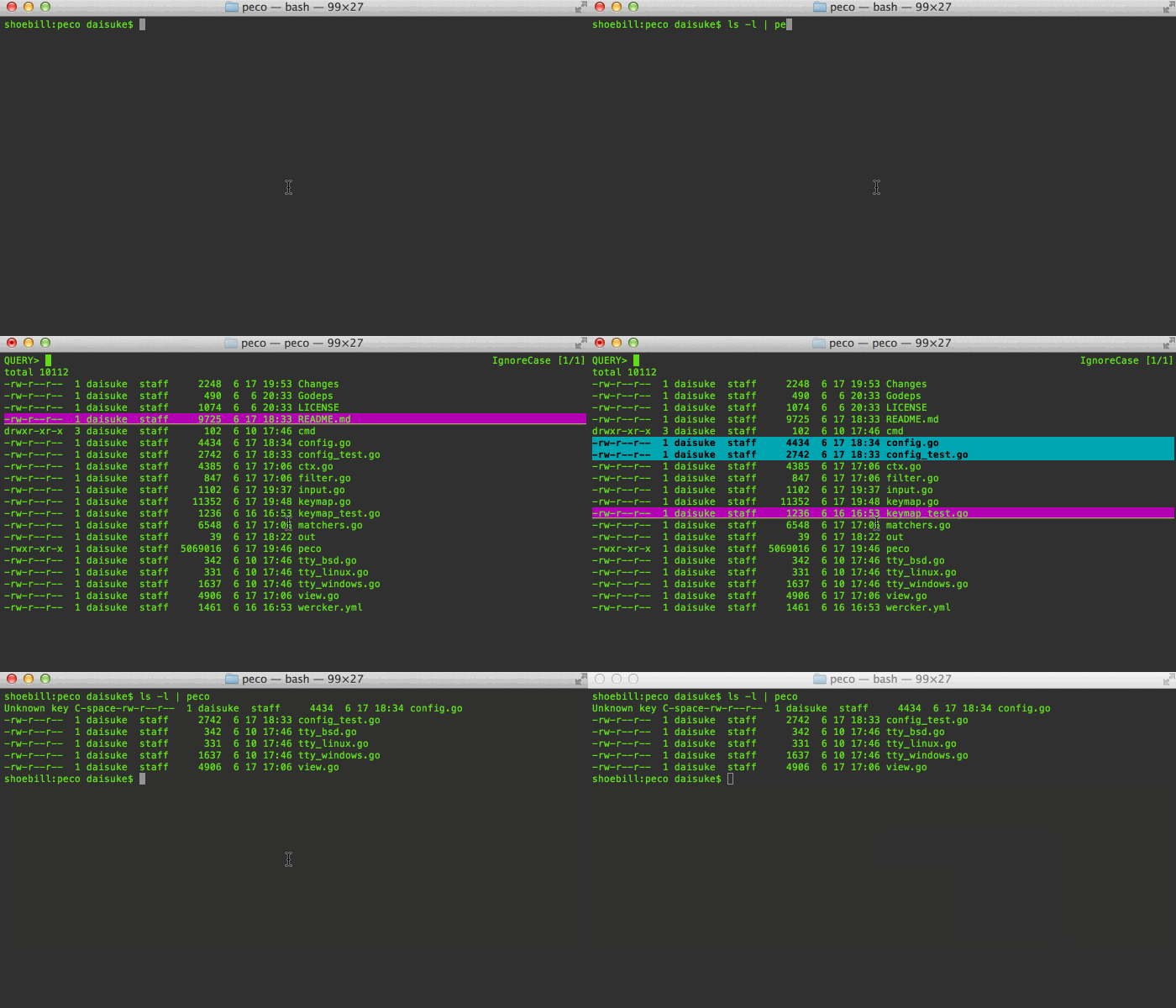
Select Range Of Lines
Not only can you select multiple lines one by one, you can select a range of lines (Note: The ToggleRangeMode action is not enabled by default. You need to put a custom key binding in your config file)
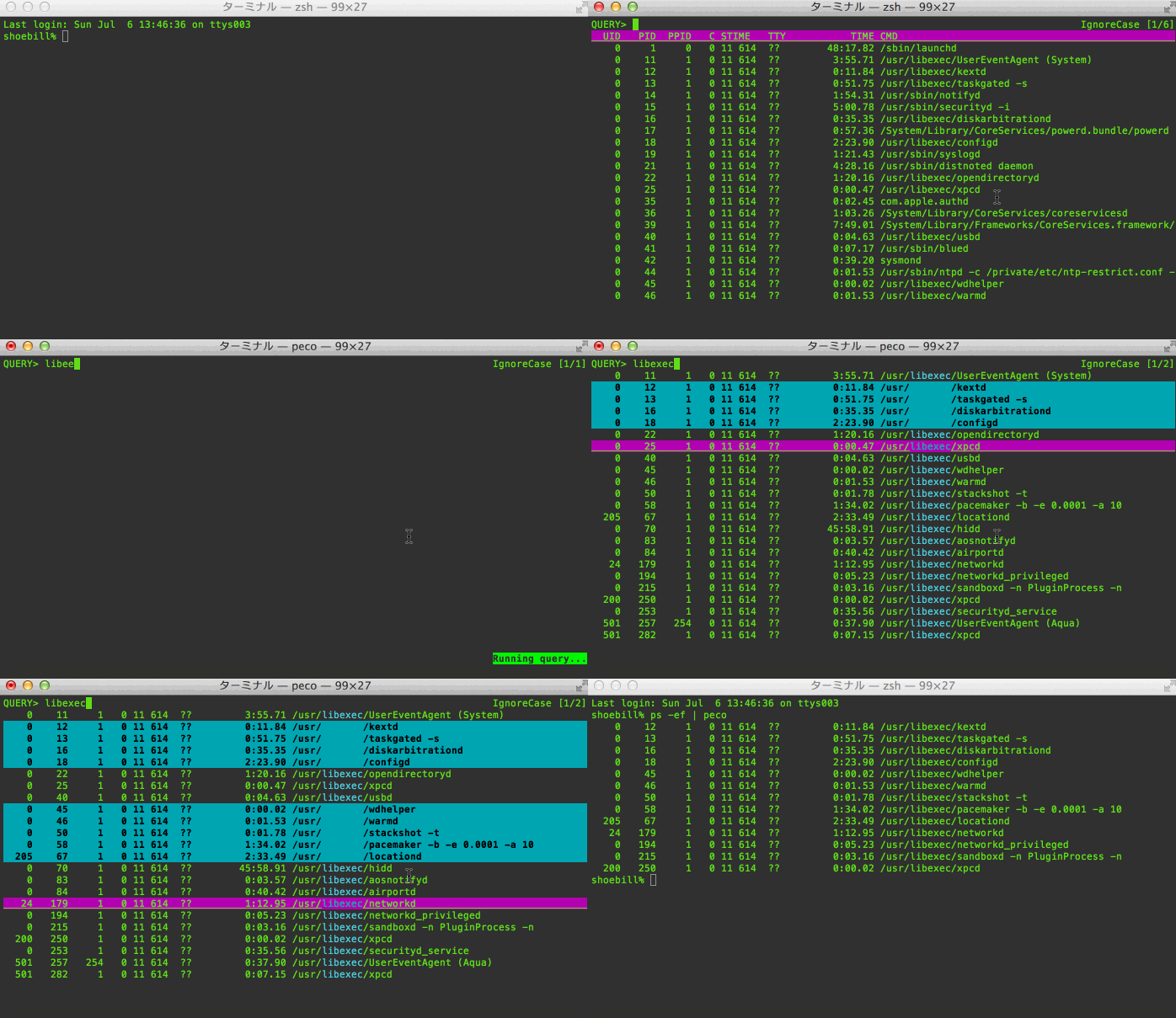
Select Filters
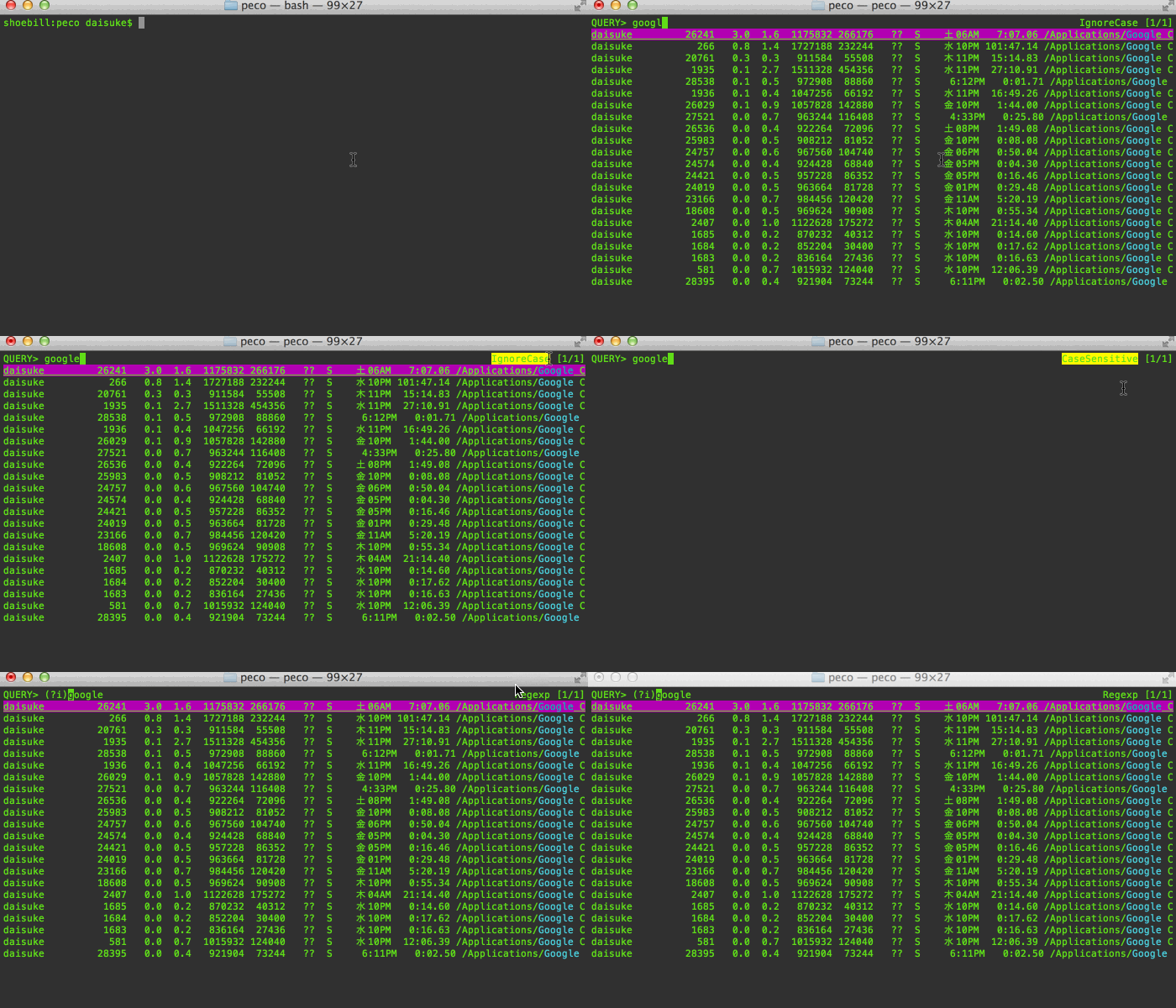
Different types of filters are available. Default is case-insensitive filter, so lines with any case will match. You can toggle between IgnoreCase, CaseSensitive, SmartCase, Regexp case insensitive, Regexp and Fuzzy filters.
The SmartCase filter uses case-insensitive matching when all of the queries are lower case, and case-sensitive matching otherwise.
The Regexp filter allows you to use any valid regular expression to match lines.
The Fuzzy filter allows you to find matches using partial patterns. For example, when searching for ALongString, you can enable the Fuzzy filter and search ALS to find it. The Fuzzy filter uses smart case search like the SmartCase filter. With the FuzzyLongestSort flag enabled in the configuration file, it does a smarter match. It sorts the matched lines by the following precedence: 1. longer substring, 2. earlier (left positioned) substring, and 3. shorter line.
Multi-Stage Filtering (Freeze Results)
You can "freeze" the current filter results, clear the query, and continue filtering on top of the frozen results. This enables multi-stage filtering workflows -- for example, first filter by file extension, freeze, then filter by filename.
Use peco.FreezeResults to snapshot the current results and clear the query. Use peco.UnfreezeResults to discard the frozen results and revert to the original input. These actions are not bound to any key by default -- you need to add keybindings in your config file:
{
    "Keymap": {
        "M-f": "peco.FreezeResults",
        "M-u": "peco.UnfreezeResults"
    }
}
You can freeze multiple times to progressively narrow down results. Unfreezing always reverts back to the original unfiltered input.
Example: Given this input via ls | peco:
QUERY>
app.go
app_test.go
filter.go
filter_test.go
main.go
readme.md
Type _test to filter:
QUERY> _test
app_test.go
filter_test.go
Press M-f to freeze. The two test files become the new base and the query clears:
QUERY>
app_test.go
filter_test.go
Now type filter to search within the frozen results:
QUERY> filter
filter_test.go
Press Enter to select filter_test.go, or press M-u to unfreeze and return to the original full list.
Horizontal Scrolling
When input lines are longer than the terminal width, they are clipped at the edge of the screen. You can scroll horizontally to reveal the rest of the line using the peco.ScrollLeft and peco.ScrollRight actions. These actions are not bound to any key by default -- you need to add keybindings in your config file:
{
    "Keymap": {
        "ArrowLeft": "peco.ScrollLeft",
        "ArrowRight": "peco.ScrollRight"
    }
}
Each scroll moves by half the terminal width.
If your input contains very long lines (e.g. minified files) and they do not appear at all, try increasing MaxScanBufferSize in your config. The default is 256 (KB), which limits the maximum length of a single input line.
ANSI Color Support
By default (--color=auto), peco parses ANSI SGR (Select Graphic Rendition) escape sequences from the input and renders the original colors in the terminal. This lets you pipe colored output from tools like git log --color, rg --color=always, or ls --color through peco while preserving the visual formatting.
git log --color=always | peco
rg --color=always pattern | peco
ls --color=always | peco
To disable ANSI color rendering, use --color=none.
peco uses two independent color layers, both supporting 8 named colors, 256-color, and 24-bit truecolor. The first is peco's own UI styling — selection highlighting, match highlighting, prompt colors, etc. — configured via the Style section in the config file (see Styles). UI styling is always active and is not affected by the --color flag. The second is input ANSI colors — escape sequences already present in the piped input from tools like git log --color. This layer is controlled by the --color flag described above.
When input ANSI color support is enabled, filtering and matching operate against the stripped (plain text) version of each line, so escape codes do not interfere with your queries. Input ANSI colors are displayed as the base layer; peco's own UI styling takes precedence. Selected lines' output preserves the original ANSI codes, so downstream tools receive colored text.
ANSI color support can be controlled via the configuration file (see Color under Global configuration).
Context Lines (Zoom In/Out)
When filtering results (e.g. searching for "error" in a log file), you often need to see the surrounding lines to understand the context. peco supports expanding filtered results to show context lines around each match, similar to grep -C.
Two actions are available:
-
peco.ZoomIn— Expands the current filtered view by showing 3 lines of context (before and after) around every matched line. Overlapping context ranges are merged automatically. Context lines are displayed with theContextstyle (bold by default) to visually distinguish them from matched lines. -
peco.ZoomOut— Collapses back to the original filtered view, restoring the cursor position.
These actions are not bound to any key by default. Add keybindings in your config file:
{
    "Keymap": {
        "C-o": "peco.ZoomIn",
        "C-i": "peco.ZoomOut"
    }
}
ZoomIn only works when there is an active filter query; if you are viewing the unfiltered source, it is a no-op. You cannot zoom in twice — zooming in while already zoomed shows a status message. The cursor position is preserved: after ZoomIn, the cursor stays on the same matched line; after ZoomOut, it returns to where it was before zooming. Context lines cannot be selected — only the original matched lines participate in selection. The Context style can be customized in the config file (see Styles).
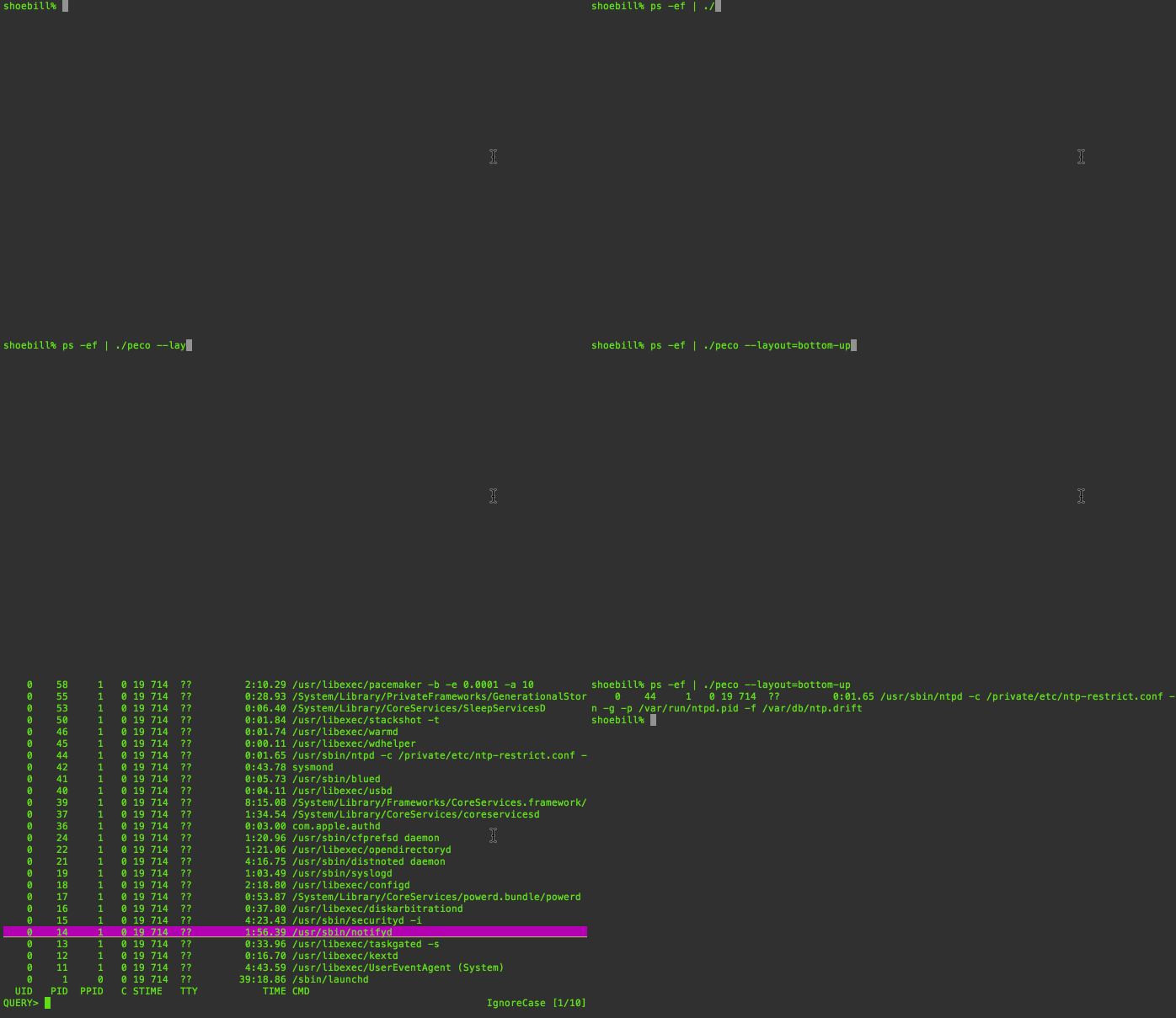
Selectable Layout
As of v0.2.5, if you would rather not move your eyes off of the bottom of the screen, you can change the screen layout by either providing the --layout=bottom-up command line option, or set the Layout variable in your configuration file
Inline Mode (--height)
By default peco takes over the entire terminal screen using the alternate screen buffer. With --height, peco renders inline at the bottom of the terminal, preserving your scroll history above. This is similar to fzf's --height option.
# Render with 5 result lines at the bottom of the terminal
ls | peco --height 5

# Use 40% of the terminal height
ls | peco --height 40%
All layout modes (top-down, bottom-up, top-down-query-bottom) work with --height. See --height for details.
Works on Windows!
I have been told that peco even works on windows :) Look ma! I'm not lying!

Installation
Just want the binary?
Go to the releases page, find the version you want, and download the zip file. Unpack the zip file, and put the binary to somewhere you want (on UNIX-y systems, /usr/local/bin or the like). Make sure it has execution bits turned on. Yes, it is a single binary! You can put it anywhere you want :)
THIS IS THE RECOMMENDED WAY (except for macOS homebrew users)
macOS (Homebrew, Scarf)
If you're on macOS and want to use homebrew:
brew install peco
or with Scarf:
scarf install peco
Debian and Ubuntu based distributions (APT, Scarf)
There is an official Debian package that can be installed via APT:
apt install peco
or with Scarf:
scarf install peco
Void Linux (XBPS)
xbps-install -S peco
Arch Linux
There is an official Arch Linux package that can be installed via pacman:
pacman -Syu peco
Windows (Chocolatey NuGet Users)
There's a third-party peco package available for Chocolatey NuGet.
C:\> choco install peco
X-CMD (Linux, macOS, Windows WSL, Windows GitBash)
peco is available from x-cmd.
To install peco, run:
x env use peco
Linux / macOS / Windows (Conda, Mamba, Pixi)
conda, mamba and pixi are platform-agnostic package managers for conda-format packages.
This means that the same command can be used to install peco across W