github.com/microfeed/microfeed @v0.1.5 sqlite
README
<img src="https://user-images.githubusercontent.com/1719237/207514210-99ddbd03-f8f0-410a-96c8-80da1afb804d.png" width="280" alt="Logo"/>
microfeed: a lightweight cms self-hosted on cloudflare
<a href="https://github.com/microfeed/microfeed/issues/new?assignees=&labels=bug"><b>Report Bug</b></a>
·
<a href="https://github.com/microfeed/microfeed/discussions/new?category=ideas"><b>Request Feature</b></a>
·
<a href="mailto:support@microfeed.org"><b>Email Us Privately</b></a>
Welcome to microfeed, a lightweight content management system (CMS) self-hosted on Cloudflare. With microfeed, you can easily publish a variety of content such as audios, videos, photos, documents, blog posts, and external URLs to a feed in the form of web, RSS, and JSON. It's the perfect solution for tech-savvy individuals who want to self-host their own CMS without having to run their own servers.
microfeed is built by Listen Notes and is hosted on Cloudflare's Pages, R2, D1, and Zero Trust.
If you have any questions or feedback, please don't hesitate to reach out to us at support@microfeed.org. We'd love to hear from you!
📚 Table of contents




- ⭐️ How it works
- 🚀 Installation
- Prerequisites
- Step 1. Fork the microfeed repo to your GitHub
- Step 2. Put some secrets on your forked repo
- Step 3. Run GitHub Action to deploy code
- Step 4. Make a few clicks on Cloudflare dashboard
- Step 5. Done. Start publishing
- Bonus. Update to the latest version of microfeed
- 💻 FAQs
- 💪 Contributions
- Run microfeed on local
- 🛡️ License
⭐️ How it works
Since the 1990s, a significant portion of the web has been powered by feeds. People (and bots) publish items to a feed, and others can subscribe to that feed to receive new content.
microfeed makes it easy for individuals to self-host their own feed on Cloudflare, including but not limited to * a podcast feed of audios * a blog feed of posts * an Instagram-like feed of images (e.g., llamacorn.listennotes.com, brand-assets.listennotes.com) * a YouTube-like feed of videos * a personal website with custom links (e.g., wenbin.org) * a content curation feed of external news article urls * a marketing site with updates and press coverage (e.g., microfeed.org) * a headless cms with a GUI dashboard and a public json feed (e.g., microfeed.org/json with OpenAPI spec in YAML and HTML) * a list of domain names for sale (e.g., ListenHost.com...) * a website for an entire book (e.g., The Art of War) * a changelog website (e.g., changelog.listennotes.com) * ...
microfeed uses Cloudflare Pages to host and run the code, R2 to host and serve media files, D1 to store metadata, and Zero Trust to provide logins to the admin dashboard. Cloudflare provides very generous free usage quotas, making it an affordable solution for personal or small business use. While you will still need to pay for a domain name, hosting microfeed on Cloudflare is essentially free.
With microfeed, you can publish a variety of content such as audios, videos, photos, documents, blog posts, and external URLs to a customizable website, an RSS feed, and a JSON feed. Check out some examples of microfeed in action: * Web feed: https://llamacorn.listennotes.com/ * Rss feed: https://llamacorn.listennotes.com/rss/ * Json feed: https://llamacorn.listennotes.com/json/
microfeed provides a simple yet powerful admin dashboard that makes it easy to add items to the feed, upload media files, and customize web page styles. If you've used WordPress before, you'll find it familiar.

🚀 Installation
Roughly you'll follow these steps to install a microfeed instance to Cloudflare:
- Fork the microfeed repo to your personal (or organizational) GitHub account.
- Obtain Cloudflare API tokens and save them as secrets on your forked GitHub repository.
- Use the predefined GitHub Action in your forked repository to deploy the code to Cloudflare Pages, using the secrets from step 2.
- Make a few clicks on Cloudflare's dashboard to set up custom domains and configure some security settings.
- Done. Start publishing!
We understand that not everyone is comfortable with reading documentation, so we've made it as easy as possible to get started with microfeed. However, we'd love to see Cloudflare implement a "Login with Cloudflare" OAuth feature, which would allow for almost one-click deployment of microfeed. In the meantime, we've tried to make the setup process as straightforward as possible for tech-savvy users.
Prerequisites
- Have a Cloudflare account. If you don't have one already, you can sign up for free at Cloudflare.com.
- Have a GitHub account. If you don't have one, you can sign up for free at GitHub.com.
Step 1. Fork the microfeed repo to your GitHub
Simply click on https://github.com/microfeed/microfeed/fork to fork the repository.
You may choose to modify the code in your forked repository in the future, but it's likely that you won't need to touch the code at all. Simply fork the repository and keep it synced for future use.
Step 2. Put some secrets on your forked repo
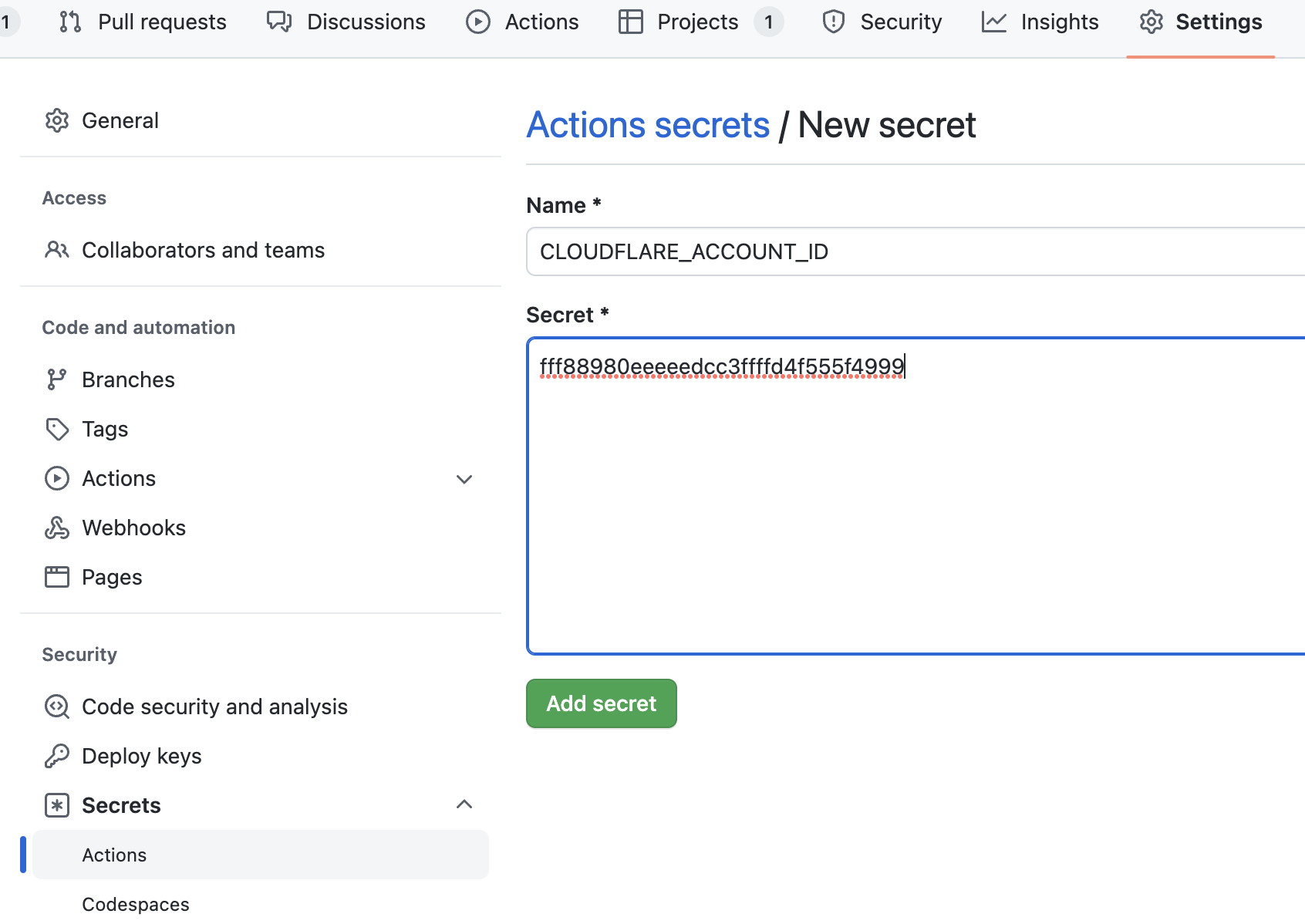
Go to your forked repo's Settings -> Secrets -> Actions, and create 5 secrets (click for more details). With these secrets in place, you'll be able to use GitHub Actions to deploy your microfeed instance to Cloudflare Pages.
CLOUDFLARE_ACCOUNT_ID
You can get your cloudflare account id from your dashboard's url:
After you login your Cloudflare account, you'll be redirected to a url like this
https://dash.cloudflare.com/[your-cloudflare-account-id-here]
The last part of the url is your cloudflare account id.
For example, if you see a url like this:
https://dash.cloudflare.com/fff88980eeeeedcc3ffffd4f555f4999
Then you'll set CLOUDFLARE_ACCOUNT_ID to fff88980eeeeedcc3ffffd4f555f4999:
CLOUDFLARE_API_TOKEN
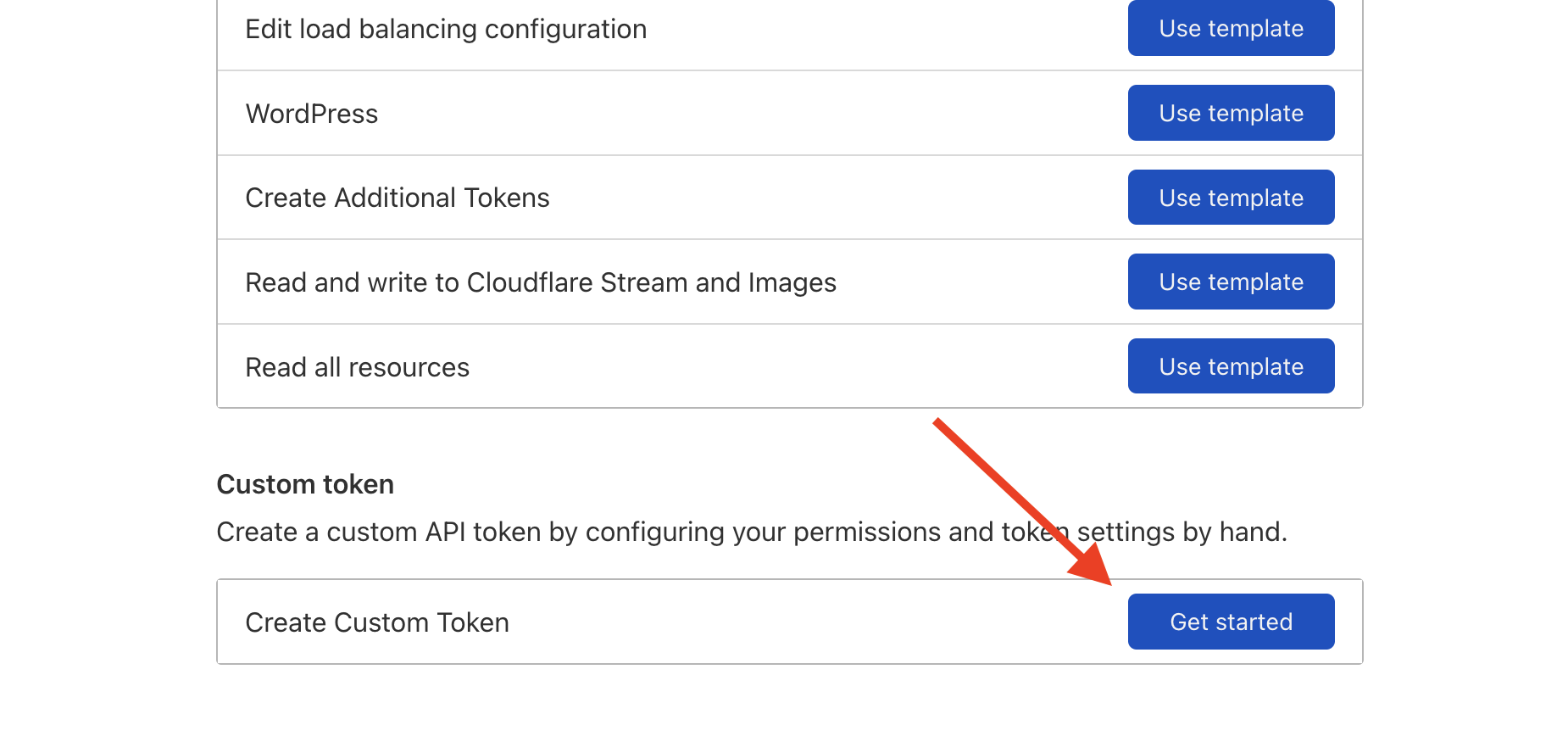
You'll need to create an API token here: https://dash.cloudflare.com/profile/api-tokens
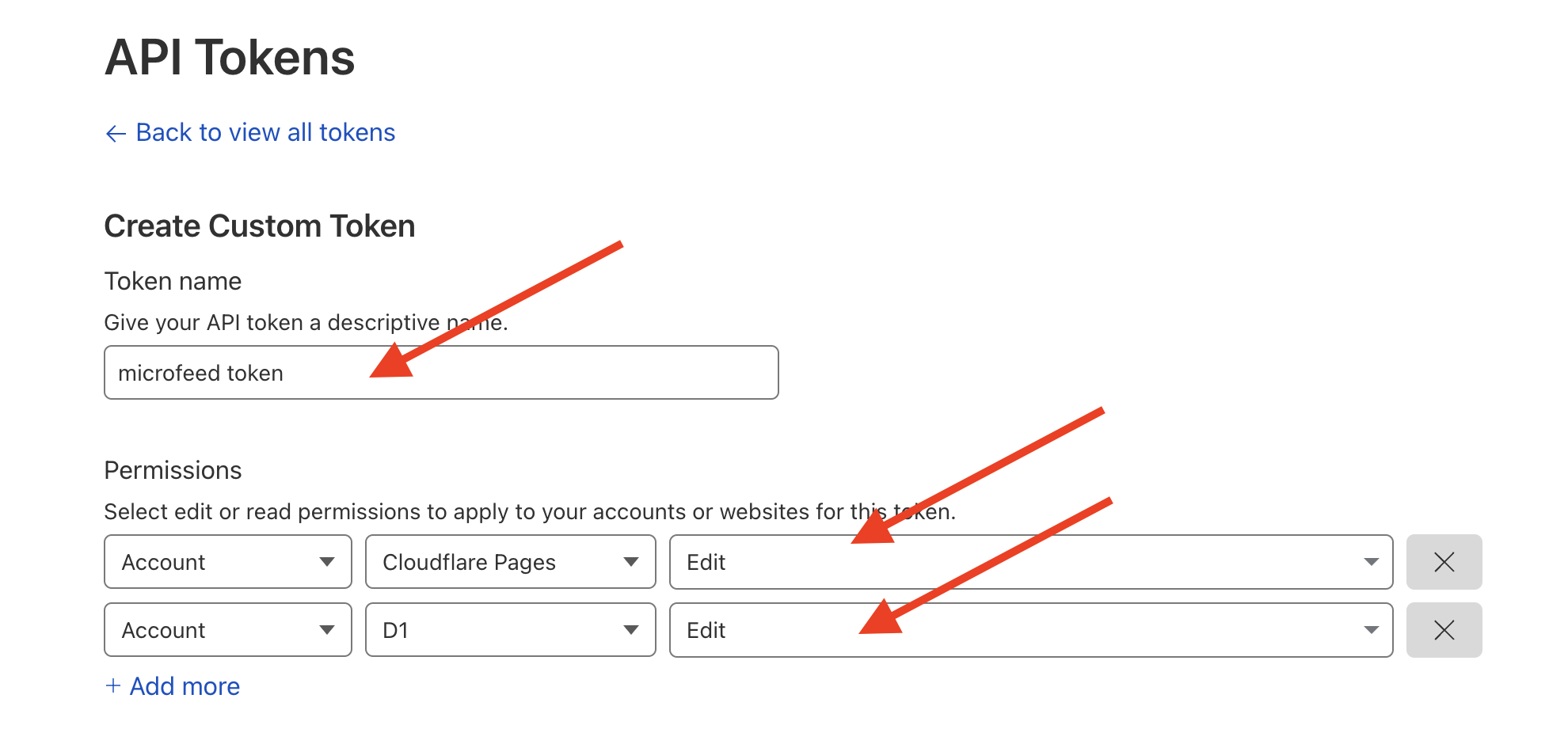
Create a custom token:
We need edit permission for both Cloudflare Pages and D1:
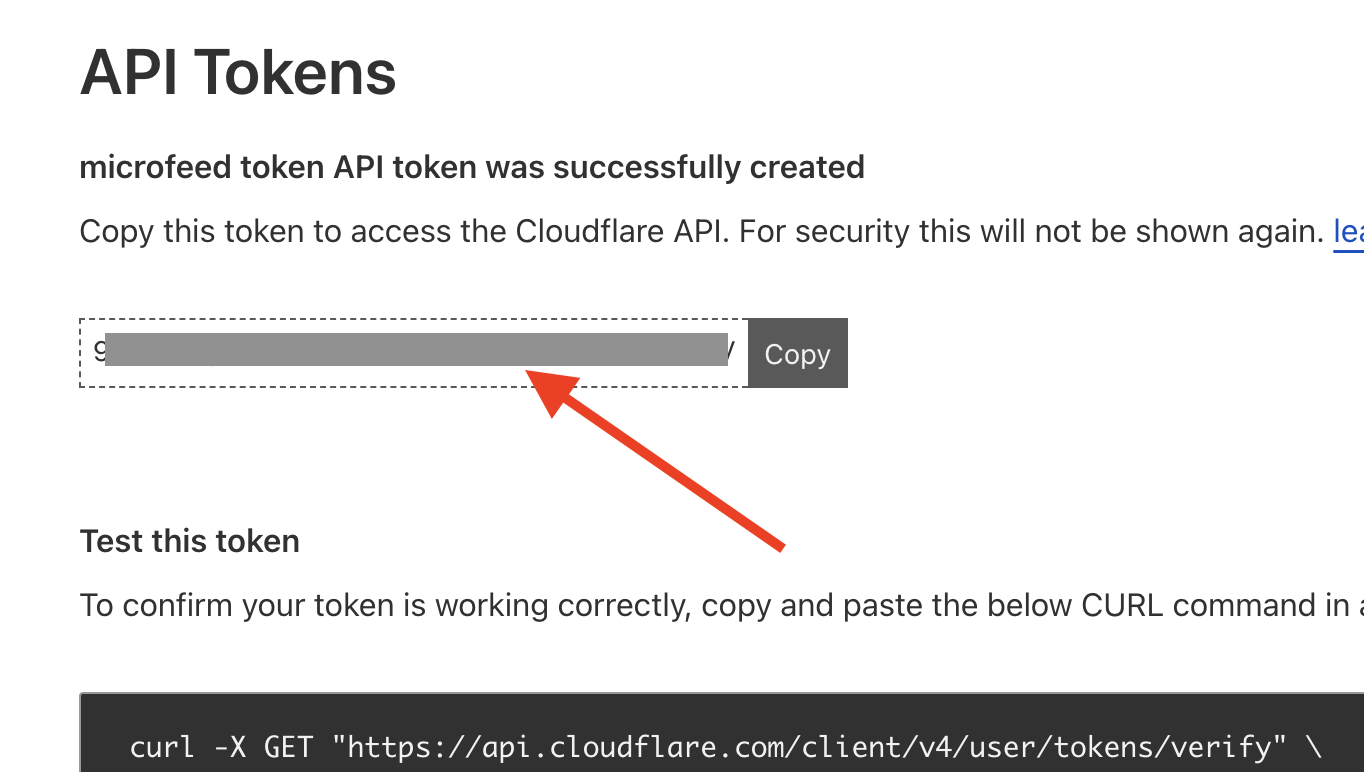
Finally, copy the API token here:
R2_ACCESS_KEY_ID and R2_SECRET_ACCESS_KEY
Go to your R2 dashboard page. You may need to put your credit card there first. You won't need to pay, unless your usage exceeds the very generous free quota limit (i.e., 10GB storage + 10 million reads/month + 1 million writes/month).
Create an R2 API token here:

Select "Admin Read & Write" permission and create an API token:
Copy Access Key ID for R2_ACCESS_KEY_ID, and Secret Access Key for R2_SECRET_ACCESS_KEY

CLOUDFLARE_PROJECT_NAME
A legit project name should have these characters: [a-z], [A-Z], [0-9], and -
We recommend using the custom domain name that you'll use for this project and replace dot (.) with dash (-)
For example, if you use photos.mycustomdomain.com, then the project name should be photos-mycustomdomain-com
Note: Don't use underscore (_), space ( ), and other characters outside [a-z], [A-Z], [0-9] and -. Or Cloudflare Pages won't let you create a project.
In total, you'll add 5 secrets for GitHub Actions:

Step 3. Run GitHub Action to deploy code
Go to Actions -> Deploy to Cloudflare Pages and run Workflow

If you see the green checkmark, then the deployment is successful. And you can see a Pages project in your Cloudflare dashboard:

You can access the site via ${CLOUDFLARE_PROJECT_NAME}.pages.dev, for example, https://microfeed-org.pages.dev/
Step 4. Make a few clicks on Cloudflare dashboard
To manage your microfeed instance, you'll use the admin dashboard at ${CLOUDFLARE_PROJECT_NAME}.pages.dev/admin, for example, https://microfeed-org.pages.dev/admin/ (the admin dashboard needs to be protected by Cloudflare Zero Trust).
Upon accessing the admin dashboard for the first time, you'll complete the setup process by following the checklist:

Step 5. Done. Start publishing
Once you've completed the setup process, your microfeed instance will be ready to use. You can add, update, or delete items from the admin dashboard.
You can also customize the appearance of the website at Settings / Custom code by editing the raw HTML and CSS:

The HTML code is using mustache.js as a templating language, where you can access to variables from Feed Json or Item Json. For example, on our marketing website microfeed.org's home page (Feed Web), we use variables in the html code from microfeed.org/json/, and on [an item's page](https://www.microfeed.org/i/introducing-microfeed-a-self-hosted-open-source-cms-on-cloudflare-open-alpha-uh
Core symbols most depended-on inside this repo
getShape
Languages
Modules by API surface
Dependencies from manifests, versioned
For agents
$ claude mcp add microfeed \
  -- python -m otcore.mcp_server <graph>