github.com/man-group/dtale @v3.22.0 sqlite
README







What is it?
D-Tale is the combination of a Flask back-end and a React front-end to bring you an easy way to view & analyze Pandas data structures. It integrates seamlessly with ipython notebooks & python/ipython terminals. Currently this tool supports such Pandas objects as DataFrame, Series, MultiIndex, DatetimeIndex & RangeIndex.
Origins
D-Tale was the product of a SAS to Python conversion. What was originally a perl script wrapper on top of SAS's insight function is now a lightweight web client on top of Pandas data structures.
In The News
- 4 Libraries that can perform EDA in one line of python code
- React Status
- KDNuggets
- Man Institute (warning: contains deprecated functionality)
- Python Bytes
- FlaskCon 2020
- San Diego Python
- Medium: towards data science
- Medium: Exploratory Data Analysis – Using D-Tale
- EOD Notes: Using python and dtale to analyze correlations
- Data Exploration is Now Super Easy w/ D-Tale
- Practical Business Python
Tutorials
- Pip Install Python YouTube Channel
- machine_learning_2019
- D-Tale The Best Library To Perform Exploratory Data Analysis Using Single Line Of Code🔥🔥🔥🔥
- Explore and Analyze Pandas Data Structures w/ D-Tale
- Data Preprocessing simplest method 🔥
## Related Resources
- Adventures In Flask While Developing D-Tale
- Adding Range Selection to react-virtualized
- Building Draggable/Resizable Modals
- Embedding Flask Apps within Streamlit
Contents
- Where To Get It
- Getting Started
- Python Terminal
- As A Script
- Jupyter Notebook
- Jupyterhub w/ Jupyter Server Proxy
- Jupyterhub w/ Kubernetes
- Docker Container
- Google Colab
- Kaggle
- Binder
- R with Reticulate
- Startup with No Data
- Command-line
- Custom Command-line Loaders
- Embedding Within Your Own Flask App
- Embedding Within Your Own Django App
- Embedding Within Streamlit
- Running D-Tale On Gunicorn w/ Redis
- Configuration
- Authentication
- Predefined Filters
- Using Swifter
- Behavior for Wide Dataframes
- UI
- Dimensions/Ribbon Menu/Main Menu
- Header
- Resize Columns
- Editing Cells
- Copy Cells Into Clipboard
- Main Menu Functions
- XArray Operations, Describe, Outlier Detection, Custom Filter, Dataframe Functions, Merge & Stack, Summarize Data, Duplicates, Missing Analysis, Correlations, Predictive Power Score, Heat Map, Highlight Dtypes, Highlight Missing, Highlight Outliers, Highlight Range, Low Variance Flag, Instances, Code Exports, Export CSV, Load Data & Sample Datasets, Refresh Widths, About, Theme, Reload Data, Unpin/Pin Menu, Language, Shutdown
- Column Menu Functions
- Charts
- Network Viewer
- Hotkeys
- Menu Functions Depending on Browser Dimensions
- For Developers
- Cloning
- Running Tests
- Linting
- Formatting JS
- Docker Development
- Adding Language Support
- Global State/Data Storage
- Startup Behavior
- Documentation
- Dependencies
- Acknowledgements
- License
Where To get It
The source code is currently hosted on GitHub at: https://github.com/man-group/dtale
Binary installers for the latest released version are available at the Python package index and on conda using conda-forge.
# conda
conda install dtale -c conda-forge
# if you want to also use "Export to PNG" for charts
conda install -c plotly python-kaleido
# or PyPI
pip install dtale
Getting Started
| PyCharm | jupyter |
|---|---|
 |
 |
Python Terminal
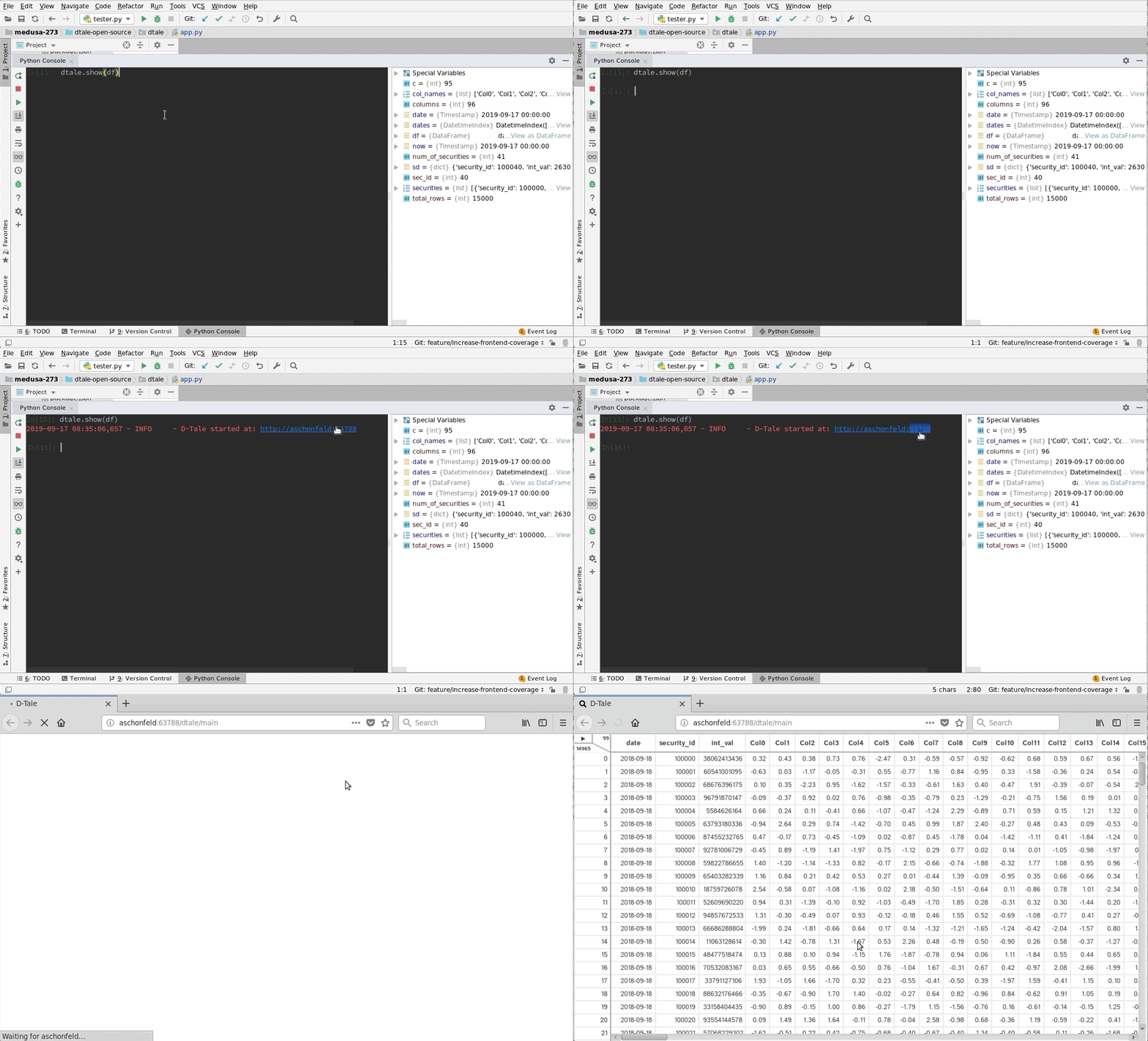
This comes courtesy of PyCharm
 Feel free to invoke
 python or ipython directly and use the commands in the screenshot above and it should work
Issues With Windows Firewall
If you run into issues with viewing D-Tale in your browser on Windows please try making Python public under "Allowed Apps" in your Firewall configuration. Here is a nice article: How to Allow Apps to Communicate Through the Windows Firewall
Additional functions available programmatically
import dtale
import pandas as pd

df = pd.DataFrame([dict(a=1,b=2,c=3)])

# Assigning a reference to a running D-Tale process.
d = dtale.show(df)

# Accessing data associated with D-Tale process.
tmp = d.data.copy()
tmp['d'] = 4

# Altering data associated with D-Tale process
# FYI: this will clear any front-end settings you have at the time for this process (filter, sorts, formatting)
d.data = tmp

# Get raw dataframe w/ any sorting or edits made through the UI
d.data

# Get raw dataframe similar to '.data' along with any filters applied using the UI
d.view_data

# Shutting down D-Tale process
d.kill()

# Using Python's `webbrowser` package it will try and open your server's default browser to this process.
d.open_browser()

# There is also some helpful metadata about the process.
d._data_id  # The process's data identifier.
d._url  # The url to access the process.

d2 = dtale.get_instance(d._data_id)  # Returns a new reference to the instance running at that data_id.

dtale.instances()  # Prints a list of all ids & urls of running D-Tale sessions.
Duplicate data check
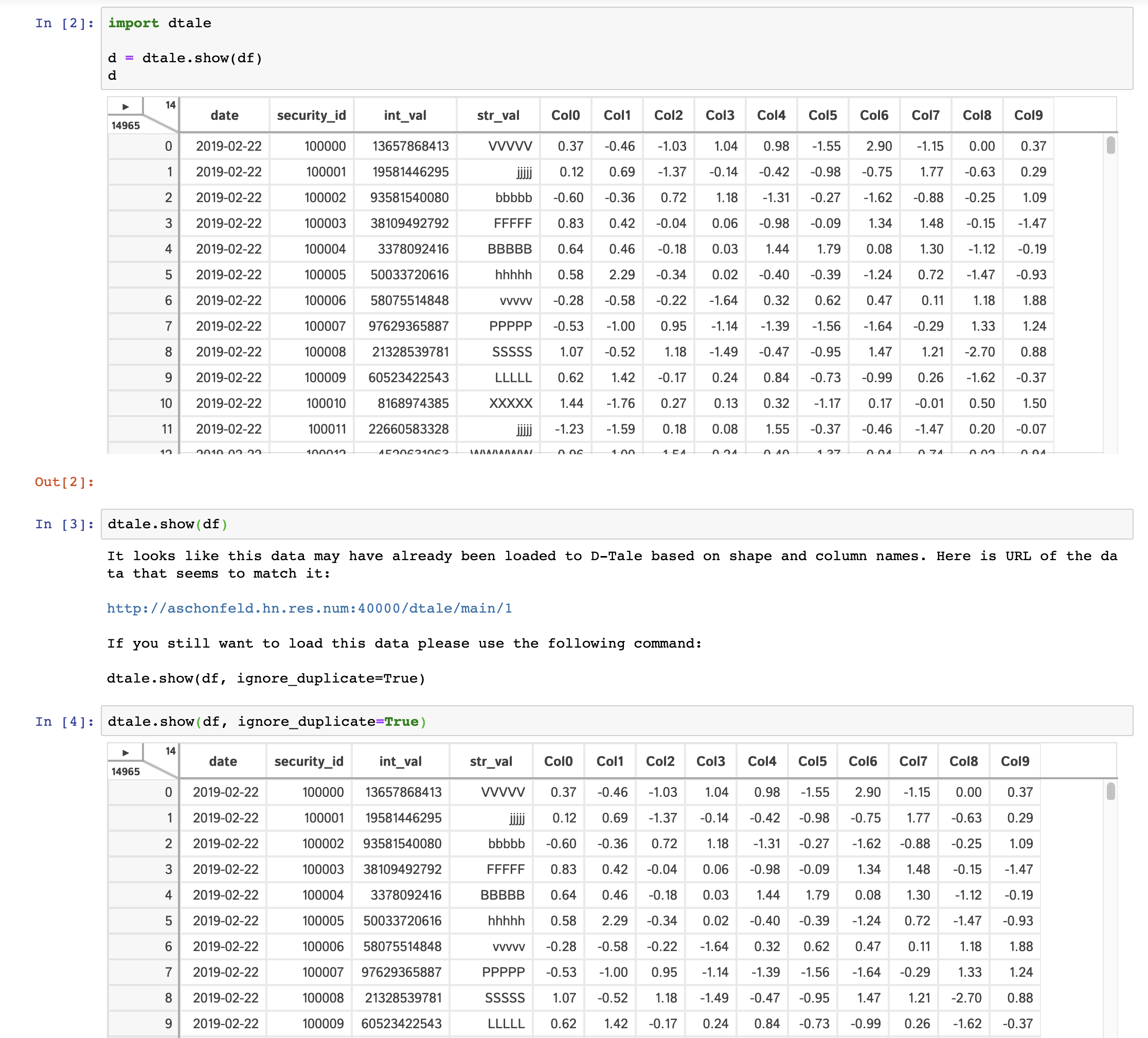
To help guard against users loading the same data to D-Tale multiple times and thus eating up precious memory, we have a loose check for duplicate input data. The check runs the following: * Are row & column count the same as a previously loaded piece of data? * Are the names and order of columns the same as a previously loaded piece of data?
If both these conditions are true then you will be presented with an error and a link to the previously loaded data. Here is an example of how the interaction looks:
As A Script
D-Tale can be run as script by adding subprocess=False to your dtale.show command. Here is an example script:
import dtale
import pandas as pd

if __name__ == '__main__':
      dtale.show(pd.DataFrame([1,2,3,4,5]), subprocess=False)
Jupyter Notebook
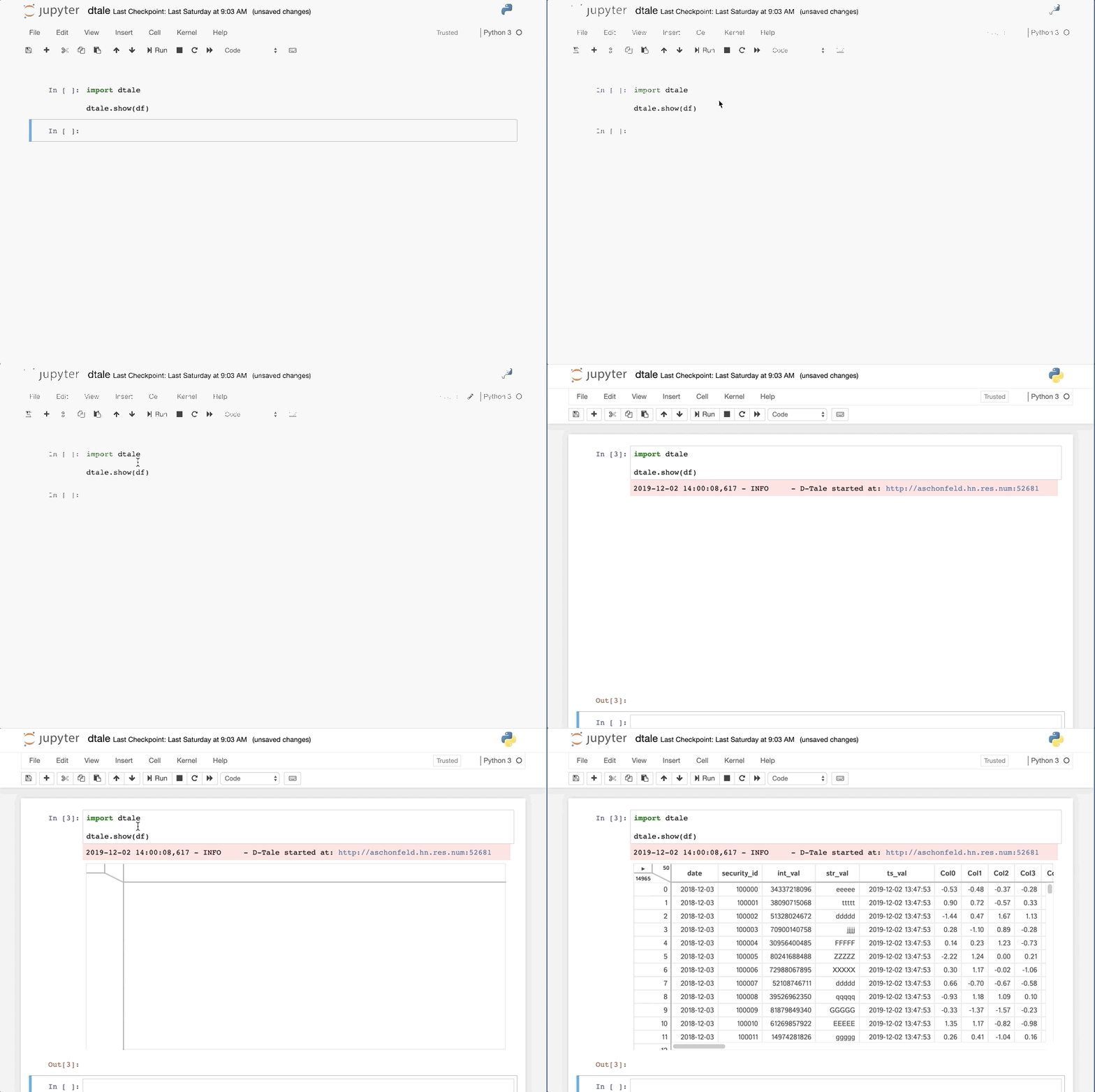
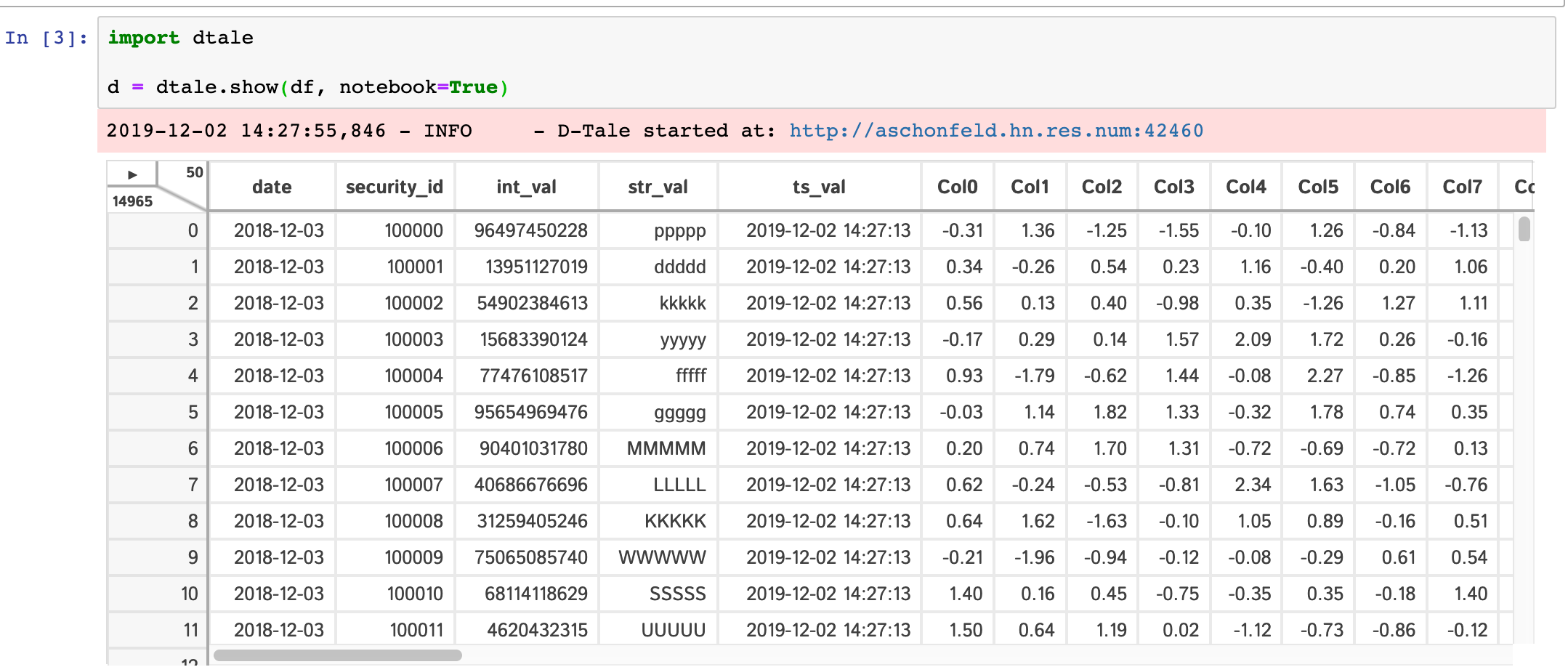
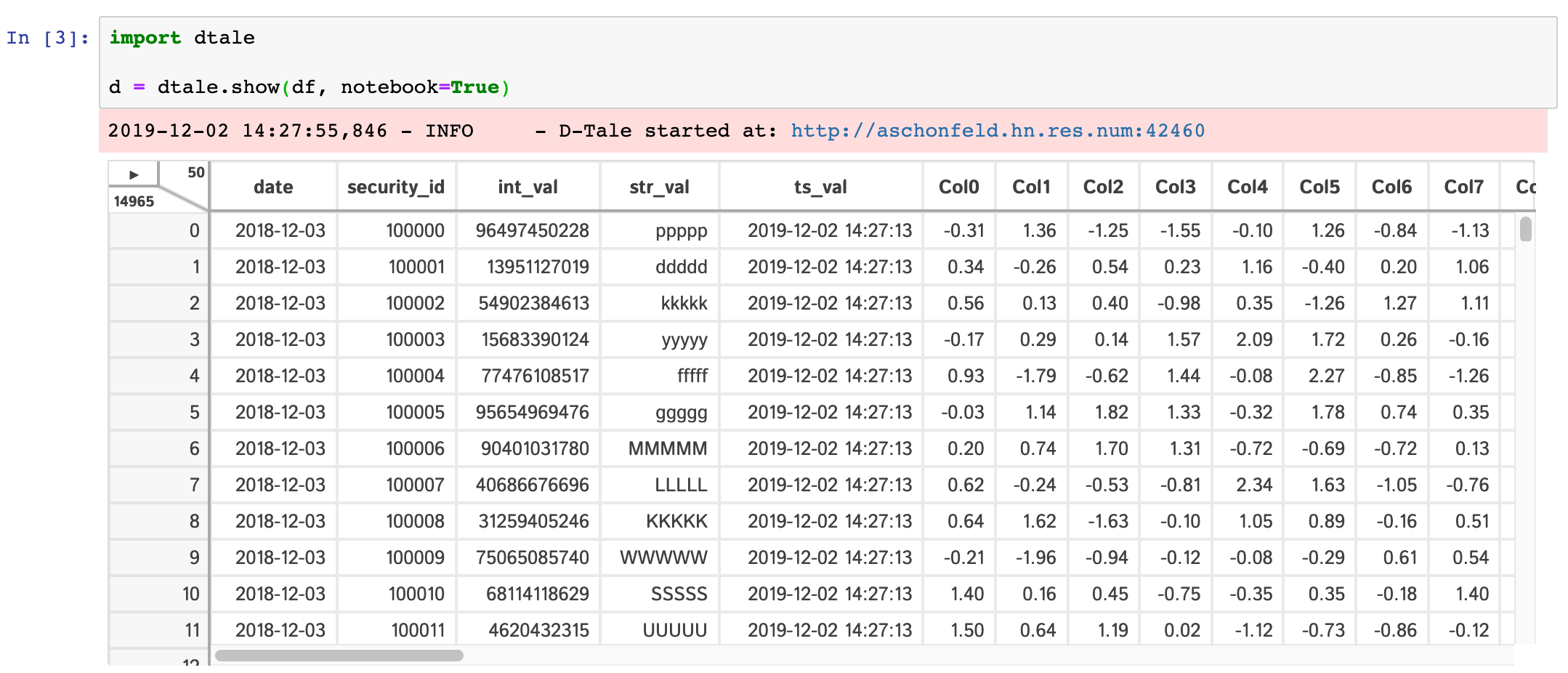
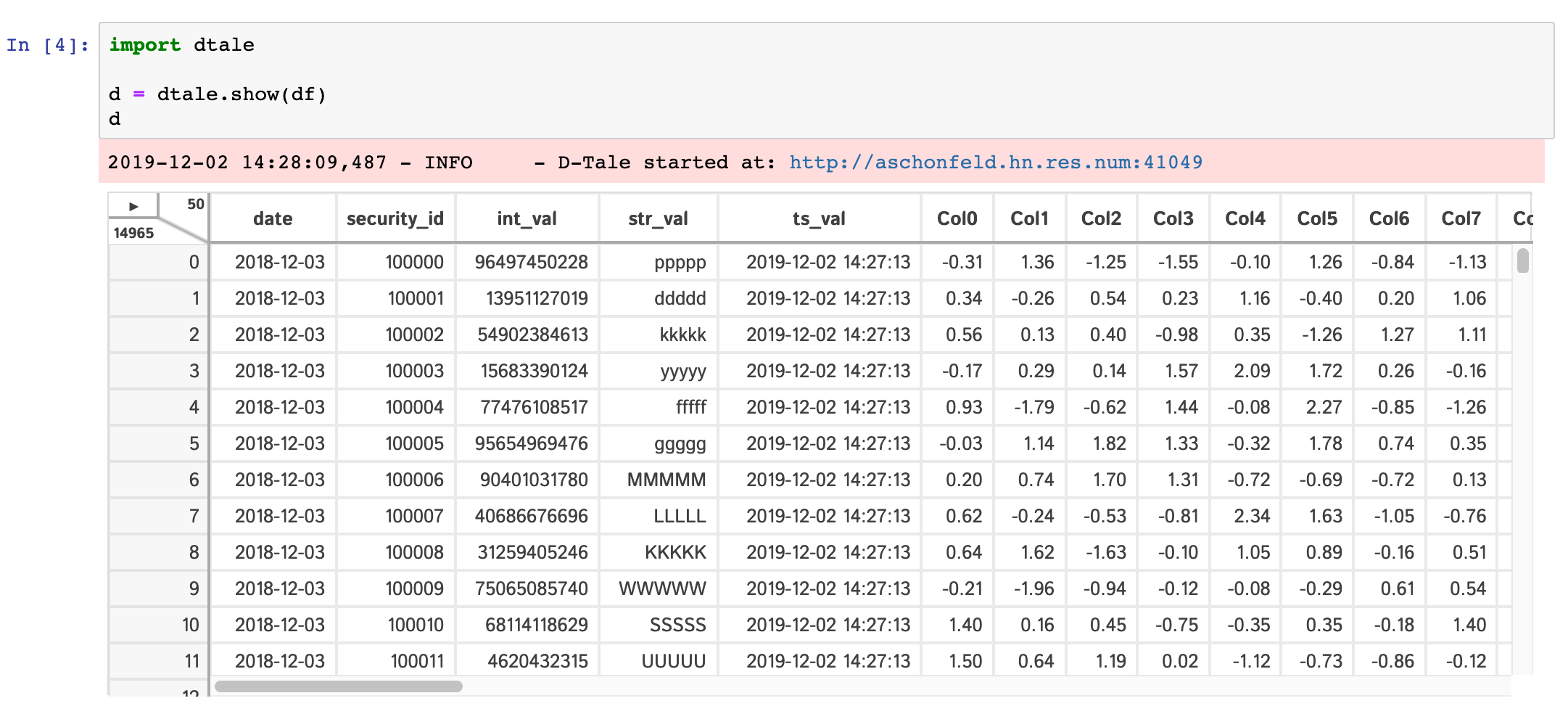
Within any jupyter (ipython) notebook executing a cell like this will display a small instance of D-Tale in the output cell. Here are some examples:
dtale.show |
assignment | instance |
|---|---|---|
 |
 |
 |
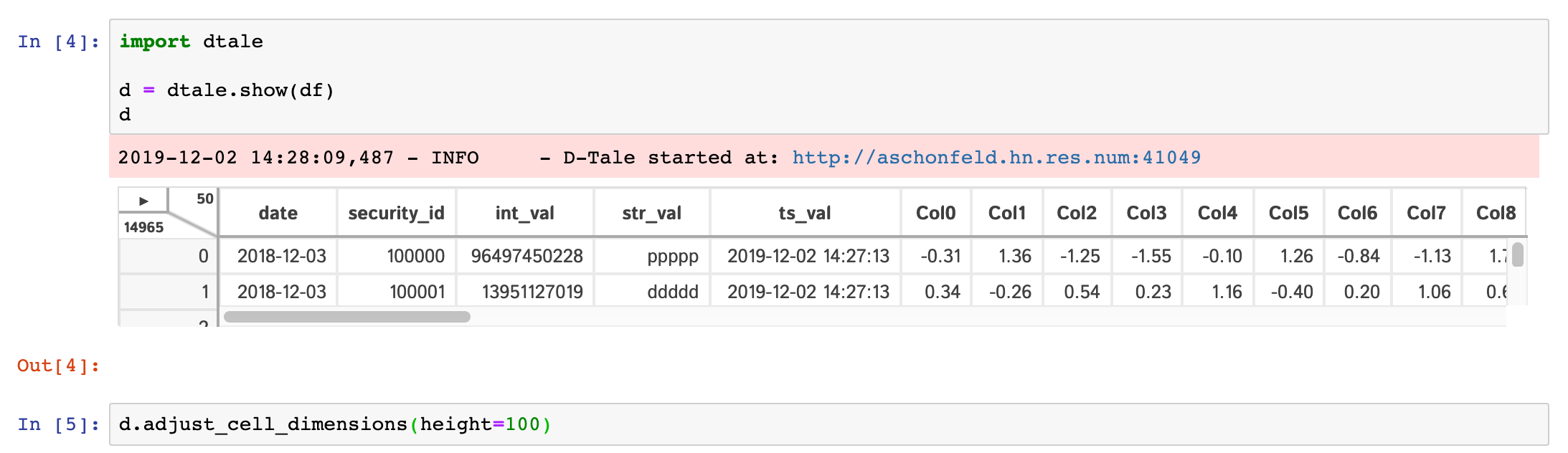
If you are running ipython<=5.0 then you also have the ability to adjust the size of your output cell for the most recent instance displayed:
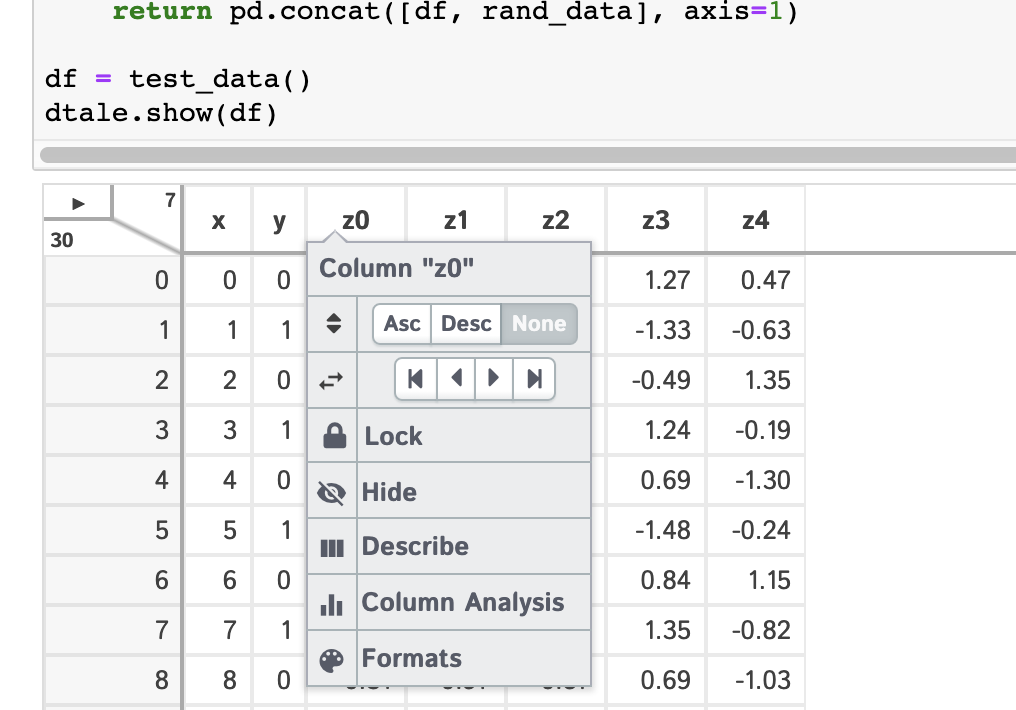
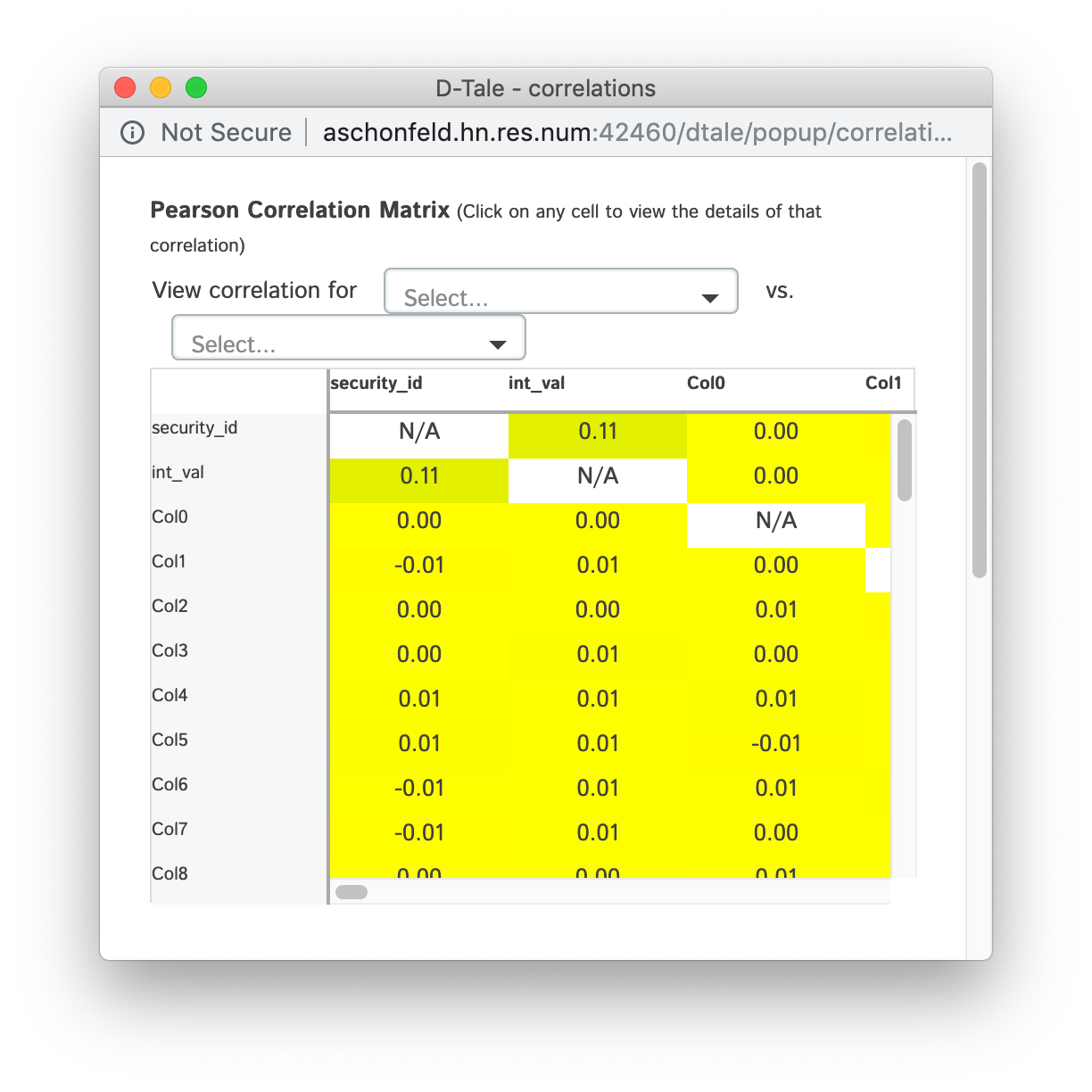
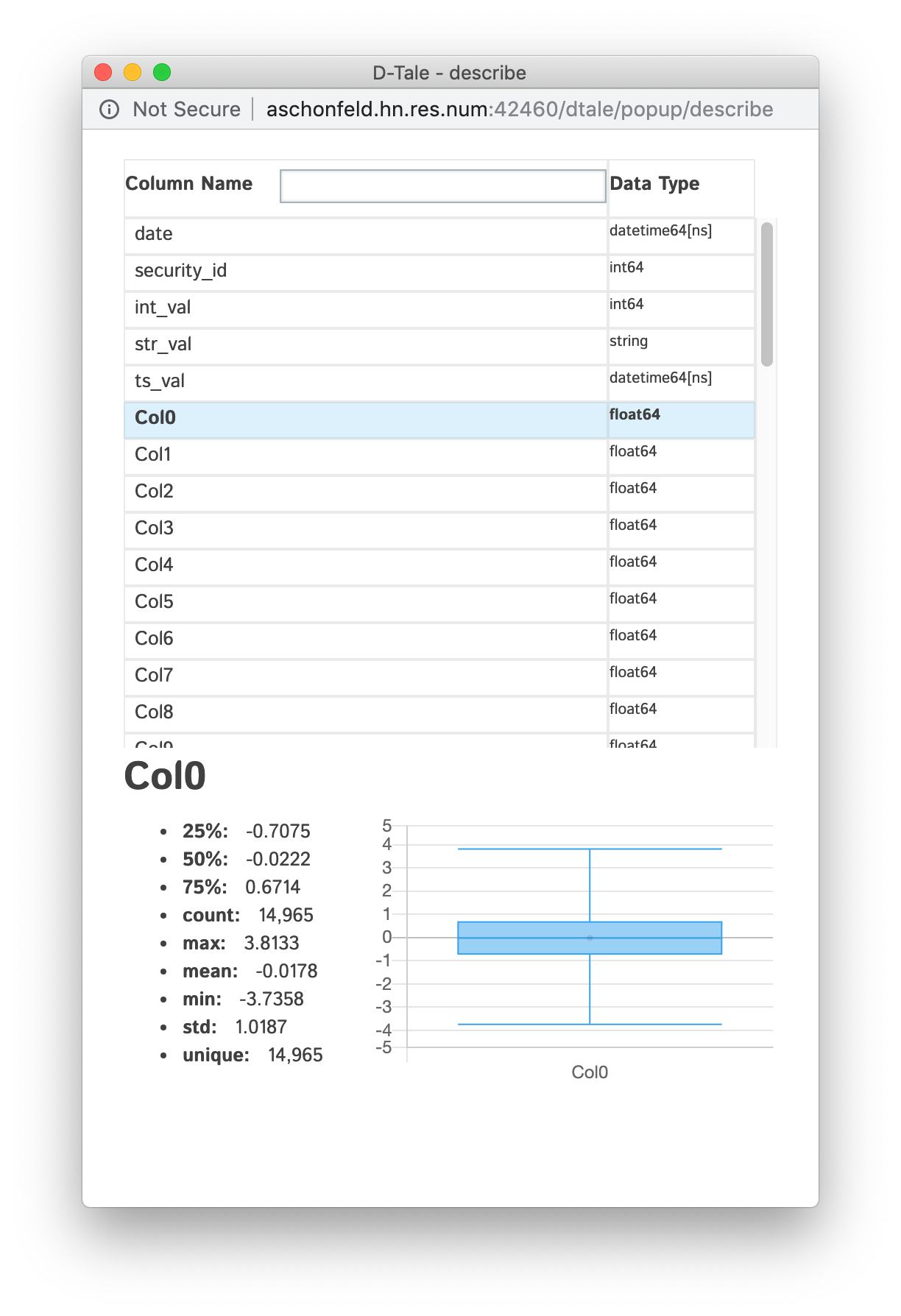
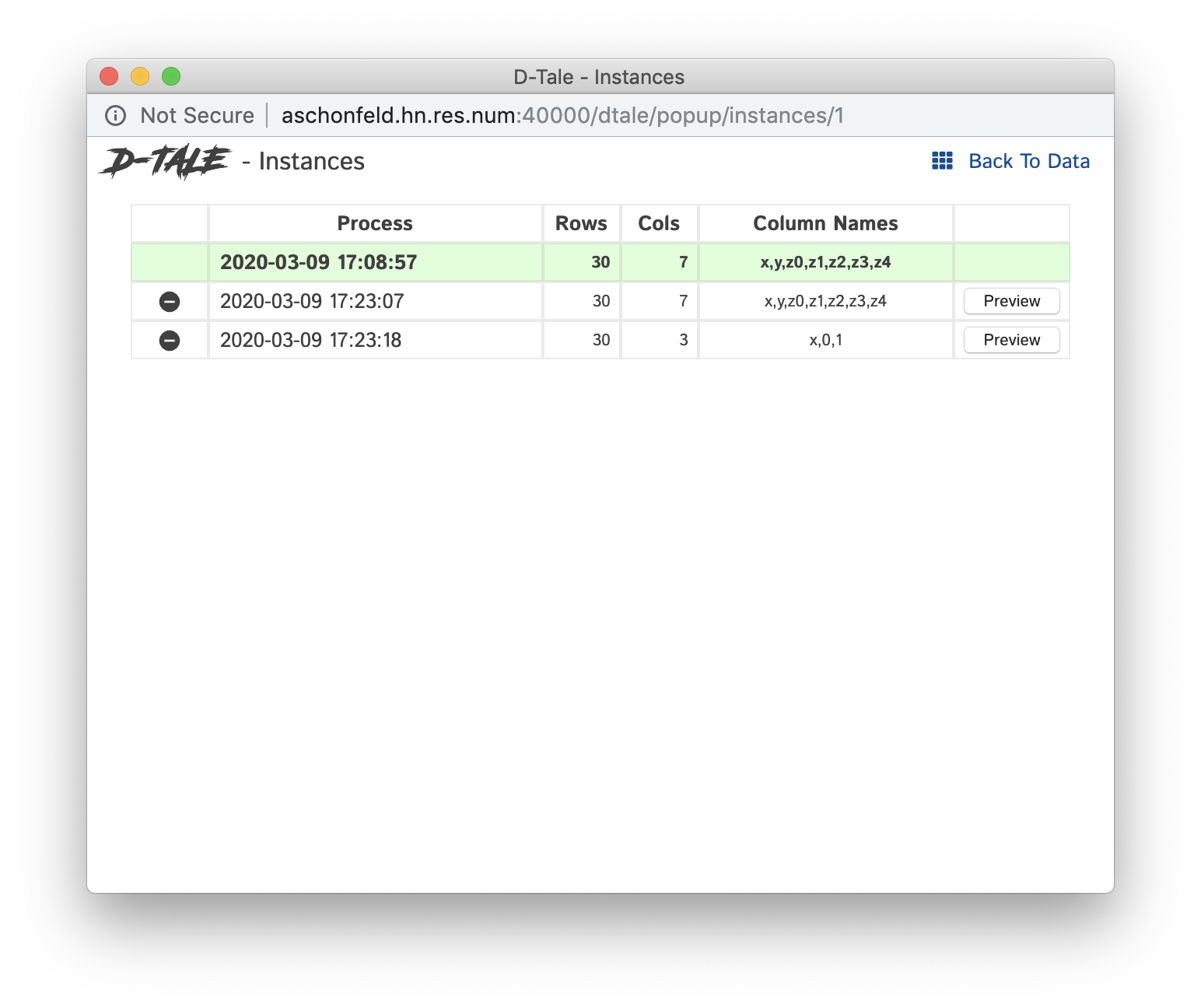
One thing of note is that a lot of the modal popups you see in the standard browser version will now open separate browser windows for spacial convienence:
| Column Menus | Correlations | Describe | Column Analysis | Instances |
|---|---|---|---|---|
 |
 |
 |
 |
 |
JupyterHub w/ Jupyter Server Proxy
JupyterHub has an extension that allows to proxy port for user, JupyterHub Server Proxy
To me it seems like this extension might be the best solution to getting D-Tale running within kubernetes. Here's how to use it:
import pandas as pd

import dtale
import dtale.app as dtale_app

dtale_app.JUPYTER_SERVER_PROXY = True

dtale.show(pd.DataFrame([1,2,3]))
Notice the command dtale_app.JUPYTER_SERVER_PROXY = True this will make sure that any D-Tale instance will be served with the jupyter server proxy application root prefix:
`/user/{jupyter username}/proxy/{dtale instance
Extension points exported contracts — how you extend this code
ButtonToggleProps (Interface)Core symbols most depended-on inside this repo
getShape
Languages
Modules by API surface
Dependencies from manifests, versioned
Datastores touched
For agents
$ claude mcp add dtale \
  -- python -m otcore.mcp_server <graph>