github.com/likaia/nginxpulse @v1.6.24 sqlite
README

English | 简体中文
NginxPulse
Lightweight Nginx access log analytics and visualization dashboard with realtime stats, PV filtering, IP geo lookup, and client parsing.
Source repository: https://github.com/likaia/nginxpulse
Documentation Site (Recommended)
Online docs: https://nginx-pulse-docs.kaisir.cn/
⚠️ Note: This document focuses on quick usage. For detailed docs and example configs, see the online documentation site.
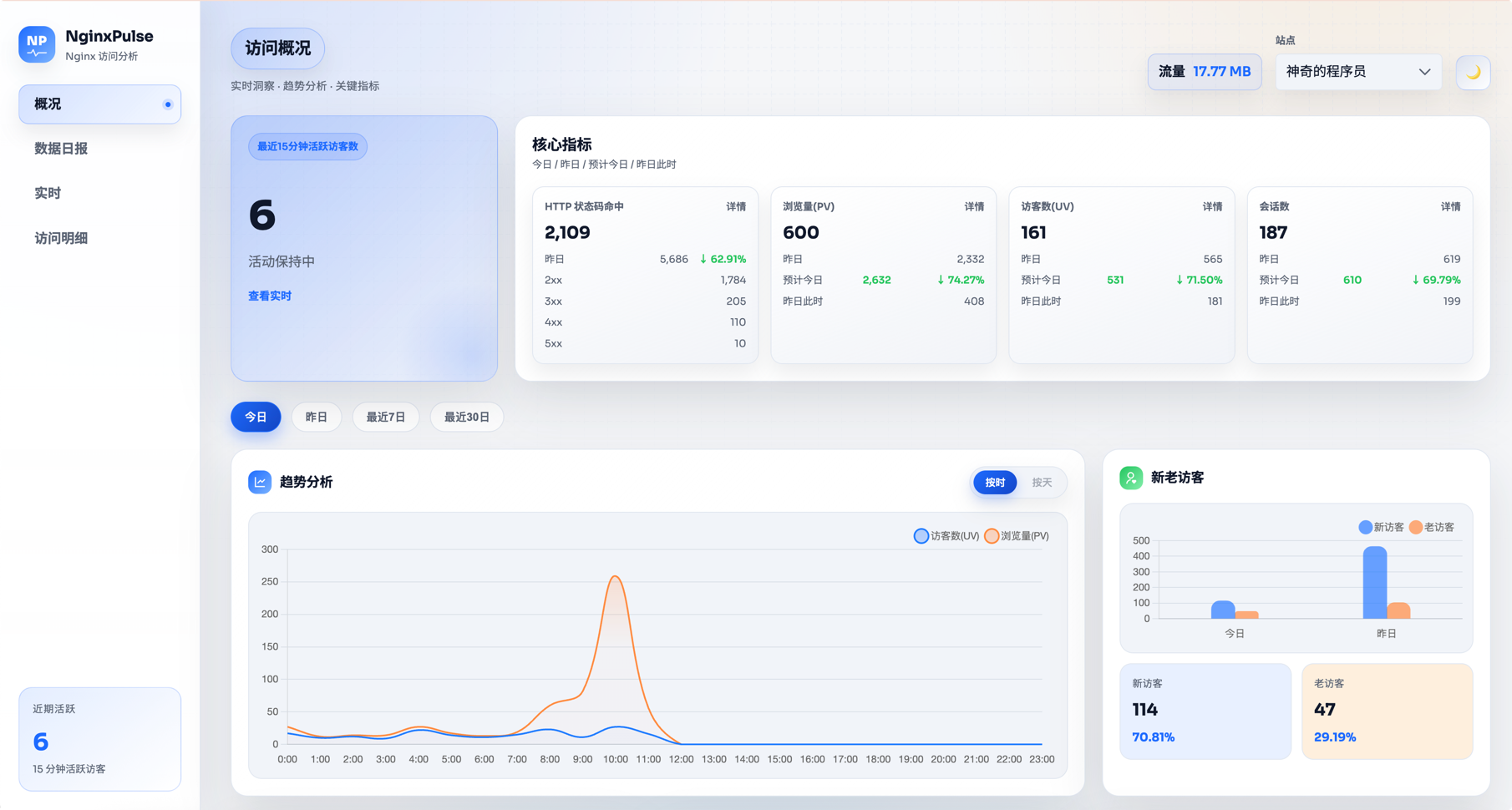
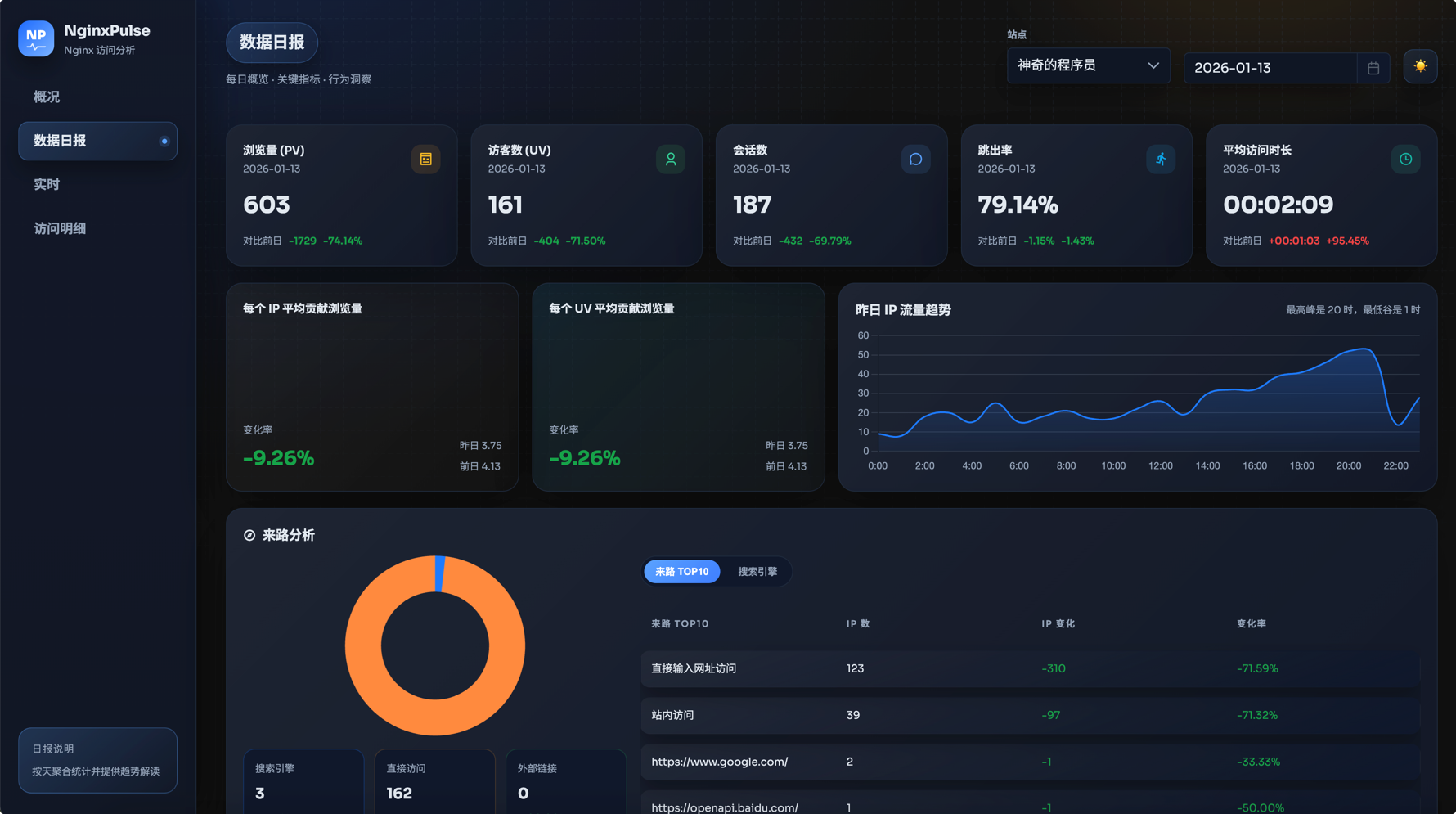
Table of Contents
- Tech Stack
- IP Geo Lookup Strategy
- How to Use
- 1) Docker
- 2) Docker Compose
- Time Zone (Important)
- 3) Manual Build (Frontend + Backend)
- 4) Single Binary Deployment (Single Process)
- 5) Makefile Commands
- Docker Deployment Permissions
- FAQ
- Directory Structure and Key Files
- Acknowledgements
- Final Notes
Tech Stack
Important (version > 1.5.3): SQLite is fully removed. Single-binary deployment requires your own PostgreSQL and a configured DB_DSN (or database.dsn).
- Backend: Go 1.24.x · Gin · Logrus
- Data: PostgreSQL (pgx)
- IP Geo: ip2region (local) + ip-api.com (remote batch)
- Frontend: Vue 3 · Vite · TypeScript · PrimeVue · ECharts/Chart.js · Scss
- Container: Docker / Docker Compose · Nginx (static frontend serving)
IP Geo Lookup Strategy
- Fast filter: empty/local/loopback addresses return "local"; private network addresses return "intranet/local network".
- Decoupled resolution: log parsing stores entries and marks geo as "pending"; a background task resolves and backfills later.
- Cache first: persistent cache + in-memory cache hits return directly (default limit: 1,000,000 rows).
- Local first (IPv4/IPv6): ip2region is queried first and used when the result is usable.
- Remote enrich: when local lookup returns "unknown" or fails, a remote API is called (default
ip-api.com/batch, configurable) in batches (timeout 1.2s, up to 100 IPs per batch). - Remote failure: return "unknown".
While geo backfill is unfinished, the UI shows "pending" and location stats may be incomplete.
The local databases
ip2region_v4.xdbandip2region_v6.xdbare embedded in the binary. On first startup they are extracted to./var/nginxpulse_data/, and vector indexes are loaded when possible.This project calls an external IP geo API (default
ip-api.com). Ensure outbound access to that domain is allowed. You can also run your own geo service (see the Wiki for details).
How to Use
1) Docker
Single image (frontend Nginx + backend service):
The image includes PostgreSQL and initializes the database on startup (when you do not provide your own database). You must mount the data directories:
/app/var/nginxpulse_dataand/app/var/pgdata. Without these mounts, the container exits with an error. If you plan to configure an external database in the setup wizard, you can skip mountingpgdatafor the first boot; restart the container after saving the config.
One-click start (minimal config, first launch opens the setup wizard):
docker run -d --name nginxpulse \
  -p 8088:8088 \
  -v ./docker_local/logs:/share/logs:ro \
  -v ./docker_local/nginxpulse_data:/app/var/nginxpulse_data \
  -v ./docker_local/pgdata:/app/var/pgdata \
  -v /etc/localtime:/etc/localtime:ro \
  magiccoders/nginxpulse:latest
Replace
docker_localwith a real host directory. Make sure permissions allow the container to read the logs, otherwise you may see empty results.If you prefer a config file, mount
configs/nginxpulse_config.jsonto/app/configs/nginxpulse_config.json. If no config file or environment variables are provided, the first launch opens the "initial setup wizard". After saving, it writes toconfigs/nginxpulse_config.json. Restart the container to apply changes (mount/app/configsfor persistence).
2) Docker Compose
Use the remote image (Docker Hub):
services:
  nginxpulse:
    image: magiccoders/nginxpulse:latest
    container_name: local_nginxpulse
    ports:
      - "8088:8088"
      - "8089:8089"
    volumes:
      - ./docker_local/logs:/share/logs
      - ./docker_local/nginxpulse_data:/app/var/nginxpulse_data
      - ./docker_local/pgdata:/app/var/pgdata
      - /etc/localtime:/etc/localtime
    stop_grace_period: 90s
    restart: unless-stopped
docker compose up -d
Keep
stop_grace_period(for example90s) so embedded PostgreSQL has enough time to shut down cleanly ondocker compose stop, reducing recovery/restart loops on next boot.
Time Zone (Important)
This project uses the system time zone for log parsing and statistics. Make sure the runtime time zone is correct.
Docker / Docker Compose
- Recommended: mount host time zone: -v /etc/localtime:/etc/localtime:ro (Linux)
- If the host provides /etc/timezone, you can also mount it: -v /etc/timezone:/etc/timezone:ro
- If you only want to set a time zone, use TZ=Asia/Shanghai, but ensure the container has time zone data (for example, install tzdata or mount /usr/share/zoneinfo)
Single Binary (Single Process)
- Uses the current system time zone by default
- Temporary override: TZ=Asia/Shanghai ./nginxpulse
Mobile Access (/m)
- Entry:
http://<host>:8088/m - Mobile supports Overview / Daily / Realtime / Logs only
- Initial setup must be completed on desktop; mobile will prompt to open on a computer
3) Manual Build (Frontend + Backend)
Frontend build:
cd webapp
pnpm install
pnpm run build
Mobile build (/m):
cd webapp_mobile
pnpm install
pnpm run build
Backend build:
go mod download
go build -o bin/nginxpulse ./cmd/nginxpulse/main.go
Local development (frontend + backend together):
./scripts/dev_local.sh
The frontend dev server defaults to port 8088 and proxies
/apitohttp://127.0.0.1:8089. Before local development, prepare log files undervar/log/(or ensureconfigs/nginxpulse_config.jsonsetslogPathcorrectly).
4) Single Binary Deployment (Single Process)
Important (version > 1.5.3): SQLite is fully removed. Single-binary deployment requires your own PostgreSQL and a configured DB_DSN (or fill in database.dsn in configs/nginxpulse_config.json).
Download the binary for your platform from the repository releases and run it.
The single executable bundles the frontend static assets and serves both frontend and backend:
- Frontend: http://localhost:8088
- Backend: http://localhost:8088/api/...
Single Binary Configuration
There are two ways to provide config at runtime (choose one):
Option A: Config file (default)
1. Create configs/ in the run directory
2. Put configs/nginxpulse_config.json
3. Start: ./nginxpulse
Option B: Environment injection (no file required)
CONFIG_JSON="$(cat /path/to/nginxpulse_config.json)" ./nginxpulse
Notes:
- The config path is relative: ./configs/nginxpulse_config.json. Ensure the working directory is correct.
- If you use systemd, set WorkingDirectory, or prefer CONFIG_JSON injection.
- The data directory ./var/nginxpulse_data is also relative; if it cannot be found, check the process working directory first.
5) Makefile Commands
This project also supports building via Makefile:
make frontend   # Build frontend (webapp/dist + webapp_mobile/dist)
make frontend-mobile # Build only mobile webapp_mobile/dist
make backend    # Build backend bin/nginxpulse (without embedded frontend)
make single     # Build single package (embedded frontend + copy configs and gzip examples)
make dev        # Start local development (frontend 8088, backend 8089)
make clean      # Clean build artifacts
Specify a version example:
VERSION=v0.4.8 make single
VERSION=v0.4.8 make backend
Notes:
- make single builds linux/amd64 and linux/arm64 by default. Outputs are in bin/linux_amd64/ and bin/linux_arm64/.
- For single-platform builds, the output is bin/nginxpulse, the config is bin/configs/nginxpulse_config.json (default port :8088), and gzip examples are in bin/var/log/gz-log-read-test/.
Docker Deployment Permissions
The image runs as a non-root user (nginxpulse) by default. Whether the app can read logs or write data depends on host directory permissions. If you can cat files via docker exec, you are likely root; it does not mean the app user can access them.
Recommended approach: align container UID/GID with host directory ownership.
Step 1: Check host directory UID/GID
ls -n /path/to/logs /path/to/nginxpulse_data /path/to/pgdata
# or
stat -c '%u %g %n' /path/to/logs /path/to/nginxpulse_data /path/to/pgdata
Step 2: Pass PUID/PGID when starting the container
docker run ... \
  -e PUID=1000 \
  -e PGID=1000 \
  -v /path/to/logs:/var/log/nginx:ro \
  -v /path/to/nginxpulse_data:/app/var/nginxpulse_data:rw \
  -v /path/to/pgdata:/app/var/pgdata:rw \
  ...
Step 3: Ensure directories are readable/writable for that UID/GID
chown -R 1000:1000 /path/to/nginxpulse_data /path/to/pgdata
chmod -R u+rx /path/to/logs
If you use an external database (DB_DSN), you can skip mounting pgdata. PostgreSQL 16 is recommended for external deployments.
If the external database is configured via the setup wizard, you can also skip pgdata and restart the container after saving the config.
SELinux note (RHEL/CentOS/Fedora):
- These systems enable SELinux by default. Docker volumes may be visible but still inaccessible due to labels.
- Add :z or :Z to re-label the mount:
- :Z for exclusive use by this container.
- :z to share across multiple containers.
docker run ... \
  -v /path/to/logs:/var/log/nginx:ro,Z \
  -v /path/to/nginxpulse_data:/app/var/nginxpulse_data:rw,Z \
  -v /path/to/pgdata:/app/var/pgdata:rw,Z \
  ...
Not recommended: chmod -R 777. It is unsafe; only use it for temporary debugging.
FAQ
1) Log details are empty
Usually the container does not have permission to access host log files. See the "Docker Deployment Permissions" section and follow the steps.
2) Logs exist but PV/UV stats are missing
By default, private network IPs are excluded. If you want to count intranet traffic, set PV_EXCLUDE_IPS to an empty array and restart:
PV_EXCLUDE_IPS='[]'
After restarting, click the "Re-parse" button on the "Log Details" page.
3) Log times are incorrect
This is usually caused by an unsynchronized time zone. Confirm the Docker/system time zone is correct, follow the "Time Zone (Important)" section, and re-parse the logs.
4) Cannot start
If you see errors like below (older versions may hit this), confirm nginxpulse_data is writable or set TMPDIR to a writable path:
nginxpulse: initializing postgres data dir at /app/var/pgdata
/app/entrypoint.sh: line 91: can't create /tmp/tmp.KOdAPn: Permission denied
Fix (choose one):
-e TMPDIR=/app/var/nginxpulse_data/tmp
Directory Structure and Key Files
.
├── cmd/
│   └── nginxpulse/
│       └── main.go                 # Program entry
├── internal/                       # Core logic (parsing, analytics, storage, API)
│   ├── app/
│   │   └── app.go                  # Initialization, dependency wiring, task scheduling
│   ├── analytics/                  # Metrics definitions and aggregation
│   ├── enrich/
│   │   ├── ip_geo.go               # IP geo (remote + local) and caching
│   │   └── pv_filter.go            # PV filtering rules
│   ├── ingest/
│   │   └── log_parser.go           # Log scanning, parsing, and ingestion
│   ├── server/
│   │   └── http.go                 # HTTP server and middleware
│   ├── store/
│   │   └── repository.go           # PostgreSQL schema and writes
│   ├── version/
│   │   └── info.go                 # Version info injection
│   ├── webui/
│   │   └── dist/                   # Embedded frontend assets for single binary
│   └── web/
│       └── handler.go              # API routes
├── webapp/
│   └── src/
│       └── main.ts                 # Frontend entry
├── webapp_mobile/                  # Mobile frontend (/m)
│   └── src/
│       └── main.ts                 # Mobile entry
├── configs/
│   ├── nginxpulse_config.json      # Main config entry
│   ├── nginxpulse_config.dev.json  # Local dev config
│   └── nginx_frontend.conf         # Built-in Nginx config
├── docs/
│   └── versioning.md               # Versioning and release notes
├── scripts/
│   ├── build_single.sh             # Single binary build script
│   ├── dev_local.sh                # Local one-click start
│   └── publish_docker.sh           # Publish Docker images
├── var/                            # Data directory (generated/mounted at runtime)
│   └── log/
│       └── gz-log-read-test/       # Gzip sample logs
├── Dockerfile
└── docker-compose.yml
For more details on analytics definitions or API extension points, start with internal/analytics/ and internal/web/handler.go.
Acknowledgements
Thank you very much for your [coin investment](https://resource.kaisir.cn/uploads/MarkDownImg/2026
Extension points exported contracts — how you extend this code
StatsResult (Interface)Core symbols most depended-on inside this repo
ExecShape
Languages
Modules by API surface
Dependencies from manifests, versioned
Datastores touched
For agents
$ claude mcp add nginxpulse \
  -- python -m otcore.mcp_server <graph>