github.com/jdorn/json-editor @v0.7.28 sqlite
README
JSON Editor
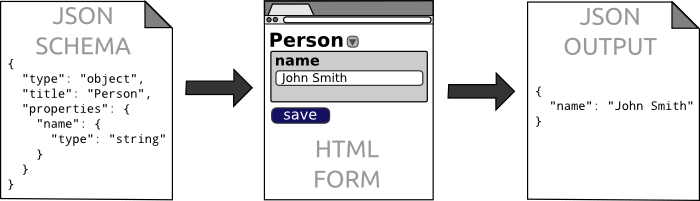
JSON Editor takes a JSON Schema and uses it to generate an HTML form.
It has full support for JSON Schema version 3 and 4 and can integrate with several popular CSS frameworks (bootstrap, foundation, and jQueryUI).
Check out an interactive demo (demo.html): http://jeremydorn.com/json-editor/
Download the production version (22K when gzipped) or the development version.
Requirements
JSON Editor has no dependencies. It only needs a modern browser (tested in Chrome and Firefox).
Optional Requirements
The following are not required, but can improve the style and usability of JSON Editor when present.
- A compatible JS template engine (Mustache, Underscore, Hogan, Handlebars, Swig, Markup, or EJS)
- A compatible CSS framework for styling (bootstrap 2/3, foundation 3/4/5, or jqueryui)
- A compatible icon library (bootstrap 2/3 glyphicons, foundation icons 2/3, jqueryui, or font awesome 3/4)
- SCEditor for WYSIWYG editing of HTML or BBCode content
- EpicEditor for editing of Markdown content
- Ace Editor for editing code
- Select2 for nicer Select boxes
- Selectize for nicer Select & Array boxes
- math.js for more accurate floating point math (multipleOf, divisibleBy, etc.)
Usage
If you learn best by example, check these out:
- Basic Usage Example - http://rawgithub.com/jdorn/json-editor/master/examples/basic.html
- Advanced Usage Example - http://rawgithub.com/jdorn/json-editor/master/examples/advanced.html
- CSS Integration Example - http://rawgithub.com/jdorn/json-editor/master/examples/css_integration.html
The rest of this README contains detailed documentation about every aspect of JSON Editor. For more under-the-hood documentation, check the wiki.
Initialize
var element = document.getElementById('editor_holder');

var editor = new JSONEditor(element, options);
Options
Options can be set globally or on a per-instance basis during instantiation.
// Set an option globally
JSONEditor.defaults.options.theme = 'bootstrap2';

// Set an option during instantiation
var editor = new JSONEditor(element, {
  //...
  theme: 'bootstrap2'
});
Here are all the available options:
| Option | Description | Default Value |
|---|---|---|
| ajax | If true, JSON Editor will load external URLs in $ref via ajax. |
false |
| disable_array_add | If true, remove all "add row" buttons from arrays. |
false |
| disable_array_delete | If true, remove all "delete row" buttons from arrays. |
false |
| disable_array_reorder | If true, remove all "move up" and "move down" buttons from arrays. |
false |
| disable_collapse | If true, remove all collapse buttons from objects and arrays. |
false |
| disable_edit_json | If true, remove all Edit JSON buttons from objects. |
false |
| disable_properties | If true, remove all Edit Properties buttons from objects. |
false |
| form_name_root | The first part of the `name` attribute of form inputs in the editor. An full example name is `root[person][name]` where "root" is the form_name_root. | root |
| iconlib | The icon library to use for the editor. See the CSS Integration section below for more info. | null |
| no_additional_properties | If true, objects can only contain properties defined with the properties keyword. |
false |
| refs | An object containing schema definitions for URLs. Allows you to pre-define external schemas. | {} |
| required_by_default | If true, all schemas that don't explicitly set the required property will be required. |
false |
| keep_oneof_values | If true, makes oneOf copy properties over when switching. |
true |
| schema | A valid JSON Schema to use for the editor. Version 3 and Version 4 of the draft specification are supported. | {} |
| show_errors | When to show validation errors in the UI. Valid values are interaction, change, always, and never. |
"interaction" |
| startval | Seed the editor with an initial value. This should be valid against the editor's schema. | null |
| template | The JS template engine to use. See the Templates and Variables section below for more info. | default |
| theme | The CSS theme to use. See the CSS Integration section below for more info. | html |
| display_required_only | If true, only required properties will be included by default. |
false |
*Note If the ajax property is true and JSON Editor needs to fetch an external url, the api methods won't be available immediately.
Listen for the ready event before calling them.
editor.on('ready',function() {
  // Now the api methods will be available
  editor.validate();
});
Get/Set Value
editor.setValue({name: "John Smith"});

var value = editor.getValue();
console.log(value.name) // Will log "John Smith"
Instead of getting/setting the value of the entire editor, you can also work on individual parts of the schema:
// Get a reference to a node within the editor
var name = editor.getEditor('root.name');

// `getEditor` will return null if the path is invalid
if(name) {
  name.setValue("John Smith");

  console.log(name.getValue());
}
Validate
When feasible, JSON Editor won't let users enter invalid data. This is done by using input masks and intelligently enabling/disabling controls.
However, in some cases it is still possible to enter data that doesn't validate against the schema.
You can use the validate method to check if the data is valid or not.
// Validate the editor's current value against the schema
var errors = editor.validate();

if(errors.length) {
  // errors is an array of objects, each with a `path`, `property`, and `message` parameter
  // `property` is the schema keyword that triggered the validation error (e.g. "minLength")
  // `path` is a dot separated path into the JSON object (e.g. "root.path.to.field")
  console.log(errors);
}
else {
  // It's valid!
}
By default, this will do the validation with the editor's current value. If you want to use a different value, you can pass it in as a parameter.
// Validate an arbitrary value against the editor's schema
var errors = editor.validate({
  value: {
    to: "test"
  }
});
Listen for Changes
The change event is fired whenever the editor's value changes.
editor.on('change',function() {
  // Do something
});

editor.off('change',function_reference);
You can also watch a specific field for changes:
editor.watch('path.to.field',function() {
  // Do something
});

editor.unwatch('path.to.field',function_reference);
Enable and Disable the Editor
This lets you disable editing for the entire form or part of the form.
// Disable entire form
editor.disable();

// Disable part of the form
editor.getEditor('root.location').disable();

// Enable entire form
editor.enable();

// Enable part of the form
editor.getEditor('root.location').enable();

// Check if form is currently enabled
if(editor.isEnabled()) alert("It's editable!");
Destroy
This removes the editor HTML from the DOM and frees up resources.
editor.destroy();
CSS Integration
JSON Editor can integrate with several popular CSS frameworks out of the box.
The currently supported themes are:
- barebones
- html (the default)
- bootstrap2
- bootstrap3
- foundation3
- foundation4
- foundation5
- foundation6
- jqueryui
The default theme is html, which does not rely on an external framework.
This default can be changed by setting the JSONEditor.defaults.options.theme variable.
If you want to specify your own styles with CSS, you can use barebones, which includes almost no classes or inline styles.
JSONEditor.defaults.options.theme = 'foundation5';
You can override this default on a per-instance basis by passing a theme parameter in when initializing:
var editor = new JSONEditor(element,{
  schema: schema,
  theme: 'jqueryui'
});
Icon Libraries
JSON Editor also supports several popular icon libraries. The icon library must be set independently of the theme, even though there is some overlap.
The supported icon libs are:
- bootstrap2 (glyphicons)
- bootstrap3 (glyphicons)
- foundation2
- foundation3
- jqueryui
- fontawesome3
- fontawesome4
By default, no icons are used. Just like the CSS theme, you can set the icon lib globally or when initializing:
// Set the global default
JSONEditor.defaults.options.iconlib = "bootstrap2";

// Set the icon lib during initialization
var editor = new JSONEditor(element,{
  schema: schema,
  iconlib: "fontawesome4"
});
It's possible to create your own custom themes and/or icon libs as well. Look at any of the existing classes for examples.
JSON Schema Support
JSON Editor fully supports version 3 and 4 of the JSON Schema core and validation specifications.
Some of The hyper-schema specification is supported as well.
$ref and definitions
JSON Editor supports schema references to external URLs and local definitions. Here's an example showing both:
{
  "type": "object",
  "properties": {
    "name": {
      "title": "Full Name",
      "$ref": "#/definitions/name"
    },
    "location": {
      "$ref": "http://mydomain.com/geo.json"
    }
  },
  "definitions": {
    "name": {
      "type": "string",
      "minLength": 5
    }
  }
}
Local references must point to the definitions object of the root node of the schema.
So, #/customkey/name will throw an exception.
If loading an external url via Ajax, the url must either be on the same domain or return the correct HTTP cross domain headers. If your URLs don't meet this requirement, you can pass in the references to JSON Editor during initialization (see Usage section above).
Self-referential $refs are supported. Check out examples/recursive.html for usage examples.
hyper-schema links
The links keyword from the hyper-schema specification can be used to add links to related documents.
JSON Editor will use the mediaType property of the links to determine how best to display them.
Image, audio, and video links will display the media inline as well as providing a text link.
Here are a couple examples:
Simple text link
{
  "title": "Blog Post Id",
  "type": "integer",
  "links": [
    {
      "rel": "comments",
      "href": "/posts/{{self}}/comments/",
      // Optional - set CSS classes for the link
      "class": "comment-link open-in-modal primary-text"
    }
  ]
}
Make link download when clicked
{
  "title": "Document filename",
  "type": "string",
  "links": [
    {
      "rel": "Download File",
      "href": "/documents/{{self}}",
      // Can also set `download` to a string as per the HTML5 spec
      "download": true
    }
  ]
}
Show a video preview (using HTML5 video)
{
  "title": "Video filename",
  "type": "string",
  "links": [
    {
      "href": "/videos/{{self}}.mp4",
      "mediaType": "video/mp4"
    }
  ]
}
The href property is a template that gets re-evaluated every time the value changes.
The variable self is always available. Look at the Dependencies section below for how to include other fields or use a custom template engine.
Property Ordering
There is no way to specify property ordering in JSON Schema (although this may change in v5 of the spec).
JSON Editor introduces a new keyword propertyOrder for this purpose. The default property order if unspecified is 1000. Properties with the same order will use normal JSON key ordering.
```json { "type": "object", "properties": { "prop1": { "type": "string" }, "prop2": { "type": "string", "propertyOrder": 10 }, "prop3": { "type": "string", "propertyOr
Core symbols most depended-on inside this repo
$eachShape
Languages
Modules by API surface
Dependencies from manifests, versioned
For agents
$ claude mcp add json-editor \
  -- python -m otcore.mcp_server <graph>