github.com/google/clasp @v3.3.0
Chat with this repoWhat it actually does AI analysis from the code graph — generated when you open this
README
Clasp
Note: This is not an officially supported Google product.





Develop Apps Script projects locally using clasp (Command Line Apps Script Projects).
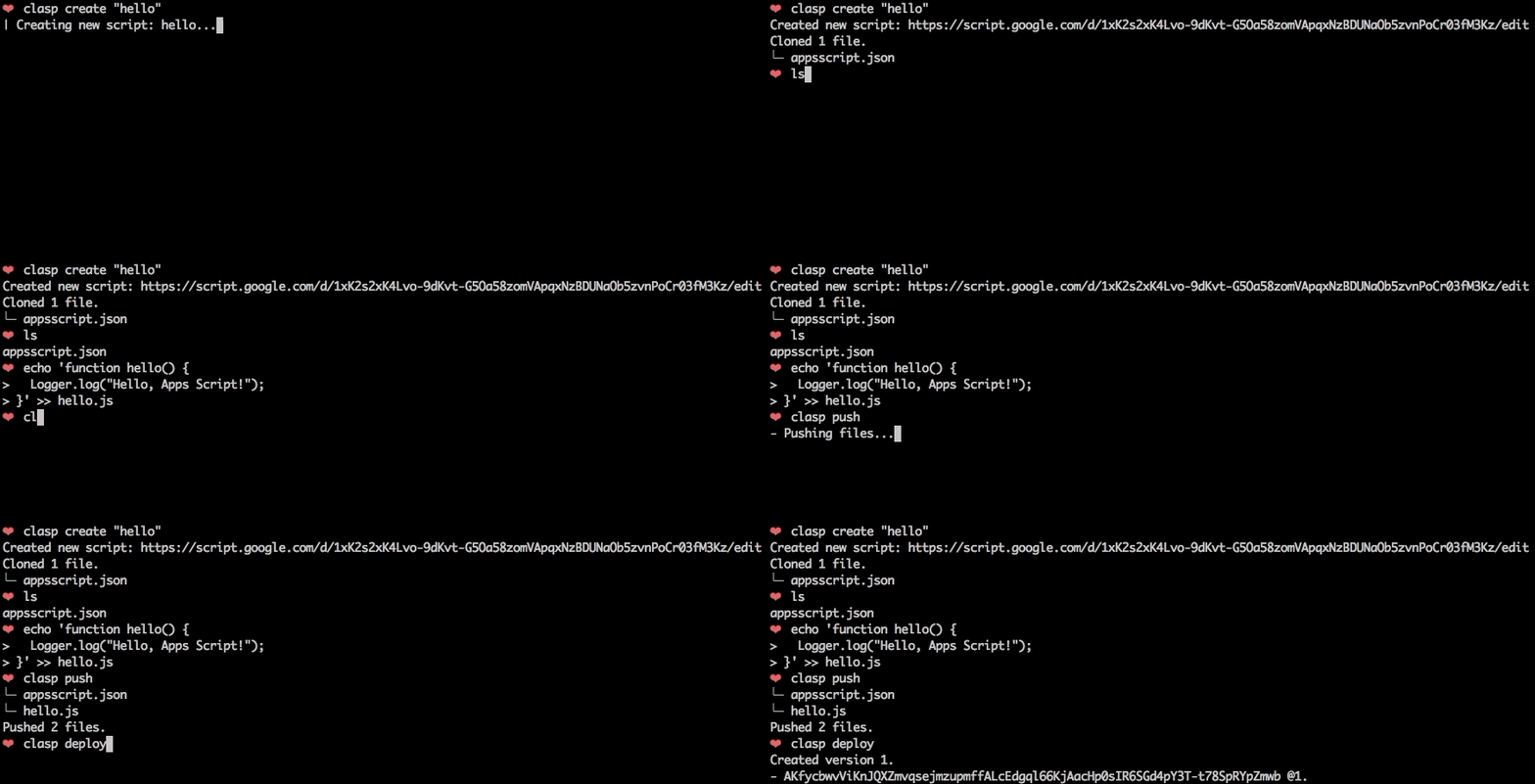
To get started, try out the codelab!
You can also try clasp in Gitpod, a one-click online IDE for GitHub:

Features
🗺️ Develop Locally: clasp allows you to develop your Apps Script projects locally. That means you can check-in your code into source control, collaborate with other developers, and use your favorite tools to develop Apps Script.
🔢 Manage Deployment Versions: Create, update, and view your multiple deployments of your project.
📁 Structure Code: clasp automatically converts your flat project on script.google.com into folders. For example:
- On script.google.com:
tests/slides.gstests/sheets.gs- locally:
tests/slides.jssheets.js
➡️ Run Apps Script: Execute your Apps Script from the command line. Features:
- Instant deployment.
- Suggested functions Autocomplete (Fuzzy)
- Easily add custom Google OAuth scopes
- And more…
Install
First download clasp:
npm install -g @google/clasp
Then enable the Google Apps Script API: https://script.google.com/home/usersettings

Installing as a Gemini CLI Extension
You can install clasp as an Gemini CLI extensions using the following command:
gemini extensions install https://github.com/google/clasp
This makes clasp available as an MCP server in Gemini CLI.
Make sure to enable the Google Apps Script API (as explained above) and perform a clasp login (with your specific login parameters) before you use the extension.
Installing as a Claude Code CLI Extension
You can use clasp with Claude Code CLI in one of two ways:
1. Install as a Plugin (Recommended)
Run the following command in Claude Code to install clasp as a plugin directly from the repository:
/plugin install @google/clasp
2. Manual Installation
You can manually add clasp as an MCP server using the provided configuration file or by running:
claude mcp add clasp -- npx -y @google/clasp mcp
Or by referencing the configuration file included in the repository:
claude mcp add-json clasp "$(cat claude-mcp.json)"
Commands
The following command provide basic Apps Script project management.
Note: Most of them require you to
clasp loginandclasp create/clonebefore using the rest of the commands.
clasp
clasp login [--no-localhost] [--creds <file>] [--use-project-scopes] [--include-clasp-scopes] [--extra-scopes <scopes>] [--redirect-port]clasp logoutclasp show-authorized-user [--json]clasp create-script [--title <title>] [--type <type>] [--rootDir <dir>] [--parentId <id>]clasp clone-script <scriptId | scriptURL> [versionNumber] [--rootDir <dir>]clasp delete-script [--force]clasp pull [--versionNumber]clasp push [--watch] [--force]clasp show-file-status [--json]clasp open-scriptclasp list-deploymentsclasp create-deployment [--versionNumber <version>] [--description <description>] [--deploymentId <id>]clasp delete-deployment [deploymentId] [--all]clasp create-version [description]clasp list-versionsclasp list-scripts
Advanced Commands
NOTE: These commands require you to add your Project ID.
clasp tail-logs [--json] [--watch] [--simplified]clasp setup-logs [--json]clasp list-apisclasp enable-api<api>clasp disable-api <api>clasp run-function [function]
Guides
Migrating from 2.x to 3.x
Drop typescript support
Clasp no longer transpiles typescript code. For typescript projects, use typescript with a bundler like Rollup to transform code prior to pushing with clasp. This has the advantage of offering more robust support for Typescript features along with ESM module and NPM package support.
There are several template projects on GitHub that show how to transform Typescript code into Apps Script that are all excellent choices.
- https://github.com/WildH0g/apps-script-engine-template
- https://github.com/tomoyanakano/clasp-typescript-template
- https://github.com/google/aside
- https://github.com/sqrrrl/apps-script-typescript-rollup-starter
Command renames
Clasp 3.x introduces some breaking changes from 2.x. For common use cases these changes should not impact usage, but some lesser used commands have been restructured and renamed to improve consistency.
| 2.x | 3.x |
|---|---|
open |
open-script |
open --web |
open-web-app |
open --addon |
open-container |
open --creds |
open-credentials-setup |
login --creds <file> |
login -u <name> --creds <file> |
logs --open |
open-logs |
logs --setup |
N/A |
apis --open |
open-api-console |
apis enable <api> |
enable-api <api> |
apis disable <api> |
disable-api <api> |
deploy -i <id> |
update-deployment <id> |
settings |
N/A |
Other commands have also been renamed but retain aliases for compatibility.
Authorization
Most command require user authorization. Run clasp login to authorize access to manage your scripts.
Multiple user support
Use the global --user option to switch between accounts. This supports both running clasp as different users as well as when invoking the clasp run-function command.
Examples:
clasp login # Saves as default credentials
clasp clone # User not specified, runs using default credentials
clasp login --user testaccount # Authorized new named credentials
clasp run-function --user testaccount myFunction # Runs function as test account
Bring your own project/credentials
While clasp includes a default OAuth client, using your own project is recommend and can improve security and compliance in environments that limit which third party applications users may authorize. To set up your own project:
- Create a new project in the Google Cloud Developer Console.
- Create an OAuth client. The client type must be
Desktop Application. Download and save the generated client secrets file. This is required when authorizing using theclasp login --creds <filename>command. - Enable services. For full functionality, clasp requires the following:
- Apps Script API -
script.googleapis.com(required) - Service Usage API -
serviceusage.googleapis.com(required to list/enable/disable APIs) - Google Drive API -
drive.googleapis.com(required to list scripts, create container-bound scripts) - Cloud Logging API -
logging.googleapis.com(required to read logs)
Note: If configuring the project for external use where OAuth scopes must be registered, include the following:
https://www.googleapis.com/auth/script.deployments
https://www.googleapis.com/auth/script.projects
https://www.googleapis.com/auth/script.webapp.deploy
https://www.googleapis.com/auth/drive.metadata.readonly
https://www.googleapis.com/auth/drive.file
https://www.googleapis.com/auth/service.management
https://www.googleapis.com/auth/logging.read
https://www.googleapis.com/auth/userinfo.email
https://www.googleapis.com/auth/userinfo.profile
https://www.googleapis.com/auth/cloud-platform
Allow-list clasp
If your organization restricts authorization for third-party apps, you may either:
- Request your admin allow-list clasp's client id
1072944905499-vm2v2i5dvn0a0d2o4ca36i1vge8cvbn0.apps.googleusercontent.com - Set up an internal-only GCP project for clasp as described in the previous section.
Service accounts (EXPERIMENTAL/NOT WORKING)
Use the --adc option on any command to read credentials from the environment using Google Cloud's application default credentials mechanism.
Note that if using a service account, service accounts can not own scripts. To use a service account to push or pull files from Apps Script, the scripts must be shared with the service account with the appropriate role (e.g. Editor in able to push.)
Ignore File (.claspignore)
Like .gitignore, .claspignore allows you to ignore files that you do not wish to upload on clasp push. Steps:
- Create a file called
.claspignorein your project's root directory. - Add patterns to be excluded from
clasp push. Note: The.claspignorepatterns are applied by multimatch, which is different from.gitignore, especially for directories. To ignore a directory, use syntax like**/node_modules/**.
A sample .claspignore ignoring everything except the manifest and build/main.js:
**/**
!build/main.js
!appsscript.json
Note: The .claspignore patterns are applied relative from the rootDir.
If no .claspignore is specified, a default set of patterns is applied. This default set will only consider the appsscript.json manifest and any JavaScript, TypeScript and .html source files within the rootDir folder. Child folders other than .git and node_modules are processed.
# ignore all files…
**/**

# except the extensions…
!appsscript.json
!**/*.gs
!**/*.js
!**/*.ts
!**/*.html

# ignore even valid files if in…
.git/**
node_modules/**
Project Settings File (.clasp.json)
When running clone or create, a file named .clasp.json is created in the current directory to describe clasp's configuration for the current project. Example .clasp.json:
{
  "scriptId": "",
  "rootDir": "build/",
  "projectId": "project-id-xxxxxxxxxxxxxxxxxxx",
  "fileExtension": "ts",
  "filePushOrder": ["file1.ts", "file2.ts"]
}
The following configuration values can be used:
scriptId (required)
Specifies the id of the Google Script project that clasp will target.
- Open script url.
- File > Project properties > Script ID
rootDir (optional)
Specifies the local directory in which clasp will store your project files. If not specified, clasp will default to the current directory.
projectId (optional)
Specifies the id of the Google Cloud Platform project that clasp will target. You must associate Google Script project with Google Cloud Platform beforehand.
- Run
clasp open. - Click
Resources > Cloud Platform project.... - Specify the project ID
project-id-xxxxxxxxxxxxxxxxxxx.
Even if you do not set this manually, clasp will ask this via a prompt to you at the required time.
fileExtension (deprecated, optional)
Specifies the file extension for local script files in your Apps Script project.
scriptExtensions (optional)
Specifies the file extensions for local script files in your Apps Script project. May be a string or array of strings. Files matching the extension will be considered scripts files.
When pulling files, the first extension listed is used to write files.
Defaults to [".js", ".gs"]
htmlExtensions (optional)
Specifies the file extensions for local HTML files in your Apps Script project. May be a string or array of strings. Files matching the extension will be considered HTML files.
When pulling files, the first extension listed is used to write files.
Defaults to [".html"]
filePushOrder (optional)
Specifies the files that should be pushed first, useful for scrip
Extension points exported contracts — how you extend this code
CredentialStore (Interface)Core symbols most depended-on inside this repo
loadShape
Languages
Modules by API surface
Used by 1 indexed graphs manifest dependencies, hub-wide
Dependencies from manifests, versioned
For agents
$ claude mcp add clasp \
  -- python -m otcore.mcp_server <graph>