github.com/gTile/gTile @main sqlite
README
gTile
The Gnome 45 version of gTile has undergone a rewrite! If you experience any regressions please check PR #341 for a summary of breaking changes. If you experience an undocumented regression please open a new issue.
- Gnome-shell extension that improves window tiling capabilities of stock gnome-shell.
- gTile is used to move/resize windows on a configurable grid scheme.
- It can be used with either the mouse, or keyboard, including customizable keyboard presets for immediate window placement.
- This extension is particularly useful for window management on (multiple) large monitors.
Acknowledgement: The original idea and the first implementation of gTile was developed by vibou with the help from multiple contributors. gTile is now a community supported project and licensed under the GPL v2+.
Table of Contents
- User Documentation
- Installation
- Configuration
- Usage
- Developer Documentation
- Prerequisites
- Workflow
- Testing
- Terminology
- Code Structure
- Design Principles
- Code Style Guide
- Resources
User Documentation
Installation
Install via Gnome Extensions
The preferred installation is through Gnome Extensions.
Install Latest Build
Alternatively, the most recent stable version may also be downloaded as a distributable archive (gtile.dist.tgz) through the GitHub releases page.
# Replace `VERSION` with the most recent release.
wget https://github.com/gTile/gTile/releases/download/VERSION/gtile.dist.tgz

# The `-f` flag will perform an upgrade, if necessary.
gnome-extensions install -f ~/Downloads/gtile.dist.tgz

# The changes only become effective once the shell session was restarted.
# In case the extension was installed for the first time it must be enabled afterwards.
gnome-extensions enable gTile@vibou
Install from Source
Alternatively, you can build and install the latest version from GitHub. Make sure to have a working git and npm installation.
git clone https://github.com/gTile/gTile.git
cd gTile
npm ci
npm run build:dist
npm run install:extension
After restarting your Gnome shell session you can enable the extension via:
gnome-extensions enable gTile@vibou
Configuration
The extension can be configured through a dedicated preferences dialog. You can open the extension settings either through the Gnome Extensions app, or by executing the following command in your terminal:
gnome-extensions prefs gTile@vibou
Note that most settings are applied either immediately or after toggling the gTile overlay. There is one exception though. When the theme is changed, the extension needs to be disabled and then enabled again for the new theme to become effective.
Usage
gTile can be used either through its graphical user interface ("overlay") or exclusively with the keyboard via shortcuts.
Overlay
- Make sure the window you want to resize has focus
- Click on the gTile icon on the tool bar, or press
<Super>+<Enter>(default) - The gTile dialog pop-up will show up at your cursors position
- The
 button toggles the auto-closing of the gTile window after applying the changes.
- The
Option A: Mouse usage:
- Use the mouse cursor to click on one of the desired corner coordinates, and then the other corner coordinates
- Window will resize after the second click
Option B: Keyboard usage:
- Use the arrow keys to select the coordinate of the first corner and Shift-arrow to select the second coordinate
- Hit
Spaceto change the grid scheme [optional] - Hit
Enterand the window will resize - Hit
Escapeto cancel resize
- Hit
Option C: Using the keyboard with configured presets:
- Press the accelerator key binding configured for the desired preset
- Window will resize, GUI stays open allowing for additional window resizing. Alternatively, enable Basic setting "Auto close on keyboard shortcut" to automatically exit after a single command.
Resize Presets
Resize presets are defined in the preferences window (Resize Presets tab).
- Presets can be cycled. One keyboard shortcut can have several presets attached, which will change on subsequent presses of the shortcut. E.g.
3x3 1:1 1:1, 2:2 2:2on the first press will put the window on the top left corner, on the second press - in the middle of the screen.
Presets have a format of "[grid size] [top left coordinate]:[bottom right coordinate]".
- Grid size is specified as "XxY", where X represents a number of columns and Y represents a number of rows. E.g. 3x3 divides the screen into 3 columns and 3 rows, the same way as in grid schemes under General.
- Grid size can be omitted. In that case preset will use the current grid set by the user in the UI or through the keyboard shortcut.
- If grid size is specified in the first place, it can be omitted in the subsequent places. gTile will use the grid size specified in the first place. E.g.
3x3 1:1 1:1, 2:2 2:2(when2:2 2:2is triggered, gTile will use 3x3 grid size). - Grids defined in the presets can differ from the grid sizes defined in the General tab.
Shortcuts
You can also resize windows using keyboard shortcuts directly.
There are 3 groups of pre-configured shortcuts, representing the following grid schemes:
- Grid 2x2 ->
Super+Alt - Grid 2x3 ->
Super+Control - Grid 3x3 ->
Super+Shift
These "grid selectors" are then combined with a keypad number to define the window placement.
Default shortcuts for Super+Alt+[KP_1..KP_9]
| Shortcut | Description |
|---|---|
Super+Alt+KP_1 |
Bottom left quarter of screen |
Super+Alt+KP_2 |
Bottom half |
Super+Alt+KP_3 |
Bottom right quarter |
Super+Alt+KP_4 |
Center left |
Super+Alt+KP_5 |
Center |
Super+Alt+KP_6 |
Center right |
Super+Alt+KP_7 |
Top left quarter |
Super+Alt+KP_8 |
Top half |
Super+Alt+KP_9 |
Top right quarter |
Notes: 1. Preconfigured keyboard shortcuts are optimized for horizontal screens. 2. For cyclable presets, invoke the corresponding shortcut consecutively on a window to activate format variants.
AutoTiling
You can do auto tiling for all windows on screen
- Activate gTile by pressing
Super+KP_Enteror clicking on gTile icon - Click on one of 2 autotile buttons, or
- Press one of
[1..9,0](total 10 available) for vertical columns autotiling, orMfor "main" autotiling.- Press
Mmultiple times to cycle through variants. - Main variables are configurable.
- Press
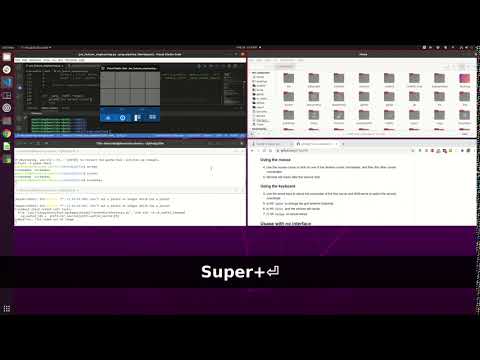
The autotiling layouts can be customized through GridSpec, a tiny DSL used to describe complex grids. The following Wirth notation describes the syntax of GridSpec.
gridspec = [ ( colspec | rowspec ) ] .
colspec  = "cols" "(" cellspec { "," cellspec } ")" .
rowspec  = "rows" "(" cellspec { "," cellspec } ")" .
cellspec = <number> [ ( "d" | ":" ( colspec | rowspec ) ) ] .
Some examples of valid GridSpec definitions:
cols(1, 3, 1)- Describes a grid consisting of three columns (and a single row). The first and last column have a relative width of 20% each (i.e. 1/5) and the center column has a size (relative to the row width) of 3/5, i.e., 60%.
rows(1, 1:cols(3,3,3), 1d)- Describes a grid consisting of three rows. The first and last row both consist of a single column with 100% width. The center row consists of three columns, each with 33% width. The last row is defined as a
dynamicrow, which affects how autotiling does place windows in it. Usually, autotiling assigns at most 1 window to each cell. Cells declared asdynamicmay hold as many windows as necessary. Windows placed into a dynamic cell all get the same share of this cell. For instance, if 2 windows were to be placed in the dynamic cell above, they would each take 50% of the rows width.
In general, the autotiling algorithm works as follows:
1. Given a GridSpec, find the largest non-dynamic cell (if there are multiple largest cells, the first one is used).
- Place the focused window inside it, if any.
2. For all (remaining) windows on the currently active monitor: Place each window in one of the (remaining) non-dynamic cells and make it take the full width and height of that cell.
3. If there are still more windows remaining that couldn't yet be placed in a cell: Find all dynamic cells in the grid and place the remaining windows inside them.
- Each window gets the same share of a dynamic cell (or its full size for a single window).
Autogrow
You can expand window - it will fill all available space up to borders with neighbors.
Default keyboard shortcut is <Alt><Ctrl>s
Autogrow works only when gTile window is activated
- Focus on window you want to expand to fill space up to neighbors borders
- Activate gTile window
<Super>+<Enter> - Press
<Alt><Ctrl>s. Your windows will snap to neighbors. - Close gTile window
Escape
Window Spacing and Insets
By default, windows snap seamlessly to one another. You can optionally configure an inset and window spacing to apply a margin between windows (aka spacing) or the screen edges (aka insets). The illustration below depicts how insets and margins are applied to the windows.
Stock Gnome-shell shortcuts
gTile is intended to supplement existing Gnome-shell keyboard shortcuts.
Here are some useful Gnome built-ins to keep in mind when configuring gTile:
| Shortcut | Description |
|---|---|
Super+Up |
Maximize |
Super+Down |
Un-Maximize (return to size and position previous to maximizing) |
Super+Left/Right |
left/right half of screen |
Shift+Super+Up/Down/Left/Right |
move window to adjacent monitor/workspace |
Developer Documentation
Prerequisites
To build and develop the extension node, npm, git and a few standard GNU utilities are required. Check the scripts section of package.json to see which GNU utilities are used.
To get started, checkout the repository and install the required dependencies:
git clone https://github.com/gTile/gTile.git
cd gTile
npm ci
Workflow
Testing changes can be tedious at times because an extension cannot be updated in-place. The Gnome shell session must be restarted in order for changes to take effect. In Wayland it is usually much easier to start a nested session instead. Check the GJS documentation on how to best debug extensions. Note that nested gnome sessions can take time to load and does not allow to test multi-screen setups. I personally found it most productive to have a second remote system which I used to continuously test the extension on. For this purpose I added a simple new script to package.json:
{
  "scripts": {
    "install:remote": "scp gtile.dist.tgz remotehost:~/Downloads && ssh remotehost gnome-extensions install -f ~/Downloads/gtile.dist.tgz",
  }
}
Deploying a change is as simple as executing npm run build:dist && npm run install:remote and restart the Gnome session on the remote system. When developing locally use the npm run install:extension command instead.
Testing
Functional tests are written in TypeScript and must be transpiled via tsc before AVA can run the tests. The following command takes care of everything and is best be used to run the tests in a one-off fashion.
# For a one-off run of all tests
npm run test
When actively developing tests, it is more convinient (and also faster) to let tsc continuously transpile the tests and have them run by AVA.
# Let the TypeScript compiler watch for changes and auto-transpile files
npx tsc -w

# In a separate terminal: Run the AVA test runner in watch mode
npm run test -- --watch
Note: All tests are strictly kept in the test/ directory, in isolation to the src/ directory. Test files do not have a special naming convention such as a required .spec.ts suffix. Thus, keeping tests in a separate directory allows them to be transpiled on-demand when needed and avoids pollution of the redistributable build.
Terminology
There are some domain-specific terms used throughout the entire code base. This table ought to be a glossary for these terms. Some of these may also translate 1:1 into a TypeScript interface. Check the src/types/ directory.
| Term | Meaning |
|---|---|
GridSpec |
A simple domain specific language (DSL) used to describe complex grids with weighted col and row sizes and the ability to have cols and rows span over |
Extension points exported contracts — how you extend this code
GarbageCollector (Interface)Core symbols most depended-on inside this repo
#shortcutRowShape
Languages
Modules by API surface
Dependencies from manifests, versioned
For agents
$ claude mcp add gTile \
  -- python -m otcore.mcp_server <graph>