github.com/elegantapp/pwa-asset-generator @v8.1.5 sqlite
README
pwa-asset-generator ✨






Automates PWA asset generation and image declaration. Automatically generates icon and splash screen images, favicons and mstile images. Updates manifest.json and index.html files with the generated images according to Web App Manifest specs and Apple Human Interface guidelines.
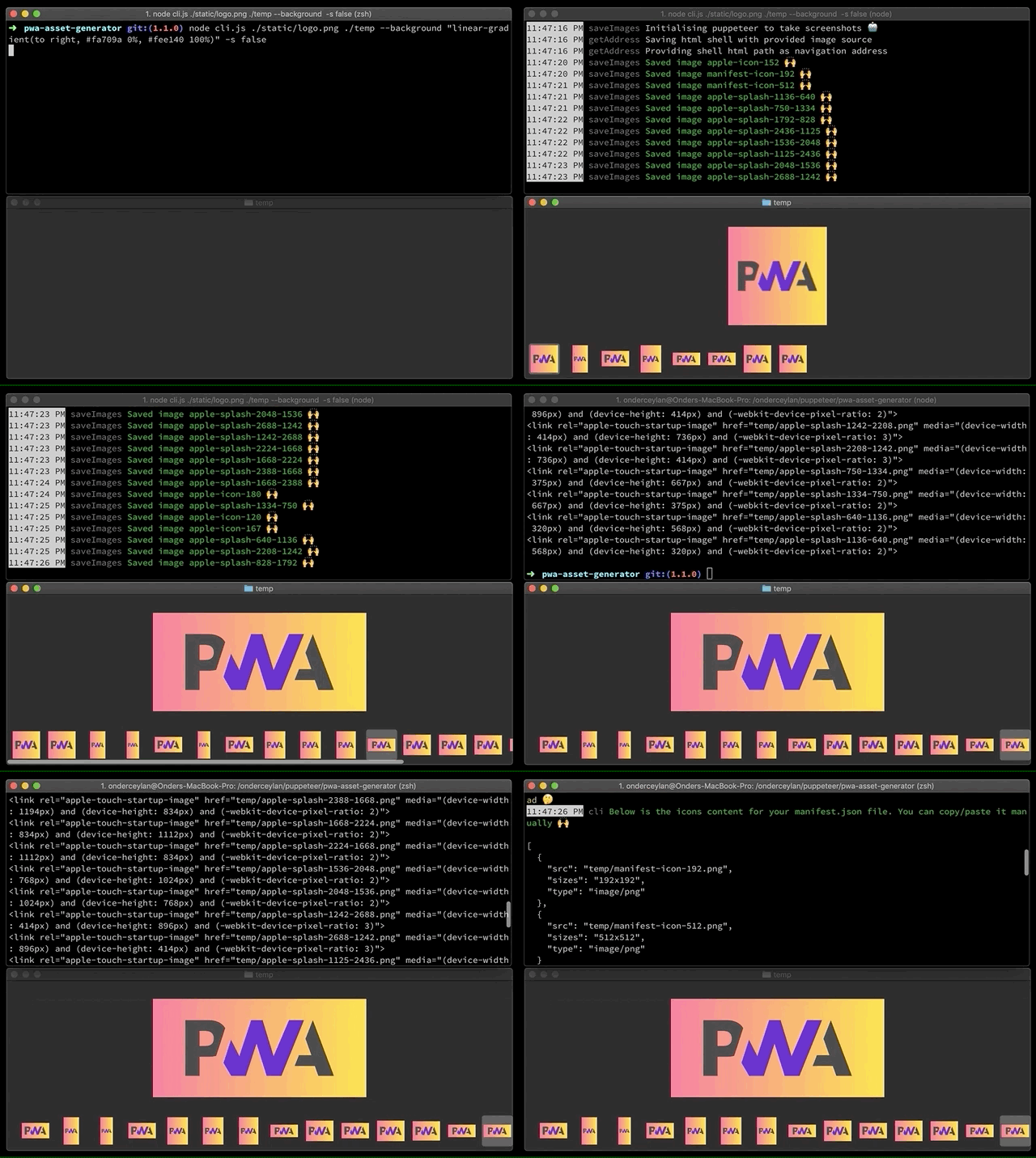
Motivation — read the full blog post here
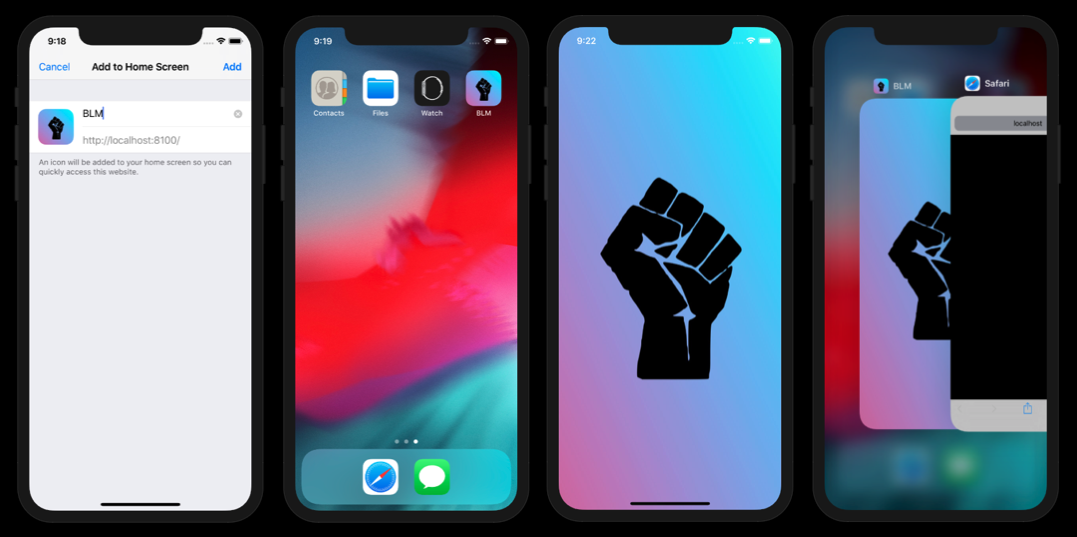
When you build a PWA with a goal of providing native-like experiences on multiple platforms and stores, you need to meet with the criteria of those platforms and stores with your PWA assets; icon sizes and splash screens. Such criteria are;
-
Google's Android platform respects Web App Manifest API specs, and it expects you to provide at least 2 icon sizes in your manifest file - https://web.dev/add-manifest/#icons 🤔
-
Apple's iOS currently doesn't support Web App Manifest API specs. You need to introduce custom html tags to set icons and splash screens to your PWA 🤔
- You need to introduce a special html link tag with rel
apple-touch-iconto provide icons for your PWA when it's added to home screen. Read more about it on Apple's Icon Guidelines and Safari Web Content Guide. - You need to introduce a special html link tag with rel
apple-touch-startup-imageto provide a splash screen for your PWA to display when it's opened and in the background. You need to create a splash screen image for every resolution on Apple's Launch Screen Guidelines and html tag with media attr for each image like<link rel="apple-touch-startup-image" href="https://github.com/elegantapp/pwa-asset-generator/raw/v8.1.5/temp/apple-splash-2048-2732.png" media="(device-width: 1024px) and (device-height: 1366px) and (-webkit-device-pixel-ratio: 2) and (orientation: portrait)">. Unfortunately, this requirement is not documented on the Safari Web Content Guide sufficiently.
- You need to introduce a special html link tag with rel
Creating icon and splash screen images for all the platforms, maintaining sizes and quality for all and adding html tags for each image can be overwhelming. So, why not automate it? 💡
Features
PWA Asset Generator automates the image generation in a creative way. Having Puppeteer at its core enables lots of possibilities.
-
Generates both icons and splash screens with optional
--icon-only--splash-only--landscape-onlyand--portrait-onlyflags ✨ -
Updates your
manifest.jsonandindex.htmlfiles automatically for declaring generated image assets 🙌 -
Scrapes the latest specs from Apple Human Interface guidelines website via Puppeteer to make your PWA ready for all/recent iOS devices out there 🤖
- Supports offline mode and uses static spec data when things go wrong with scraping 📴
- Updates static spec data before each release automatically and monitors spec changes everyday 🔄
-
Uses the Chrome browser as it’s a canvas of your fav image editor. It uses a shell HTML on the fly as an art board and centers your logo before taking screenshots for each resolution via Puppeteer 🤖
-
You can provide your source in multiple formats; a local image file, a local HTML file, a remote image or HTML file 🙌
- When it’s an image source, it is centered over the background option you provide 🌅
- When it’s an HTML source, you can go as creative as you like; position your logo, use SVG filters, use variable fonts, use gradient backgrounds, use media queries while generating dark mode splash screens, use typography and etc. Your HTML file is rendered on Chrome before taking screenshots for each resolution 🎨
-
Uses puppeteer-core instead of puppeteer and only installs Chromium if it doesn't exist on the system. Saves waste of ~110-150mb of disk space and many seconds from the world per each user 🌎⚡️
-
Supports dark mode splash screens on iOS! So, you can provide both light 🌕 and dark 🌚 splash screen images to differentiate your apps look & feel based on user preference 🌙
-
Supports PWA maskable icons by declaring them in manifest file adaptively 🖼
-
Supports flexible tag formatting and path customization options to comply with various development environments. You can adjust your output using single quotes
--single-quotes, self-closing tags--xhtml, path prefixes--pathand path overrides--path-override📝 -
Supports generating classic web app icons such as favicons
--faviconand Windows static tiles--mstile⏪
Install
$ npm install pwa-asset-generator
One-off execution
$ npx pwa-asset-generator
Read more about npx here.
Usage
$ pwa-asset-generator --help

  Usage
    $ pwa-asset-generator [source-file] [output-folder]

    The assets will be saved to the folder where the command is executed if no output-folder provided.

  Options
    -b --background             Page background to use when image source is provided: css value  [default: transparent]
    -o --opaque                 Shows white as canvas background and generates images without transparency  [default: true]
    -p --padding                Padding to use when image source provided: css value  [default: "10%"]
    -s --scrape                 Scraping Apple Human Interface guidelines to fetch splash screen specs  [default: true]
    -m --manifest               Web app manifest file path to automatically update manifest file with the generated icons
    -i --index                  Index HTML file path to automatically put splash screen and icon meta tags in
    -a --path                   Path prefix to prepend for href links generated for meta tags
    -v --path-override          Override the path of images used in href/src tags of manifest and HTML files
    -t --type                   Image type: png|jpg  [default: jpg - with the exception of manifest files]
    -q --quality                Image quality: 0...100 (Only for JPG)  [default: 70]
    -h --splash-only            Only generate splash screens  [default: false]
    -c --icon-only              Only generate icons  [default: false]
    -f --favicon                Generate favicon image and HTML meta tag  [default: false]
    -w --mstile                 Generate Windows static tile icons and HTML meta tags  [default: false]
    -e --maskable               Declare icons in manifest file as maskable icons  [default: true]
    -l --landscape-only         Only generate landscape splash screens  [default: false]
    -r --portrait-only          Only generate portrait splash screens  [default: false]
    -d --dark-mode              Generate iOS splash screen meta with (prefers-color-scheme: dark) media attr  [default: false]
    -u --single-quotes          Generate HTML meta tags with single quotes  [default: false]
    -x --xhtml                  Generate HTML meta tags by self-closing the tags  [default: false]
    -g --log                    Logs the steps of the library process  [default: true]
    -n --no-sandbox             Disable sandbox on bundled Chromium on Linux platforms - not recommended  [default: false]

  Examples
    $ pwa-asset-generator logo.html
    $ pwa-asset-generator logo.svg -i ./index.html -m ./manifest.json
    $ pwa-asset-generator https://your-cdn-server.com/assets/logo.png ./ -t jpg -q 90 --splash-only --portrait-only
    $ pwa-asset-generator logo.svg ./assets --splash-only --xhtml --single-quotes
    $ pwa-asset-generator logo.svg ./assets --scrape false --icon-only --path "%PUBLIC_URL%"
    $ pwa-asset-generator logo.svg ./assets --icon-only --favicon --opaque false --maskable false --type png
    $ pwa-asset-generator logo.svg ./assets --dark-mode --background dimgrey --splash-only --quality 80
    $ pwa-asset-generator logo.svg ./assets --padding "calc(50vh - 5%) calc(50vw - 10%)" --path-override "./your-custom-image-folder-path"
    $ pwa-asset-generator https://elegantapp.github.io/pwa-asset-generator/static/logo.png ./temp -p "15%" -b "linear-gradient(to right, #fa709a 0%, #fee140 100%)"
    $ pwa-asset-generator https://elegantapp.github.io/pwa-asset-generator/static/blm.png ./blm -p "15%" -b "linear-gradient(to right top, #d16ba5, #c777b9, #ba83ca, #aa8fd8, #9a9ae1, #8aa7ec, #79b3f4, #69bff8, #52cffe, #41dfff, #46eefa, #5ffbf1)"

  Flag examples
    --background "rgba(255, 255, 255, .5)"
    --opaque false
    --padding "10px"
    --scrape false
    --manifest ./src/manifest.json
    --index ./src/index.html
    --path "%PUBLIC_URL%"
    --path-override "./your-custom-image-folder-path"
    --type jpg
    --quality 80
    --splash-only
    --icon-only
    --favicon
    --mstile
    --maskable false
    --landscape-only
    --portrait-only
    --dark-mode
    --single-quotes
    --xhtml
    --log false
Module
pwa-asset-generator is not only a CLI. It's a CLI wrapper around a JavaScript module. It's possible to access the underlying API of the library as it's described in below example;
const pwaAssetGenerator = require('pwa-asset-generator');

// Generate images over a module function call, instead of using CLI commands
(async () => {
  const { savedImages, htmlMeta, manifestJsonContent } = await pwaAssetGenerator.generateImages(
    'https://elegantapp.github.io/pwa-asset-generator/static/logo.png',
    './temp',
    {
      scrape: false,
      background: "linear-gradient(to right, #fa709a 0%, #fee140 100%)",
      splashOnly: true,
      portraitOnly: true,
      log: false
    });
})();

// Access to static data for Apple Device specs that are used for generating launch images
const appleDeviceSpecsForLaunchImages = pwaAssetGenerator.appleDeviceSpecsForLaunchImages;
FAQ
What kind of image input should I use with this library? What are the safe margins for a logo?
Any image format that a Chrome browser can render within an <img> HTML tag, is a compatible image input. It can be an icon, an SVG file, a JPEG or PNG logo, even a WebP image.
pwa-asset-generator uses a Chrome tab as an art board. Your input image is being scaled to fit the viewport of the target device resolution while generating splash screens. Since your input image is being scaled for generating splash screens, it's best advised to use a vector image - like an SVG file as an input.
There's no particular safe margin requirement as 10% padding is added around your image input by default with CSS. That being said, you can customize the padding as it's described in the next answer. The library uses a similar approach while generating icons too, with the same default padding 10% around the image input. See it in action here at this tweet to understand the concept.
How can I make an image smaller or larger relative to the background?
The default value for the padding surrounding the image is 10%. But it's just a css padding value that you can configure and override yourself with -p --padding option.
-
You can use a more advanced padding value based on your taste and goal;
Larger logo:
--padding "calc(50vh - 20%) calc(50vw - 40%)"Smaller logo:
--padding "calc(50vh - 5%) calc(50vw - 10%)" -
You can create your own html input file which uses css media queries and provides different padding options based on breakpoints: https://material.io/design/layout/responsive-layout-grid.html#breakpoints
How can I generate a PNG image with a transparency?
Although the default background color is transparent, there's another option that you need to use for generating transparent images: opaque.
You need to run your CLI command with --opaque false option in order to get the transparency; pwa-asset-generator logo.svg --opaque false --type png.
This might be confusing for some, but it's necessary to support the use of background values with alpha channels.
How can I generate a transparent favicon, and app icons with opaque background?
Default behaviour of the library is to generate a favicon along with app icons. So, it's not possible to generate one without other.
However, you can use this workaround to work with this e
Extension points exported contracts — how you extend this code
VisualDiffResult (Interface)Core symbols most depended-on inside this repo
logShape
Languages
Modules by API surface
Dependencies from manifests, versioned
For agents
$ claude mcp add pwa-asset-generator \
  -- python -m otcore.mcp_server <graph>