github.com/eduardolat/pgbackweb @v0.5.1 sqlite
README
PG Back Web
<img align="center" width="70" src="https://raw.githubusercontent.com/eduardolat/pgbackweb/main/internal/view/static/images/logo.png"/>


🐘 Effortless PostgreSQL backups with a user-friendly web interface! 🌐💾





[!NOTE] We're growing! New name, bigger future
PG Back Web is becoming UFO Backup! The new name reflects a future where the project expands beyond PostgreSQL, making powerful backups simple and accessible for everyone
Curious about the roadmap or want to shape the project's future? Join the community to discuss ideas and influence decisions, everyone's input is welcome!
Why PG Back Web?
PG Back Web isn't just another backup tool. It's your trusted ally in ensuring the security and availability of your PostgreSQL data:
- 🎯 Designed for everyone: From individual developers to teams.
- ⏱️ Save time: Automate your backups and forget about manual tasks.
- ⚡ Plug and play: Don't waste time with complex configurations.
Features
- 📦 Intuitive web interface: Manage your backups with ease, no database expertise required.
- 📅 Scheduled backups: Set it and forget it. PG Back Web takes care of the rest.
- 📈 Backup monitoring: Visualize the status of your backups with execution logs.
- 📤 Instant download & restore: Restore and download your backups when you need them, directly from the web interface.
- 🖥 Multi-version support: Compatible with PostgreSQL 13, 14, 15, 16, 17, and 18.
- 📁 Local & S3 storage: Store backups locally or add as many S3 buckets as you want for greater flexibility.
- ❤️🩹 Health checks: Automatically check the health of your databases and destinations.
- 🔔 Webhooks: Get notified when a backup finishes, failed, health check fails, or other events.
- 🔒 Security first: PGP encryption to protect your sensitive information.
- 🛡️ Open-source trust: Open-source code under AGPL v3 license, backed by the robust pg_dump tool.
- 🌚 Dark mode: Because we all love dark mode.
Installation
PG Back Web is available as a Docker image. You just need to set 3 environment variables and you're good to go!
Here's an example of how you can run PG Back Web with Docker Compose, feel free to adapt it to your needs:
services:
  pgbackweb:
    image: eduardolat/pgbackweb:latest
    ports:
      - "8085:8085" # Access the web interface at http://localhost:8085
    volumes:
      - ./backups:/backups # If you only use S3 destinations, you don't need this volume
    environment:
      # Optional environment variables are ignored, see the configuration section below for more details
      PBW_ENCRYPTION_KEY: "my_secret_key" # Change this to a strong key
      PBW_POSTGRES_CONN_STRING: "postgresql://postgres:password@postgres:5432/pgbackweb?sslmode=disable"
    depends_on:
      postgres:
        condition: service_healthy

  postgres:
    image: postgres:18
    environment:
      POSTGRES_USER: postgres
      POSTGRES_DB: pgbackweb
      POSTGRES_PASSWORD: password
    ports:
      - "5432:5432"
    volumes:
      - ./data:/var/lib/postgresql/data
    healthcheck:
      test: ["CMD-SHELL", "pg_isready -U postgres"]
      interval: 5s
      timeout: 5s
      retries: 5
You can watch this youtube video to see how easy it is to set up PG Back Web.
Configuration
You only need to configure the following environment variables:
-
PBW_ENCRYPTION_KEY: Your encryption key. Generate a strong random one and store it in a safe place, as PG Back Web uses it to encrypt sensitive data. -
PBW_POSTGRES_CONN_STRING: The connection string for the PostgreSQL database that will store PG Back Web data. -
PBW_LISTEN_HOST: Optional. Host for the server to listen on, default 0.0.0.0 -
PBW_LISTEN_PORT: Optional. Port for the server to listen on, default 8085 -
PBW_PATH_PREFIX: Optional. Path prefix for the application URL. Use this when you want to serve the application under a subpath (e.g.,/pgbackweb). Must start with/and not end with/. Default is empty. -
TZ: Optional. Your timezone. Default isUTC. This impacts logging, backup filenames and default timezone in the web interface.
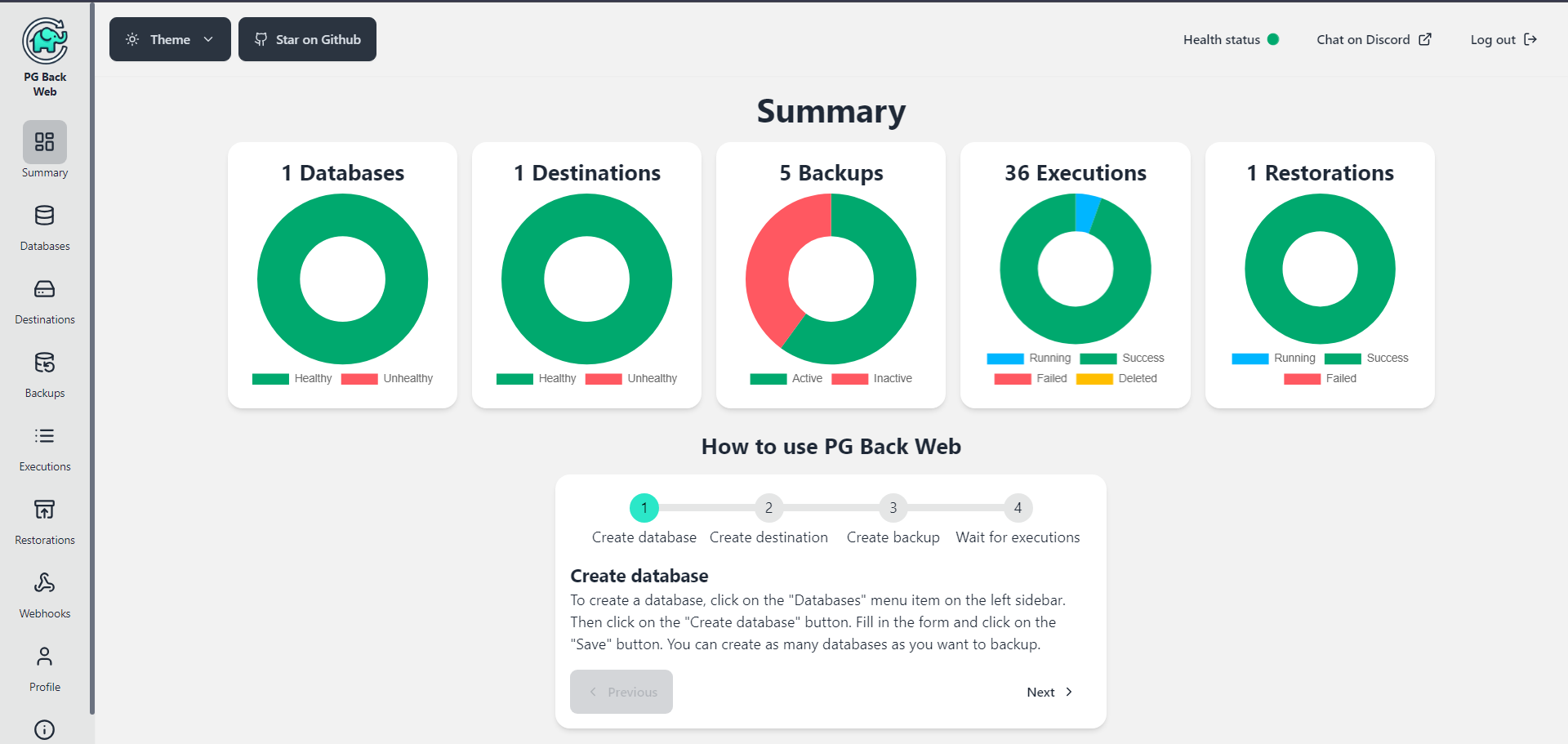
Screenshot
Reset password
You can reset your PG Back Web password by running the following command in the server where PG Back Web is running:
docker exec -it <container_name_or_id> sh -c change-password
You should replace <container_name_or_id> with the name or ID of the PG Back Web container, then just follow the instructions.
Next steps
In this link you can see a list of features that have been confirmed for future updates:
Sponsors
🙏 Thank you to the incredible sponsors for supporting this project! Your contributions help keep PG Back Web running and growing. If you'd like to join and become a sponsor, please visit the sponsorship page and be part of something great! 🚀
🥇 Gold Sponsors
 Become a gold sponsor
|
🥈 Silver Sponsors
 FetchGoat - Simplifying Logistics
|
Become a silver sponsor
|
🥉 Bronze Sponsors
|
Become a bronze sponsor
|
Join the Community
Got ideas to improve PG Back Web? Contribute to the project! Every suggestion and pull request is welcome.
License
This project is 100% open source and is licensed under the AGPL v3 License - see the LICENSE file for details.
💖 Love PG Back Web? Give us a ⭐ on GitHub and share the project with your colleagues. Together, we can make PostgreSQL backups more accessible to everyone!
Extension points exported contracts — how you extend this code
—
Core symbols most depended-on inside this repo
SpanTextShape
Languages
Modules by API surface
Dependencies from manifests, versioned
Datastores touched
For agents
$ claude mcp add pgbackweb \
  -- python -m otcore.mcp_server <graph>