github.com/donnemartin/dev-setup @main sqlite
README
dev-setup
Motivation
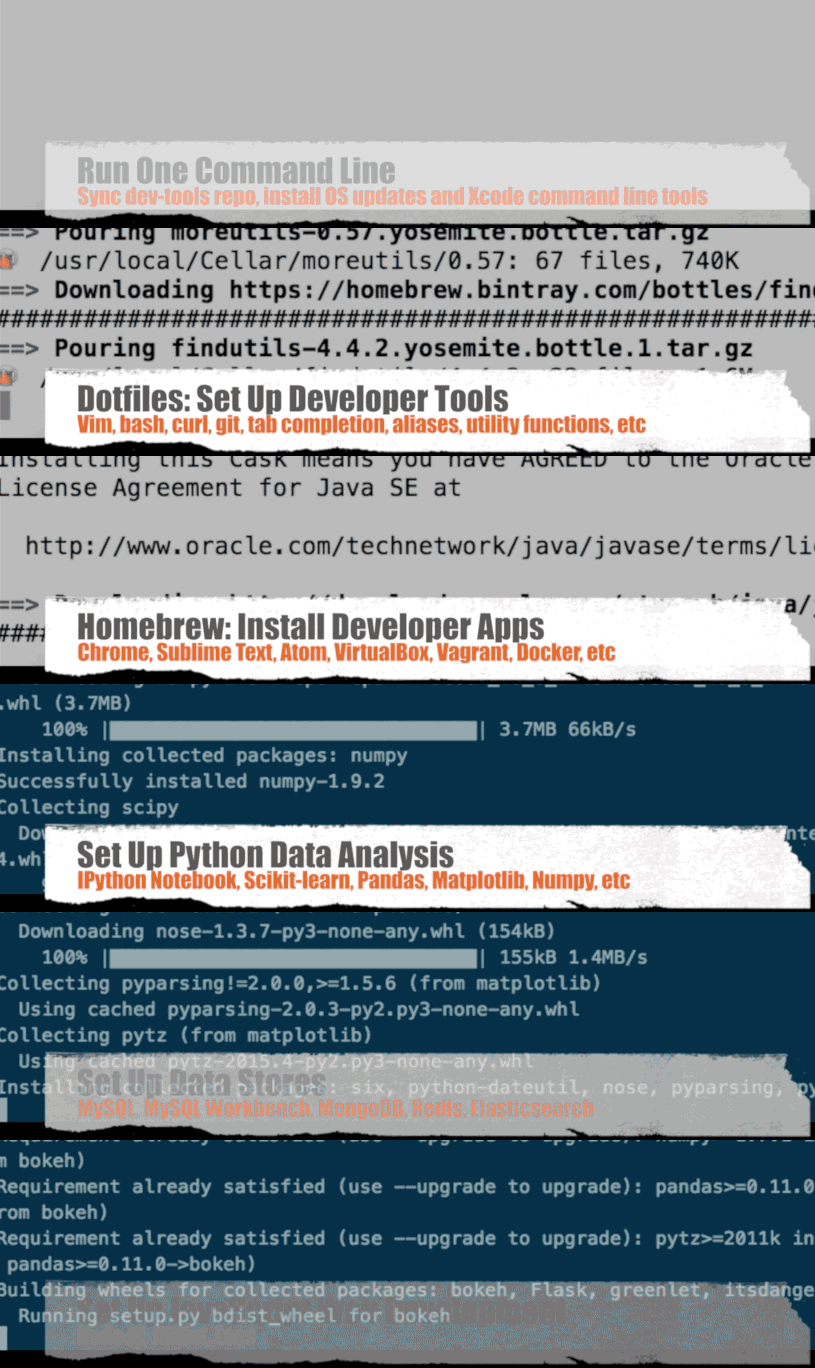
Setting up a new developer machine can be an ad-hoc, manual, and time-consuming process. dev-setup aims to simplify the process with easy-to-understand instructions and dotfiles/scripts to automate the setup of the following:
- OS X updates and Xcode Command Line Tools
- OS X defaults geared towards developers
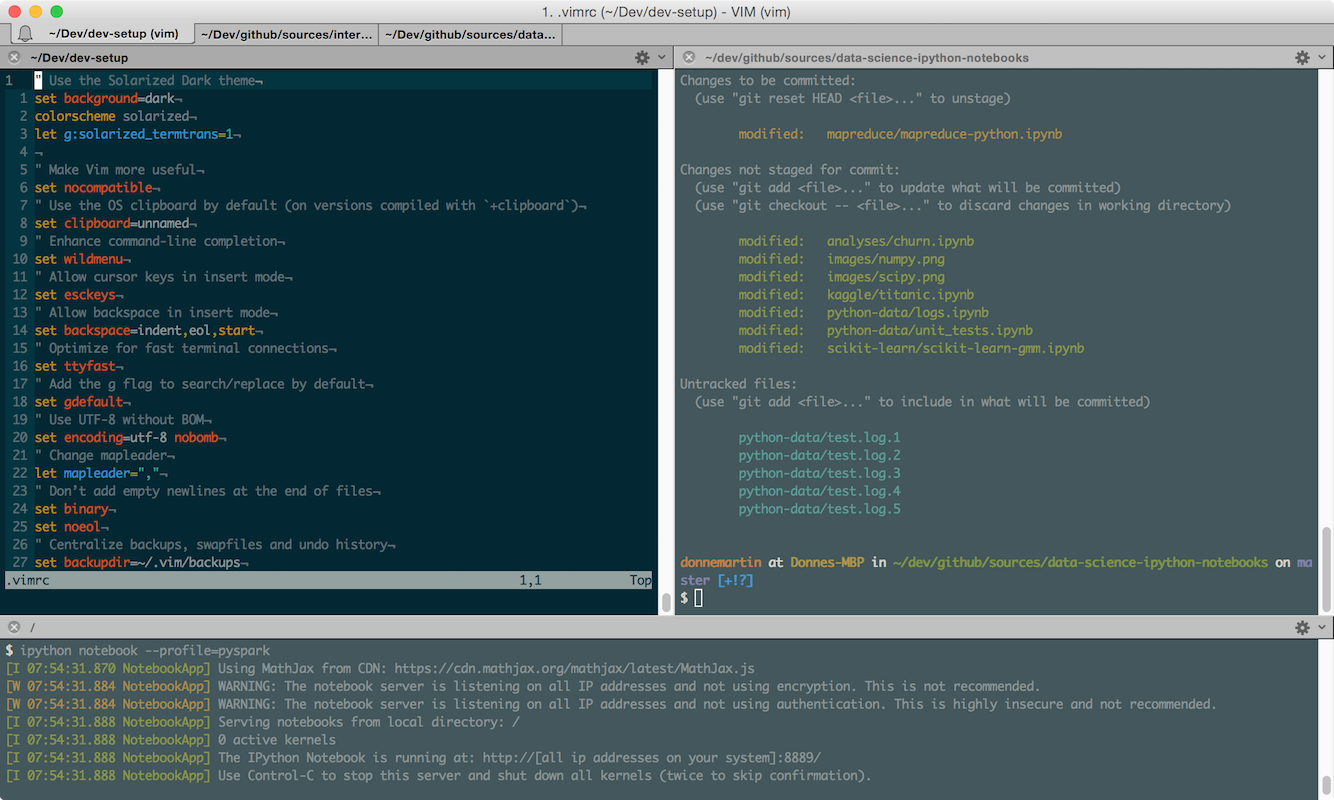
- Developer tools: Vim, bash, tab completion, curl, git, GNU core utils, Python, Ruby, etc
- Developer apps: iTerm2, Sublime Text, Atom, VirtualBox, Vagrant, Docker, Chrome, etc
- Python data analysis: IPython Notebook, NumPy, Pandas, Scikit-Learn, Matplotlib, etc
- Big Data platforms: Spark (with IPython Notebook integration) and MapReduce
- Cloud services: Amazon Web Services (Boto, AWS CLI, S3cmd, etc) and Heroku
- Common data stores: MySQL, PostgreSQL, MongoDB, Redis, and Elasticsearch
- Javascript web development: Node.js, JSHint, and Less
- Android development: Java, Android SDK, Android Studio, IntelliJ IDEA
But...I Don't Need All These Tools!
dev-setup is geared to be more of an organized reference of various developer tools.
You're not meant to install everything.
If you're interested in automation, dev-setup provides a customizable setup script. There's really no one-size-fits-all solution for developers so you're encouraged to make tweaks to suit your needs.
Credits: This repo builds on the awesome work from Mathias Bynens and Nicolas Hery.
For Automation, What About Vagrant, Docker, or Boxen?
Vagrant and Docker are great tools and are set up by this repo. I've found that Vagrant works well to ensure dev matches up with test and production tiers. I've only started playing around with Docker for side projects and it looks very promising. However, for Mac users, Docker and Vagrant both rely on virtual machines, which have their own considerations/pros/cons.
Boxen is a cool solution, although some might find it better geared towards "more mature companies or devops teams". I've seen some discussions of difficulties as it is using Puppet under the hood.
This repo takes a more light-weight approach to automation using a combination of Homebrew, Homebrew Cask, and shell scripts to do basic system setup. It also provides easy-to understand instructions for installation, configuration, and usage for each developer app or tool.
Sections Summary
- Section 1 contains the dotfiles/scripts and instructions to set up your system.
- Sections 2 through 7 detail more information about installation, configuration, and usage for topics in Section 1.
Section 1: Installation
Scripts tested on OS X 10.10 Yosemite and 10.11 El Capitan.
- Single Setup Script
- bootstrap.sh script
- Syncs dev-setup to your local home directory
~
- Syncs dev-setup to your local home directory
- osxprep.sh script
- Updates OS X and installs Xcode command line tools
- brew.sh script
- Installs common Homebrew formulae and apps
- osx.sh script
- Sets up OS X defaults geared towards developers
- pydata.sh script
- Sets up python for data analysis
- aws.sh script
- Sets up Spark, Hadoop MapReduce, and Amazon Web Services
- datastores.sh script
- Sets up common data stores
- web.sh script
- Sets up JavaScript web development
- android.sh script
- Sets up Android development
Section 2: General Apps and Tools
- Sublime Text
- Atom
- Terminal Customization
- iTerm2
- Vim
- Git
- VirtualBox
- Vagrant
- Docker
- Homebrew
- Ruby and rbenv
- Python
- Pip
- Virtualenv
- Virtualenvwrapper
Section 3: Python Data Analysis
Section 4: Big Data, AWS, and Heroku
- Spark
- MapReduce
- Awesome AWS
- AWS Account
- AWS CLI
- SAWS
- Boto
- S3cmd
- S3DistCp
- S3-parallel-put
- Redshift
- Kinesis
- Lambda
- AWS Machine Learning
- Heroku
Section 5: Data Stores
Section 6: JavaScript Web Development
Section 7: Android Development
Section 8: Misc
Section 1: Installation
Single Setup Script
Running with Git
Clone the Repo
$ git clone https://github.com/donnemartin/dev-setup.git && cd dev-setup
Run the .dots Script with Command Line Arguments
Since you probably don't want to install every section, the .dots script supports command line arguments to run only specified sections. Simply pass in the scripts that you want to install. Below are some examples.
For more customization, you can clone or fork the repo and tweak the .dots script and its associated components to suit your needs.
Run all:
$ ./.dots all
Run bootstrap.sh, osxprep.sh, brew.sh, and osx.sh:
$ ./.dots bootstrap osxprep brew osx
Run bootstrap.sh, osxprep.sh, brew.sh, and osx.sh, pydata.sh, aws.sh, and datastores.sh:
$ ./.dots bootstrap osxprep brew osx pydata aws datastores
Running without Git
$ curl -O https://raw.githubusercontent.com/donnemartin/dev-setup/master/.dots && ./.dots [Add ARGS Here]
Scripts
- .dots
- Runs specified scripts
- bootstrap.sh
- Syncs dev-setup to your local home directory
~
- Syncs dev-setup to your local home directory
- osxprep.sh
- Updates OS X and installs Xcode command line tools
- brew.sh
- Installs common Homebrew formulae and apps
- osx.sh
- Sets up OS X defaults geared towards developers
- pydata.sh
- Sets up python for data analysis
- aws.sh
- Sets up Spark, Hadoop MapReduce, and Amazon Web Services
- datastores.sh
- Sets up common data stores
- web.sh
- Sets up JavaScript web development
- android.sh
- Sets up Android development
Notes:
.dotswill initially prompt you to enter your password..dotsmight ask you to re-enter your password at certain stages of the installation.- If OS X updates require a restart, simply run
.dotsagain to resume where you left off. - When installing the Xcode command line tools, a dialog box will confirm installation.
- Once Xcode is installed, follow the instructions on the terminal to continue.
.dotsrunsbrew.sh, which takes awhile to complete as some formulae need to be installed from source.- When
.dotscompletes, be sure to restart your computer for all updates to take effect.
I encourage you to read through Section 1 so you have a better idea of what each installation script does. The following discussions describe in greater detail what is executed when running the .dots script.
bootstrap.sh script
The bootstrap.sh script will sync the dev-setup repo to your local home directory. This will include customizations for Vim, bash, curl, git, tab completion, aliases, a number of utility functions, etc. Section 2 of this repo describes some of the customizations.
Running with Git
First, fork or clone the repo. The bootstrap.sh script will pull in the latest version and copy the files to your home folder ~:
$ source bootstrap.sh
To update later on, just run that command again.
Alternatively, to update while avoiding the confirmation prompt:
$ set -- -f; source bootstrap.sh
Running without Git
To sync dev-setup to your local home directory without Git, run the following:
$ cd ~; curl -#L https://github.com/donnemartin/dev-setup/tarball/master | tar -xzv --strip-components 1 --exclude={README.md,bootstrap.sh,LICENSE}
To update later on, just run that command again.
Optional: Specify PATH
If ~/.path exists, it will be sourced along with the other files before any feature testing (such as detecting which version of ls is being used takes place.
Here’s an example ~/.path file that adds /usr/local/bin to the $PATH:
export PATH="/usr/local/bin:$PATH"
Optional: Add Custom Commands
If ~/.extra exists, it will be sourced along with the other files. You can use this to add a few custom commands without the need to fork this entire repository, or to add commands you don’t want to commit to a public repository.
My ~/.extra looks something like this:
# Git credentials
GIT_AUTHOR_NAME="Donne Martin"
GIT_COMMITTER_NAME="$GIT_AUTHOR_NAME"
git config --global user.name "$GIT_AUTHOR_NAME"
GIT_AUTHOR_EMAIL="donne.martin@gmail.com"
GIT_COMMITTER_EMAIL="$GIT_AUTHOR_EMAIL"
git config --global user.email "$GIT_AUTHOR_EMAIL"

# Pip should only run if there is a virtualenv currently activated
export PIP_REQUIRE_VIRTUALENV=true

# Install or upgrade a global package
# Usage: gpip install –upgrade pip setuptools virtualenv
gpip(){
   PIP_REQUIRE_VIRTUALENV="" pip "$@"
}
You could also use ~/.extra to override settings, functions, and aliases from the dev-setup repository, although it’s probably better to fork the dev-setup repository.
osxprep.sh script
Run the osxprep.sh script:
$ ./osxprep.sh
osxprep.sh will first install all updates. If a restart is required, simply run the script again. Once all updates are installed, osxprep.sh will then Install Xcode Command Line Tools.
If you want to go the manual route, you can also install all updates by running "App Store", selecting the "Updates" icon, then updating both the OS and installed apps.
Install Xcode Command Line Tools
An important dependency before many tools such as Homebrew can work is the Command Line Tools for Xcode. These include compilers like gcc that will allow you to build from source.
If you are running OS X 10.9 Mavericks or later, then you can install the Xcode Command Line Tools directly from the command line with:
$ xcode-select --install
Note: the osxprep.sh script executes this command.
Running the command above will display a dialog where you can either: * Install Xcode and the command line tools * Install the command line tools only * Cancel the install
OS X 10.8 and Older
If you're running 10.8 or older, you'll need to go to http://developer.apple.com/downloads, and sign in with your Apple ID (the same one you use for iTunes and app purchases). Unfortunately, you're greeted by a rather annoying questionnaire. All questions are required, so feel free to answer at random.
Once you reach the downloads page, search for "command line tools", and download the latest Command Line Tools (OS X Mountain Lion) for Xcode. Open the .dmg file once it's done downloading, and double-click on the .mpkg installer to launch the installation. When it's done, you can unmount the disk in Finder.
brew.sh script
When setting up a new Mac, you may want to install Homebrew, a package manager that simplifies installing and updating applications or libraries.
Some of the apps installed by the brew.sh script include: Chrome, Firefox, Sublime Text, Atom, Dropbox, Evernote, Skype, Slack, Alfred, VirtualBox, Vagrant, Docker, etc. **For a full listing of installed formulae and apps, refer to the commented brew.sh source file directly a
Core symbols most depended-on inside this repo
—
Shape
For agents
$ claude mcp add dev-setup \
  -- python -m otcore.mcp_server <graph>