github.com/devforth/painterro @v1.2.92
Chat with this repoWhat it actually does AI analysis from the code graph — generated when you open this
README





JavaScript painting plugin which allows editing images in a browser. Can be easily integrated into any website or webapp by calling simple initialization code.
🆕 Check out our simple and game-changing opensource Vue admin framework with a great look and extensibility!
🙏🙏🙏 Scream for help to Ukraine
24 February 2022, Russia started bombing cities with peacefully civilized population in whole Ukraine. And has been doing it up to this day. Breaking all laws of war. Their bombs has been killing children and adults. This deserves Hague court. - 🏠 If you are from Russia, please stop your government by any means including protests, don't trust local media, they are bribed by the government. They always was. I am sure you already feel lie by unexplainable crazy things in your country caused by world sanctions. - 💣 Please spread the information about bombing of Ukraine in all social way you could. Russia treacherously broke into the territory of a sovereign state. Do not trust to anything from Russian media, most likely it will be bullshit - 💼 If you have any kind of business cooperation with Russia, please block it now and keep most of money on your side, this is the only possible ethical decision - ☢️ Ask your government to stop Russia from spreading invasion in any way. Russia is nuclear threat to the whole world. You think it is not possible? We thought that bombing of independent country with population of 44.13 million is also not possible.
Features
- Paste image from clipboard with
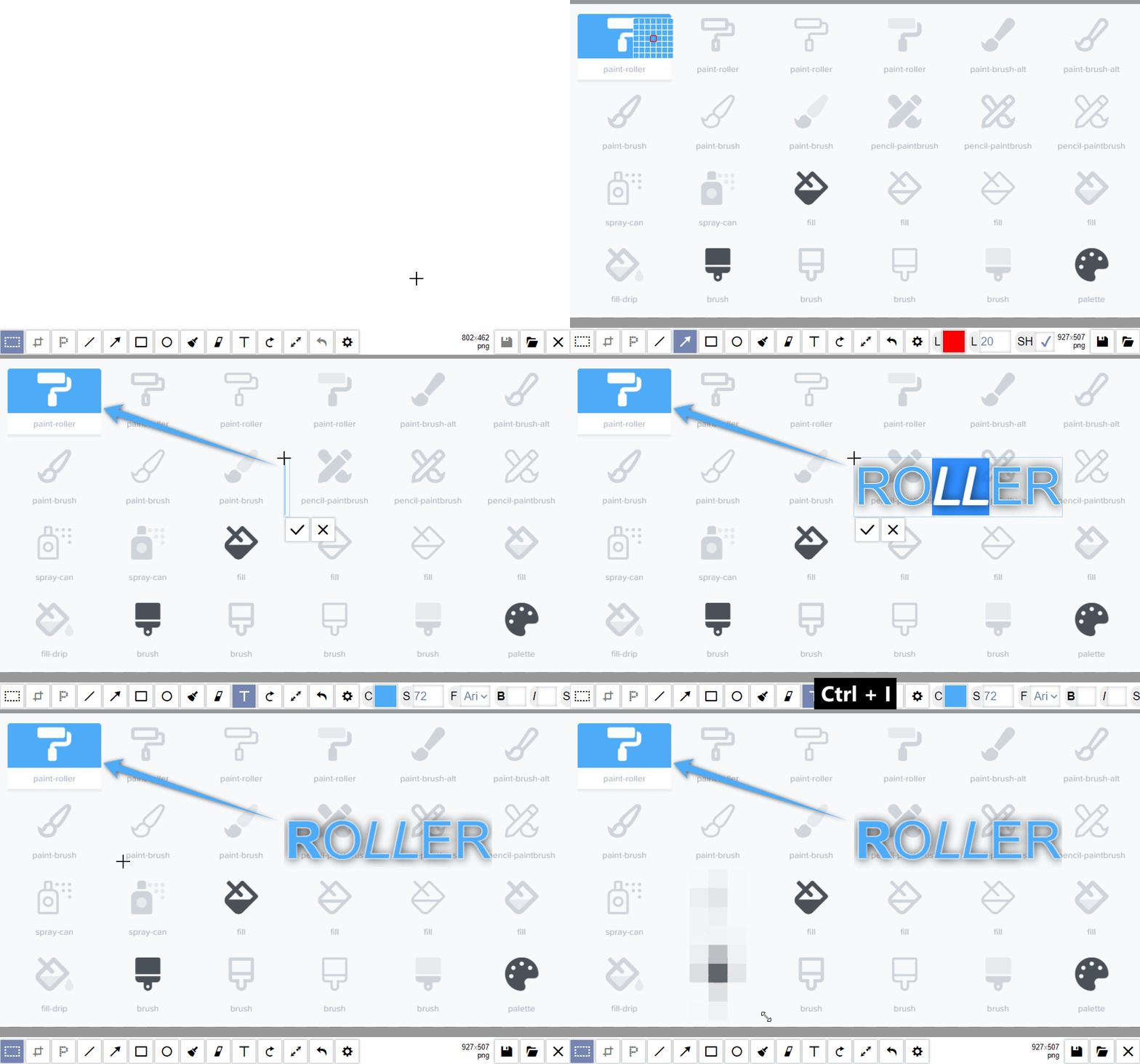
Ctrl+V(e.g.PtnScrscreenshot), drag and drop it into widget, or load with file select dialog - Crop image by defined area
- Paint primitives: line, rectangle, ellipse (alpha color can be used)
- Brush – free drawing tool e.g. to implement finger-based signatures on tablet screens
- Add text (you can use
Ctrl+B- bold,Ctrl+I- italic,Ctrl+U- underlined, or just pase formatted HTML) - Rotate / resize, scale image
- Pixelize some area to hide sensitive data
- Draw arrows
- Trash can tool to clear the canvas
- Paint bucket tool for color fills
- Add filters to images
Used by
 NASA Open MCT
|
 Cisco DevNet
|
 Tracklify
|
 FastDivs
|
Advantages 💪
- It is lightweight and minimalistic - written with vanilla JS, you don't need dependencies to use it
- Designed to process images with minimal clicks, most actions support hot-keys
- Could be easily integrated into SPA application (React, Vue, Angular)
- Could be used in Electron and Cordova apps
- Flexibale image saving - you provide your save handler, and get base64 data with any jpeg/png compression
- Could be translated to any language
Originally Painterro was designed for quick screenshots processing: You make screenshot by pressing PrtSc button,
then open Painterro on your website, paste an image with Ctrl+V,
crop it to interested area, highlight something with line/rectangle tool and/or add some text
to the image and save on server with custom save handler (e.g. simple XHR request to your backend).
In addition, you can use Painterro as image editor for any kind of raster images. Please try a demo.
Also painterro has Wordpress Plugin.
If you want to see some feature in Painterro, please leave (or vote for) an issue here. There is no promise that it will be implemented soon or ever, but it is interesting to know what features users want to have.
Usefull hints and tweaks 😋:
- Painterro JS paint features review on HINTY
- Dark theme for Painterro JS paint
- Round buttons for Painterro JS paint
Table of contents
Installation
With npm
If you have npm-based project (e.g. SPA like React/Vue) you can run:
npm install painterro --save
Then in your code
import Painterro from 'painterro'
...
Painterro().show()
By including script
You can download latest painterro-*.min.js here https://github.com/devforth/painterro/releases/
or build it by yourself.
Then insert <script> e.g to <head> section of your HTML file:
<script src="https://github.com/devforth/painterro/raw/v1.2.92/xxx/painterro-x.x.x.min.js"></script>
Then in your code (body section, onclick handler, etc):
<script>
  Painterro().show()
</script>
Read after installation
To be able to save edited images on server or client see Saving image. For configurations see Configuration
Supported hotkeys ⌨
Ctrl + Z |
Cancel last operation |
Ctrl + V |
Paste image from clipboard |
Ctrl + C |
Copy selected aria to clipboard |
Shift when drawing rect/ellipse |
Draw square/circle |
Shift when drawing line |
draw at angles of 0, 45, 90, 135 etc degrees |
Alt when using pipette |
Hide zoom helper (colored grid) |
Ctrl + Wheel mouse up/down |
Zoom image |
Ctrl + S |
Save image |
Also some tools have own one-button hotkeys e.g. C - crop, you could see this shortcuts if you will hold mouse on toolbutton.
Configuration ⚙
You can pass parameters map to Painterro constructor:
Painterro({
  activeColor: '#00ff00', // default brush color is green
  // ... other params here
})
| Param | Description | Default |
|---|---|---|
id |
If provided, then Painterro will be placed to some holder on page with this id, in other case holder-element will be created (fullscreen with margins). Important note: If you are using your block and id option, please add position:relative or absolute or fixed on your container, default (static) will lead to positioning issues |
undefined |
activeColor |
Line/Text color that selected by default | '#ff0000' |
activeColorAlpha |
Transparancy of activeColor from 0.0 to 1.0, 0.0 = transparent |
1 |
activeFillColor |
Fill color that selected by default | '#000000' |
activeFillColorAlpha |
Transparancy of activeColor from 0.0 to 1.0 |
0 |
defaultLineWidth |
Line width in px that selected by default |
5 |
defaultPrimitiveShadowOn |
Enable Shadow for primitive tools (easier recognize them on a screenshots) | true |
defaultEraserWidth |
Eraser width in px that selected by default |
5 |
backgroundFillColor |
Default background color when image created/erased | '#ffffff' |
backgroundFillColorAlpha |
Transparancy of backgroundFillColor from 0.0 to 1.0 |
1.0 |
textStrokeColor |
Stroke color of text tool | '#ffffff' |
textStrokeColorAlpha |
Stroke color of text tool | 1.0 |
shadowScale |
Change text shadow blur for text and arrow | 1.0 |
defaultFontSize |
Default font size in pixels | 24 |
backplateImgUrl |
background for drawing, doesn't include in final image | undefined |
defaultTextStrokeAndShadow |
Enables Stroke and Shadow for text tool by default (easier recognize text on screenshots) | true |
defaultSize |
default image size, should be string in format <width>x<height> in pixel, e.g. '200x100'. If value is 'fill'(default) than all container size will be used |
'fill' |
defaultTool |
Tool selected by default | 'select' |
hiddenTools |
List of tools that you wish to exclude from toolbar. Subset from this list ['crop', 'line', 'arrow', 'rect', 'ellipse', 'brush', 'text', 'rotate', 'resize', 'save', 'open', 'close', 'undo', 'redo', 'zoomin', 'zoomout', 'bucket'], You can't hide default tool |
['redo'] |
initText |
Display some centered text before painting (supports HTML). If null, no text will be shown | null |
initTextColor |
Color of init text | '#808080' |
initTextStyle |
Style of init text | "26px 'Open Sans', sans-serif" |
pixelizePixelSize |
Default pixel size of pixelize tool. Can accept values - x - x pixels, x% - means percents of minimal area rectangle side |
20% |
pixelizeHideUserInput |
Don't allow users to enter pixel size In settings tools (and save in localstorage), this would allow developer to freeze pixel size by using params pixelizePixelSize to make sure users will not set low pixel sizes |
false |
availableLineWidths |
A list of the line width values that are available for selection in a drop down list e.g. [1,2,4,8,16,64]. Otherwise an input field is used. |
undefined |
availableArrowLengths |
A list of the arrow sizes values that are available for selection in a drop down list e.g. [10,20,30,40,50,60]. Otherwise an input field is used. |
undefined |
defaultArrowLength |
default arrow length | 15 |
availableEraserWidths |
A list of the eraser width values that are available for selection in a drop down list e.g. [1,2,4,8,16,64]. Otherwise an input field is used. |
undefined |
availableFontSizes |
A list of the font size values that are available for selection in a drop down list e.g. [1,2,4,8,16,64]. Otherwise an input field is used. |
undefined |
toolbarPosition |
Whether to position the toolbar at the top or bottom. | 'bottom' |
fixMobilePageReloader |
By default painterro adds overflow-y: hidden to page body on mobile devices to prevent "super smart" feature lice Chrom's reload page. Unfortunately we can't prevent it by preventDefault. If your want to scroll page when painterro is open, set this to false | true |
language |
Language of the widget. | 'en' |
how_to_paste_actions |
List of paste options that will be suggested on paste using some paste dialog e.g. ['extend_right', 'extend_down']. If there is only one option in list, then it will chosen automatically without dialog |
['replace_all', 'paste_over', 'extend_right', 'extend_down'] |
replaceAllOnEmptyBackground |
Whether to select replace_all without dialog on first paste after painterro was just opened. So it will replaces background with image (will change dimensions to pasted image when background is empty) |
true |
hideByEsc |
If true then ESC press will hide widget |
false |
saveByEnter |
If true then ENTER press will do same as Ctrl+S |
false |
extraFonts |
By default Text tool supports only several predefined fonts due to compatibility considirations , but yousing this option you can add any fonts you want if you are sure they are available on your page/app | ['Roboto'] |
toolbarHeightPx |
Height of toolbar in pixels | 40 |
buttonSizePx |
Button for toolbar in pixels | 32 |
bucketSensivity |
Bucket tool sensivity | 100 |
customTools |
List of the custom tools which will appear at the left menu after default options. Custom tool includes three options : | {name:string, callBack:function, iconUrl:dataURL string or URL} |
disableWheelZoom |
Disables |
Core symbols most depended-on inside this repo
trShape
Languages
Modules by API surface
Used by 1 indexed graphs manifest dependencies, hub-wide
For agents
$ claude mcp add painterro \
  -- python -m otcore.mcp_server <graph>