github.com/deanishe/alfred-sublime-text @v3.2.0
Chat with this repoWhat it actually does AI analysis from the code graph — generated when you open this
README
Sublime Text Projects Alfred Workflow
View, filter and open your Sublime Text (or VSCode) project files.
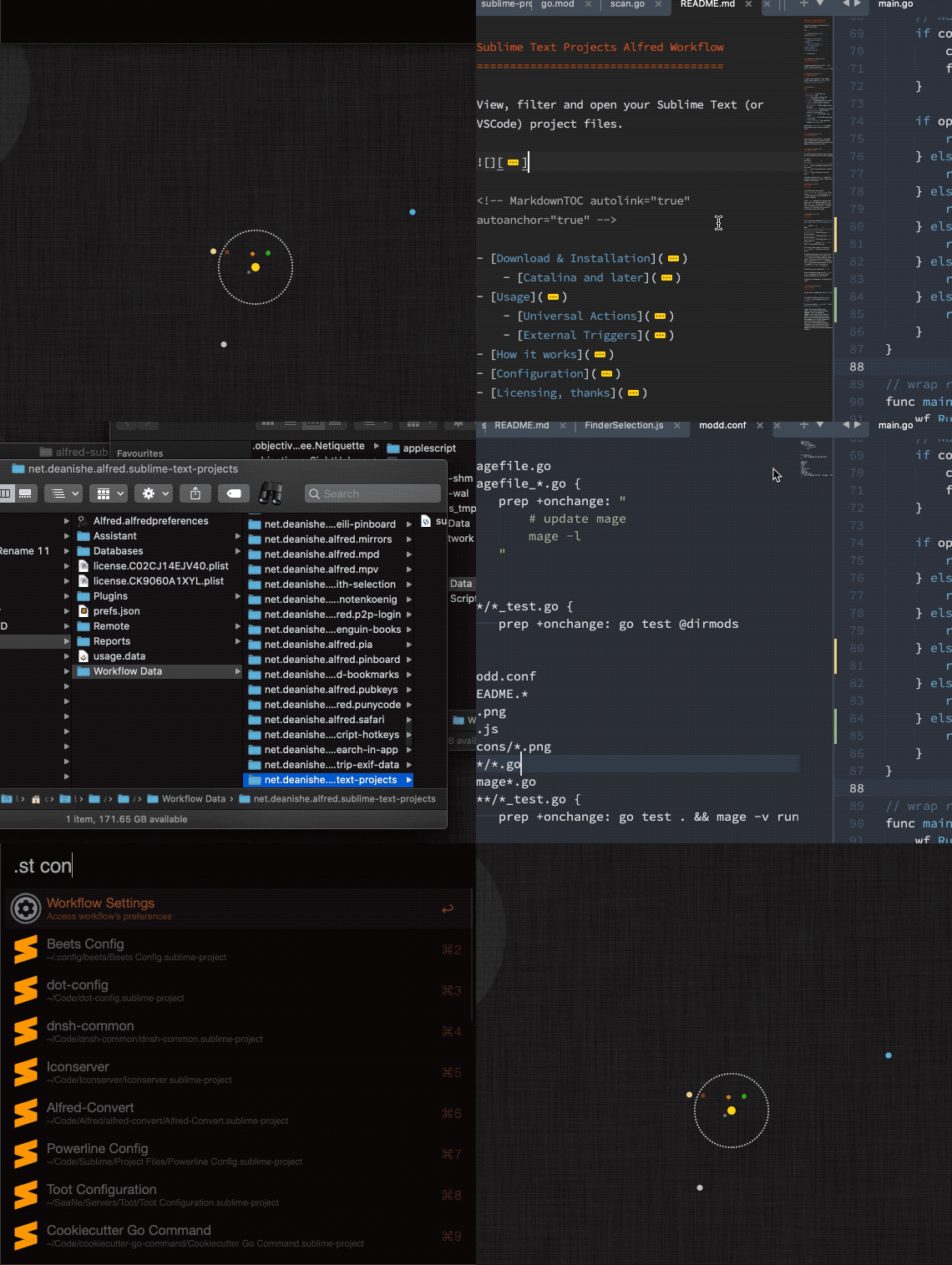
Download the workflow from GitHub and install by double-clicking the Sublime-Text-Projects-X.X.X.alfredworkflow file.
Catalina and later
If you're running Catalina or later (macOS 10.15+), you'll need to grant the workflow executable permission to run.
.st [<query>]— List/filter your.sublime-projectfiles↩— Open result in Sublime Text⌘+↩— Reveal file in Finder
.st rescan— Reload cached list of projects.st config— Show the current settingsWorkflow Is Up To Date/Workflow Update Available— Install update or check for updateEdit Config File— Open workflow's config file in Sublime TextView Help File— Open README in your browserReport Issue— Open GitHub issue tracker in your browserVisit Forum Thread— Open workflow's thread on alfredforum.comRescan Projects— Reload list of projects
You can enter the words search or config as a search query anywhere to jump to that screen.
The workflow scans your system for .sublime-project (or .code-workspace) files using locate, mdfind and (optionally) find. It then caches the list of projects for 10 minutes (by default).
As the locate database isn't enabled on most machines (and isn't updated frequently in any case), and mdfind ignores hidden directories, there is an additional, optional find-based scanner to "fill the gaps", which you must specifically configure (see below).
Scan intervals are configured in the workflow's configuration sheet in Alfred Preferences:
| Variable | Usage |
|---|---|
INTERVAL_FIND |
How long to cache find search results for |
INTERVAL_LOCATE |
How long to cache locate search results for |
INTERVAL_MDFIND |
How long to cache mdfind search results for |
VSCODE |
Set to 1 or true to switch to Visual Studio Code mode |
The interval values should be of the form 10m or 2h. Set to 0 to disable a particular scanner.
The workflow should work "out of the box", but if you have project files in directories that mdfind doesn't see (hidden directories, network shares), you may have to explicitly add some search paths to the sublime.toml configuration file in the workflow's data directory. The file is created on first run, and you can use .stconfig > Edit Config File to open it.
These directories are searched with find.
You can also add glob patterns to the excludes list in the settings file to ignore certain results. Excludes apply to all scanners.
The options are documented in the settings file itself.
All the code is released under the MIT Licence.
The workflow is based on the AwGo workflow library, also released under the MIT Licence.
The icons are based on Font Awesome and Material Design Icons.
Extension points exported contracts — how you extend this code
Scanner (Interface)Core symbols most depended-on inside this repo
UseShape
Languages
Modules by API surface
For agents
$ claude mcp add alfred-sublime-text \
  -- python -m otcore.mcp_server <graph>