github.com/davidvkimball/vaultcms @1.3.9
Chat with this repoWhat it actually does AI analysis from the code graph — generated when you open this
README
Vault CMS
The open-source headless content management system that turns Obsidian into a publishing platform for your Astro website.
Features
- Auto-detection and automation: Detects your Astro routes and content structure automatically.
- CMS-like homepage: See your content in a visual grid and perform bulk actions.
- Preconfigured: Optimized settings, hotkeys, and plugins for the Astro workflow.
- Headless and flexible: Just Markdown files and a workspace ready to be customized by you.
- Compatability: Works with almost any Astro theme.
Quick Start
The fastest way to install Vault CMS into your Astro project is via the CLI at your project root:
npx create-vaultcms
# or
npm create vaultcms
# or
pnpm create vaultcms
# or
yarn create vaultcms
The installer detects your Astro project and defaults to src/content (use . for project root).
Manual Installation
If you prefer to install manually, you can download the latest version of Vault CMS and place it directly into your Astro project.
- Download the source: Clone this repository or download the ZIP archive.
- Locate your project root: This is typically the directory containing
astro.config.mjsandpackage.json. - Move the files: Copy the
.obsidianand_basesfolders (and_GUIDE.md) into your project—typicallysrc/content, or project root if you prefer. - Open in Obsidian: Open that folder as a new vault in Obsidian.
Presets
For themes like Starlight, Slate, or Chiri, run the CLI and choose a preset when prompted:
npx create-vaultcms
To skip the prompt and set the template in one go (e.g. for scripts), use npx create-vaultcms --template <name>. See all presets at the Presets Repo.
AI agents (MCP)
This package also bundles an MCP server (vaultcms-mcp) so Claude Code, Cursor, Claude Desktop, and other agents can install Vault CMS for you through structured tool calls. Full setup and tool reference: docs.vaultcms.org/guides/mcp-server/.
Deep Dive
- Documentation: docs.vaultcms.org
- Community: Join the Discord
Video Guide
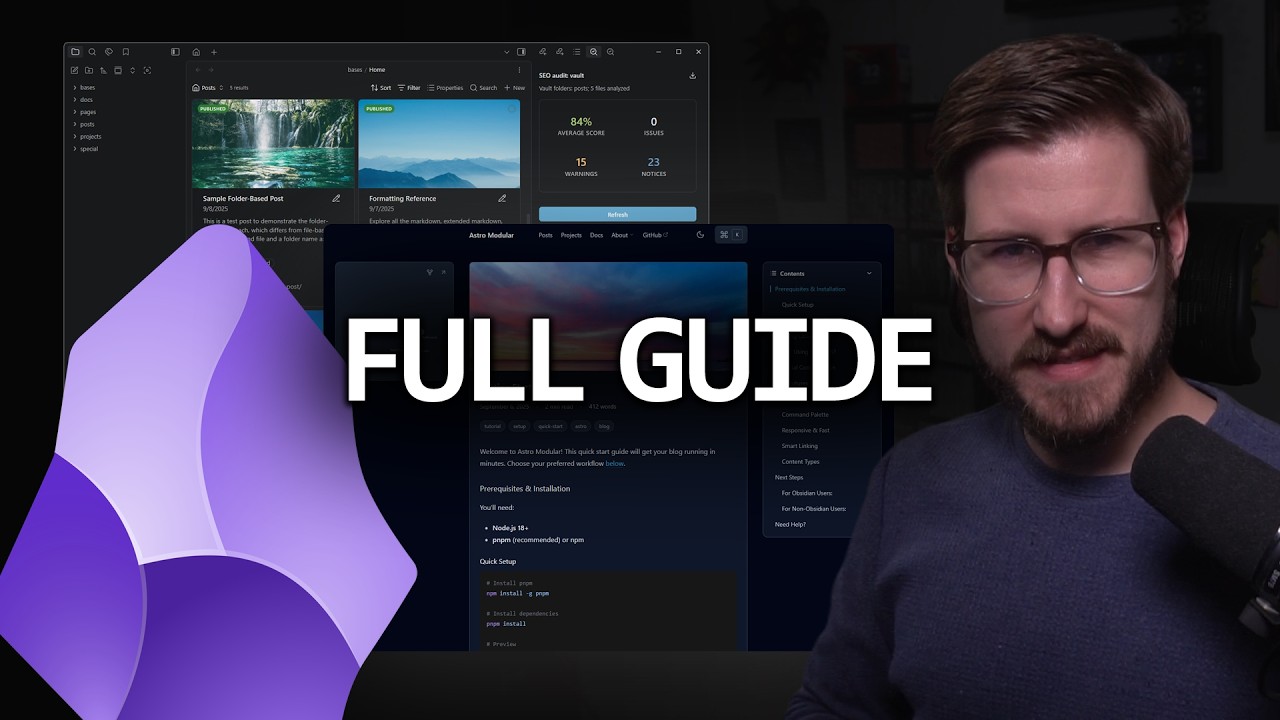
[!NOTE] To see Vault CMS combined with an Astro site specifically designed with it in mind, check out the Astro Modular theme.
Core symbols most depended-on inside this repo
logShape
Languages
Modules by API surface
For agents
$ claude mcp add vaultcms \
  -- python -m otcore.mcp_server <graph>