github.com/coleam00/local-ai-packaged @main
Chat with this repoBrowse by type
What it actually does AI analysis from the code graph — generated when you open this
README
Self-hosted AI Package
Self-hosted AI Package is an open, docker compose template that quickly bootstraps a fully featured Local AI and Low Code development environment including Ollama for your local LLMs, Open WebUI for an interface to chat with your N8N agents, and Supabase for your database, vector store, and authentication.
This is Cole's version with a couple of improvements and the addition of Supabase, Open WebUI, Flowise, Neo4j, Langfuse, SearXNG, and Caddy!
Pre-built RAG AI Agent workflows from the video are included in n8n/backup/workflows/ - see Importing Starter Workflows for setup instructions.
IMPORANT: Supabase has updated a couple environment variables so you may have to add some new default values in your .env that I have in my .env.example if you have had this project up and running already and are just pulling new changes. Specifically, you need to add "POOLER_DB_POOL_SIZE=5" to your .env. This is required if you have had the package running before June 14th.
February 26th, 2026 Update: The latest Supabase storage container (storage-api v1.37.8) now requires several new environment variables. If you have already been running the Local AI Package and are pulling new changes, you need to add the following to your .env file:
GLOBAL_S3_BUCKET=stub
REGION=stub
STORAGE_TENANT_ID=stub
S3_PROTOCOL_ACCESS_KEY_ID=625729a08b95bf1b7ff351a663f3a23c
S3_PROTOCOL_ACCESS_KEY_SECRET=850181e4652dd023b7a98c58ae0d2d34bd487ee0cc3254aed6eda37307425907
These are already included in the .env.example, so if you are setting up for the first time you just need to copy them over. The stub values work fine for local file-based storage. Without these variables, the Supabase storage container will crash on startup with a "Region is missing" error.
Important Links
-
Local AI community forum over in the oTTomator Think Tank
-
GitHub Kanban board for feature implementation and bug squashing.
-
Original Local AI Starter Kit by the n8n team
-
Download my N8N + OpenWebUI integration directly on the Open WebUI site. (more instructions below)
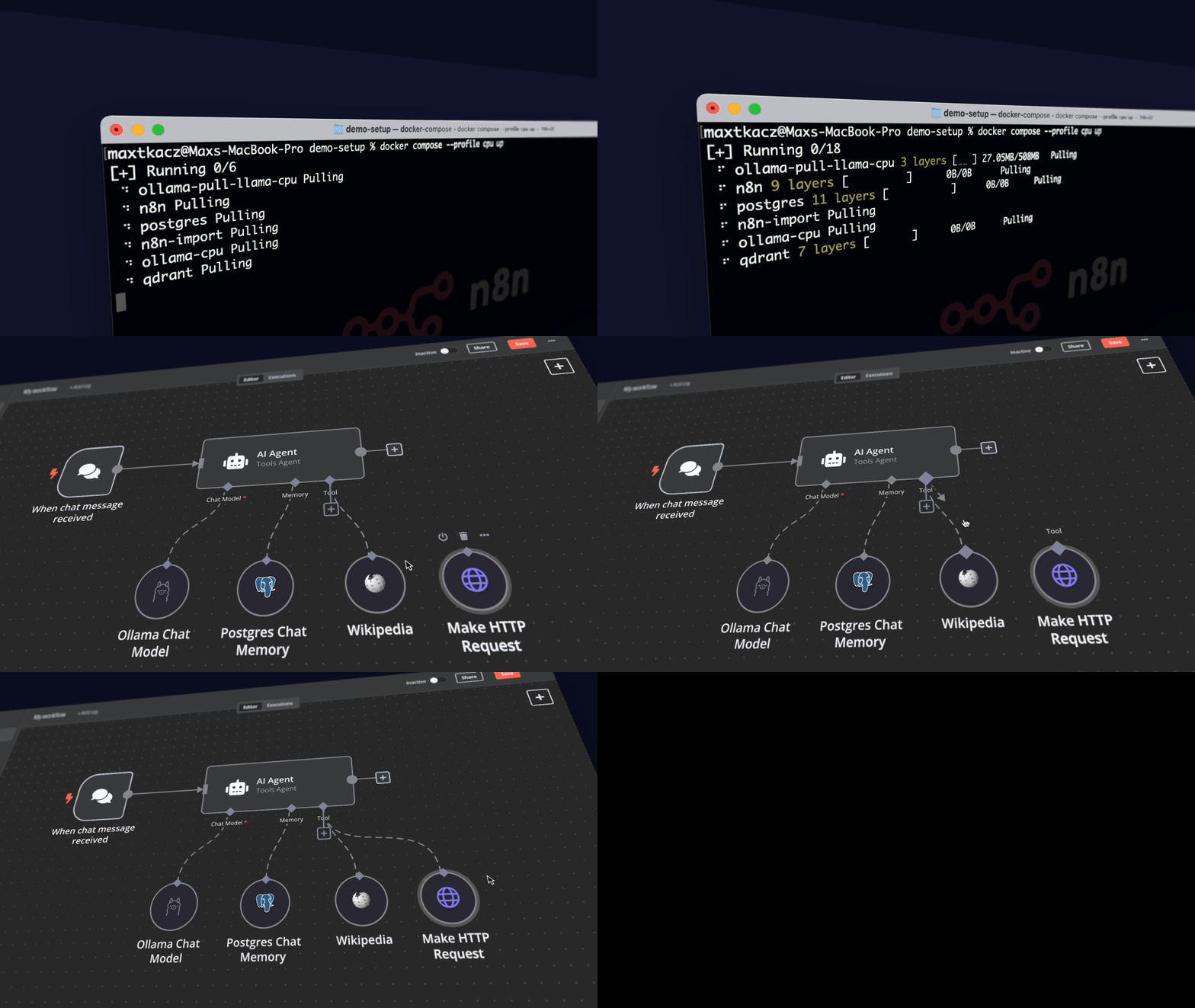
Curated by https://github.com/n8n-io and https://github.com/coleam00, it combines the self-hosted n8n platform with a curated list of compatible AI products and components to quickly get started with building self-hosted AI workflows.
What’s included
✅ Self-hosted n8n - Low-code platform with over 400 integrations and advanced AI components
✅ Supabase - Open source database as a service - most widely used database for AI agents
✅ Ollama - Cross-platform LLM platform to install and run the latest local LLMs
✅ Open WebUI - ChatGPT-like interface to privately interact with your local models and N8N agents
✅ Flowise - No/low code AI agent builder that pairs very well with n8n
✅ Qdrant - Open source, high performance vector store with an comprehensive API. Even though you can use Supabase for RAG, this was kept unlike Postgres since it's faster than Supabase so sometimes is the better option.
✅ Neo4j - Knowledge graph engine that powers tools like GraphRAG, LightRAG, and Graphiti
✅ SearXNG - Open source, free internet metasearch engine which aggregates results from up to 229 search services. Users are neither tracked nor profiled, hence the fit with the local AI package.
✅ Caddy - Managed HTTPS/TLS for custom domains
✅ Langfuse - Open source LLM engineering platform for agent observability
Prerequisites
Before you begin, make sure you have the following software installed:
- Python - Required to run the setup script
- Git/GitHub Desktop - For easy repository management
- Docker/Docker Desktop - Required to run all services
Installation
Clone the repository and navigate to the project directory:
git clone -b stable https://github.com/coleam00/local-ai-packaged.git
cd local-ai-packaged
Before running the services, you need to set up your environment variables for Supabase following their self-hosting guide.
- Make a copy of
.env.exampleand rename it to.envin the root directory of the project - Set the following required environment variables: ```bash ############ # N8N Configuration ############ N8N_ENCRYPTION_KEY= N8N_USER_MANAGEMENT_JWT_SECRET=
############ # Supabase Secrets ############ POSTGRES_PASSWORD= JWT_SECRET= ANON_KEY= SERVICE_ROLE_KEY= DASHBOARD_USERNAME= DASHBOARD_PASSWORD= POOLER_TENANT_ID=
############
# Neo4j Secrets
############
NEO4J_AUTH=
############ # Langfuse credentials ############
CLICKHOUSE_PASSWORD=
MINIO_ROOT_PASSWORD=
LANGFUSE_SALT=
NEXTAUTH_SECRET=
ENCRYPTION_KEY=
```
[!IMPORTANT] Make sure to generate secure random values for all secrets. Never use the example values in production.
- Set the following environment variables if deploying to production, otherwise leave commented: ```bash ############ # Caddy Config ############
N8N_HOSTNAME=n8n.yourdomain.com WEBUI_HOSTNAME=:openwebui.yourdomain.com FLOWISE_HOSTNAME=:flowise.yourdomain.com SUPABASE_HOSTNAME=:supabase.yourdomain.com OLLAMA_HOSTNAME=:ollama.yourdomain.com SEARXNG_HOSTNAME=searxng.yourdomain.com NEO4J_HOSTNAME=neo4j.yourdomain.com LETSENCRYPT_EMAIL=your-email-address ```
The project includes a start_services.py script that handles starting both the Supabase and local AI services. The script accepts a --profile flag to specify which GPU configuration to use.
For Nvidia GPU users
python start_services.py --profile gpu-nvidia
[!NOTE] If you have not used your Nvidia GPU with Docker before, please follow the Ollama Docker instructions.
For AMD GPU users on Linux
python start_services.py --profile gpu-amd
For Mac / Apple Silicon users
If you're using a Mac with an M1 or newer processor, you can't expose your GPU to the Docker instance, unfortunately. There are two options in this case:
-
Run the starter kit fully on CPU:
bash python start_services.py --profile cpu -
Run Ollama on your Mac for faster inference, and connect to that from the n8n instance:
bash
   python start_services.py --profile none
If you want to run Ollama on your mac, check the Ollama homepage for installation instructions.
For Mac users running OLLAMA locally
If you're running OLLAMA locally on your Mac (not in Docker), you need to modify the OLLAMA_HOST environment variable in the n8n service configuration. Update the x-n8n section in your Docker Compose file as follows:
x-n8n: &service-n8n
  # ... other configurations ...
  environment:
    # ... other environment variables ...
    - OLLAMA_HOST=host.docker.internal:11434
Additionally, after you see "Editor is now accessible via: http://localhost:5678/":
- Head to http://localhost:5678/home/credentials
- Click on "Local Ollama service"
- Change the base URL to "http://host.docker.internal:11434/"
For everyone else
python start_services.py --profile cpu
The environment argument
The start-services.py script offers the possibility to pass one of two options for the environment argument, private (default environment) and public: - private: you are deploying the stack in a safe environment, hence a lot of ports can be made accessible without having to worry about security - public: the stack is deployed in a public environment, which means the attack surface should be made as small as possible. All ports except for 80 and 443 are closed
The stack initialized with
bash
   python start_services.py --profile gpu-nvidia --environment private
equals the one initialized with
bash
   python start_services.py --profile gpu-nvidia
Deploying to the Cloud
Prerequisites for the below steps
- Linux machine (preferably Unbuntu) with Nano, Git, and Docker installed
Extra steps
Before running the above commands to pull the repo and install everything:
- Run the commands as root to open up the necessary ports:
- ufw enable
- ufw allow 80 && ufw allow 443
- ufw reload
WARNING
ufw does not shield ports published by docker, because the iptables rules configured by docker are analyzed before those configured by ufw. There is a solution to change this behavior, but that is out of scope for this project. Just make sure that all traffic runs through the caddy service via port 443. Port 80 should only be used to redirect to port 443.
- Run the start-services.py script with the environment argument public to indicate you are going to run the package in a public environment. The script will make sure that all ports, except for 80 and 443, are closed down, e.g.
bash
   python3 start_services.py --profile gpu-nvidia --environment public
- Set up A records for your DNS provider to point your subdomains you'll set up in the .env file for Caddy to the IP address of your cloud instance.
For example, A record to point n8n to [cloud instance IP] for n8n.yourdomain.com
NOTE: If you are using a cloud machine without the "docker compose" command available by default, such as a Ubuntu GPU instance on DigitalOcean, run these commands before running start_services.py:
- DOCKER_COMPOSE_VERSION=$(curl -s https://api.github.com/repos/docker/compose/releases/latest | grep 'tag_name' | cut -d\" -f4)
- sudo curl -L "https://github.com/docker/compose/releases/download/${DOCKER_COMPOSE_VERSION}/docker-compose-linux-x86_64" -o /usr/local/bin/docker-compose
- sudo chmod +x /usr/local/bin/docker-compose
- sudo mkdir -p /usr/local/lib/docker/cli-plugins
- sudo ln -s /usr/local/bin/docker-compose /usr/local/lib/docker/cli-plugins/docker-compose
Importing Starter Workflows
This package includes pre-built n8n workflows in the n8n/backup/workflows/ folder. To import them:
- Open n8n at http://localhost:5678/ (or your custom domain if deployed to the cloud)
- Go to your workflow list and click the three-dot menu or use Import from File
- Select the JSON files from the
n8n/backup/workflows/folder on your local machine
For detailed instructions, see the official n8n import/export documentation.
[!NOTE] You'll need to create credentials for each workflow after importing. See step 3 in Quick Start below.
⚡️ Quick start and usage
The main component of the self-hosted AI starter kit is a docker compose file pre-configured with network and disk so there isn’t much else you need to install. After completing the installation steps above, follow the steps below to get started.
- Open http://localhost:5678/ in your browser to set up n8n. You’ll only have to do this once. You are NOT creating an account with n8n in the setup here, it is only a local account for your instance!
- Import a workflow from
n8n/backup/workflows/(see Importing Starter Workflows), then open it from your workflow list. - Create credentials for every service:
Ollama URL: http://ollama:11434
Postgres (through Supabase): use DB, username, and password from .env. IMPORTANT: Host is 'db' Since that is the name of the service running Supabase
Qdrant URL: http://qdrant:6333 (API key can be whatever since this is running locally)
Google Drive: Follow this guide from n8n.
Don't use localhost for the redirect URI, just use another domain you have, it will still work!
Alternatively, you can set up local file triggers.
4. Select Test workflow to start running the workflow.
5. If this is the first time you’re running the workflow, you may need to wait
until Ollama finishes downloading Llama3.1. You can inspect the docker
console logs to check on the progress.
6. Make sure to toggle the workflow as active and copy the "Production" webhook URL!
7. Open http://localhost:3000/ in your browser to set up Open WebUI.
You’ll only have to do this once. You are NOT creating an account with Open WebUI in the
setup here, it is only a local account for your instance!
8. Go to Workspace -> Functions -> Add Function -> Give name + description then paste in
the code from n8n_pipe.py
The function is also published here on Open WebUI's site.
- Click on the gear icon and set the n8n_url to the production URL for the webhook you copied in a previous step.
- Toggle the function on and now it will be available in your model dropdown in the top left!
To open n8n at any time, visit http://localhost:5678/ in your browser. To open Open WebUI at any time, visit http://localhost:3000/.
With your n8n instance, you’ll have access to over 400 integrations and a suite of basic and advanced AI nodes such as [AI Agent](https://docs.n8n.io/integrations/builtin/cluster-n
Core symbols most depended-on inside this repo
Shape
Languages
Modules by API surface
Datastores touched
For agents
$ claude mcp add local-ai-packaged \
  -- python -m otcore.mcp_server <graph>