github.com/cloudchristoph/az-firewall-watch @v0.3.0
Chat with this repoWhat it actually does AI analysis from the code graph — generated when you open this
README
🔥 Azure Firewall Watch
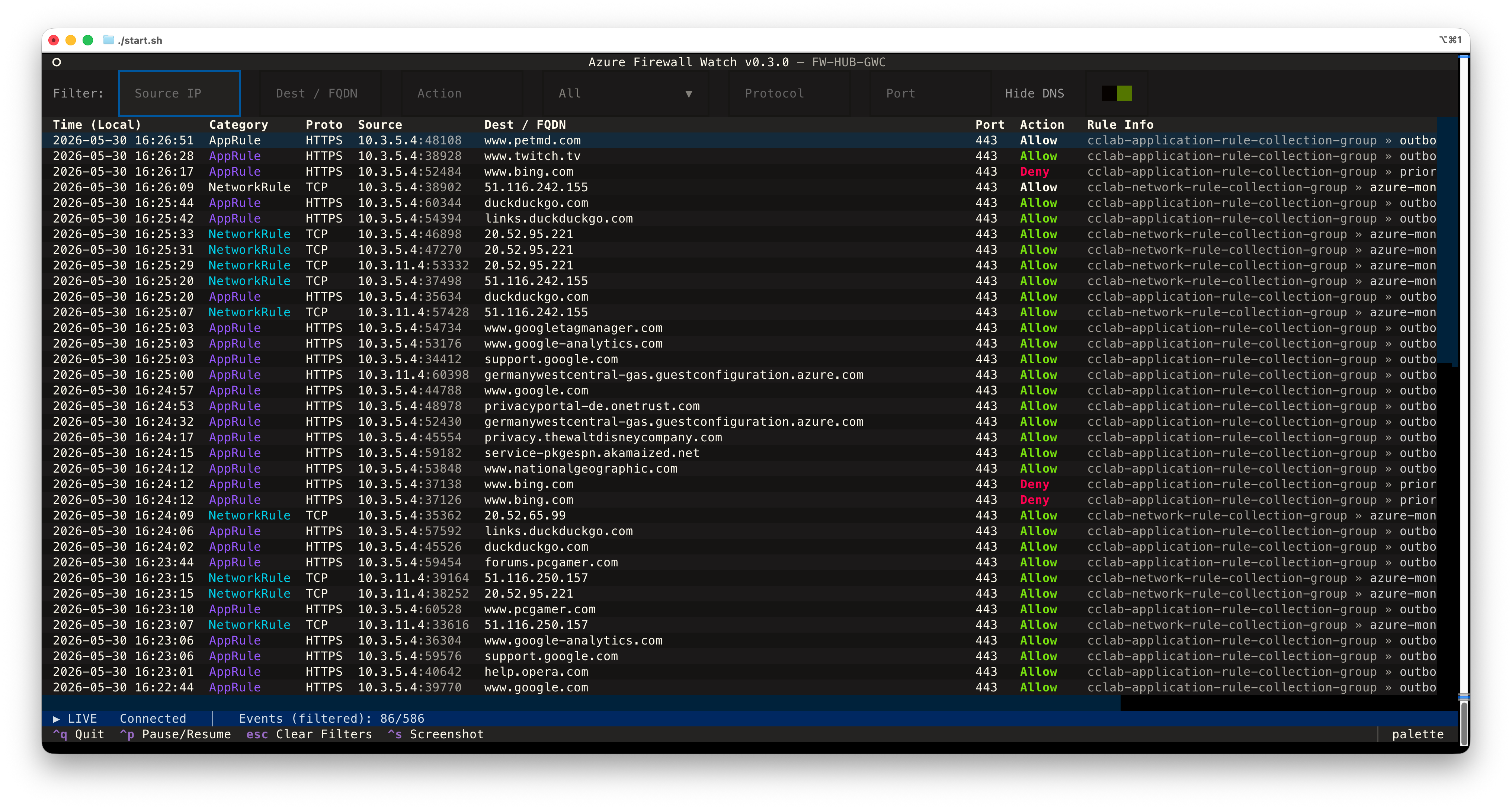
Azure Firewall Watch is a terminal UI for live log monitoring of Azure Firewall. It streams logs from an Event Hub in real time and lets you filter and inspect them directly in your terminal.
Built by CloudChristoph.
This project is based on the excellent work by Nicola Delfino and his azure-firewall-mon project.
🏗️ How it works
Azure Firewall Watch reads logs from an Azure Event Hub that receives firewall events via Diagnostic Settings:
Azure Firewall
    └─▶ Diagnostic Settings
            └─▶ Event Hub  ◀─── az-firewall-watch (streams in real time)
-
Diagnostic Settings on your Azure Firewall forward structured log categories (NetworkRule, AppRule, IDPS, …) to an Event Hub namespace.
→ Configure Azure Firewall diagnostics -
Event Hub buffers the events (default retention: 1 day) so az-firewall-watch can consume them live.
→ Azure Event Hubs overview
🚀 Getting started
Option 1 - Download the binary (recommended)
Download the binary for your platform from the latest release:
| Platform | File |
|---|---|
| Windows | az-firewall-watch.exe |
| macOS Apple Silicon | az-firewall-watch-macos.tar.gz |
| Linux x86_64 | az-firewall-watch-linux.tar.gz |
Windows:
Double-click az-firewall-watch.exe or run from PowerShell:
.\az-firewall-watch.exe
[!NOTE] Windows SmartScreen may warn on first launch - click More info → Run anyway.
This is expected for unsigned binaries.
macOS:
# 1. Extract (preserves execute permission)
tar -xzf az-firewall-watch-macos.tar.gz

# 2. Remove the Gatekeeper quarantine flag (required for unsigned binaries)
xattr -d com.apple.quarantine az-firewall-watch

# 3. Run — the setup wizard launches automatically on first start
./az-firewall-watch
Linux:
# 1. Extract (preserves execute permission)
tar -xzf az-firewall-watch-linux.tar.gz

# 2. Run — the setup wizard launches automatically on first start
./az-firewall-watch
Option 2 — Run from source (Python 3.10+)
git clone https://github.com/cloudchristoph/az-firewall-watch.git
cd az-firewall-watch

# Linux / macOS
./start.sh

# Windows
start.bat
The scripts create a virtual environment, install dependencies, and launch the app — the setup wizard runs automatically if .env is not yet configured.
🧙 First-run setup wizard
The setup wizard runs automatically the first time you launch the app (or whenever .env is missing). It's a full TUI — navigate with arrow keys, Enter to confirm, Escape or Q to go back.
You have two main options for connecting your firewall logs Event Hub:
Existing Event Hub
| Option | What it does | Azure CLI required |
|---|---|---|
| Discover Event Hub automatically | Lists your subscriptions, namespaces and hubs so you can pick one from a menu | ✅ |
| Enter existing Event Hub data | Type namespace + hub name manually (handy when your identity can read the hub but not list resources) | — |
| Paste SAS connection string | Paste a full Endpoint=sb://…;EntityPath=… string — written verbatim to .env |
— |
New Event Hub
[!NOTE] If your environment uses Azure Policy to enforce specific naming conventions, settings, or resource tags (as it should 😉), the automatic deployment may fail since it creates a new Event Hub with default settings within the same subscription as the firewall.
In that case, you should create the Event Hub manually or via IaC according to your policies and then use the "Discover" or "Enter existing" options to connect it to the app.
| Option | What it does | Azure CLI required |
|---|---|---|
| Deploy new Event Hub and Diagnostics settings | Discovers your Azure Firewall, creates a Basic-tier Event Hub namespace + firewall-logs hub, and wires up Diagnostic Settings to forward the structured log categories |
✅ |
[!NOTE] The deployment will require permissions to create an Event Hub namespace and hub, and to update Diagnostic Settings on the firewall. Also keep in mind that it can take up to 10-15 minutes at the first launch for the Event Hub to be fully provisioned and start receiving logs from the firewall.
🔑 Authentication methods
After picking a hub (Discover, Enter existing, or Deploy new), a follow-up screen asks how to authenticate:
- Entra ID (recommended) — uses passwordless auth via logged in Azure CLI login, managed identity, environment credentials, etc. Nothing secret is written to
.env. Requires the Azure Event Hubs Data Receiver role on the namespace or hub; the wizard verifies your assignment up-front. - SAS auth rule — looks for a reusable Listen-only authorization rule on the hub; if none exists you'll be asked to confirm the creation of a new one before the connection string is written to
.env.
The Paste connection string path skips the auth-method screen since SAS is already implied.
[!CAUTION] SAS keys are powerful secrets that grant access to your Event Hub. If you choose the SAS auth method, make sure to protect the generated connection string and
.envfile, and rotate keys regularly.Never commit your
.envfile to source control or share it with unauthorized parties.
Run with --reconfigure to redo setup at any time:
./az-firewall-watch --reconfigure
⚙️ Configuration
Manual setup (skip the wizard)
If you already have an Event Hub connection string, create .env next to the binary (or in the repo root):
EVENT_HUB_CONNECTION_STRING=Endpoint=sb://your-ns.servicebus.windows.net/;SharedAccessKeyName=...;EntityPath=your-hub-name
EVENT_HUB_CONSUMER_GROUP=$Default
EVENT_HUB_START_POSITION=latest   # or: earliest
Alternatively, for Entra ID (passwordless) authentication — required when SAS keys are disabled on the namespace:
EVENT_HUB_NAMESPACE=your-ns.servicebus.windows.net
EVENT_HUB_NAME=your-hub-name
EVENT_HUB_CONSUMER_GROUP=$Default
EVENT_HUB_START_POSITION=latest
Note: Entra ID auth uses
DefaultAzureCredentialwhich picks up Azure CLI login, managed identity, environment variables, etc. Your identity must have the Azure Event Hubs Data Receiver role on the namespace or hub.
Environment variables
| Variable | Description | Default |
|---|---|---|
EVENT_HUB_CONNECTION_STRING |
Primary connection string incl. EntityPath=<your-hub-name> |
— |
EVENT_HUB_NAMESPACE |
Fully qualified namespace (e.g. mynamespace.servicebus.windows.net) — for Entra ID auth |
— |
EVENT_HUB_NAME |
Event Hub name — for Entra ID auth | — |
EVENT_HUB_CONSUMER_GROUP |
Consumer group | $Default |
EVENT_HUB_START_POSITION |
latest (live only) or earliest (read full retention) |
latest |
When both
EVENT_HUB_NAMESPACE/EVENT_HUB_NAMEandEVENT_HUB_CONNECTION_STRINGare set, Entra ID is preferred. Tip: If you deploy the Event Hub manually, configure Diagnostic Settings on your Azure Firewall to forward logs to thefirewall-logsEvent Hub.
⌨️ Key bindings
| Key | Action |
|---|---|
Ctrl + q |
Quit |
Ctrl + p |
Pause / resume streaming |
Ctrl + s |
Save a screenshot of the current view |
Escape |
Clear all filter inputs |
f |
Jump focus to the filters |
Tab |
Move between filter inputs |
Enter |
Open detail view for the selected row |
c |
Clear all rows from the table |
The status bar at the bottom shows the connection state, total events received, the currently visible count when a filter is active, and how many records were skipped (e.g. unknown categories).
🔍 Filters
All filters are case-insensitive substring matches applied instantly as you type.
| Filter | Matches against |
|---|---|
| Source IP | sourceip field |
| Dest / FQDN | targetip / FQDN field |
| Action | allow, deny, dnat, alert, resolvefail, DNS RCODEs (noerror, nxdomain, …) |
| Category | NetworkRule, AppRule, DnsQuery, NATRule, IDPS, ThreatIntel |
| Protocol | TCP, UDP, HTTPS, HTTP, DNS query types (A, AAAA, MX, …) |
| Port | Destination port (e.g. 443, 80, 53) |
Hide DNS toggle
DNS proxy traffic can dominate the log volume on busy firewalls. A Hide DNS
switch sits at the end of the filter bar and is on by default, so DnsQuery
rows are filtered out until you explicitly want to see them.
The toggle is smart:
- Flipping it off instantly shows all DNS rows.
- Picking DnsQuery in the Category dropdown automatically flips it off — so you never end up with an empty table after asking to see DNS entries.
- Pressing
Escapeto clear all filters resets the toggle back to on.
Press Escape to clear all filters at once, or f to jump directly into the filter bar.
📋 Supported log categories
Both the legacy (single-message) and the structured (typed JSON) log
formats produced by Azure Firewall are parsed. Legacy AzureFirewallDnsProxy
entries are normalised into the DnsQuery category so you only deal with one
display name regardless of which diagnostic mode is enabled.
| Category shown | Azure category (structured / legacy) |
|---|---|
| NetworkRule | AZFWNetworkRule / AzureFirewallNetworkRule |
| AppRule | AZFWApplicationRule / AzureFirewallApplicationRule / AZFWFqdnResolveFailure (rendered with action ResolveFail) |
| NATRule | AZFWNatRule / AzureFirewallNatRuleLog |
| DnsQuery | AZFWDnsQuery / AzureFirewallDnsProxy |
| IDPS | AZFWIdpsSignature |
| ThreatIntel | AZFWThreatIntel |
Unknown or non-firewall categories are counted in the status bar as skipped rather than displayed.
🔨 Building locally
```bash pip install -r requirements.txt -r requirements-build.txt
pyinstaller \ --onefile \ --name az-firewall-watch \ --collect-all textual \ --hidden-import azure.eventhub \ --hidden-import azure.eventhub.aio \ --hidden-import azure.eventhub._transport._pyamqp_transport \ --add-data "fw_parser.py:." \ main.py
Binary is at dist/az-firewall-watch (or dist/az-firewall-watch.
Core symbols most depended-on inside this repo
_sShape
Languages
Modules by API surface
For agents
$ claude mcp add az-firewall-watch \
  -- python -m otcore.mcp_server <graph>