github.com/chenBingX/SuperTextView @v3.2.6.99
Chat with this repoWhat it actually does AI analysis from the code graph — generated when you open this
README
GitAds

Hello, Developer!Welcome to use SuperTextView








English | 中文

Hi,Developer,Welcome to use SuperTextView !
Thank you and tens of thousands of Android developers for your trust in me 😘。
SuperTextView is different in that it is just a simple view element, but not just a view.
It's alive and dynamic, with powerful embedded logic that continues to provide you with rich but exceptionally simple development support.
SuperTextView saves you from complex rendering logic. A simple API method call, the dazzling rendering effects are instantly available.
You just enjoy the amazing visual effects you have written, and the rest will be handed over to SuperTextView.
Feature
- set rounded corners for View
- supports separate control of each rounded corner
- add border for View
- add a stroke or hollow effect to the text
- support up to 2 Drawable to display
- accurately control the size and position of Drawable
- support gradient background
- touch discoloration
- display pictures, including the net pictures
- Supports setting network image directly in XML
- set rounded corners for pictures
- add borders to pictures
- Adjuster module can insert operation
- change the color of Drawable
- change the rotation of Drawable
- support text gradient effect
- support for setting click events separately for the Drawable zone
- support Gif display
- support for adding borders to Gif, as well as rounded corners
- support Gif pause/play, modify frame rate
- support for extracting the specified Gif frame
- ...
Demo
📲 click here (or scan the qr code below) to download the Demo

 |
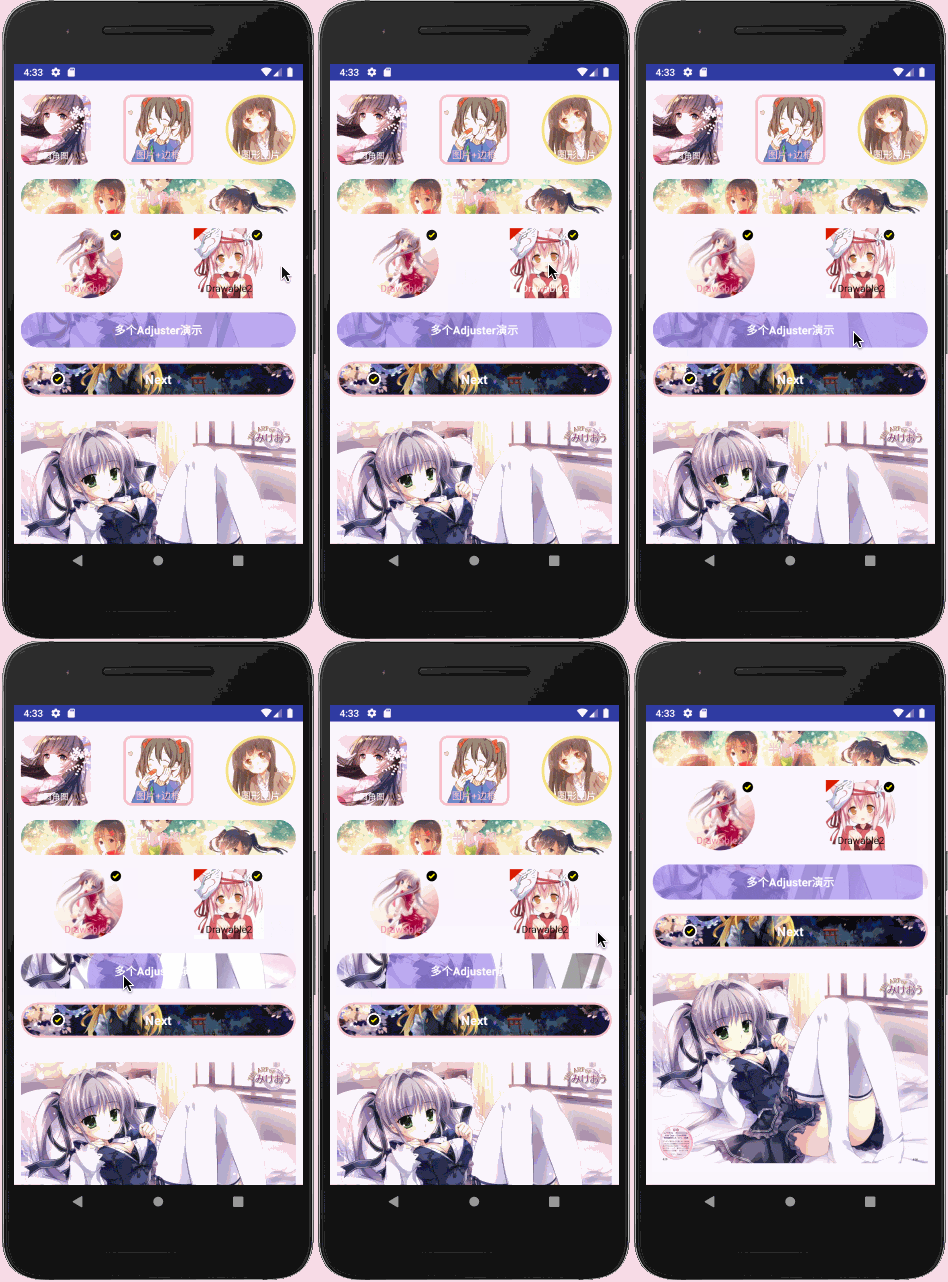 |
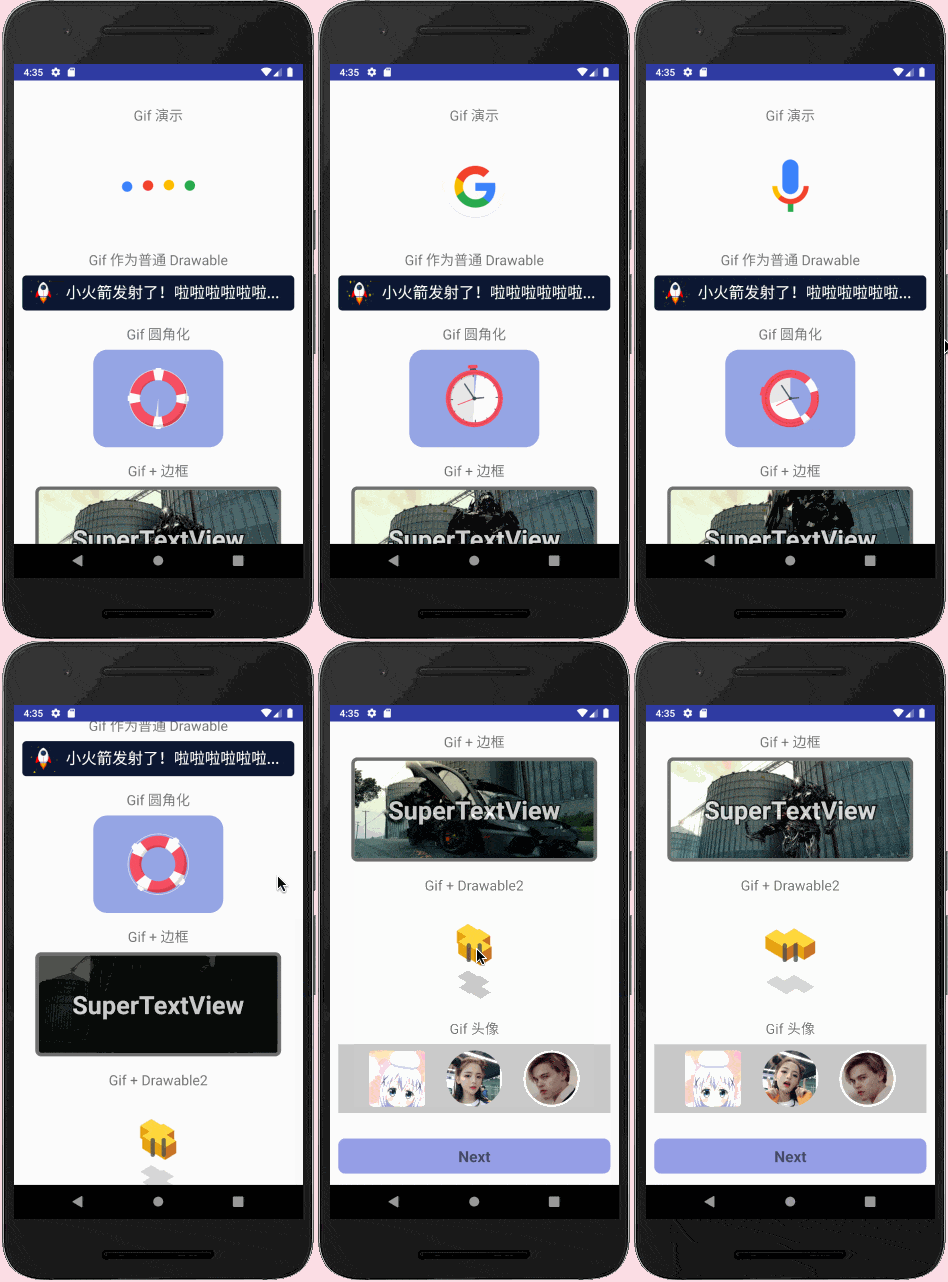 |
 |
Portal Area
Usage
Add it in you build.gradle:
allprojects {
    repositories {
        ...
        maven { url 'https://jitpack.io' }
    }
}

dependencies {
    compile 'com.github.chenBingX:SuperTextView:VERSION_CODE'
}
The version code of the latest release can be found here.
Special Note💡
-
v3.2.6 support:
armeabi-v7a -
v3.2.6.64 support:
armeabi-v7a、arm64-v8a -
v3.2.6.99 support:
armeabi-v7a、arm64-v8a、x86 -
⚠️Attention:
proguard-rules.proplease add-keep class com.coorchice.library.gifdecoder.JNI { *; }
Update Log
v3.2.6
- Support for setting 'Network Image' in XML for StateDrawable and StateDrawable2
In XML, use a 'Network Image' as a background image

<com.coorchice.library.SuperTextView
  android:id="@+id/stv_40"
  android:layout_width="150dp"
  android:layout_height="150dp"
  android:layout_gravity="center_horizontal"
  android:layout_marginTop="16dp"
  android:gravity="bottom|center"
  android:paddingBottom="1dp"
  android:text="网络背景图"
  android:textColor="#000"
  android:textSize="14sp"
  app:stv_corner="10dp"
  app:stv_isShowState="true"
  app:stv_drawableAsBackground="true"
  app:stv_solid="#f1f1f1"
  app:stv_state_drawable="https://gw.alicdn.com/imgextra/i3/O1CN01suhAFr1cXQX49D2xp_!!6000000003610-0-tps-468-466.jpg" />
In XML, set the 'Network Image' for StateDrawable2

<com.coorchice.library.SuperTextView
  android:id="@+id/stv_41"
  android:layout_width="350dp"
  android:layout_height="100dp"
  android:layout_gravity="center_horizontal"
  android:layout_marginTop="30dp"
  android:paddingLeft="116dp"
  android:paddingTop="30dp"
  android:text="StateDrawable2 网络图"
  android:textColor="@color/black"
  android:textSize="14sp"
  app:stv_corner="50dp"
  app:stv_isShowState2="true"
  app:stv_left_bottom_corner="true"
  app:stv_left_top_corner="true"
  app:stv_solid="#f1f1f1"
  app:stv_state_drawable2="https://gw.alicdn.com/imgextra/i3/O1CN01XPmcmt1vJfKcQ8o6O_!!6000000006152-0-tps-500-500.jpg"
  app:stv_state_drawable2_height="100dp"
  app:stv_state_drawable2_mode="left"
  app:stv_state_drawable2_width="100dp"/>
v3.2.5
- 【fix】
stv_pressBgColorinvalid - 【fix】setDrawablePaddingLeft() not work
- 【OP】Clear log
- 【New】Support cache gif by the GifCache
- 【OP】Optimize Gif rendering efficiency
v3.2.4
-
Fix Drawable directly write hexadecimal color value, does not display the problem
-
Drawable Support for specified layer
<com.coorchice.library.SuperTextView
    ...
    // Configuring the level of Drawable1
    app:stv_state_drawable_layer="beforeText"
    // Configuring the level of Drawable2
    app:stv_state_drawable2_layer="afterText"
    ...
    />
Support mode:
- `beforeText`,Before the text
- `afterText`,After the text
Java has corresponding functions to support dynamic configuration.
-
Scale mode scaleType switch invalidation problem when fixing Drawable1 as background image
v3.2.3
-
Optimize text strokes
-
Optimize the display of transparent gif
v3.2.1 - Great,SuperTextView
In the new v3.2.0 version, SuperTextView redefines itself again. Developers, take a look at the surprises prepared for you!🎉🎉🎉
this is... Gif ?
This time, SuperTextView brings powerful Gif driver support to developers.
If in the past, you have been upset about how to display a Gif chart on the Android platform, or you are stuck in the performance abyss of some three-party Gif libraries. But now, SuperTextView will completely change this situation.
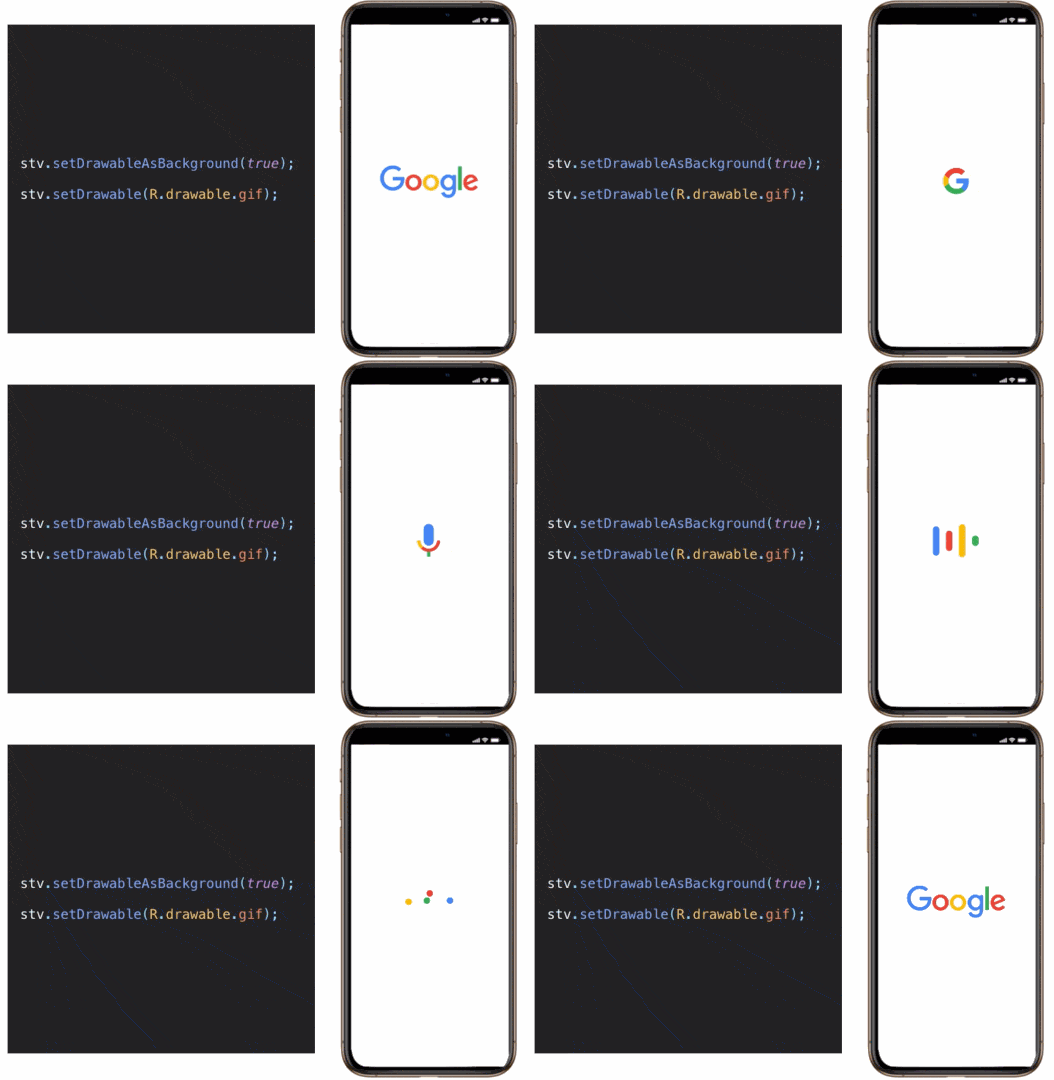
Gif and SuperTextView are natural and natural, so you can display a Gif diagram in the most familiar and natural way. It's as simple as showing a normal picture as usual.
Thanks to the ultra-high performance of c/c++ and the precise operation of memory. SuperTextView Customized the powerful Gif driver engine for mobile platforms by using c/c++.
SuperTextView's Gif engine, which can accurately manipulate image pixel memory, only update local pixel memory when frame refresh of Gif image, which makes Gif image rendering efficiency Got a qualitative leap.
Through asynchronous off-screen rendering technology, SuperTextView can ensure smooth and smooth application interface and sensitive response speed even when displaying large Gif images.

💡In the above Demo, using SuperTextView shows a Gif image with a 265 frame image, but the user interface is still very smooth.
Display Gif super simple
Display a Gif diagram in SuperTextView, super easy!
You can configure it directly in the XML layout document or add it in your code.
Configuring Gif in XML
<com.coorchice.library.SuperTextView
    android:id="@+id/stv_1"
    android:layout_width="match_parent"
    android:layout_height="150dp"
    app:stv_state_drawable="@drawable/gif_1" />
You can display the Gif diagram for the SuperTextView configuration just like configuring a normal image.
Configuring Gif in your code
stv_1 = (SuperTextView) findViewById(R.id.stv_1);
stv_1.setDrawable(R.drawable.gif_1);
It's that simple and natural, SuperTextView allows developers to display a Gif diagram without any awareness.
In the kernel logic of SuperTextView, SuperTextView intelligently classifies the normal graph and Gif graph, and then processes and optimizes accordingly.
Display network Gif is as simple
What if your Gif is not local but in the cloud?
You don't have to worry about it!Everything is handed over to SuperTextView.
stv_1 = (SuperTextView) findViewById(R.id.stv_1);
stv_1.setUrlImage("http://example.com/images/example.gif");
With just one line of code, SuperTextView will assist you in the background to load the Gif image and then process the rendering to the screen.
💡In fact, the Drawable1 and Drawable2 image display bits of SuperTextView can be used to display Gif images. In short, everything is what you are familiar with.
You can control more
SuperTextView not only display Gif, but also you can control more details.
Play / Pause
You can control Gif , play, or pause at any time.
if (stv.getDrawable() instanceof GifDrawable) {
  // Get the GifDrawable first
  GifDrawable gifDrawable = (GifDrawable) stv.getDrawable();

  // Play
  gifDrawable.play();

  // Pause
  gifDrawable.stop();
}

Jump/Get the specified frame
In SuperTextView, you can always reach the image of the frame you specify, as well as the image that can be extracted to the specified frame.
if (stv.getDrawable() instanceof GifDrawable) {
  // Get the GifDrawable first
  GifDrawable gifDrawable = (GifDrawable) stv.getDrawable();

  // Jump to the specified frame
  gifDrawable.gotoFrame(pre);

  // Get the specified frame
  Bitmap frame = gifDrawable.getFrame(i);
}
💡Since SuperTextView can support local incremental rendering, when your Gif supports this rendering mode, it means you may need to enable ** strict mode by calling
gifDrawable.setStrict(true), to ensure that the frame jump or frame extraction image is correct. This can take some time, so you should try to do the operations under ** strict mode* in an asynchronous thread.
Fast, follow your heart
SuperTextView allows you to modify the playback rate of the Gif chart at will.
if (stv.getDrawable() instanceof GifDrawable) {
  // Get the GifDrawable first
  GifDrawable gifDrawable = (GifDrawable) stv.getDrawable();

  // Set the frame playback interval, 20 ms
  gifDrawable.setFrameDuration(20);
}
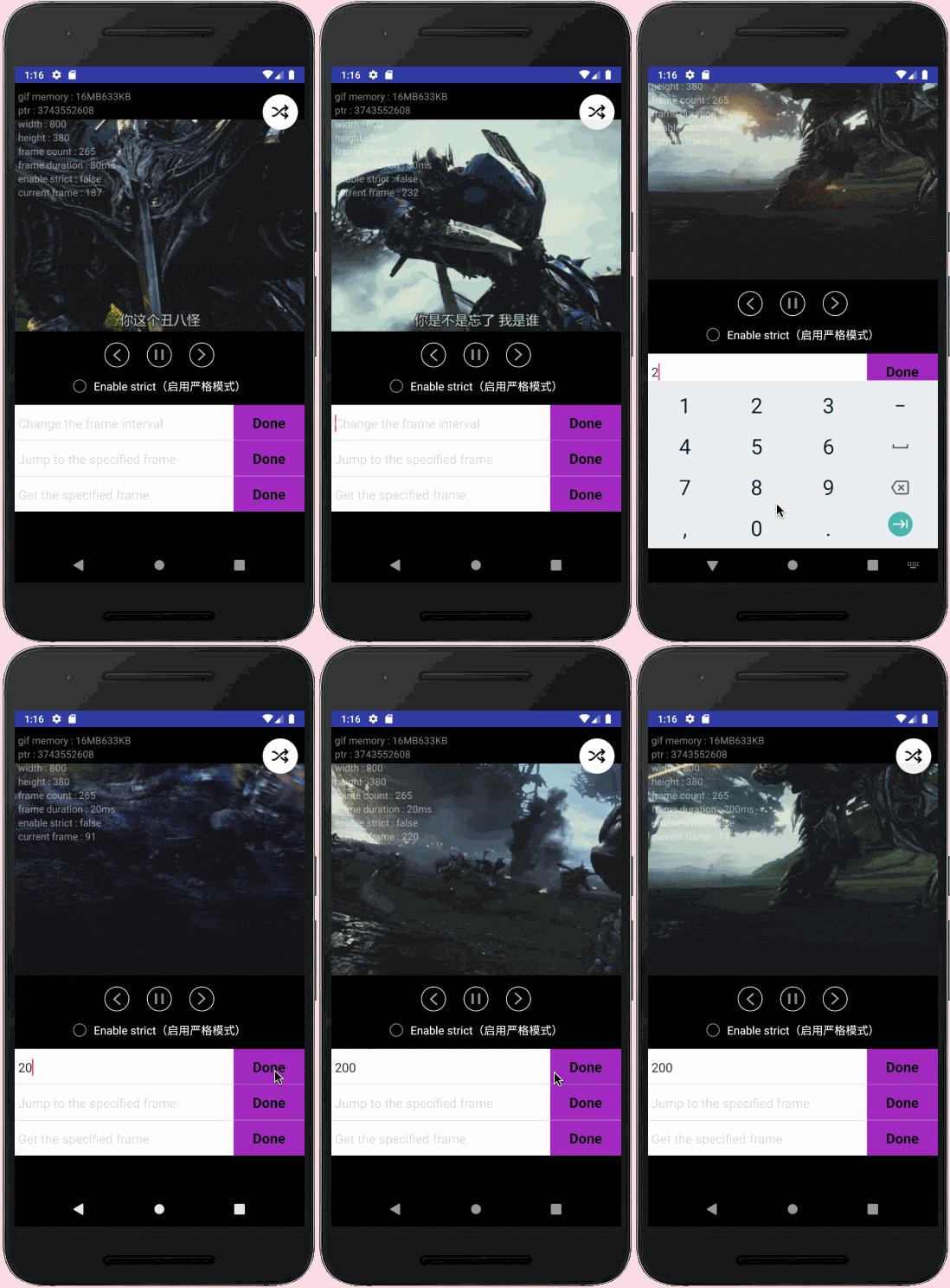
You can know all
With SuperTextView you can get a glimpse of the information of a Gif.
-
Get Gif size
``` // Get width int width = gifDrawable.getWidth();
// Get height int height = gifDrawable.getHeight(); ```
-
Get Gif frame information
``` // Get the number of frames int frameCount = gifDrawable.getFrameCount();
// Get the current frame interval int frameDuration = gifDrawable.getFrameDuration();
// Get the current render to that frame int framePotision = gifDrawable.getCurrentFrame();
// Whether it is playing boolean isPlaying = gifDrawable.isPlaying(); ```
More brilliant Gif
** SuperTextView ** and ** Gif ** rendered by virtue of seamless integration, after ** Drawable1 ** and ** Drawable2 ** all configuration items in the display ** Gif ** Figure, too, can enter into force.
Gif as a normal Drawable
app:stv_state_drawable_rotate="90"
Let's take a look at what's going on with a Gif in the original Drawable position.
``` <com.coorchice.library.SuperTextView android:layout_width="match_parent" android:layout_height="50dp" android:paddingLeft="62dp" android:paddingRight="10dp" android:text="小火箭发射了!啦啦啦啦啦啦..." android:textColor="#ffffff" android:textSize="22dp" app:stv_corner="6dp" app:stv_isShowState="true" app:stv_solid="#0D1831"
// set Gif
app:stv_state_drawable="@drawable/gif_1"

// set Gif height
app:stv_state_drawable_height="40dp"

// set Gif width
app:stv_state_drawable_width="40dp"

// set Gif to left
app:stv_state_drawable_mode="left"

// set Gif left spacing
app:stv_state_drawable_padding_left="10dp"/>
Extension points exported contracts — how you extend this code
Engine (Interface)Core symbols most depended-on inside this repo
getDrawableShape
Languages
Modules by API surface
For agents
$ claude mcp add SuperTextView \
  -- python -m otcore.mcp_server <graph>