github.com/calcom/cal.diy @v6.2.0 sqlite
README

Cal.com
The open-source Calendly successor.


<a href="https://cal.com"><strong>Learn more »</strong></a>


<a href="https://github.com/calcom/cal.com/discussions">Discussions</a>
·
<a href="https://cal.com">Website</a>
·
<a href="https://github.com/calcom/cal.com/issues">Issues</a>
·
<a href="https://cal.com/roadmap">Roadmap</a>














About the Project
Scheduling infrastructure for absolutely everyone
The open source Calendly successor. You are in charge of your own data, workflow, and appearance.
Calendly and other scheduling tools are awesome. It made our lives massively easier. We're using it for business meetings, seminars, yoga classes, and even calls with our families. However, most tools are very limited in terms of control and customization.
That's where Cal.com comes in. Self-hosted or hosted by us. White-label by design. API-driven and ready to be deployed on your own domain. Full control of your events and data.
Recognition
Hacker News
Product Hunt



This project is tested with browserstack
Built With
Contact us
Meet our sales team for any commercial inquiries.

Stay Up-to-Date
Cal.com officially launched as v.1.0 on the 15th of September 2021 and we've come a long way so far. Watch releases of this repository to be notified of future updates:
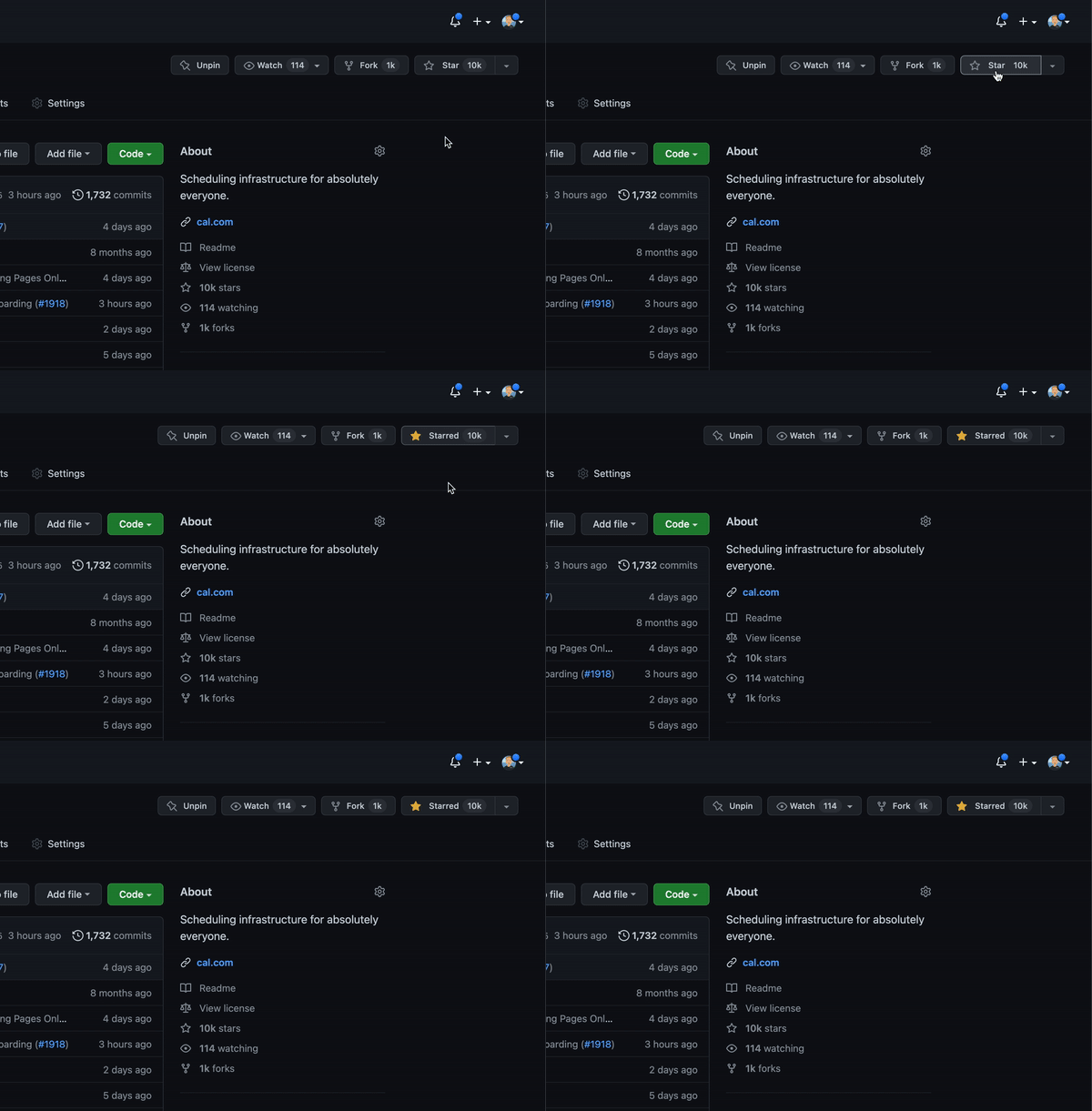
Getting Started
To get a local copy up and running, please follow these simple steps.
Prerequisites
Here is what you need to be able to run Cal.com.
- Node.js (Version: >=18.x)
- PostgreSQL (Version: >=13.x)
- Yarn (recommended)
If you want to enable any of the available integrations, you may want to obtain additional credentials for each one. More details on this can be found below under the integrations section.
Development
Setup
- Clone the repo (or fork https://github.com/calcom/cal.com/fork). The code is licensed under AGPLv3, which requires you to provide source code to users who interact with the software over a network. For commercial use without these requirements, acquire a commercial license
sh
   git clone https://github.com/calcom/cal.com.git
If you are on Windows, run the following command on
gitbashwith admin privileges:
git clone -c core.symlinks=true https://github.com/calcom/cal.com.gitSee docs for more details.
- Go to the project folder
sh
   cd cal.com
- Install packages with yarn
sh
   yarn
-
Set up your
.envfile -
Duplicate
.env.exampleto.env - Use
openssl rand -base64 32to generate a key and add it underNEXTAUTH_SECRETin the.envfile. - Use
openssl rand -base64 24to generate a key and add it underCALENDSO_ENCRYPTION_KEYin the.envfile.
Windows users: Replace the
packages/prisma/.envsymlink with a real copy to avoid a Prisma error (unexpected character / in variable name):```sh
Git Bash / WSL
rm packages/prisma/.env && cp .env packages/prisma/.env ```
- Setup Node If your Node version does not meet the project's requirements as instructed by the docs, "nvm" (Node Version Manager) allows using Node at the version required by the project:
sh
   nvm use
You first might need to install the specific version and then use it:
sh
   nvm install && nvm use
You can install nvm from here.
Quick start with yarn dx
- Requires Docker and Docker Compose to be installed
- Will start a local Postgres instance with a few test users - the credentials will be logged in the console
yarn dx
Default credentials created:
| Password | Role | |
|---|---|---|
free@example.com |
free |
Free user |
pro@example.com |
pro |
Pro user |
trial@example.com |
trial |
Trial user |
admin@example.com |
ADMINadmin2022! |
Admin user |
onboarding@example.com |
onboarding |
Onboarding incomplete |
You can use any of these credentials to sign in at http://localhost:3000
Tip: To view the full list of seeded users and their details, run
yarn db-studioand visit http://localhost:5555
Development tip
-
Add
export NODE_OPTIONS=“--max-old-space-size=16384”to your shell script to increase the memory limit for the node process. Alternatively, you can run this in your terminal before running the app. Replace 16384 with the amount of RAM you want to allocate to the node process. -
Add
NEXT_PUBLIC_LOGGER_LEVEL={level}to your .env file to control the logging verbosity for all tRPC queries and mutations.\ Where {level} can be one of the following:
0 for silly \
1 for trace \
2 for debug \
3 for info \
4 for warn \
5 for error \
6 for fatal
When you set NEXT_PUBLIC_LOGGER_LEVEL={level} in your .env file, it enables logging at that level and higher. Here's how it works:
The logger will include all logs that are at the specified level or higher. For example: \
- If you set
NEXT_PUBLIC_LOGGER_LEVEL=2, it will log from level 2 (debug) upwards, meaning levels 2 (debug), 3 (info), 4 (warn), 5 (error), and 6 (fatal) will be logged. \ - If you set
NEXT_PUBLIC_LOGGER_LEVEL=3, it will log from level 3 (info) upwards, meaning levels 3 (info), 4 (warn), 5 (error), and 6 (fatal) will be logged, but level 2 (debug) and level 1 (trace) will be ignored. \
echo 'NEXT_PUBLIC_LOGGER_LEVEL=3' >> .env
for Logger level to be set at info, for example.
Gitpod Setup
-
Click the button below to open this project in Gitpod.
-
This will open a fully configured workspace in your browser with all the necessary dependencies already installed.

Manual setup
- Configure environment variables in the
.envfile. Replace<user>,<pass>,<db-host>, and<db-port>with their applicable values
DATABASE_URL='postgresql://<user>:<pass>@<db-host>:<db-port>'
If you don't know how to configure the DATABASE_URL, then follow the steps here to create a quick local DB
-
Download and install postgres in your local (if you don't have it already).
-
Create your own local db by executing
createDB <DB name> -
Now open your psql shell with the DB you created:
psql -h localhost -U postgres -d <DB name> -
Inside the psql shell execute
\conninfo. And you will get the following info.
-
Now extract all the info and add it to your DATABASE_URL. The url would look something like this
postgresql://postgres:postgres@localhost:5432/Your-DB-Name. The port is configurable and does not have to be 5432.
If you don't want to create a local DB. Then you can also consider using services like railway.app, Northflank or render.
- Setup postgres DB with railway.app
- Setup postgres DB with Northflank
-
Copy and paste your
DATABASE_URLfrom.envto.env.appStore. -
Set up the database using the Prisma schema (found in
packages/prisma/schema.prisma)
In a development environment, run:
sh
   yarn workspace @calcom/prisma db-migrate
In a production environment, run:
sh
   yarn workspace @calcom/prisma db-deploy
- Run mailhog to view emails sent during development
NOTE: Required when
E2E_TEST_MAILHOG_ENABLEDis "1"
sh
   docker pull mailhog/mailhog
   docker run -d -p 8025:8025 -p 1025:1025 mailhog/mailhog
- Run (in development mode)
sh
   yarn dev
Setting up your first user
Approach 1
- Open Prisma Studio to look at or modify the database content:
sh
   yarn db-studio
- Click on the
Usermodel to add
Extension points exported contracts — how you extend this code
CRM (Interface)Core symbols most depended-on inside this repo
createShape
Languages
Modules by API surface
Dependencies from manifests, versioned
Datastores touched
For agents
$ claude mcp add cal.diy \
  -- python -m otcore.mcp_server <graph>