github.com/bloomberg/memray @v1.19.3 sqlite
README











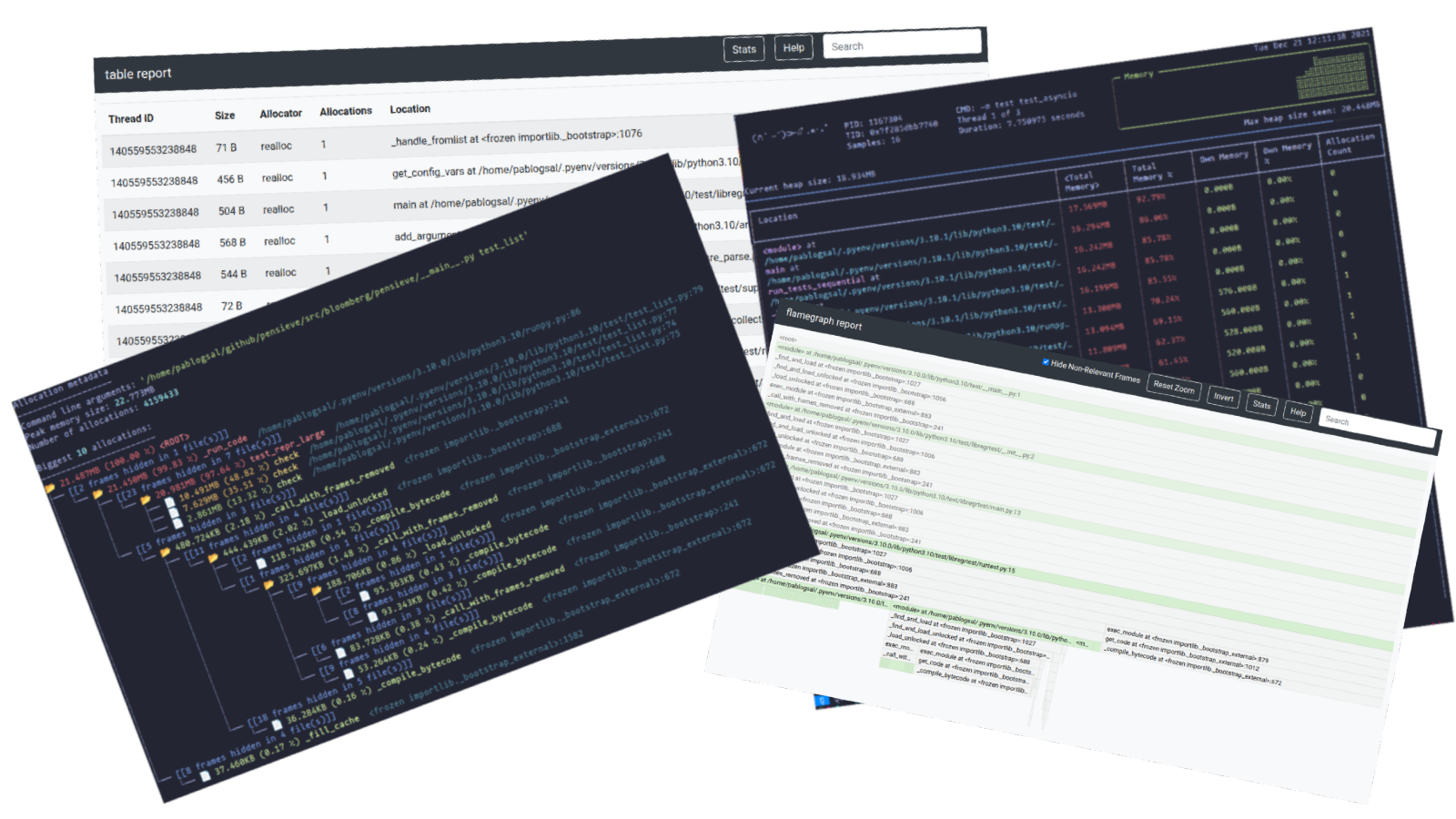
Memray is a memory profiler for Python. It can track memory allocations in Python code, in native extension modules, and in the Python interpreter itself. It can generate several different types of reports to help you analyze the captured memory usage data. While commonly used as a CLI tool, it can also be used as a library to perform more fine-grained profiling tasks.
Notable features:
- 🕵️♀️ Traces every function call so it can accurately represent the call stack, unlike sampling profilers.
- ℭ Also handles native calls in C/C++ libraries so the entire call stack is present in the results.
- 🏎 Blazing fast! Profiling slows the application only slightly. Tracking native code is somewhat slower, but this can be enabled or disabled on demand.
- 📈 It can generate various reports about the collected memory usage data, like flame graphs.
- 🧵 Works with Python threads.
- 👽🧵 Works with native-threads (e.g. C++ threads in C extensions).
Memray can help with the following problems:
- Analyze allocations in applications to help discover the cause of high memory usage.
- Find memory leaks.
- Find hotspots in code that cause a lot of allocations.
Note Memray only works on Linux and MacOS, and cannot be installed on other platforms.
Help us improve Memray!
We are constantly looking for feedback from our awesome community ❤️. If you have used Memray to solve a problem, profile an application, find a memory leak or anything else, please let us know! We would love to hear about your experience and how Memray helped you.
Please, consider writing your story in the Success Stories discussion page.
It really makes a difference!
Installation
Memray requires Python 3.7+ and can be easily installed using most common Python packaging tools. We recommend installing the latest stable release from PyPI with pip:
python3 -m pip install memray
Notice that Memray contains a C extension so releases are distributed as binary wheels as well as the source code. If a binary wheel is not available for your system (Linux x86/x64 or macOS), you'll need to ensure that all the dependencies are satisfied on the system where you are doing the installation.
Building from source
If you wish to build Memray from source you need the following binary dependencies in your system:
- libdebuginfod-dev (for Linux)
- libunwind (for Linux)
- liblz4
Check your package manager on how to install these dependencies (for example apt-get install build-essential python3-dev libdebuginfod-dev libunwind-dev liblz4-dev in Debian-based systems
or brew install lz4 in MacOS). Note that you may need to teach the compiler where to find the header and library files of the dependencies. For
example, in MacOS with brew you may need to run:
export CPPFLAGS="-I$(brew --prefix lz4)/include" LDFLAGS="-L$(brew --prefix lz4)/lib -Wl,-rpath,$(brew --prefix lz4)/lib"
before installing memray. Check the documentation of your package manager to know the location of the header and library
files for more detailed information.
If you are building on MacOS, you will also need to set the deployment target.
export MACOSX_DEPLOYMENT_TARGET=10.14
Once you have the binary dependencies installed, you can clone the repository and follow with the normal building process:
git clone git@github.com:bloomberg/memray.git memray
cd memray
python3 -m venv ../memray-env/  # just an example, put this wherever you want
source ../memray-env/bin/activate
python3 -m pip install --upgrade pip
python3 -m pip install -e . -r requirements-test.txt -r requirements-extra.txt
This will install Memray in the virtual environment in development mode (the -e of the last pip install command).
If you plan to contribute back, you should install the pre-commit hooks:
pre-commit install
This will ensure that your contribution passes our linting checks.
Documentation
You can find the latest documentation available here.
Usage
There are many ways to use Memray. The easiest way is to use it as a command line tool to run your script, application, or library.
usage: memray [-h] [-v] {run,flamegraph,table,live,tree,parse,summary,stats} ...

Memory profiler for Python applications

Run `memray run` to generate a memory profile report, then use a reporter command
such as `memray flamegraph` or `memray table` to convert the results into HTML.

Example:

    $ python3 -m memray run -o output.bin my_script.py
    $ python3 -m memray flamegraph output.bin

positional arguments:
  {run,flamegraph,table,live,tree,parse,summary,stats}
                        Mode of operation
    run                 Run the specified application and track memory usage
    flamegraph          Generate an HTML flame graph for peak memory usage
    table               Generate an HTML table with all records in the peak memory usage
    live                Remotely monitor allocations in a text-based interface
    tree                Generate a tree view in the terminal for peak memory usage
    parse               Debug a results file by parsing and printing each record in it
    summary             Generate a terminal-based summary report of the functions that allocate most memory
    stats               Generate high level stats of the memory usage in the terminal

optional arguments:
  -h, --help            Show this help message and exit
  -v, --verbose         Increase verbosity. Option is additive and can be specified up to 3 times
  -V, --version         Displays the current version of Memray

Please submit feedback, ideas, and bug reports by filing a new issue at https://github.com/bloomberg/memray/issues
To use Memray over a script or a single python file you can use:
python3 -m memray run my_script.py
If you normally run your application with python3 -m my_module, you can use the -m flag with memray run:
python3 -m memray run -m my_module
You can also invoke Memray as a command line tool without having to use -m to invoke it as a module:
memray run my_script.py
memray run -m my_module
The output will be a binary file (like memray-my_script.2369.bin) that you can analyze in different ways. One way is to use the memray flamegraph command to generate a flame graph:
memray flamegraph my_script.2369.bin
This will produce an HTML file with a flame graph of the memory usage that you can inspect with your favorite browser. There are multiple other reporters that you can use to generate other types of reports, some of them generating terminal-based output and some of them generating HTML files. Here is an example of a Memray flamegraph:

Pytest plugin
If you want an easy and convenient way to use memray in your test suite, you can consider using pytest-memray. Once installed, this pytest plugin allows you to simply add --memray to the command line invocation:
pytest --memray tests/
And will automatically get a report like this:
python3 -m pytest tests --memray
=============================================================================================================================== test session starts ================================================================================================================================
platform linux -- Python 3.8.10, pytest-6.2.4, py-1.10.0, pluggy-0.13.1
rootdir: /mypackage, configfile: pytest.ini
plugins: cov-2.12.0, memray-0.1.0
collected 21 items

tests/test_package.py .....................                                                                                                                                                                                                                      [100%]


================================================================================================================================= MEMRAY REPORT ==================================================================================================================================
Allocations results for tests/test_package.py::some_test_that_allocates

     📦 Total memory allocated: 24.4MiB
     📏 Total allocations: 33929
     📈 Peak memory usage: 10.431MB
     📊 Histogram of allocation sizes: |▂   █    |
     🥇 Biggest allocating functions:
        - parse:/opt/bb/lib/python3.8/ast.py:47 -> 3.0MiB
        - parse:/opt/bb/lib/python3.8/ast.py:47 -> 2.3MiB
        - _visit:/opt/bb/lib/python3.8/site-packages/astroid/transforms.py:62 -> 576.0KiB
        - parse:/opt/bb/lib/python3.8/ast.py:47 -> 517.6KiB
        - __init__:/opt/bb/lib/python3.8/site-packages/astroid/node_classes.py:1353 -> 512.0KiB
You can also use some of the included markers to make tests fail if the execution of said test allocates more memory than allowed:
@pytest.mark.limit_memory("24 MB")
def test_foobar():
    # do some stuff that allocates memory
To learn more on how the plugin can be used and configured check out the plugin documentation.
Native mode
Memray supports tracking native C/C++ functions as well as Python functions. This can be especially useful when profiling applications that have C extensions (such as numpy or pandas) as this gives a holistic vision of how much memory is allocated by the extension and how much is allocated by Python itself.
To activate native tracking, you need to provide the --native argument when using the run subcommand:
memray run --native my_script.py
This will automatically add native information to the result file and it will be automatically used by any reporter (such the flamegraph or table reporters). This means that instead of seeing this in the flamegraphs:
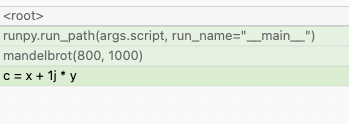
You will now be able to see what's happening inside the Python calls:

Reporters display native frames in a different color than Python frames. They can also be distinguished by looking at the file location in a frame (Python frames will generally be generated from files with a .py extension while native frames will be generated from files with extensions like .c, .cpp or .h).
Live mode

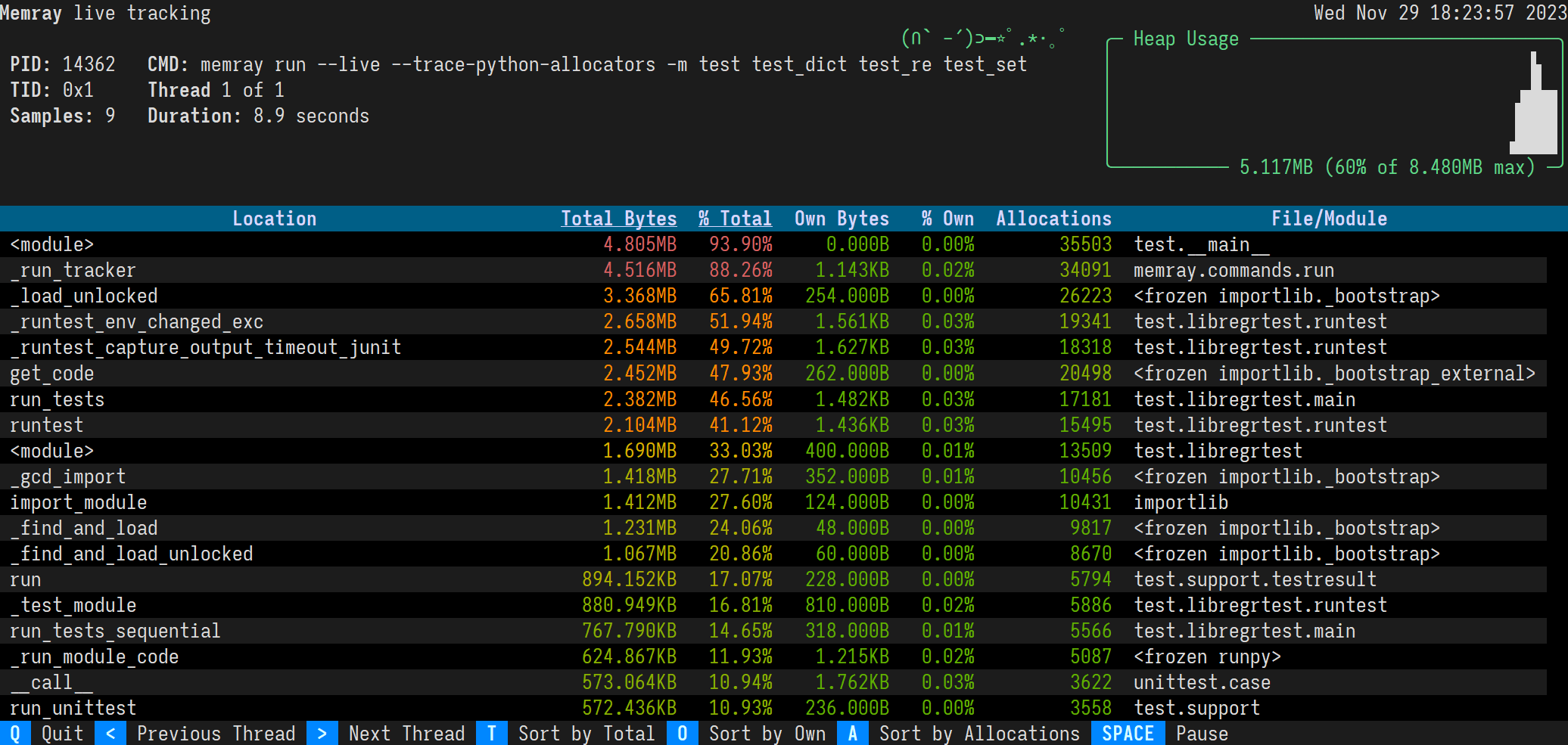
Memray's live mode runs a script or a module in a terminal-based interface that allows you to interactively inspect its memory usage while it runs. This is useful for debugging scripts or modules that take a long time to run or that exhibit multiple complex memory patterns. You can use the --live option to run the script or module in live mode:
memray run --live my_script.py
or if you want to execute a module:
memray run --live -m my_module
This will show the following TUI interface in your terminal:
Sorting results
The results are displayed in descending order of total memory allocated by a function and the subfunctions called by it. You can change the ordering with the following keyboard shortcuts:
-
t (default): Sort by total memory
-
o: Sort by own memory
-
a: Sort by allocation count
In most terminals you can also click the "Sort by Total", "Sort by Own", and "Sort by Allocations" buttons on the footer.
The sorted column's heading is underlined.
Viewing different threads
By default, the live command will present the main thread of the program. You can look at different threads of the program by pressing the greater than and less than keys, < and >. In most terminals you can also click the "Previous Thread" and
Core symbols most depended-on inside this repo
nShape
Languages
Modules by API surface
Used by 2 indexed graphs manifest dependencies, hub-wide
Dependencies from manifests, versioned
For agents
$ claude mcp add memray \
  -- python -m otcore.mcp_server <graph>