github.com/anomalyco/terminal-control @v0.3.1
Chat with this repoWhat it actually does AI analysis from the code graph — generated when you open this
README
Terminal Control
Control, inspect, test, and capture real terminal applications for agents and TUI review.


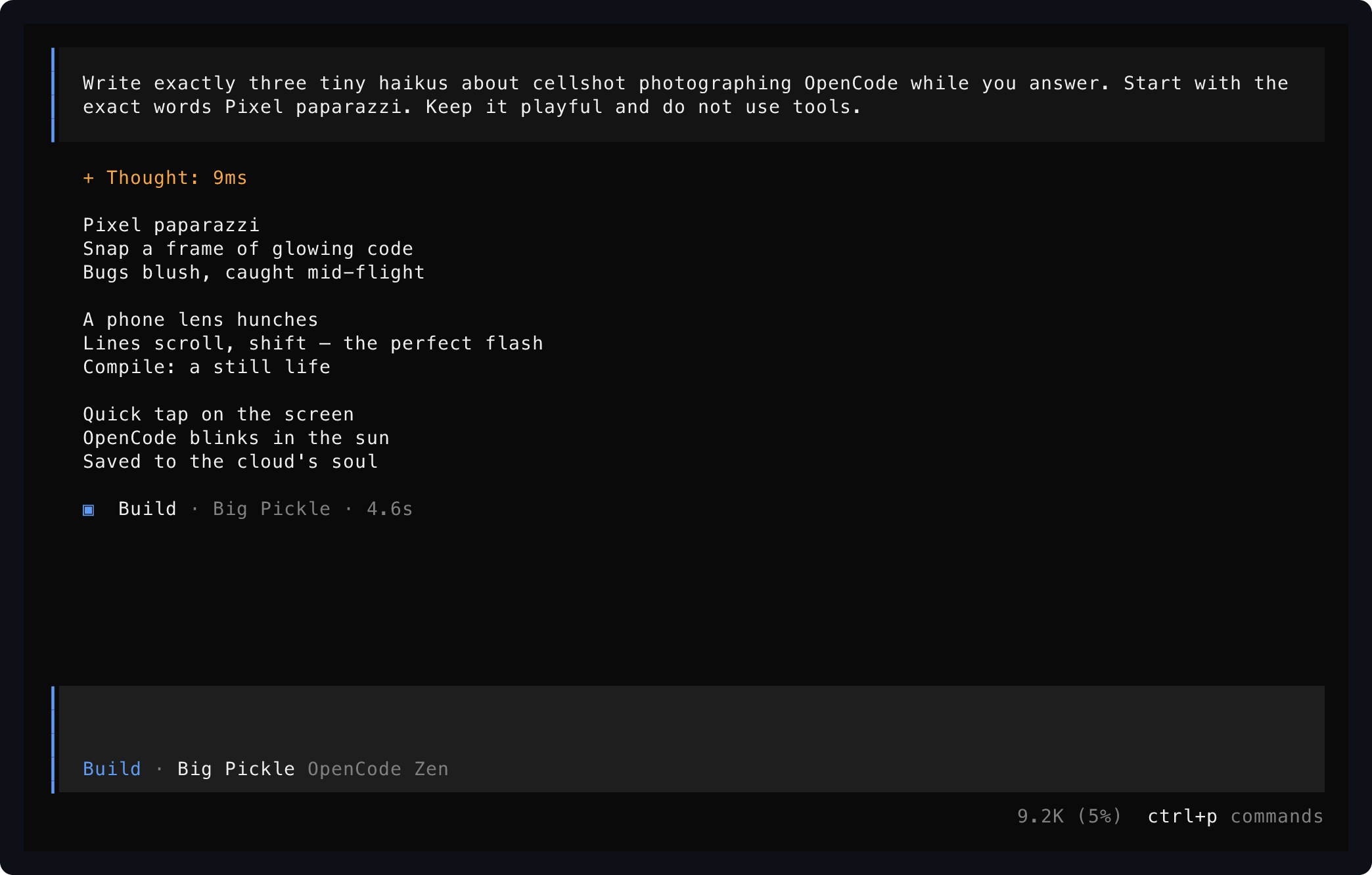
Saved from one live OpenCode session using start, send, and save.
Agent Quickstart
Terminal Control is built for agents first. Install the termctrl binary, install the skill, then ask your coding agent to operate terminal applications through a real pseudo-terminal instead of guessing from plain command output.
Requires Rust 1.93 or newer. Video export also requires ffmpeg.
cargo install terminal-control
termctrl --help
Install the current repository head instead of the latest crate release:
cargo install --locked --git https://github.com/kitlangton/terminal-control terminal-control
Install the agent skill from this repository:
npx skills add kitlangton/terminal-control --skill terminal-control
Then ask your agent for terminal work in ordinary language:
Use terminal-control to open my TUI, press through the setup flow, and save a screenshot of the final screen.
Start two terminal sessions: one running the dev server and one running the CLI. Drive the CLI until it connects, then show me both screens.
Record yourself using the terminal app, mark the important moments, and export a short MP4 demo.
The skill teaches agents the safe workflow: start named sessions, wait for visible text, send exact input, inspect screens, save artifacts, record timelines, mark important moments, export videos, and stop sessions when finished.
What It Gives Agents
- Real PTY control for TUIs, shells, curses apps, OpenTUI apps, and long-running CLIs.
- Named background sessions so an agent can keep multiple terminals alive and switch between them.
- Visible-screen reads through
show, not brittle scraping of scrollback or logs. - Exact keyboard and text input with
send, including arrows, tabs, enter, escape, page keys, andctrl-athroughctrl-z. - Explicit waits for rendered text before interacting.
- Resizing to test responsive terminal layouts.
- Evidence capture as PNG, SVG, text, JSON, or ANSI when requested.
- Recording timelines with markers, edited MP4 export, and optional branded footers for demos and bug reports.
- Local-only owner-protected session sockets and explicit warnings around sensitive terminal artifacts.
CLI Quickstart
Read a one-off terminal screen:
termctrl show --cols 100 --rows 32 -- my-terminal-app
Save evidence:
termctrl save --format png --format txt --out captures/home -- my-terminal-app
Drive a persistent TUI session:
termctrl start demo --host opentui --cols 112 --rows 34 -- opencode
termctrl wait demo "Ask anything" --timeout 20000
termctrl send demo --pace-ms 35 'text:Write a terminal haiku.' enter
termctrl show demo
termctrl stop demo
Record and export a video:
termctrl start demo --host opentui --record captures/demo.termctrl -- opencode
termctrl wait demo "Ask anything"
termctrl mark demo ready
termctrl send demo --pace-ms 35 'text:Write a short terminal haiku. End with DONE.' enter
termctrl wait demo "DONE" --timeout 60000
termctrl mark demo after-answer
termctrl stop demo
termctrl video captures/demo.termctrl --edit captures/demo.json --out captures/demo.mp4
The sections below explain each workflow in more detail.
Install The CLI
Requires Rust 1.93 or newer. Video export also requires ffmpeg.
cargo install terminal-control
termctrl --help
Install the current repository head instead of the latest crate release:
cargo install --locked --git https://github.com/kitlangton/terminal-control terminal-control
Show A Terminal Screen
Run a program in a PTY and print its visible terminal state:
termctrl show --cols 100 --rows 32 -- my-terminal-app
Show is the routine observation command: it prints visible text to standard output and creates no files. Request a different stdout-readable representation explicitly:
termctrl show --format json -- my-terminal-app
termctrl show --format svg -- my-terminal-app
Wait for an application to mount, then interact before reading its screen:
termctrl show --cols 100 --rows 32 --wait-for "Commands" \
  -s ctrl-p text:model enter -- my-terminal-app
OpenTUI applications such as OpenCode require the opt-in host handshake:
termctrl show --host opentui --cols 112 --rows 34 \
  --wait-for "/connect" -- opencode
Save Evidence
Write only the artifact formats you request:
termctrl save --format png --out captures/home.png -- my-terminal-app
termctrl save --format png --format txt --out captures/model -- my-terminal-app
The second command writes captures/model.png and captures/model.txt. ANSI stream artifacts can contain sensitive terminal data and are only produced when explicitly requested with --format ansi.
Control A Live TUI
Use a named session when several observations or interactions should target the same running application:
termctrl start demo --host opentui --cols 112 --rows 34 -- opencode
termctrl status demo
termctrl wait demo "/connect" --timeout 5000
termctrl show demo
termctrl send demo text:/connect enter
termctrl resize demo --cols 132 --rows 38
termctrl wait demo "Connect a provider" --timeout 5000
termctrl show demo
termctrl save demo --format png --out captures/provider.png
termctrl stop demo
status reports running or exited, the effective working directory, command, viewport, and recording path. An exited session retains its final screen for show until it is stopped. list distinguishes unavailable stale sockets from incompatible older session protocols.
send accepts ctrl-a through ctrl-z, keys such as enter, escape, arrows, tab, shift-tab, backspace, delete, home, end, page-up, and page-down, plus typed input as text:<value>. Use ctrl-c to interrupt work or pipe exact prompt bytes with --stdin:
printf '%s' 'Summarize the active view.' | termctrl send demo --stdin
resize controls the terminal viewport and records geometry changes in .termctrl timelines when recording is enabled. A session whose retained ANSI transcript has already been truncated cannot be resized because its current screen cannot be replayed at a new size safely.
For normal-screen tools and long-running log processes, inspect retained scrollback directly:
termctrl logs demo
termctrl logs demo --ansi > captures/demo-output.ansi
Full-screen alternate-screen TUIs do not provide useful terminal logs; read their visible screen with show or retain a recording timeline instead. Status exposes logs_truncated after raw retained ANSI reaches --max-bytes; the session continues running and retains its most recent transcript bytes.
Restart a single named owner safely when deploying updated code:
termctrl restart demo
restart NAME reuses the prior command, effective working directory, viewport, host profile, color policy, and recording path by default. Supply options or a replacement command only when deliberately changing the launch.
Record A Video
Record a session timeline and replay it as an MP4:
termctrl start demo --record captures/demo.termctrl \
  --host opentui --cols 112 --rows 34 -- opencode
termctrl wait demo "Ask anything"
termctrl mark demo before-prompt
termctrl send demo --pace-ms 35 'text:Write a short terminal haiku. End with the uppercase form of done.' enter
termctrl wait demo "DONE" --timeout 60000
termctrl mark demo after-answer
termctrl save demo --format png --out captures/answer.png
termctrl stop demo

termctrl markers captures/demo.termctrl
termctrl show --recording captures/demo.termctrl --at-marker after-answer
termctrl video captures/demo.termctrl --edit captures/demo.json --footer --tail-ms 0 --hide-cursor --out captures/demo.mp4
The marker-based edit plan is explicit and deterministic. speed accelerates or slows the real recorded time inside that clip. caption adds a visible annotation row. hold_ms is optional and creates a deliberate still frame at the end of a clip; omit it when you do not want artificial freezes.
{
  "clips": [
    {
      "from": "before-prompt",
      "to": "after-answer",
      "speed": 4,
      "caption": "The agent answers inside the live terminal UI"
    }
  ]
}
Without --edit, video export preserves the observed recording timing. Edit plans are preferable for polished demos because they select intentional marker ranges and can accelerate animated spinner spans without relying on visual-idle heuristics. Keep speeds low enough for important terminal text to remain readable, and add hold_ms or leave a --tail-ms hold when the final screen is the point of the demo. Identical rendered screens are rasterized once and reused during export. Video export trims startup frames before non-whitespace text by default while still preserving recordings that only paint terminal backgrounds; use --include-startup to keep all startup frames. video holds the final frame for one second by default so short recordings do not end abruptly; pass --tail-ms 0 for a strict no-holds cut. Pass --footer to put the clip caption, elapsed timecode, and TERMINAL CONTROL branding in a bottom footer instead of rendering captions as inline annotation rows.
Use termctrl markers captures/demo.termctrl to audit available marker names and timestamps. Use termctrl show --recording captures/demo.termctrl --at-marker after-answer or --at-ms 1234 to inspect exact screens while tuning an edit plan.
Recordings are JSON Lines files containing terminal output, client input, and automatic host input; they can include prompts or secrets. Treat them as sensitive artifacts.
Sources And Formats
Repeat --format to export only what you need:
termctrl save --format png --format txt --out captures/home -- my-terminal-app
Read a current visible screen directly for agent inspection, or select JSON/ANSI/SVG explicitly:
termctrl show demo
termctrl show demo --format json
For commands whose useful output is piped, use --pipe. Pipe reads force color by default; pass --color never for plain output:
termctrl save --pipe --format png --format txt --cols 100 --rows 16 \
  --out captures/log -- my-command
One-off show and save operations own disposable command processes: once the visible screen is read or saved, the launched process tree is terminated. Use start for long-running applications.
Render an existing ANSI/VT terminal stream without launching a process. An .ansi file is a conventionally named byte stream of terminal output and escape sequences, not a separate container format:
printf '\033[44;97m terminal output \033[0m\n' | termctrl show --input -
printf '\033[44;97m terminal output \033[0m\n' | termctrl save --input - --format png --out captures/stdin.png
Rust Library And Formats
The crate also exposes the shot engine, live sessions, and artifact model to Rust callers. The CLI is built on the same terminal_control::shot, terminal_control::session, terminal_control::frame, terminal_control::render, and terminal_control::recording modules:
let shot = terminal_control::shot::from_ansi(b"\x1b[32mready\x1b[0m".to_vec(), 1, 20, 1024)?;
assert_eq!(shot.frame.text(), "ready");
let svg = terminal_control::render::svg(&shot.frame, &terminal_control::render::Options::default());
A library session keeps one PTY-backed application in process for fast test interaction without repeatedly invoking the CLI:
use std::time::Duration;

let mut session = terminal_control::session::Session::start(
    &["my-terminal-app".to_owned()],
    None,
    None,
    &terminal_control::shot::Options::default(),
)?;
session.wait_for_text("Ready", Duration::from_secs(5))?;
let status = session.status()?;
session.send(b"help\r")?;
session.wait_for_idle(Duration::from_millis(250), Duration::from_secs(5))?;
let capture = session.capture(Duration::from_millis(250), Duration::from_secs(5))?;
let shot = capture.shot;
let exit = session.wait_for_exit(Duration::from_secs(5))?;
session.stop()?;
Structured output is versioned for external tools:
- A
save --format jsoncapture is aFrameobject withversion: 1, described byschemas/frame-v1.schema.json. - A
.termctrlrecording is JSON Lines: its first line is a versioned header and subsequent lines are timed output, input, or resize entries, each described byschemas/recording-entry-v1.schema.json. - Recording byte arrays contain the original terminal or input bytes as integers from
0to255; recordings can contain sensitive text or input.
session::Session is the embedded lifecycle interface; the flat named-session CLI commands and the external driver are adapters over the same implementation.
External Driver
External agent tooling can keep multiple embedded sessions alive through a versioned JSON Lines protocol over stdin/stdout:
termctrl driver
The driver writes a hello message with protocol and Terminal Control versions, then accepts typed operations including launch, status, send, waitForText, waitForIdle, waitForExit, capture, logs, recording, resize, stop, and shutdown. It is intended for clients such as a TypeScript TUI test or agent-control library, while the shell-facing flat commands remain convenient for individual workflows.
```json {"type":
Extension points exported contracts — how you extend this code
Assertion (Interface)Core symbols most depended-on inside this repo
startShape
Languages
Modules by API surface
For agents
$ claude mcp add terminal-control \
  -- python -m otcore.mcp_server <graph>