github.com/ajaxray/geek-life @v0.1.3
Chat with this repoWhat it actually does AI analysis from the code graph — generated when you open this
README
<img src="https://github.com/ajaxray/geek-life/raw/v0.1.3/media/geek-life-logo.png" align="center" alt="Geek-life Logo">
The CLI To-Do List / Task Manager for Geeks


:technologist: Developer / DevOps / Sysadmin? A command line hero?
:computer: Live with the dark terminal?
:memo: Think in Markdown?
Finally! A full featured task manager for YOU!

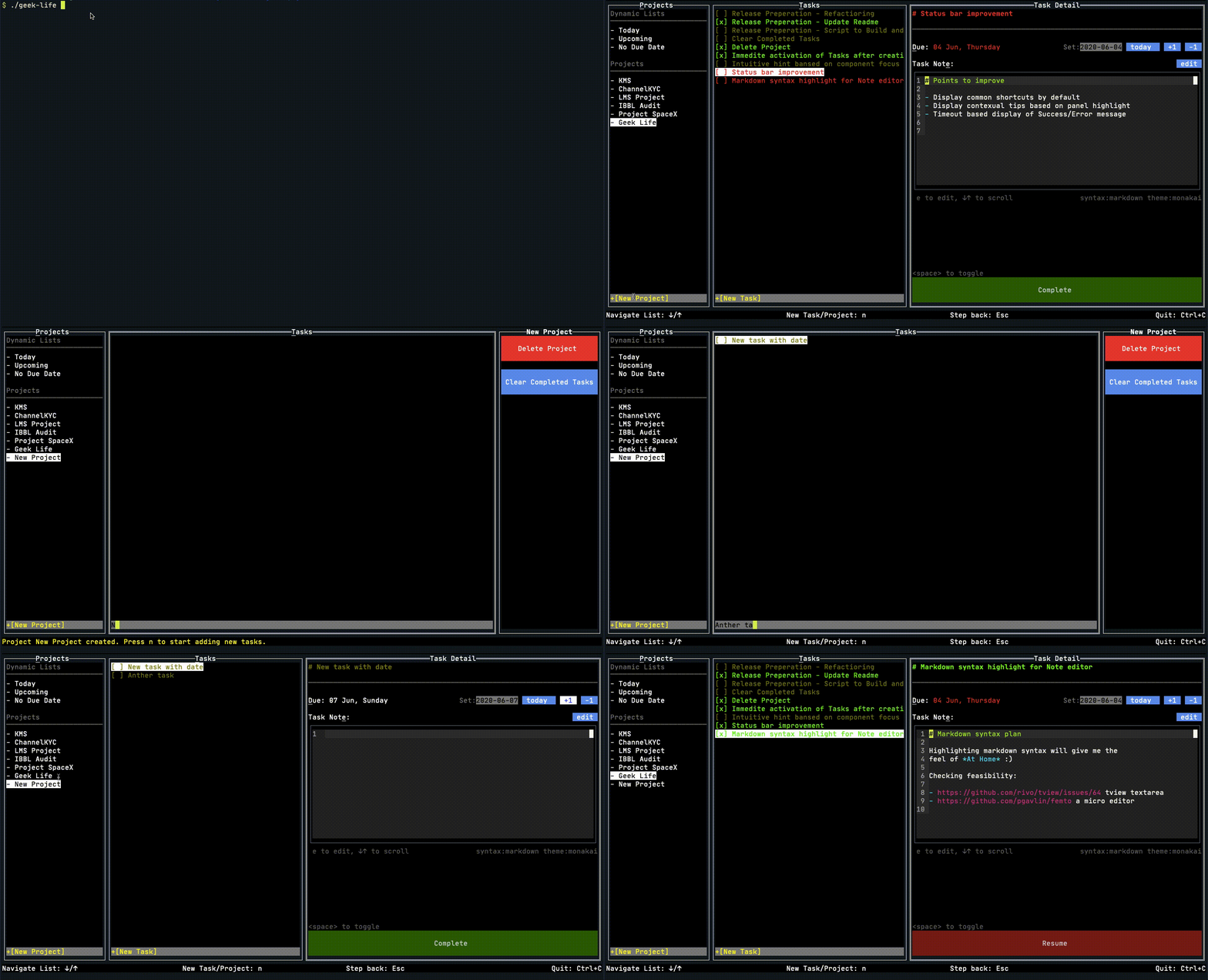
:crystal_ball: Highlights
- For ninjas - do things faster with keyboard shortcuts
- Markdown lovers, feel at :house:! You'll see markdown everywhere.
- Full featured (almost) - Projects, Tasks, due-dates, task notes...
- A <4MB app that takes <1% CPU and ~7MB memory 1 - how much lighter you can think?
- Task note editor with markdown syntax highlighting2
- Full mouse support
:dart: Roadmap
- [x] Create Project
- [x] Delete Project
- [ ] Edit Project
- [x] Create Task (under project)
- [x] Set Task due date (as
yyyy-mm-dd) with shortcut - [x] Set Task due date with quick input buttons (today, +1 day, -1 day)
- [x] Update Task Title
- [x] Tasklist items should indicate status (done, pending, overdue) using colors
- [x] Export Tasks (Copy title, dueDate and description to clipboard as Markdown)
- [ ] Pin Tasks
- [x] Shortcut for Adding new Project and Task
- [x] Global shortcuts for jumping to Projects or Tasks panel anytime
- [x] Cleanup all completed tasks of project
- [x] Task note editor should syntax highlight (markdown) and line numbers
- [x] Status bar for common shortcuts
- [x] Status bar should display success/error message of actions
- [x] Status bar may display quick tips based on focused element
- [x] Dynamic lists
- Today - Due Today and overdue
- Tomorrow
- Upcoming - Due in next 7 days
- Unscheduled - tasks without due date
- [ ] Integrations
- todo.txt (coming soon...)
- Google Tasks
- (Share your ideas)
- [ ] Time tracking
:rocket: Ready for action (installing and running)
It's just a single binary file, no external dependencies.
Just download the appropriate version of executable from latest release for your OS.
Then rename and give it permission to execute.
For example:
mv geek-life_linux-amd64 geek-life
sudo chmod +x geek-life
./geek-life
I recommend installing it globally (to run from any directory of your system). It's easy, just put it in your systems $PATH directory.
sudo mv geek-life /usr/local/bin/geek-life
geek-life
Done! Manage your tasks your way!
:keyboard: Keyboard shortcuts
Shortcut key for a pane/element will be marked with underline.
Some shortcuts are global, some are contextual.
Contextual shortcuts will be applied according to focused pane/element.
You'll see a currently focused pane bordered with double line.
In case writing in a text input (e,g, new project/task, due date), you have to Enter to submit/save.
| Context | Shortcut | Action |
|---|---|---|
| Global | p |
Go to Project list |
| Global | t |
Go to Task list |
| Projects | n |
New Project |
| Projects | ↑/k/Shift+Tab |
Go up in project list |
| Projects | ↓/j/Tab |
Go down in project list |
| Tasks | n |
New Task |
| Tasks | Esc/h |
Go back to Projects Pane |
| Tasks | ↑/k/Shift+Tab |
Go up in task list |
| Tasks | ↓/j/Tab |
Go down in task list |
| Tasks | c |
Clear completed tasks |
| Tasks | d |
Delete Project |
| Task Detail | Esc/h |
Go back to Tasks Pane |
| Task Detail | Space |
Toggle task as done/pending |
| Task Detail | d |
Set Due date |
| Task Detail | o |
Set Due date to today |
| Task Detail | + |
Due date plus 1 |
| Task Detail | - |
Due date minus 1 |
| Task Detail | ↓/↑ |
Scroll Up/Down the note editor |
| Task Detail | e |
Activate note editor for modification |
| Task Detail | v |
Edit task details in external editor (default vim) |
| Task Detail | r |
Rename Task Title |
| Task Detail | x |
Export Task to clipboard |
| Active Note Editor | Esc |
Deactivate note editor and save content |
Tips about using shortcuts efficiently:
The interface has 3 primary panels 1. [P]rojects/Task lists 2. [T]asks of selected project or Tasklist 3. [D]etails/actions of selected Project or Task
The following diagram shows navigation shortcuts between the panels.
+------+----------------------+-----------------------+
|  P   |         T            |         D             |
|      |                      |                       |
|    Entr=>    ↓   ↑        Entr=>                    |
|      |       /   /          |                       |
|   <=Esc      j   k        <=Esc                     |
|      |                      |                       |
+------+----------------------+-----------------------+
So, what it's trying to visualize is -
- Selecting an item with Enter will move you to right panel. That means -
- Selecting a Project will load it's tasks and move to Tasks panel
- Selecting a Task will load task detail and move to Detail panel
- Use Esc to move back to left panel. From Details to Tasks to Projects.
- To navigate a list (Project list or Task list),
- Use ↓ or j or Tab to go down
- Use ↑ or k or Shift+Tab to go up
Some More hints:
- If you are a vim user, think like -j/k for up/down list and h for go left
- Think Esc as a "step back" - to previous pane in most cases.
- When you're in a list (Projects or Tasks), Enter will load currently selected item.
- After creating new Project, focus will automatically move to Tasks. Start adding tasks immediately by pressing n.
- After creating new Task, focus will stay in "new task" input. So that you can add tasks quickly one after another.
- After creating new Task, Press Esc when you're done creating tasks.
:hammer_and_wrench: Building blocks
- Made with :heart: and golang 1.14 (you don't need golang to run it)
- Designed with tview - interactive widgets for terminal-based UI
- Task Note editor made with femto
- Datastore is storm - a powerful toolkit for BoltDB
Contribute
If you fix a bug or want to add/improve a feature, and it's aligned with the focus (merging with ease) of this app, I will be glad to accept your PR. :)
:bulb: You may ask...
:question: Where is the data stored? Can I change the location?
By default, it will try to create a db file in you home directory.
But as a geek, you may try to put it different location (e,g, in your dropbox for syncing).
In that case, just mention DB_FILE as an environment variable.
DB_FILE=~/dropbox/geek-life/default.db geek-life
UPDATE: For Windows users, setting ENV variable is not so straight forward.
So, added a flag --db-file or -d to specify DB file path from command line easily.
bash
geek-life --db-file=D:\a-writable-dir\tasks.db
:question: How can I suggest a feature?
Just post an issue describing your desired feature/enhancement
and select feature label.
Also, incomplete features in the current roadmap will be found in issue list. You may :thumbsup: issues if you want to increase priority of a feature.

Developed with GoLand.
Thanks to JetBrains for sponsoring Licenses for Open Source Development.
Footnotes
- In my Macbook Air, 1.6 GHz Dual-Core Intel Core i5, RAM: 8 GB 1600 MHz DDR3
- Using monakai color scheme for markdown syntax
"This is the Book about which there is no doubt, a guidance for those conscious of Allah" - Al-Quran
Extension points exported contracts — how you extend this code
Core symbols most depended-on inside this repo
Shape
Languages
Modules by API surface
For agents
$ claude mcp add geek-life \
  -- python -m otcore.mcp_server <graph>