github.com/ab77/netflix-proxy @latest
Chat with this repoBrowse by type
What it actually does AI analysis from the code graph — generated when you open this
README



TL;DR
find a (recent)n19 Debian or Ubuntu box with root on a clean public IP and run:
apt-get update\
  && apt-get -y install vim dnsutils curl sudo\
  && curl -fsSL https://get.docker.com/ | sh || apt-get -y install docker.io\
  && mkdir -p ~/netflix-proxy\
  && cd ~/netflix-proxy\
  && curl -fsSL https://github.com/ab77/netflix-proxy/archive/latest.tar.gz | gunzip - | tar x --strip-components=1\
  && ./build.sh
See the Wiki page(s) for some common troubleshooting ideas.
... or subscribe to Unzoner VPN service to un-block:

about
netflix-proxy is a smart DNS proxy to stream Netflix, Hulu[n2], HBO Now and others out of region. It is deployed using Docker containers and uses dnsmasq[n18] and sniproxy[n1] to provide SmartDNS services. It works for some blocked sites, such as PornHub and YouTube. Subscribe to the mailing list and be notified of new features, updates, etc.
supported services
The following are supported out of the box, however adding additional services is trivial and is done by updating dnsmasq.conf file and running docker restart dnsmasq:
* Netflix
* Hulu[n2]
* HBO Now
* Amazon Instant Video
* Crackle
* Pandora
* Vudu
* blinkbox
* BBC iPlayer[n5]
* NBC Sports and potentially many more
license
This project is free, covered by the MIT License. It is provided without any warranty and can be used for any purpose, including private and commercial. However, if you are planning to use it for commercial purposes (i.e make money off it), please do not expect free support, as it would be unfair. A commercial support model can always be negotiated, if required. Please contact me if this is something that interests you.
instructions
The following paragraphs show how to get this solution up and running with a few different Cloud providers I've tried so far. If you prefer a video tutorial, here is one prapared by one of the users. Note, OpenVZ won't work[n15], make sure to get a proper virtual machine using KVM or Xen.

(Netflix is blocked[n16]) The following is based on a standard Ubuntu Docker image provided by DigitalOcean, but should in theory work on any Linux distribution with Docker pre-installed.
- Head over to Digital Ocean to get $10 USD credit
- Create a Droplet in a geographic location of interest using the latest Docker image (find in under
One-click Appstab). - SSH to your server and run:
mkdir -p ~/netflix-proxy\
  && cd ~/netflix-proxy\
  && curl -fsSL https://github.com/ab77/netflix-proxy/archive/latest.tar.gz | gunzip - | tar x --strip-components=1\
  && ./build.sh
- Make sure to record the URL and credentials for the
netflix-proxyadmin site. - Set your DNS server to the IP given at the end of the script, then go to this site to make sure the same IP is displayed.
- Finally, enjoy
Netflixand others out of region. - Enjoy or try
#netflix-proxyon freenode for help.
authorising additional IPs
If you want to share your system with friends and family, you can authorise their home IP address(s) using the netflix-proxy admin site, located at http://<ipaddr>:8080/, where ipaddr is the public IP address of your VPS. Login using admin account with the password you recorded during the build. If you've forgotten your admin credentials, reset.
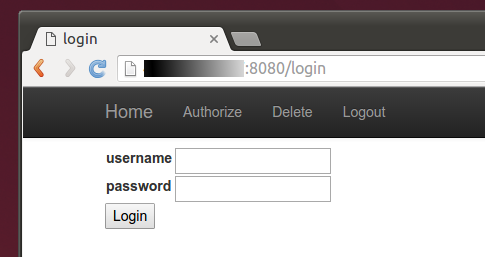
The admin account does not restrict the entry or removal of IPs. If you want to restrict the entry of IPs to the current client IP using an automatically populated drop-down, create a standard user account using the account-creator.sh script located in the auth directory, which will prompt you for the input and create the user account.
dynamic IPs
You can also use the netflix-proxy admin site to update your IP address, should your ISP assign you a new one (e.g. via DHCP). If your IP address does change, all HTTP/HTTPS requests will automatically be redirected to the admin site on port 8080. All DNS requests will be redirected to dnsmasq instance running on port 5353. You will most likely need to purge your browser and system DNS caches after this. On Windows, run ipconfig /flushdns. On OS X, run:
sudo killall -HUP mDNSResponder\
 && sudo dscacheutil -flushcache`
Then restart the browser (e.g chrome://restart) and/or reboot the relevant devices. This mechanism should work on browsers, but will most likely cause errors on other devices, such as Apple TVs and smart TVs. If you Internet stops working all of a sudden, try loading a browser and going to netflix.com.
scripted authorization of IPs
- to automatically authorise client IP using a script (where
ipaddris the public IP address of your VPS), substitute admin credentials and run:
curl -L http://<ipaddr>:8080/autoadd?username=<admin-username>&password=<admin-password>
- to manually authorise a specific IP, substitute admin credentials and run:
curl -L http://<ipaddr>:8080/autoadd?ip=<your-public-ipaddr>&username=<admin-username>&password=<admin-password>
automatic IP authorization
WARNING: do not do enable this unless you know what you are doing.
To enable automatic authorization of every IP that hits your proxy, set AUTO_AUTH = True in auth/settings.py and run service netflix-proxy-admin restart. This setting will effectively authorize any IP hitting your proxy IP with a web browser for the first time, including bots, hackers, spammers, etc. Upon successful authorization, the browser will be redirected to Google.
The DNS service is configured with recursion turned on by default, so after a successful authorization, anyone can use your VPS in DNS amplification attacks, which will probably put you in breach of contract with the VPS provider. You have been WARNED.
security
The build script automatically configures the system with DNS recursion turned on. This has security implications, since it potentially opens your DNS server to a DNS amplification attack, a kind of a DDoS attack. This should not be a concern however, as long as the iptables firewall rules configured automatically by the build script for you remain in place. However if you ever decide to turn the firewall off, please be aware of this.
command line options
The following command line options can be optionaly passed to build.sh for additional control:
Usage: ./build.sh [-b 0|1] [-c <ip>]
        -b      grab docker images from repository (0) or build locally (1) (default: 0)
        -c      specify client-ip instead of being taken from ssh_connection
updates
In order to update your existing database schema, please run the provided update.sh script. Alternatively you can run the schema updates manually (e.g. if you skipped a version).
other cloud providers
locale issues
The build script has been designed to work on Ubuntu and Debian. It will most likely fail on all other distributions. Some pre-requisites require the locale to be set correctly and some provider OS images need extra help. If you get locale issues reported by Python and/or pip during the build, try running the following first:
export LANGUAGE=en_US.UTF-8\
  && export LANG=en_US.UTF-8\
  && export LC_ALL=en_US.UTF-8\
  && export LC_CTYPE="en_US.UTF-8"\
  && locale-gen en_US.UTF-8\
  && sudo apt-get -y install language-pack-en-base\
  && sudo dpkg-reconfigure locales

(Netflix is blocked[n16]) The following is based on a Debian image provided by Vultr, but should in theory work on any Debian distribution.
- For a limited time, head over to Vultr to create and account and get $20 USD credit.
- Create a compute instance in a geographic location of interest using Debian or Ubuntu image.
- SSH to your server and run:
apt-get update\
  && apt-get -y install vim dnsutils curl sudo\
  && curl -fsSL https://get.docker.com/ | sh || apt-get -y install docker.io\
  && mkdir -p ~/netflix-proxy\
  && cd ~/netflix-proxy\
  && curl -fsSL https://github.com/ab77/netflix-proxy/archive/latest.tar.gz | gunzip - | tar x --strip-components=1\
  && ./build.sh
- Make sure to record the credentials for the
netflix-proxyadmin site. - Set your DNS server to the IP given at the end of the script, then go to this site to make sure the same IP is displayed.
- Finally, enjoy
Netflixand others out of region. - Enjoy or try
#netflix-proxyon freenode for help.

(Netflix is blocked[n16]) The following is based on a standard Ubuntu image provided by Kamatera.
- Head over to Kamatera to start your 30 Day Free Trial.
- Create a new server in a geographic location of interest using Ubuntu or Debian image.
- SSH to your server and run:
apt-get update\
  && apt-get -y install vim dnsutils curl sudo\
  && curl -fsSL https://get.docker.com/ | sh || apt-get -y install docker.io\
  && mkdir -p ~/netflix-proxy\
  && cd ~/netflix-proxy\
  && curl -fsSL https://github.com/ab77/netflix-proxy/archive/latest.tar.gz | gunzip - | tar x --strip-components=1\
  | tar x --strip-components=1\
  && ./build.sh
- Make sure to record the URL and credentials for the
netflix-proxyadmin site. - Set your DNS server to the IP given at the end of the script, then go to this site to make sure the same IP is displayed.
- Finally, enjoy
Netflixand others out of region. - Enjoy or try
#netflix-proxyon freenode for help.

(Netflix is blocked[n16]) The following is based on a Debian or Ubuntu images provided by RamNode.
- Head over to RamNode to create an account and buy a KVM VPS in a geographic location of interest (OpenVZ won't work).
- Log into the
VPS Control Paneland (re)install the OS using Ubuntu or Debian image. - SSH to your server and run:
apt-get update\
  && apt-get -y install vim dnsutils curl sudo\
  && curl -fsSL https://get.docker.com/ | sh || apt-get -y install docker.io\
  && mkdir -p ~/netflix-proxy\
  && cd ~/netflix-proxy\
  && curl -fsSL https://github.com/ab77/netflix-proxy/archive/latest.tar.gz | gunzip - | tar x --strip-components=1\
  && ./build.sh
- Make sure to record the credentials for the
netflix-proxyadmin site. - Set your DNS server to the IP given at the end of the script, then go to this site to make sure the same IP is displayed.
- Finally, enjoy
Netflixand others out of region. - Enjoy or try
#netflix-proxyon freenode for help.

(Netflix is blocked[n16]) The following is based on a standard Ubuntu image provided by Linode, but should work on any Linux distribution without Docker installed.
- Head over to Linode and sign-up for an account.
- Create a new
Linodein a geographic location of interest and deploy an Ubuntu image into it. - SSH to your server and run:
apt-get update\
  && apt-get -y install vim dnsutils curl sudo\
  && curl -fsSL https://get.docker.com/ | sh || apt-get -y install docker.io\
  && mkdir -p ~/netflix-proxy\
  && cd ~/netflix-proxy\
  && curl -fsSL https://github.com/ab77/netflix-proxy/archive/latest.tar.gz | gunzip - | tar x --strip-components=1\
  && ./build.sh
- Make sure to **
Core symbols most depended-on inside this repo
Shape
Languages
Modules by API surface
For agents
$ claude mcp add netflix-proxy \
  -- python -m otcore.mcp_server <graph>