github.com/aa-proxy/aa-proxy-rs @v0.22.0
Chat with this repoWhat it actually does AI analysis from the code graph — generated when you open this
README
🛸 aa-proxy-rs

About
This project is a DIY proxy tool that bridges a wireless Android phone with a USB-connected car head unit to enable the use of Android Auto.
Originally derived from the WirelessAndroidAutoDongle project (specifically as
a replacement for its aawgd component), it has since evolved into an independent and self-contained solution with its own development direction.
The project initially focused on supporting the Raspberry Pi, but has since grown to include other platforms as well.
 Sample Connection Diagram – Raspberry Pi Zero 2 W
Features
- Reliable and safe – written in Rust, minimizing memory-related bugs and crashes
- High performance – uses modern io_uring kernel API for efficient I/O handling
- Companion app
- Dual I/O backend – modern
tokiobackend alongside optionalio_uringsupport for compatibility with older Linux kernels - Automatic reconnection – attempts to recover Android Auto connection in all failure scenarios
- Transfer monitoring – displays bandwidth usage and real-time transfer statistics
- Embedded web interface – lightweight UI for status and control
- Stall detection – detects and handles stalled data transfers
- MITM (Man-in-the-Middle) mode – supports advanced tweaks and modifications:
- DPI change
- Google Maps EV Routing – allows EV-specific navigation features
- Remove tap restriction
- Disable media sink
- Disable TTS sink
- Video in motion
- Enable developer mode
- Detects user-initiated
Disconnecton phone and prevents auto-reconnect Wazeworkaround for LHT (Left-Hand Traffic) countries- Per-vehicle SDR UI override profiles – patch AA UI margins and content insets for specific head units and phone combinations
- Media stream inspection – tap decrypted AA video/audio stream via TCP (
media_dump_base_port) for use in VLC, mpv, etc. - Injected display support – define auxiliary/cluster displays with custom FPS, DPI, touchscreen support, and startup actions
- Media tap registry & reverse bridge – dynamically expose media streams to companion app via reverse TCP bridge
- Album art injection – override album artwork from static images, uploads, or live injected display frames
- Event injection – key event injection via
/inject_eventand rotary controller support via/inject_rotary - WASM scripting – write hooks that modify AA packets on the fly via
wasmtime- Persistent script state and lifecycle hooks
- Configurable resource limits and hooks directory
- Web UI integration for per-script configuration
- Scripts can call the local REST API and push events over WebSocket
- Disabled on ARMv6 / RPi Zero W
- BT SCO/eSCO call audio bridge – routes phone call audio through Android Auto media/microphone channels with echo control and resampling
- Vendor Extension Channel (VEC) – packet-level extension channel integrated with REST, WebSocket, and WASM hooks
- Speed & odometry – speed data collection (
/speedendpoint), odometer injection (/odometer), and tire pressure injection (/tire-pressure) via REST API - Media button interception – short press re-injects a clean click; long press triggers a configurable script (
hu_button_handler) - Packet debug mode – fine-grained packet inspection with protobuf decoding, filtering, and payload truncation
- Wired USB phone mode – works without the Bluetooth handshake or Wi-Fi pairing
- Support for Google's Desktop Head Unit (DHU) – ideal for debugging and development
- OTA updates – SWUpdate over-the-air update support for all Raspberry Pi and AAWireless boards, including TCP reverse bridge for companion app updates
Current project status
After extensive stress testing and continuous development, the project has reached a level of stability that meets its original goals. I now use it almost daily in my own car and continue to fix any issues that come up to ensure a smooth and reliable experience.
There's also a great and supportive community on Discord built around this project. If you'd like to join, ask questions, or get help, feel free to connect with us on the aa-proxy Discord server.
Supported Hardware
This project is currently tested and built for the following boards that support USB OTG: - Raspberry Pi Zero W - Raspberry Pi Zero 2 W - Raspberry Pi 3 A+ - Raspberry Pi 4 - Raspberry Pi 5 - AAWireless TWO - AAWireless 3 - Radxa Zero 3W - MilkV DuoS
More details: https://aa-proxy.github.io/docs/supported-hardware
[!NOTE] Raspberry Pi 3 B+ is not supported due to the lack of USB OTG support.
[!WARNING] - 2.4GHz Wi-Fi is being deprecated by Google and is no longer a reliable long-term solution.
Newer head units with higher resolutions (e.g. Full HD displays in some Kia/Hyundai models) require 5GHz Wi-Fi to function with full resolution support.
Only boards with 5GHz-capable Wi-Fi chips will be able to utilize the full display resolution.
Simply changing the DPI will not solve this limitation.
- Additionally, 2.4GHz Wi-Fi can interfere with Bluetooth, since both operate on the same frequency band.
This can occasionally cause connection issues — especially during the initial pairing phase when both Wi-Fi and Bluetooth are active. The problem is particularly noticeable on devices like the Raspberry Pi Zero 2 W.
In theory, support can be extended to other hardware platforms in the future, as long as the following basic requirements are met: - USB OTG or USB Gadget mode support - Wi-Fi and Bluetooth (either built-in or via external adapters)
Some work is already underway to bring support to more hardware platforms. For the latest updates or specific questions, feel free to ask on Discord.
The latest stable SD card images are available on the Releases page.
First-time Connection
- Connect your phone to the car head unit using a USB cable and verify that Android Auto starts successfully. Then disconnect the phone.
- Connect the board to the car using a data-capable USB cable and ensure you use the USB OTG-enabled port on the board:
- Raspberry Pi Zero W and Raspberry Pi Zero 2 W: Use the second micro-USB port labeled "USB" (not the one labeled "PWR").
- Raspberry Pi 3 A+: Use the only USB-A port with a USB-A to USB-A cable.
- Raspberry Pi 4: Use the USB-C port normally used to power the board.
- Open Bluetooth settings on your phone and pair with the new device named
aa-proxy-*. - After pairing, your phone should automatically connect via Wi-Fi, and the dongle will connect to the head unit via USB, starting Android Auto on the car screen.
From the next time onward, the system should automatically connect to your phone and start Android Auto without additional steps.
[!WARNING] For convenience during the initial setup, SSH access is enabled by default and the device uses a predefined Wi-Fi password. It is strongly recommended to change these defaults and/or disable SSH access for security reasons.
[!NOTE] 📶 Default Wi-Fi credentials:
SSID:aa-proxy
WPA password:aa-proxy🔐 Default SSH credentials:
User:root
Password:passwordSee below for instructions on how to connect to the device's Wi-Fi network.
Embedded Web Interface
When you connect to the device's WiFi network, you can access the web interface, which is available by default at: http://10.0.0.1.
[!WARNING] If you want to connect to the device (e.g. via the web interface or SSH) while Android Auto is running, it won't be accessible from your phone. In that case, you have two options: - Use a different device, such as a laptop or another phone, to connect to the device’s Wi-Fi network. - Or stop Android Auto temporarily, for example by: - Enabling airplane mode, then enabling Wi-Fi only and connecting manually, or - Disabling both Wi-Fi and Bluetooth, waiting a moment, then re-enabling Wi-Fi and connecting manually.
If you're still having trouble connecting, try disabling MAC address randomization. This guide provides clear instructions on how to do it on Android.
Using the web interface, you can configure all settings that are also available in /etc/aa-proxy-rs/config.toml:

You can also download logs with a single click.
MITM mode
Man-in-the-middle mode support has been added recently. This is the mode which allows to change the data passed between the HU and the phone. Separate encrypted connections are made to each device to be able to see or modify the data passed between HU and MD.
This is opening new possibilities like, e.g., forcing HU to specific DPI, adding EV capabilities to HU/cars which doesn't support this Google Maps feature.
All the above is not currently supported but should be possible and easier with this mode now implemented.
To have this mode working you need enable mitm option in configuration and provide certificate and private key for communication for both ends/devices.
Default directory where the keys are search for is: /etc/aa-proxy-rs/, and the following file set needs to be there:
- hu_key.pem
- hu_cert.pem
- md_key.pem
- md_cert.pem
- galroot_cert.pem
I will not add these files into this repository to avoid potential problems. You can find it in other places, or even other git repos, like:
- https://github.com/tomasz-grobelny/AACS/tree/master/AAServer/ssl
- https://github.com/tomasz-grobelny/AACS/tree/master/AAClient/ssl
- https://github.com/lucalewin/vehiculum/tree/main/src/server/cert
- https://github.com/lucalewin/vehiculum/tree/main/src/client/cert
- https://github.com/borconi/headunit/blob/master/jni/hu_ssl.h#L29
Special thanks to @gamelaster for the help, support and his OpenGAL Proxy project.
DPI settings
Thanks to above MITM mode a DPI setting of the car HU can be forced/replaced. This way we can change the hardcoded value to our own. This is allowing to view more data (at cost of readability/font size).
Example with Google Maps, where a Report button is available after changing this value:
| 160 DPI (default) | 130 DPI |
|---|---|
 |
 |
Google Maps EV routing
Google introduced EV routing features at CES24. The first cars to support this via Android Auto are the Ford Mustang Mach-E and F-150 Lightning.
This clip shows how it works in the car:
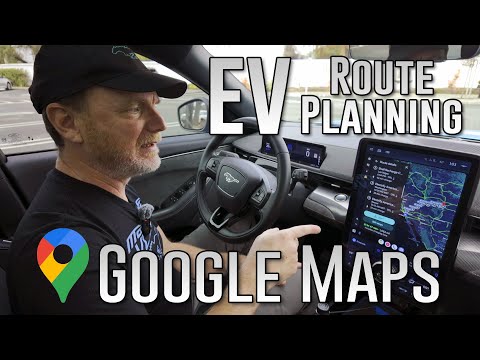
The idea of using this feature with other cars started here: https://github.com/manio/aa-proxy-rs/issues/19 in February 2025. After a long journey searching for someone with the knowledge and hardware that could help us obtain the logs, we finally, at the end of June 2025, thanks to @SquidBytes, got the sample data to analyze.
Thanks to many hours of work by @Deadknight and @gamelaster, we were finally
able to make some use of that data.
Unfortunately, the work is still in progress, but I am currently at a stage where, by customizing some parameters, I can provide real-time battery
level data to aa-proxy-rs, and overall it makes correct estimates for my car.
aa-proxy-rs has an embedded REST server for obtaining battery data from any source (I am using a slightly modified version of the
canze-rs app for this purpose).
It reads the data on the same Raspberry Pi (connecting wirelessly to the Bluetooth OBD dongle).
aa-proxy-rs can be configured to execute a specific data collection script when Android Auto starts and needs the battery level data, and also when it stops.
The script can be configured in config.toml and is executed with the arguments start and stop accordingly.
Thanks to the power of open source, even older EVs can now enjoy modern features and a much better navigation experience!
Troubleshooting
Sometimes deleting the system Bluetooth cache at /var/lib/bluetooth and restarting bluetoothd fixes persistent issues with device connectivity. Consider also using "Forget" of bluetooth device in the Android phone.
By default, the application logs to the file:
/var/log/aa-proxy-rs.log
This log can be useful for troubleshooting and diagnosing issues.
You can easily download the log file via the embedded web interface.
Connecting to Desktop Head Unit (DHU)
You can test and use aa-proxy-rs with Google's Desktop Head Unit (DHU) in two ways:
1. Using a physical Raspberry Pi
This method allows you to test with actual hardware and aa-proxy-rs running directly on the device. The flow then looks like this:
**[
Extension points exported contracts — how you extend this code
GenericTcpStream (Interface)Core symbols most depended-on inside this repo
newShape
Languages
Modules by API surface
For agents
$ claude mcp add aa-proxy-rs \
  -- python -m otcore.mcp_server <graph>