github.com/Zalafina/QKeyMapper @v1.3.8.20260626
Chat with this repoBrowse by type
What it actually does AI analysis from the code graph — generated when you open this
README
QKeyMapper
<a href="https://github.com/Zalafina/QKeyMapper/raw/v1.3.8.20260626/LICENSE"><img src="https://img.shields.io/github/license/Zalafina/QKeyMapper?color=4cd137&style=plastic&labelColor=474787"></a>
<a href="https://github.com/Zalafina/QKeyMapper/releases"><img src="https://img.shields.io/github/v/release/Zalafina/QKeyMapper?style=plastic&color=09e&labelColor=474787"></a>
<img src="https://img.shields.io/badge/platform-Windows-B53471.svg?style=plastic&labelColor=474787" alt="Platform: Windows">
<a href="https://github.com/Zalafina/QKeyMapper/stargazers"><img src="https://img.shields.io/github/stars/Zalafina/QKeyMapper?color=a55eea&style=plastic&labelColor=474787"></a>
<a href="https://github.com/Zalafina/QKeyMapper/releases/latest" target="_blank"><img src="https://img.shields.io/github/downloads/Zalafina/QKeyMapper/total.svg?style=plastic&labelColor=474787"/></a>
📖 Software Introduction
QKeyMapper is an open-source key mapping tool compatible with Win7/Win10/Win11, developed using Qt Widget and WinAPI with C++. It supports various key mappings between keyboard, mouse, gamepad, and virtual gamepad. The software can be run directly after downloading and extracting, without modifying the registry or requiring system restarts. It relies on in-memory program execution to complete key mapping conversions. During program execution, mapping functions can be controlled to start and stop at any time, and mapping functions automatically stop when the software exits. Suitable for various gaming or office purposes on Windows PC key remapping scenarios.
⚠️ Disclaimer
QKeyMapper is an open-source software project released under the GPLv3 license. Please read and understand the following terms before using this software:
📋 Usage Responsibility
- This software is provided "as is" without any express or implied warranties.
- All risks associated with the use of this software are borne solely by the user.
- The developer shall not be liable for any direct or indirect damages resulting from the use of this software.
🔒 Safety Notice
- This software involves low-level system operations and drivers; ensure you understand the relevant technical risks.
- Back up important data before use and verify functionality in a test environment.
- Some features require administrator privileges—grant them with caution.
🎯 Compliance
- Ensure your usage complies with applicable local laws and regulations.
- This software is intended solely for learning, research, and lawful personal use.
- It is prohibited to use this software for any illegal, malicious, or rights-infringing purposes.
💼 Commercial Use
- This software is developed for open-source sharing and is not encouraged for commercial use.
- While the GPLv3 license technically permits commercial use, the developer’s intention is to provide a free tool for the community.
- If commercial use is necessary, you must strictly comply with the GPLv3 requirements:
- Retain the GPLv3 license and make the complete source code publicly available.
- Derivative works based on this software must also be released under the GPLv3 license.
- The software must not be used in any form of closed-source commercial product.
- Commercial entities and businesses are strongly advised to seek alternative commercial solutions.
- For full license details, please refer to the GPLv3 Terms.
By continuing to use this software, you acknowledge that you have read, understood, and agreed to the above disclaimer.
✨ Features
| Device | Input Detection | Input Mapping | Combination Key | Multi-Input | Multi-Controller |
|---|---|---|---|---|---|
| Keyboard | ✅ | ✅ | ✅ | ✅ (10) | |
| Mouse | ✅ | ✅ | ✅ | ✅ (10) | |
| Physical Gamepad | ✅ | ✅ | ✅ (10) | ||
| Virtual Gamepad | ✅ | ✅ | ✅ (4) |
💡 Common Terminology List
| Term | Description |
|---|---|
| OriginalKey | Keys pressed directly on physical input devices such as keyboard, mouse, or gamepad |
| MappingKey | Virtual keys you want the game/software to receive |
| KeyUpMapping | Similar to MappingKey; with SendTiming, allows sending different virtual keys when the OriginalKey is released |
| Macro | In the "Macro List" window, added under the "Macro" tab. The format is the same as MappingKey content. Each Setting has its own independent macro list. Insert into MappingKey content as Macro(macro_name) |
| Universal Macro | In the "Macro List" window, added under the "Universal Macro" tab. The format is the same as MappingKey content. All Settings share one universal macro list. Insert into MappingKey content as UniversalMacro(universal_macro_name) |
| SendTiming | Specifies when MappingKey is sent (e.g., when OriginalKey is pressed, released, or both). Used with KeyUpMapping |
| Delay | When sending MappingKey, specifies how long the virtual key stays pressed (milliseconds) |
| Combination Key | Represents multiple keys pressed simultaneously in OriginalKey or MappingKey, connected with "+" (e.g. A+B) |
| Mapping Sequence | Represents pressing and releasing keys in order in MappingKey, connected with "»" (e.g. A+B⏱50»NONE⏱200»C⏱50) |
| Burst | Continuously sends MappingKey while OriginalKey is held; the interval is configurable |
| Lock | Press OriginalKey once to keep MappingKey pressed; press OriginalKey again to unlock and release. Can be used with Burst |
| LongPress | Triggers sending MappingKey after holding OriginalKey for a specified duration |
| DoubleClick | Triggers sending MappingKey when OriginalKey is double-clicked within the specified time interval |
| GlobalKeyMapping | After mapping starts, a mapping configuration that takes effect globally as long as the system is unlocked |
| Setting | A complete mapping configuration with a setting name. A Setting can include multiple mapping table tabs and related options |
| Mapping Item Setup | Per-row settings in a tab mapping table, such as Burst/Lock/SendTiming and other mapping item options |
| Auto Match Foreground | After mapping starts, monitors the foreground window and automatically switches to the best-matching Setting. For GlobalKeyMapping, if no Setting matches within 2 seconds, it switches back to GlobalKeyMapping |
| WindowInfo | The configured window process/title/class and the corresponding match methods used by Auto Match Foreground |
| RegexMatch | An advanced match method using regular expressions for Process/Title/Class in WindowInfo. See "QKeyMapper Regular Expression Matching Rules.pdf" in the software directory for basic rule examples |
Download the latest Release version zip package:
https://github.com/Zalafina/QKeyMapper/releases/latest
https://gitee.com/asukavov/QKeyMapper/releases/latest
※ The ZIP packages starting with QKeyMapper_vX.Y.Z_x64/x86 are compiled executable file zip packages. Build_YYYYMMDD represents the compilation date, and the newer compilation date has corresponding new feature descriptions.
⭐ Star Trend
If the QKeyMapper key mapping software has been helpful to you, please give it a ⭐ Star to support the project and help more people discover QKeyMapper.
💡 Usage notes
For Windows 10 and Windows 11, Qt 6 is recommended. Qt 5 builds are provided only for Windows 7 compatibility. If Qt 6 cannot run on Windows 7, download and use the Qt 5 build.
📌 Note 1: You may need to install the Visual C++ Redistributable 64-bit runtime.
VC++ 2015–2022 (64-bit) download from Microsoft:
https://aka.ms/vs/17/release/vc_redist.x64.exe * ( For 32-bit systems, install the 32-bit runtime https://aka.ms/vs/17/release/vc_redist.x86.exe )
📌 Note 2: The multi-device support feature uses the Interception driver. This driver has known issues: repeatedly plugging/unplugging input devices (keyboard/mouse) from USB, reconnecting, or putting Windows to sleep and waking it can cause input device IDs to increase. If the ID value exceeds the Interception driver’s limit (10 keyboards, 10 mice), input devices may stop working. Only a full OS restart restores functionality (a quick restart that preserves application state will not). Install the multi-device driver only if you truly need the feature and after carefully reading how to use the driver and its potential side effects, to avoid unnecessary problems. If your mouse or keyboard stops working, first perform a full system restart, then click “Uninstall multi-device driver,” and restart again to return to normal without driver impact.
📌 Note 3: ViGEMBus and vJoy are both virtual gamepad drivers. Installing both at the same time is not recommended. If vJoy was previously installed and you encounter virtual gamepad issues, uninstall vJoy and check whether the problem is resolved.
📌 Note 4: Windows 7 requires manual installation of ViGEMBus v1.16.116 to use the virtual gamepad feature
- https://github.com/Zalafina/ViGEmBus_v1.16.116_Win7_InstallFiles
🔧 Usage Recommendations
※ In most cases, it is recommended to run the QKeyMapper mapping tool first, and then launch the game or software that requires key mapping. This helps avoid situations where keys are intercepted by other software, preventing the mapping tool from detecting them.
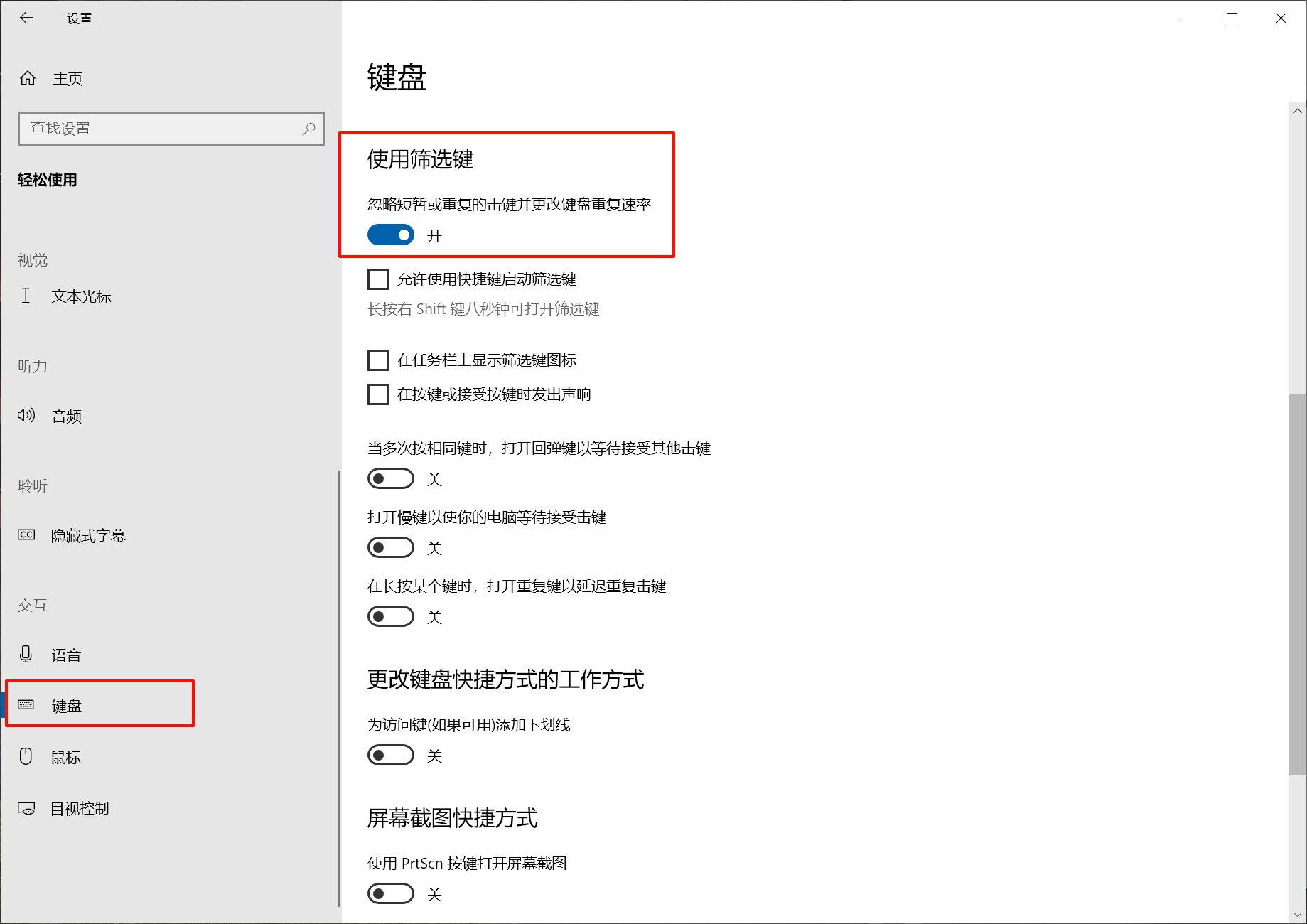
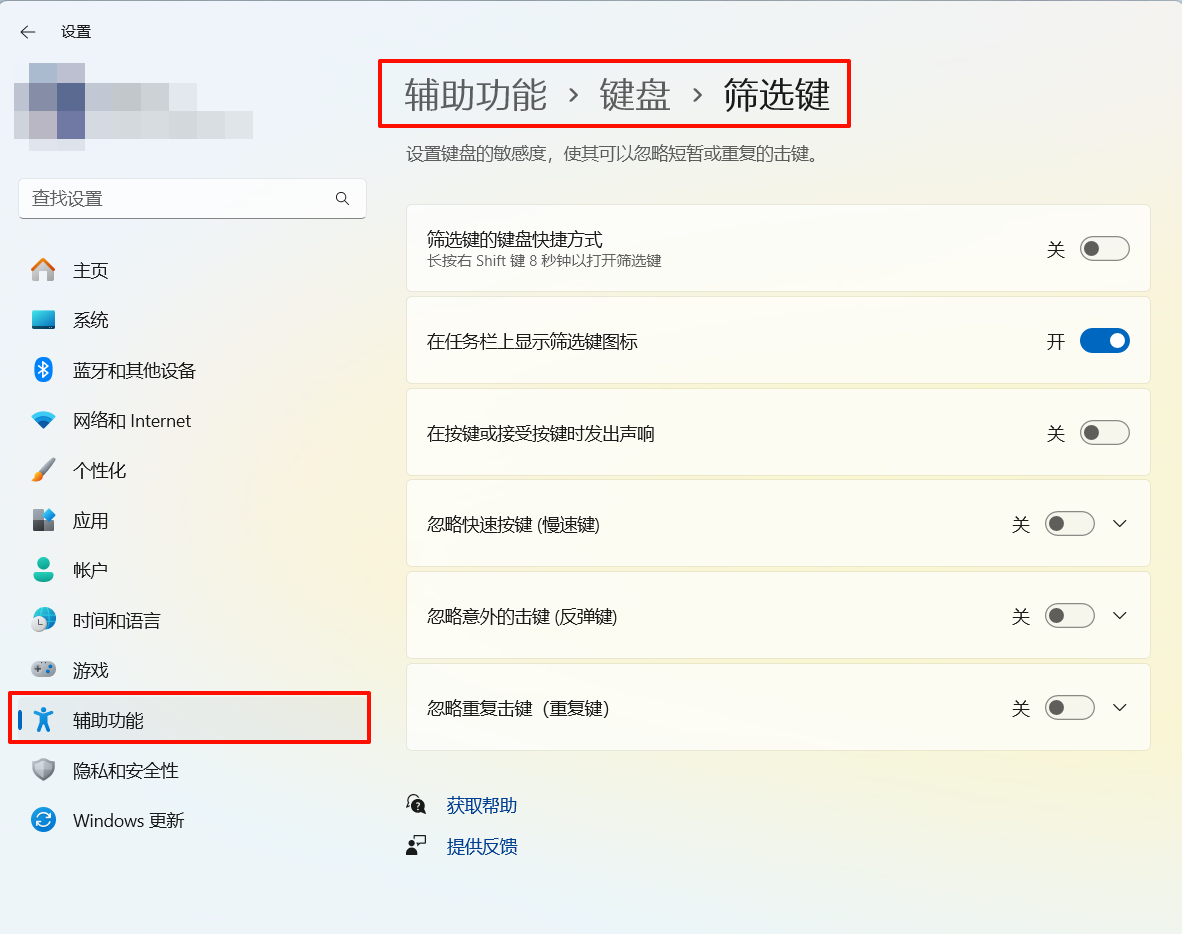
※ It is strongly recommended to enable Windows Filter Keys when using QKeyMapper. This prevents the system from continuously sending the same key signal when a keyboard key is held down, which can cause unpredictable issues with key mapping functions.
Starting from version v1.3.8.20250816, a "Enable System Filter Keys" checkbox has been added. When this option is checked, if the system’s Filter Keys are not enabled at the start of mapping, the program will automatically enable them. After mapping ends, it will restore the Filter Keys setting to its previous disabled state.
-
How to enable Filter Keys in Windows 10
Windows Settings -> Ease of Access -> Keyboard -> Filter Keys
-
How to enable Filter Keys in Windows 11
Settings -> Accessibility -> Keyboard -> Filter Keys
🎯 New features list (sorted in descending order of update time)
- v1.3.8 (Build 20260110)
- Added a Sequence Edit button after the "Mapped Keys" and "Key Release Mapping" single-line edit boxes in the "Mapping Item Settings" window. You can split the current key sequence into multiple lines for editing. After editing, click "OK" to merge the multi-line content back into a sorted single-line sequence and update the corresponding edit box. ##### Mapping Sequence Editor Instructions Arrow Up / Arrow Down -> Move the current selection up/down in the table. Use with Shift for multi-select. Home / End -> Move the current selection to the top/bottom of the table. Backspace -> Clear the current selection. F2 -> If the current cell exists, enter edit mode for that cell. Ctrl + Arrow Up / Arrow Down -> Move the selected row(s) up/down within the table. Ctrl + Home / End -> Move the selected row(s) to the top/bottom of the table. (Same as Ctrl + Shift + Arrow Up / Arrow Down) Delete -> Delete the selected row(s). (Same as the Delete button on the right) Enter -> If exactly one row is selected, load that row's content into the "Mapped Keys" single-line edit box below. Insert button below -> If the "Mapped Keys" content is valid, insert it at the selected position; if nothing is selected, append to the end. (Empty rows are allowed) Ctrl + C -> Copy the selected row(s). Ctrl + V -> If one row is copied and exactly one row is selected, replace the selected row with the copied content. -> If multiple rows are selected, insert the copied single row at the selection. -> If nothing is selected, append the copied row to the end. -> If multiple rows are copied, insert them at the selection; if nothing is selected, append to the end. Ctrl + F -> Similar to Ctrl + V, but always inserts at the selection position; it does not support single-row replace. Ctrl + Z -> Undo the last table change. Keeps the latest 20 undo steps; history is cleared when closing the editor. (Same as the Undo button on the right) Ctrl + Y -> Redo the last undone change. (Same as the Redo button on the right)
- Added Mouse-Move_Relative mapping key to the mapping key list. When adding this mapping key, enter parameters in the form "delta_x,delta_y" in the para
Core symbols most depended-on inside this repo
Shape
Languages
Modules by API surface
For agents
$ claude mcp add QKeyMapper \
  -- python -m otcore.mcp_server <graph>