github.com/SixHq/Overture @0.1.7
Chat with this repoWhat it actually does AI analysis from the code graph — generated when you open this
README
<img src="https://raw.githubusercontent.com/SixHq/Overture/main/assets/overture-logo-light.png" alt="Overture" width="400">
See the plan before the code. Approve it. Then watch it execute.





Problem • Solution • Install • Features • Marketplace • Config • Discussions
https://github.com/user-attachments/assets/eeb9c4cb-c80d-42da-bf63-c0c4ecb1e5d6
🔥 The Problem
Every AI coding agent today — Cursor, Claude Code, Cline, Copilot — works the same way:
| ### What Happens Now 1. You type a prompt 2. Agent **immediately starts writing code** 3. You have **zero visibility** into what it's doing 4. You realize it misunderstood your request 5. **Hundreds of lines of code** need to be discarded 6. You've wasted tokens, time, and patience | ### Text Plans Don't Help Some agents show plans as text in chat. But text fails to show: - **Dependencies** — which tasks depend on what? - **Branch points** — what alternative approaches exist? - **Context requirements** — which files, APIs, or secrets are needed? - **Complexity** — which steps are risky? - **Progress** — what's done, what's next? |
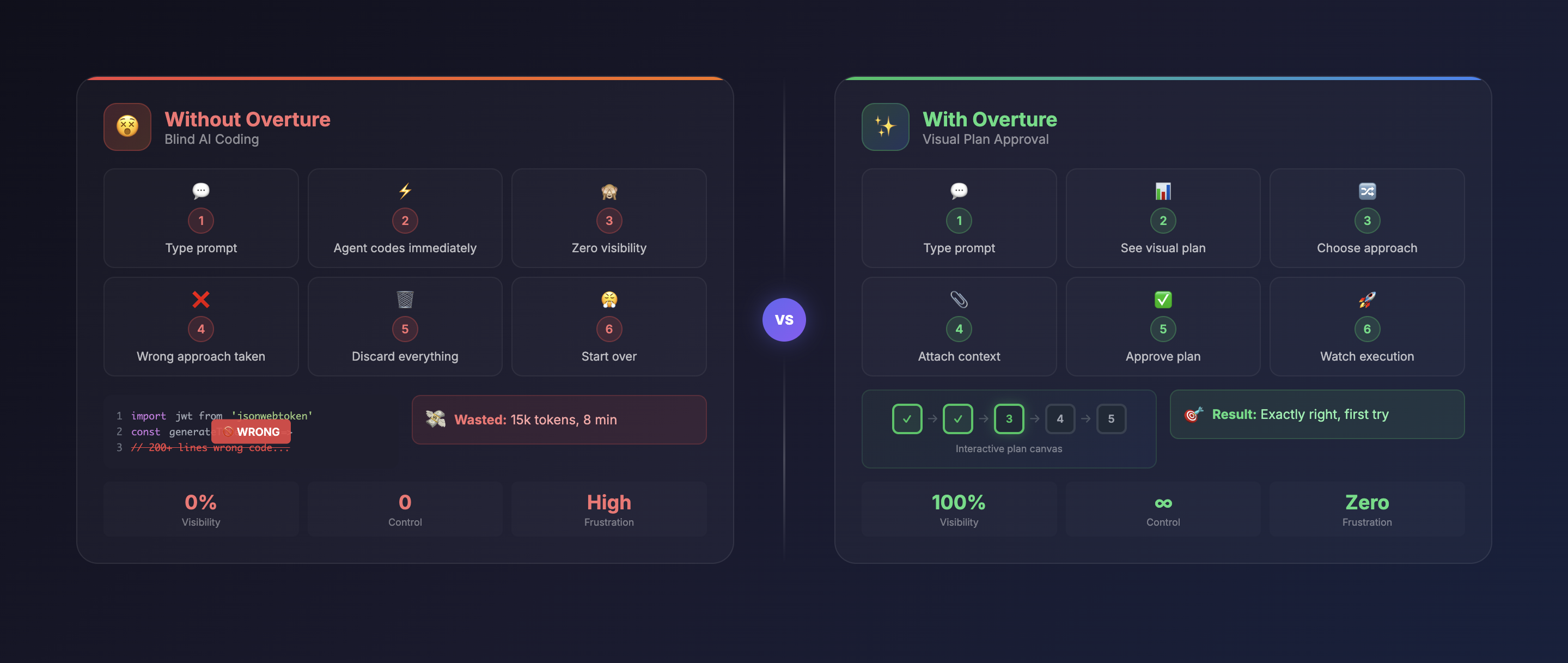
✨ The Solution
Overture intercepts your AI agent's planning phase and renders it as an interactive visual flowchart — before any code is written.
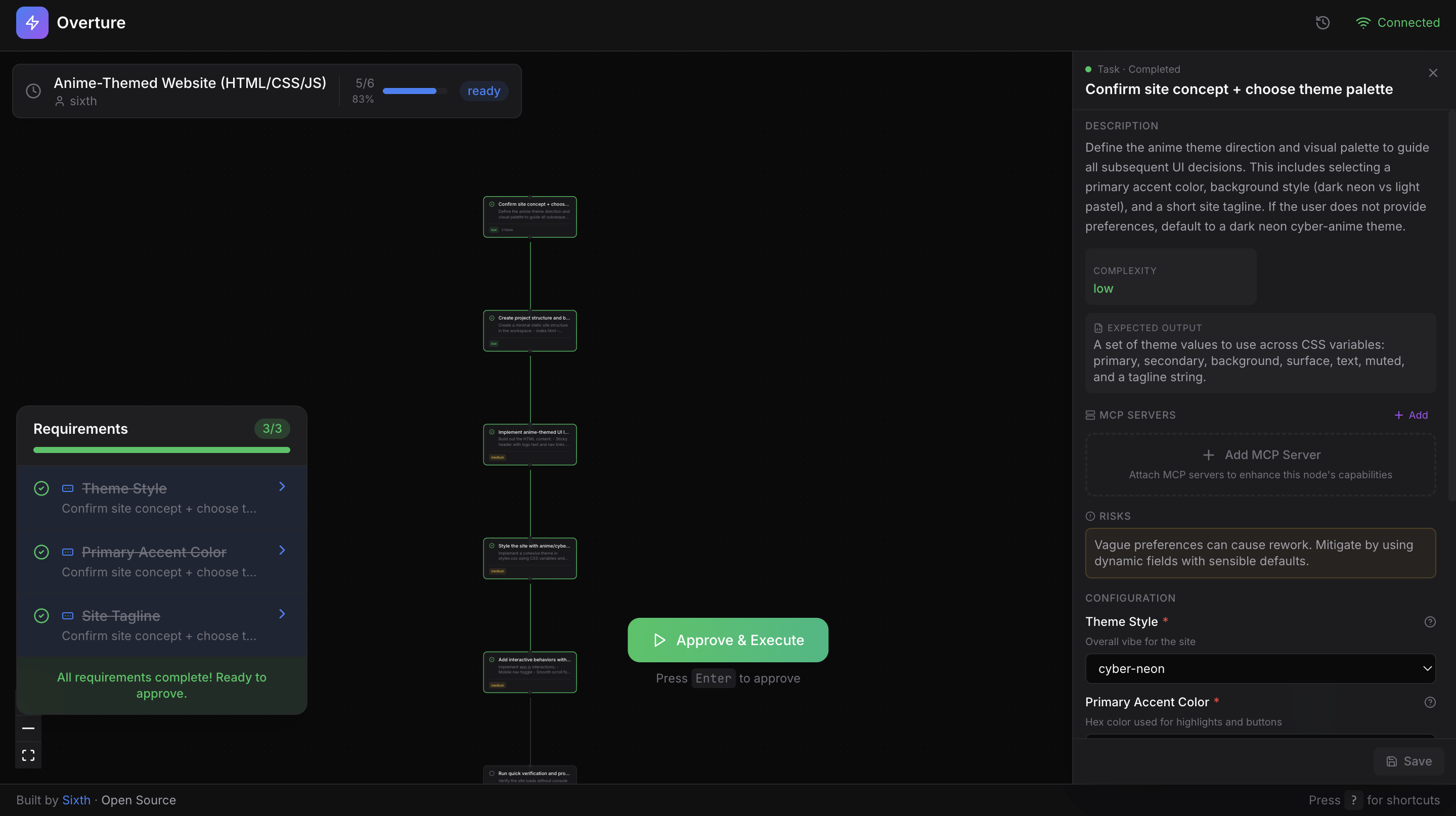
The agent doesn't write a single line of code until you approve the plan.
 Visual Plans
Interactive flowchart with pan, zoom, and click-through navigation
Visual Plans
Interactive flowchart with pan, zoom, and click-through navigation
|
 Attach Context
Files, API keys, instructions per step
Attach Context
Files, API keys, instructions per step
|
 Choose Approaches
Compare pros/cons of different paths
Choose Approaches
Compare pros/cons of different paths
|
 Real-time Execution
Watch nodes light up with progress
Real-time Execution
Watch nodes light up with progress
|
 MCP Marketplace
Browse & attach tools per node
MCP Marketplace
Browse & attach tools per node
|
🚀 Installation
Overture is an MCP server that works with any MCP-compatible AI coding agent. One command to install.
Claude Code
claude mcp add overture-mcp -- npx overture-mcp
Cursor
Add to ~/.cursor/mcp.json:
{
  "mcpServers": {
    "overture": {
      "command": "npx",
      "args": ["overture-mcp"]
    }
  }
}
More Agents (Cline, Copilot, Sixth AI)
Cline (VS Code Extension)
Open VS Code settings → search "Cline MCP" → add:
{
  "mcpServers": {
    "overture": {
      "command": "npx",
      "args": ["overture-mcp"]
    }
  }
}
GitHub Copilot
Create .vscode/mcp.json in your project root:
{
  "servers": {
    "overture": {
      "command": "npx",
      "args": ["overture-mcp"]
    }
  }
}
Note: GitHub Copilot MCP requires VS Code 1.99+ and uses
serversinstead ofmcpServers.
Sixth AI (VS Code Extension)
Add to your Sixth AI MCP settings file:
| Platform | Path |
|---|---|
| macOS | ~/Library/Application Support/Code/User/globalStorage/sixth.sixth-ai/settings/sixth-mcp-settings.json |
| Windows | %APPDATA%\Code\User\globalStorage\sixth.sixth-ai\settings\sixth-mcp-settings.json |
| Linux | ~/.config/Code/User/globalStorage/sixth.sixth-ai/settings/sixth-mcp-settings.json |
{
  "mcpServers": {
    "overture": {
      "command": "npx",
      "args": ["overture-mcp"],
      "disabled": false
    }
  }
}
Global Installation (Optional)
npm install -g overture-mcp
Verify It Works
Give your agent any task. Overture automatically opens at http://localhost:3031 with your plan ready for approval.
🎯 How It Works
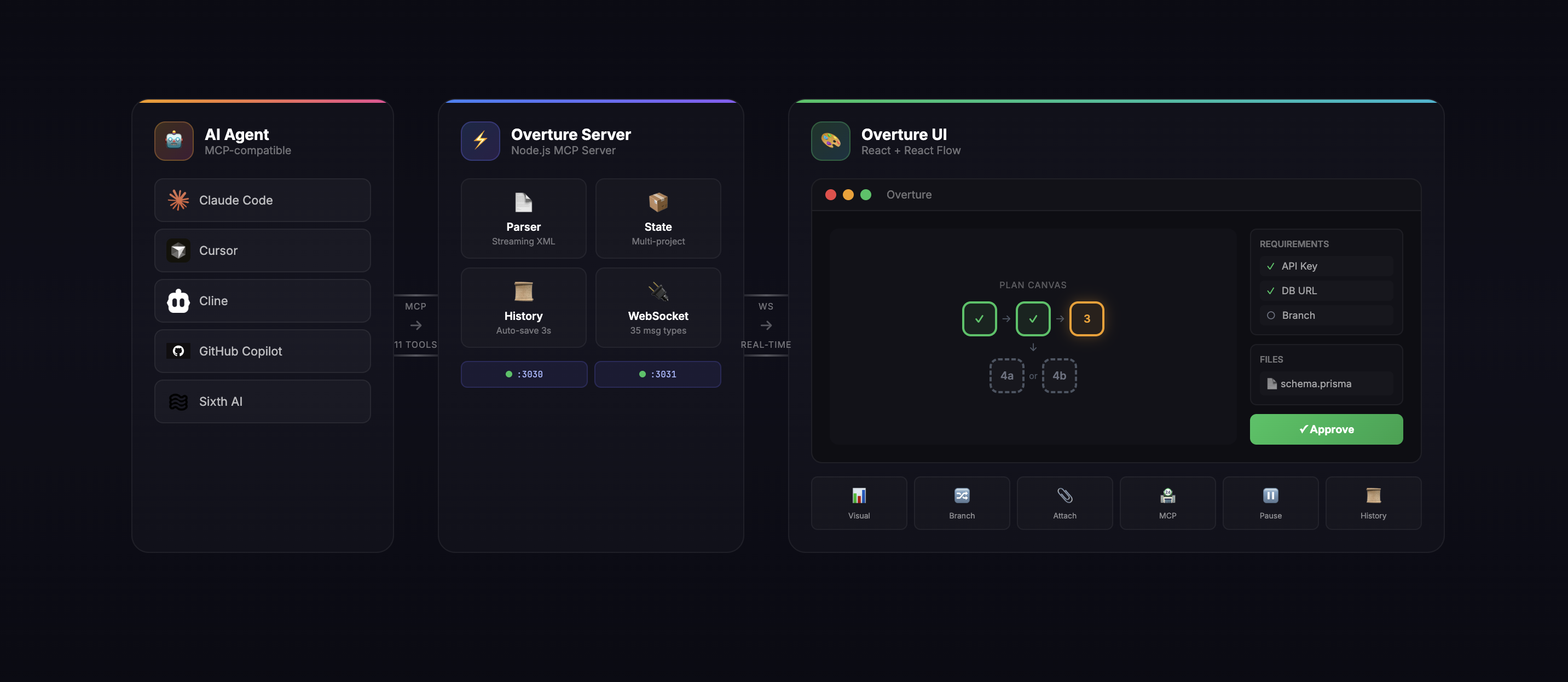
The Flow:
| Step | What Happens |
|---|---|
| 1. Prompt | You give your agent a task: "Build a REST API with auth" |
| 2. Plan | Agent generates a detailed plan with steps, branches, and requirements |
| 3. Visualize | Overture renders the plan as an interactive graph |
| 4. Enrich | You click nodes, attach files, select branches, fill in API keys |
| 5. Approve | You click "Approve & Execute" (or press Enter) |
| 6. Execute | Watch real-time as nodes pulse, complete, or fail |
| 7. Control | Pause (Spacebar), resume, re-run nodes, or modify the plan mid-flight |
🛠 Features
Interactive Plan Canvas
| Feature | Description |
|---|---|
| React Flow Canvas | Full pan, zoom, drag with smooth animations |
| Streaming Parser | Plan nodes appear in real-time as the agent generates them |
| Dagre Auto-Layout | Intelligent automatic positioning of nodes |
| Visual Status | Pending (gray) → Active (pulsing yellow) → Completed (green) / Failed (red) |
| Next Node Indicator | Blue pulse shows which node executes next |
| Complexity Badges | Low (green), Medium (yellow), High (red) at a glance |
| Glow Effects | Shadow glows highlight active and upcoming nodes |
| Insertable Edges | Hover over edges to insert new nodes mid-plan |
Node Details Panel
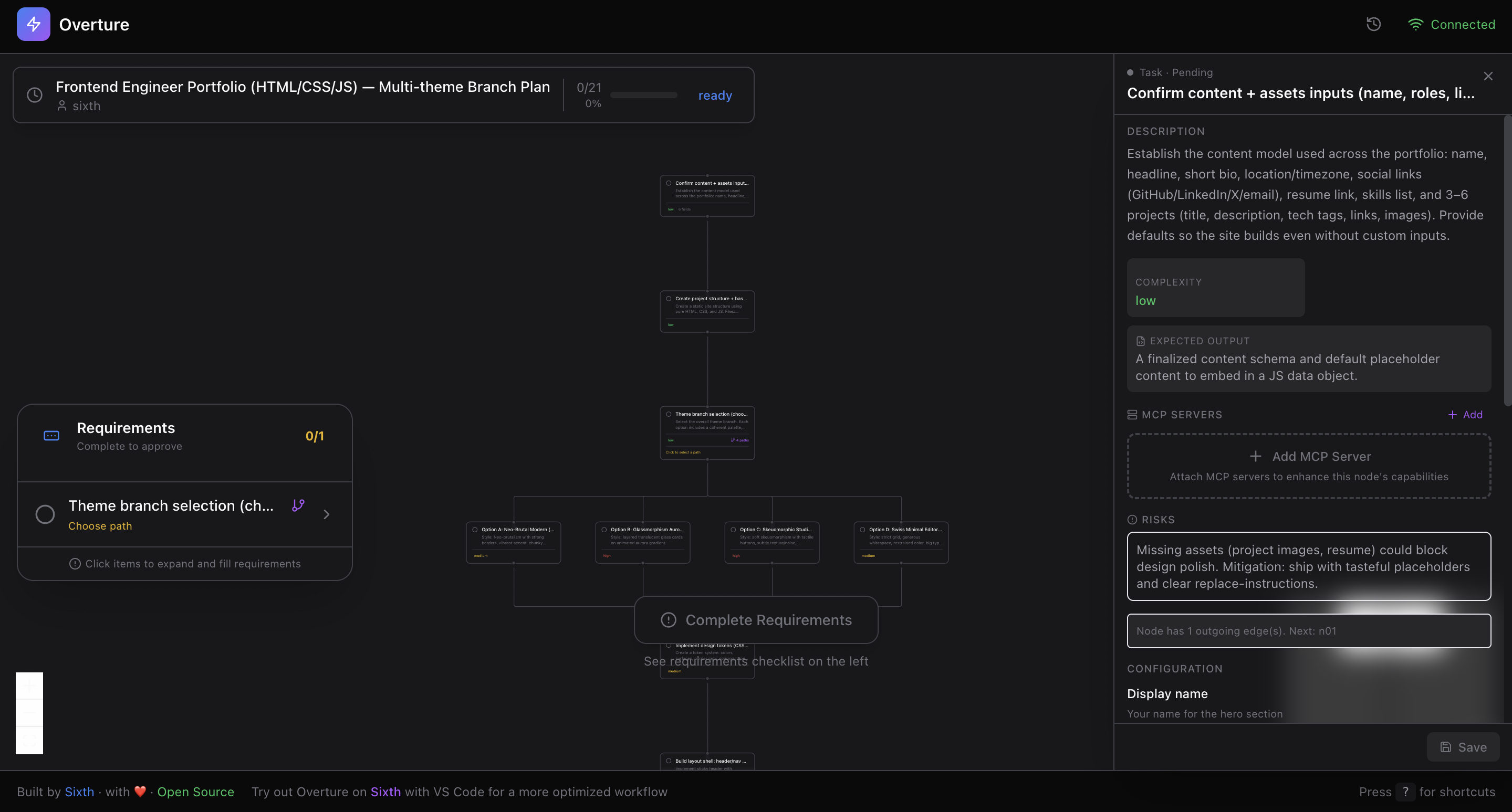
Click any node to reveal its full details:
| Info | What You See |
|---|---|
| Title & Description | Full context for what this step does |
| Complexity Level | Low / Medium / High with visual indicator |
| Expected Output | What the step should produce |
| Risks & Edge Cases | Potential issues to watch for |
| Pros & Cons | For branch options, compare trade-offs |
Dynamic Fields (User Inputs)
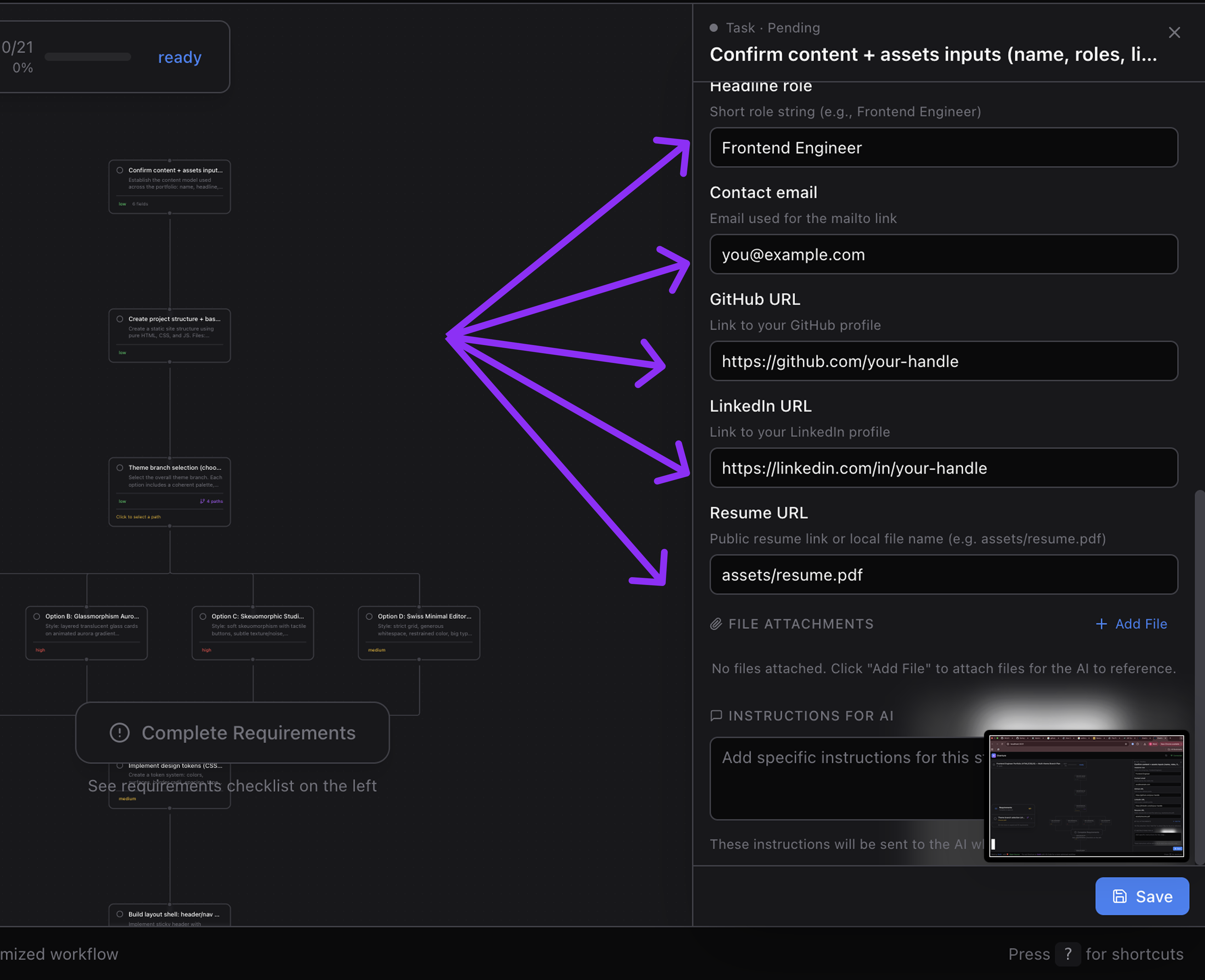
Nodes can request input from you before execution:
| Field Type | Use Case |
|---|---|
| String | Project names, URLs, custom values |
| Number | Port numbers, limits, counts |
| Boolean | Yes/No toggles for options |
| Select | Dropdown with predefined choices |
| Secret | API keys, tokens (masked input) |
| File | File paths to attach context |
Each field includes: - Required/optional indicator - Default values - Help text & descriptions - Setup instructions ("How to get an API key")
File Attachments
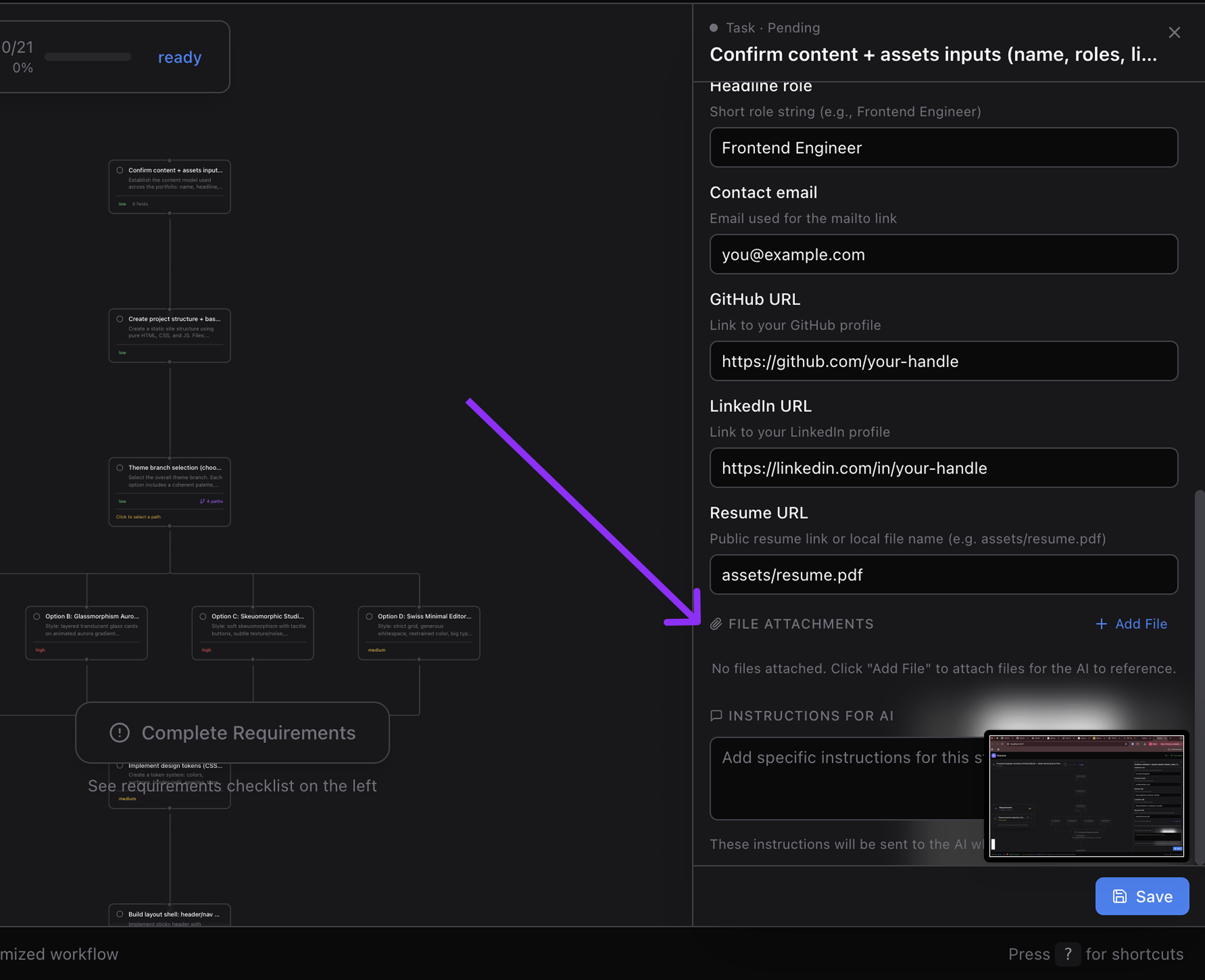
Attach context files to specific nodes:
- Automatic type detection — Image, code, document, or other
- Visual icons per file type
- Descriptions — add notes about why this file matters
- Delete — remove unwanted attachments
Meta Instructions
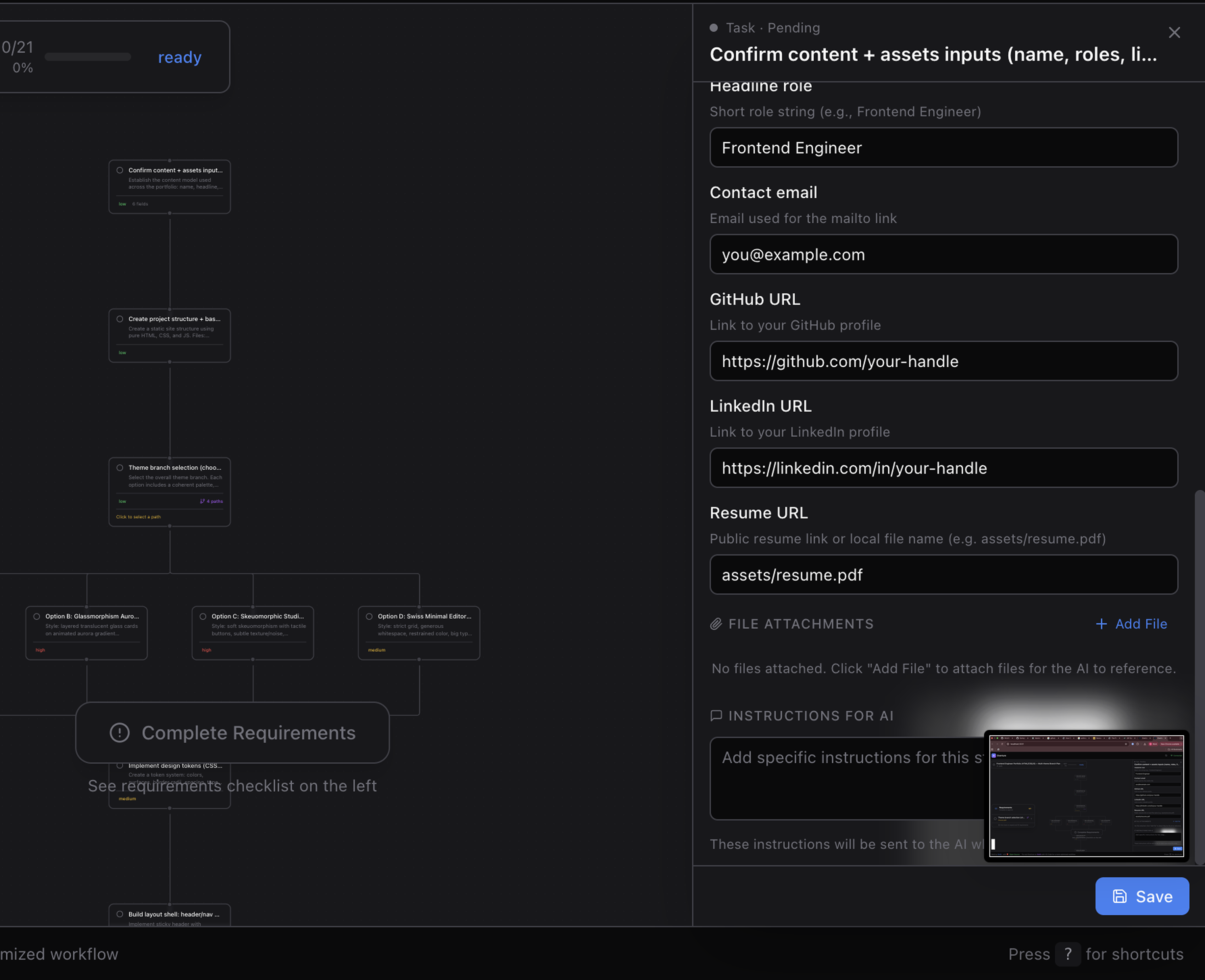
Add custom LLM instructions to any node:
"Pay special attention to error handling here" "Use the existing auth pattern from src/auth.ts" "Make sure to add tests for edge cases"
Instructions are sent to the agent right before that node executes.
Branch Detection & Selection

When the agent proposes multiple approaches:
| Feature | Description |
|---|---|
| Auto-Detection | Branches detected from graph structure (no special markup) |
| Branch Points | Nodes with multiple outgoing edges become decision points |
| Selection Modal | Side-by-side comparison with pros/cons |
| Complexity Comparison | See difficulty level for each option |
| Visual Indicator | Selected branch highlighted on canvas |
| Skip Unselected | Only your chosen path executes |
Requirements Checklist
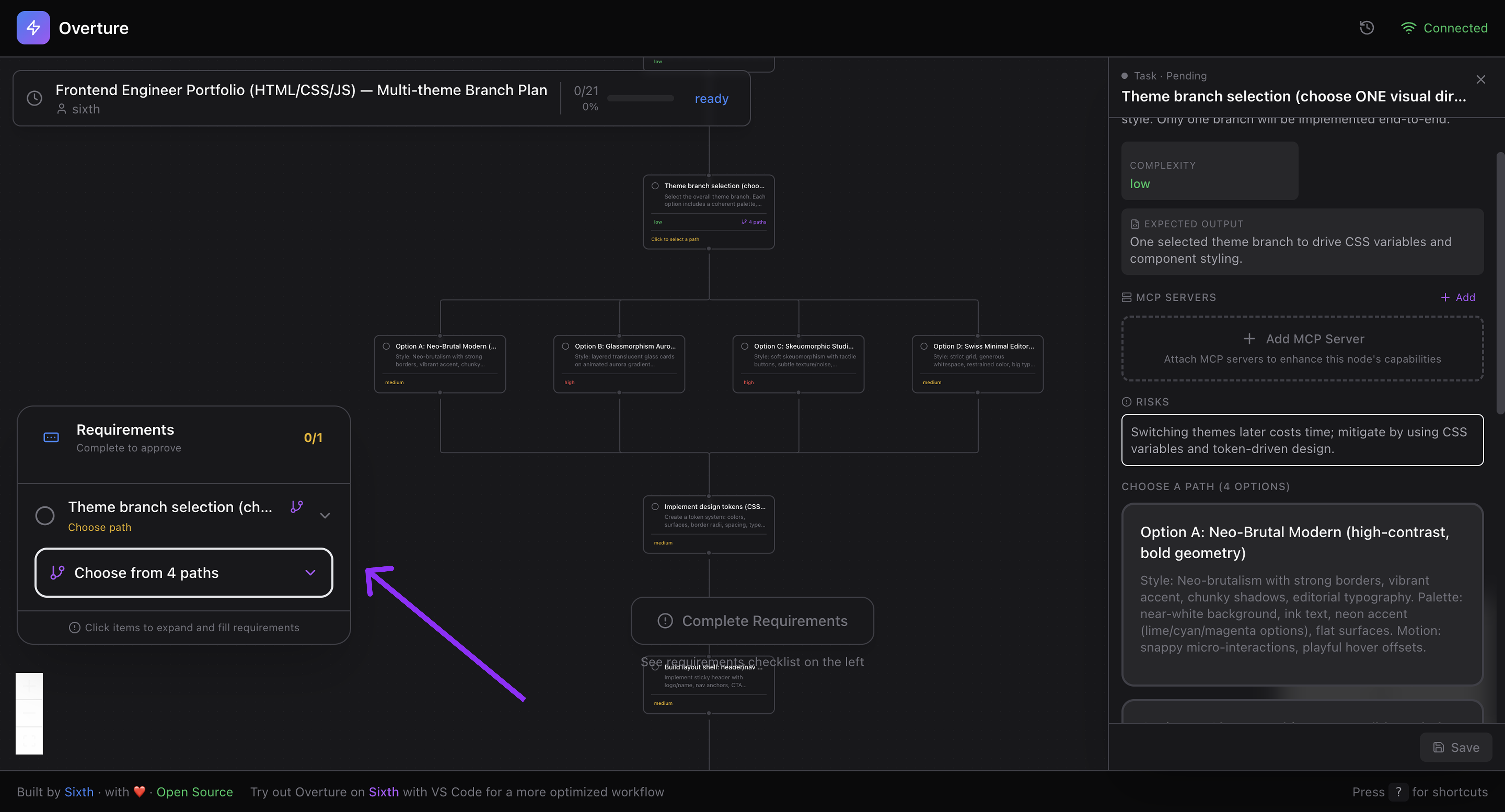
Before you can approve, Overture shows what's needed:
- Empty required fields — counted per node
- Branch selections — which decisions are pending
- Progress indicator — visual completion tracking
- Expandable items — click to see details
- Color coding — Green (done) / Orange (pending)
The Approve button stays disabled until all requirements are met.
Execution Controls
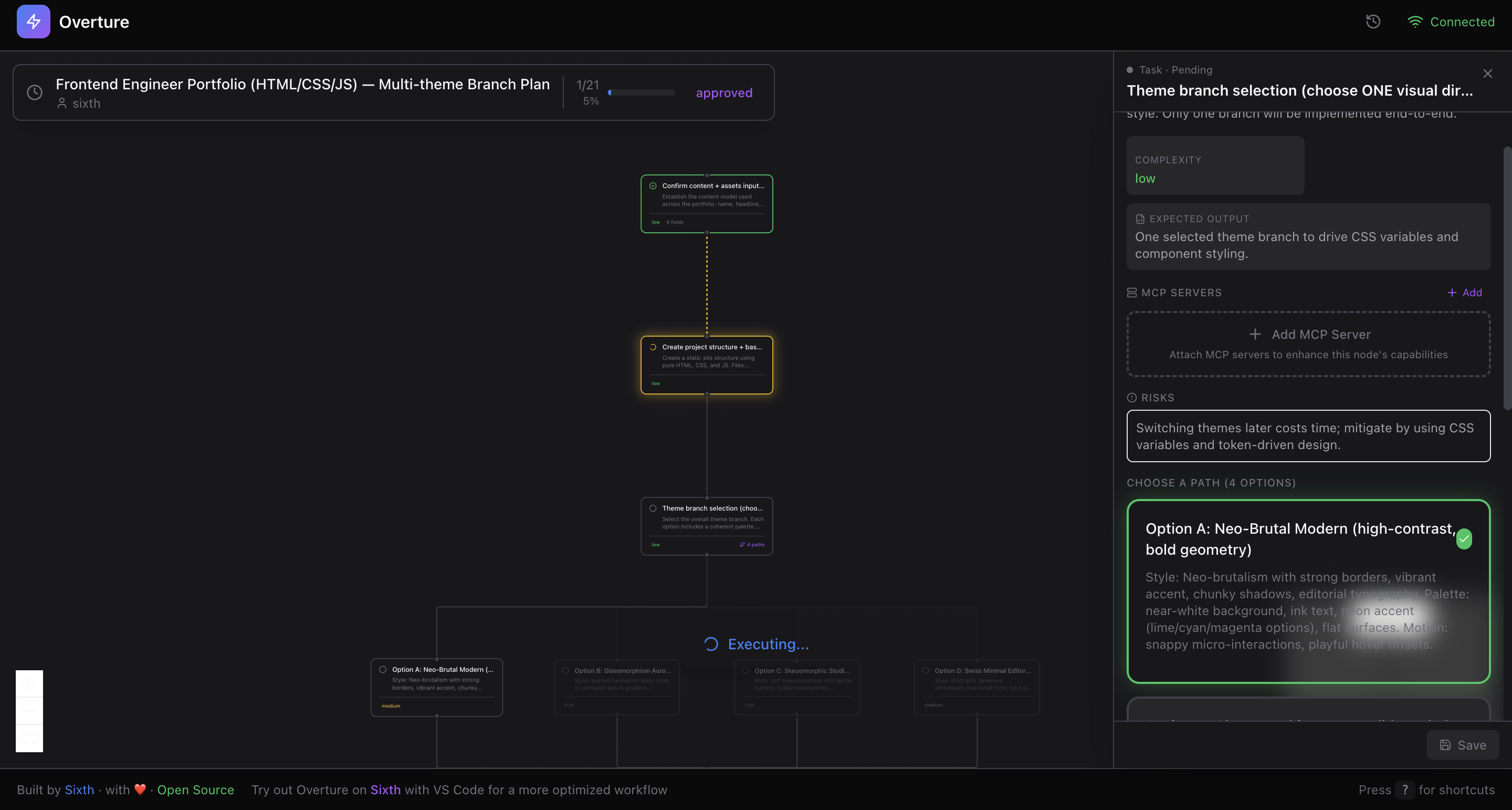
| Control | How |
|---|---|
| Approve | Click button or press Enter |
| Pause | Press Spacebar mid-execution |
| Resume | Press Spacebar again |
| Re-run Node | Click failed node → "Re-run" |
| Re-run From Here | Re-execute from any node to the end |
The approval button is smart: - 🟢 "Approve & Execute" — plan ready, requirements met - 🟠 "Complete Requirements" — conditions unmet - 🔵 "Executing..." — running with spinner - 🟢 "Completed" — all done - 🔴 "Failed" — error occurred
Structured Output
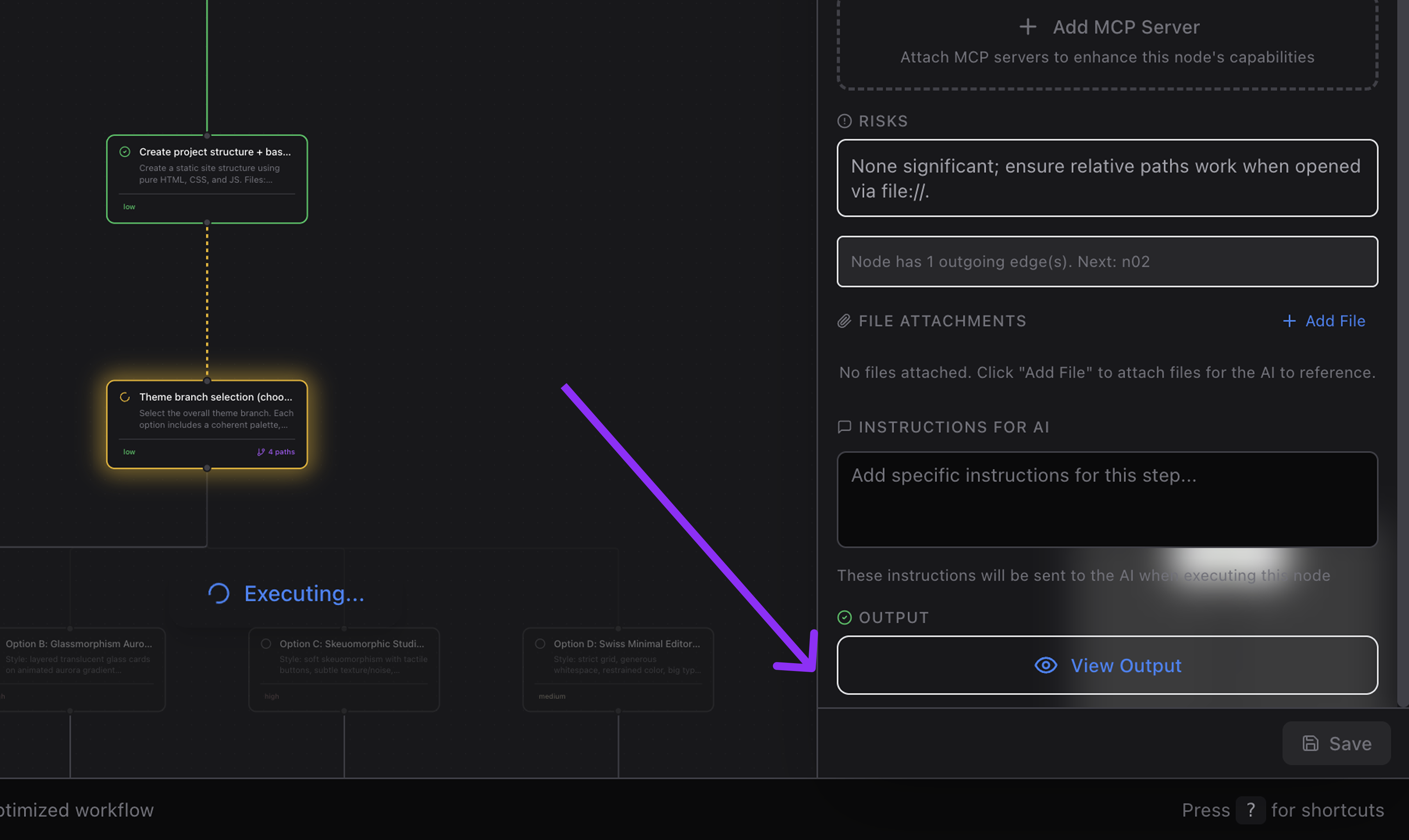
After each node executes, see rich structured output:
| Category | What It Shows |
|---|---|
| Overview | Summary of what was accomplished |
| Files Changed | Paths, lines added/removed, diffs |
| Files Created | New files with line counts |
| Files Deleted | Removed files |
| Packages Installed | npm packages with versions |
| MCP Servers Setup | Installation status (installed/configured/failed) |
| Web Searches | Queries performed, results used |
| Tool Calls | Which tools were used and how often |
| Preview URLs | Links to deployed sites or previews |
| Notes | Info, warnings, errors |
Each category is expandable — drill in without visual overload.
Output Modal
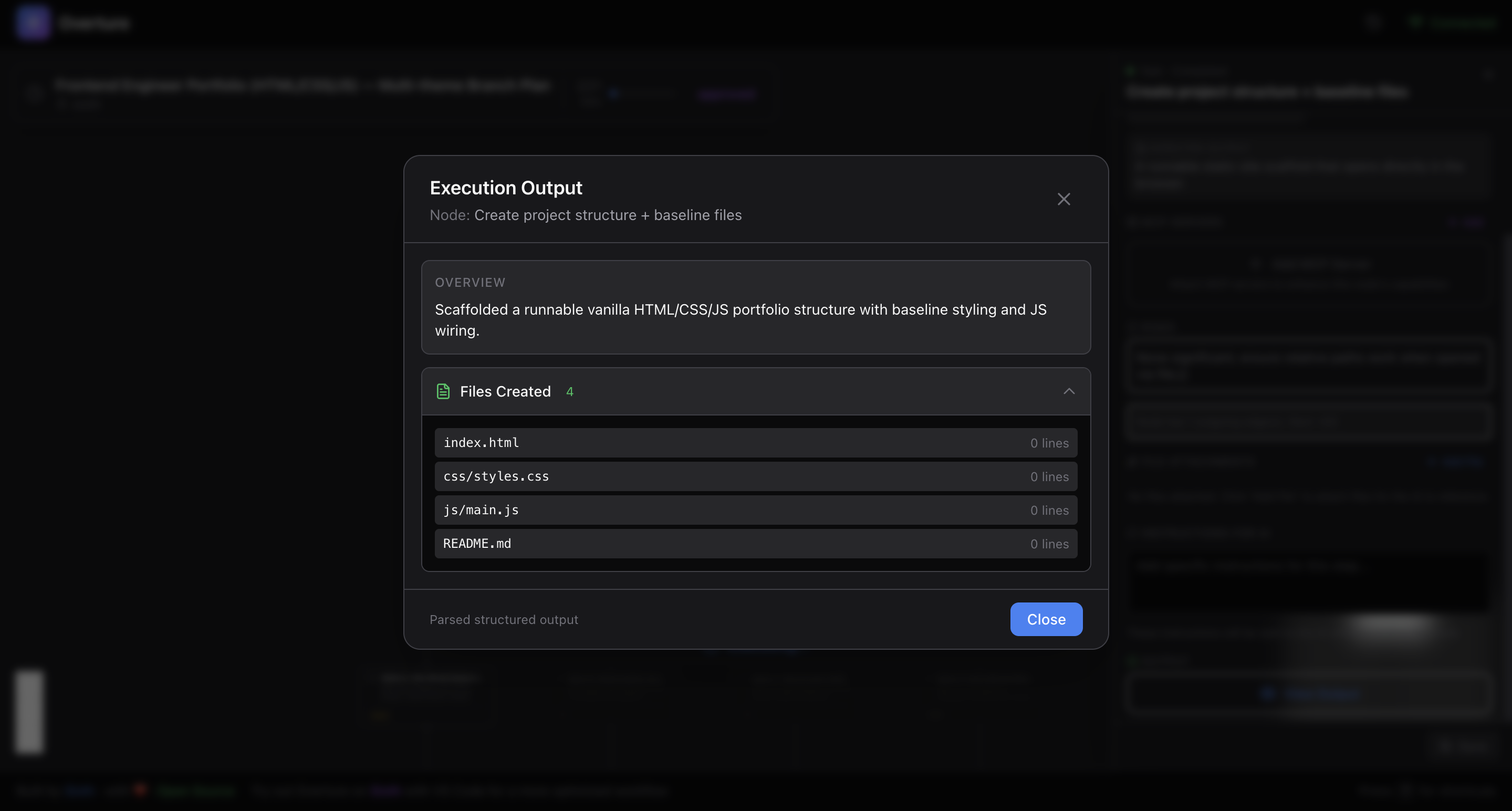
Click any completed node to see full output:
- Scrollable for long outputs
- Syntax highlighted code snippets
- Close with Escape or click outside
🏪 MCP Marketplace
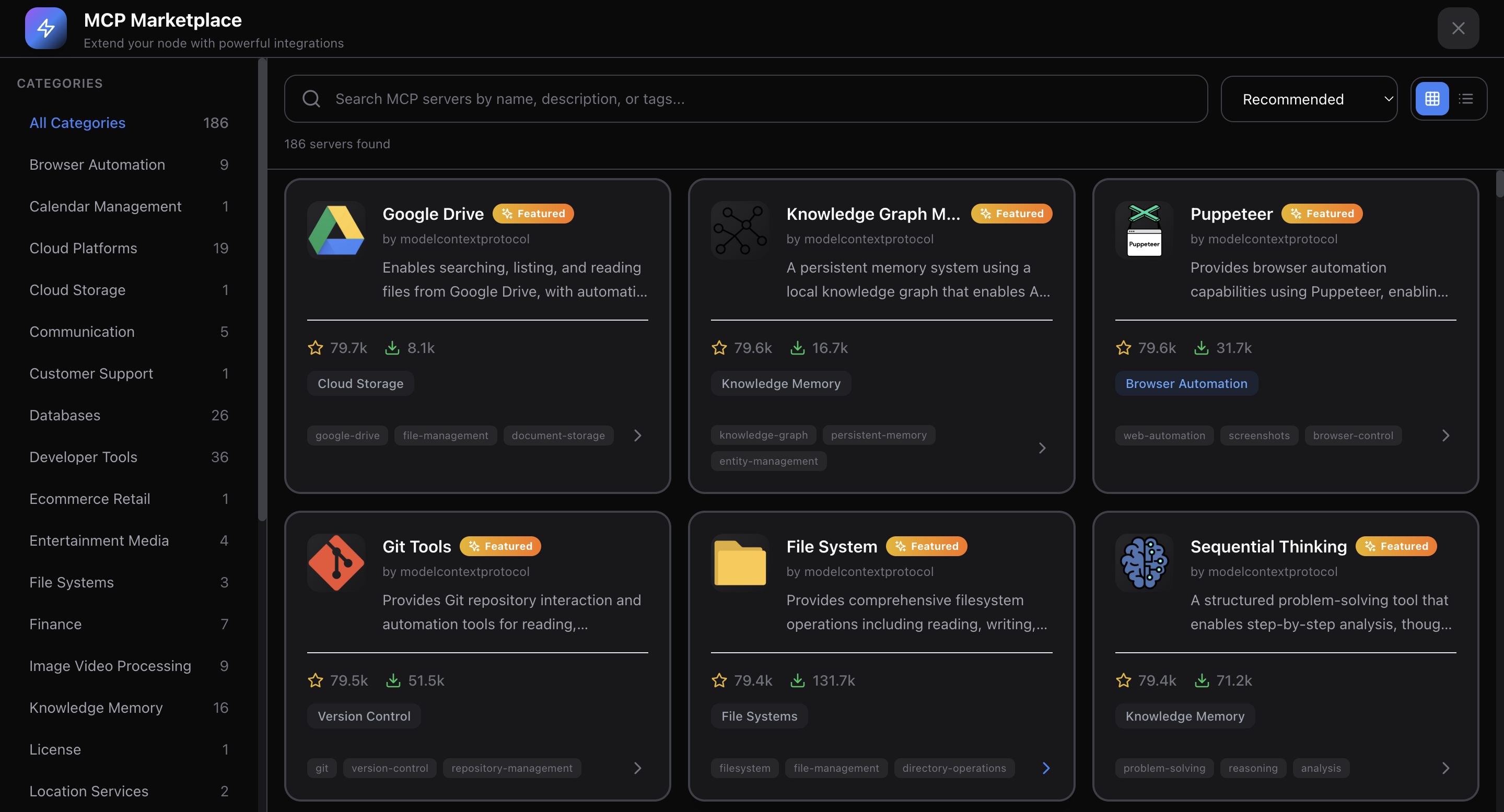
Browse and attach MCP servers directly from the Overture UI.
| Feature | Description |
|---|---|
| Built-in Marketplace | Search and discover MCP servers |
| Server Details | Descriptions, authors, GitHub links, stars |
| Category Browsing | Filter by use case |
| Per-Node Attachment | Attach specific tools to specific steps |
| Setup Instructions | See how to configure each server |
| Recommended Servers | Curated list for common tasks |
When you attach an MCP server to a node, the agent gains access to those tools only for that step.
📂 Multi-Project Support
Work on multiple projects simultaneously:
| Feature | Description |
|---|---|
| Tab Navigation | Sw |
Extension points exported contracts — how you extend this code
ProjectClient (Interface)Core symbols most depended-on inside this repo
getStateShape
Languages
Modules by API surface
For agents
$ claude mcp add Overture \
  -- python -m otcore.mcp_server <graph>