github.com/SimonTC/obsidian-note-autocreation @1.6.0
Chat with this repoWhat it actually does AI analysis from the code graph — generated when you open this
README
Note Auto Creator for Obsidian
Automatically create notes when links are created to them.
How to use
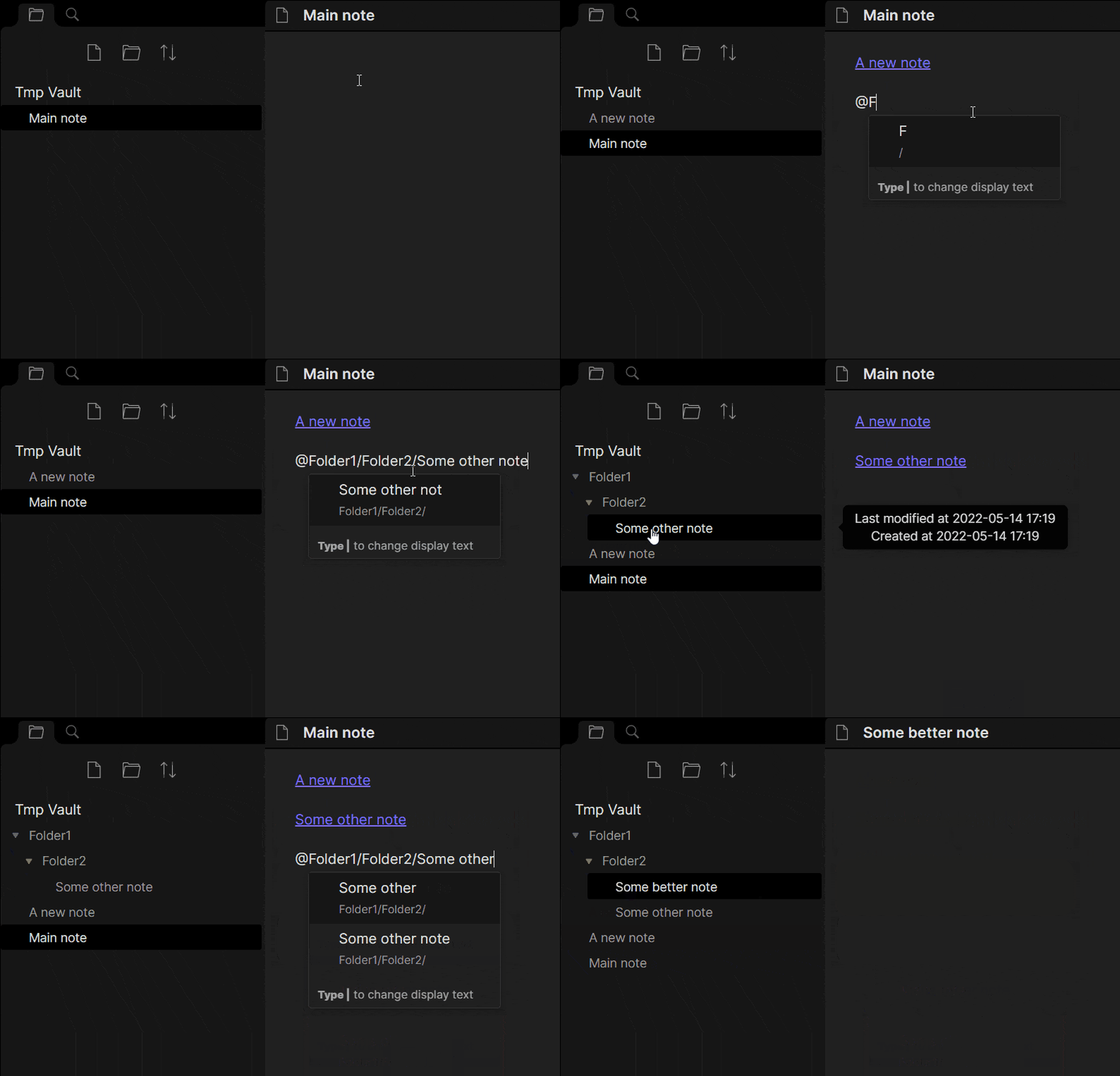
After enabling the plugin in the settings menu, you will be able to trigger an alternative link suggestion drop-down.
The drop-down is triggered by typing the characters configured in the settings menu. By default, the trigger is @.
The suggestion drop-down works as the standard link suggestion activated by typing [[ with some notable differences:
| Obsidian Linking | Note Auto Creator linking | |
|---|---|---|
| Trigger for link suggestion | [[ |
Configurable (@ by default) |
| Inserts link to note when Enter is pressed | ✔️ | ✔️ |
| Creates new note if no note exist at the link location | ❌ | ✔️ |
| Can apply a Templater template when a new note is created | ❌ | ✔️ |
Triggered by $ by default but can be configured |
| Filters link suggestions based on the text after the trigger | ✔️ | ✔️ |
| Custom display text can be inserted by using the | character | ✔️ | ✔️ |
| Link to specific header can be inserted using the # character | ✔️ | ✔️ |
| Header can be quick-inserted as alias for note | ❌ | ✔️ Configurable (! by default) |
| Link to specific block can be inserted using the ^ character | ✔️ | ❌ |
| Adds new root notes in the default location specified in "Default location for new notes" | ✔️ | ✔️ |
| Can search for notes by alias | ✔️ | ✔️ |
| Can disable suggestions for links to notes that do not exist | ❌ | ✔️
Links to non-existing notes are suggested by default, but this can be disabled | | Proposes other filetypes than markdown files when triggering link insertion | ✔️ | ✔️ | | Can limit note suggestions to notes from only part of the vault | ❌ | ✔️ | | Can limit insertion of note suggestions to only be possible in part of the vault | ❌ | ✔️
Note suggestion is active in all folders by default, but can be limited to specific folders only | | Suggests paths to folders | ❌ | ✔️
Folder suggestions are disabled by default but can be enabled in settings | | Relative paths can be used when inserting links | ❌ | ✔️ | | Can apply a QuickAdd template when a new note is created | ❌ | ✔️
Triggered by € by default but can be configured |
Some general notes:
- To exit out of the note selection process, press ESC. Note that the drop-down will be shown again as soon as you being writing on the same line.
- The type of link that is created by the Note Auto Creator is the same type of link that is created when using the standard Obsidian way. If [[Wikilinks]] have been enabled, then wikilinks are used. Otherwise markdown links are used.
- The new note that is created when using the Note Auto Creator will be an empty note unless a template is applied.
- The sorting of the suggestions is not quite the same between the two link insertion methods, but the contents are the same.
Inserting templates
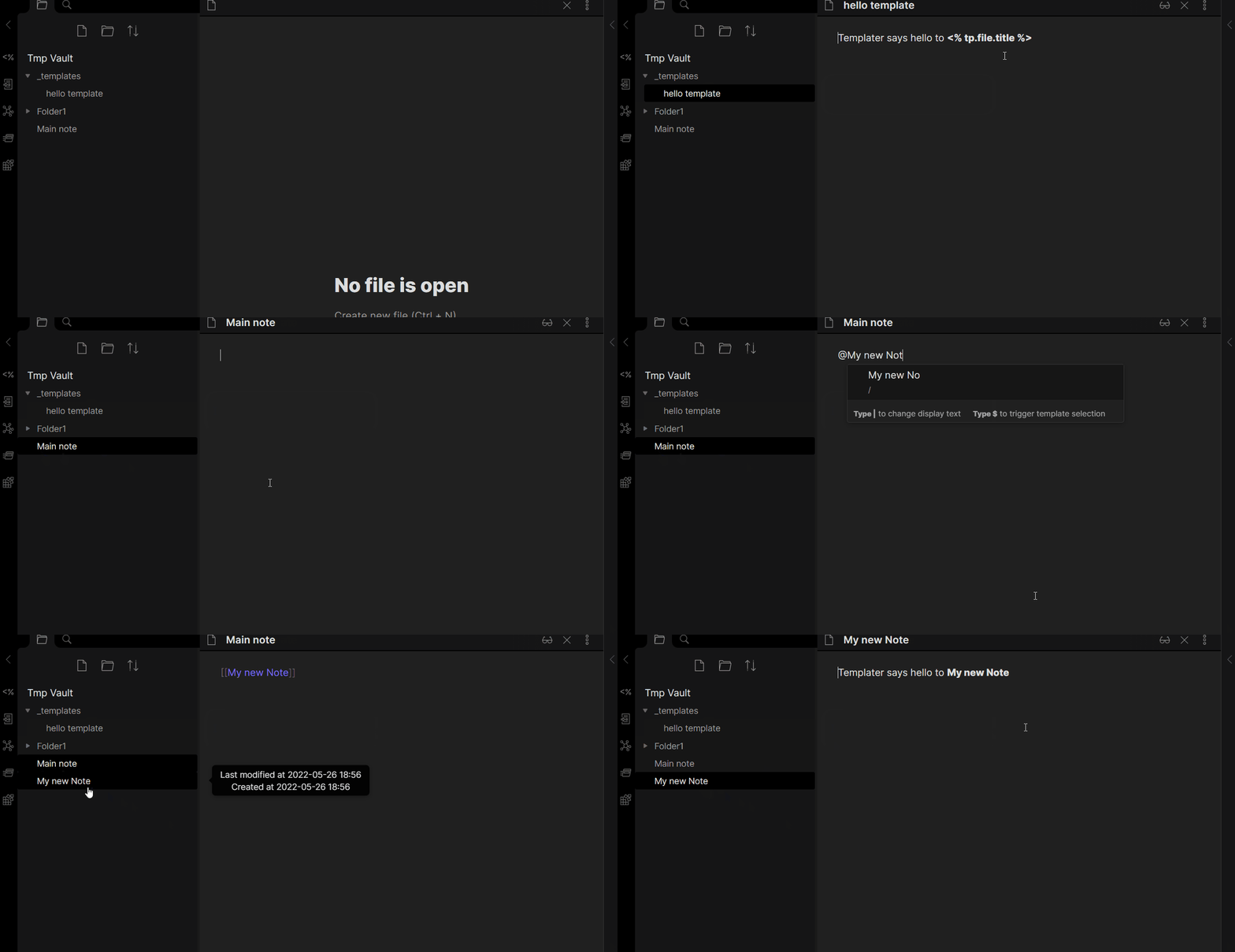
If you would like to apply a template to a new note you can achieve this by triggering the template selection drop-down by using the Templater or QuickAdd selection trigger ($/€ by default).
This will change the note selection drop-down to a template selection drop-down, and you will be able to select which template to insert.
When you have selected a template, the note will be created and the selected template will be applied to the note.
If you have a specific template you use often, you can define it as the default template in the settings. The template defined here will be shown as the first template in the list of templates.
Prerequisites and limitations - You may need to restart Obsidian after adding Templater, QuickAdd, or Note Auto Creator. Otherwise, Note Auto Creator might not be aware of the template folder configured in Templater or QuickAdd. - Inserting templates only works if either the Templater or QuickAdd plugin is installed and enabled. - You need to have defined a template folder in Templater or QuickAdd - Inserting templates does not work with templates created for the core Templates plugin. - You cannot apply templates to already existing notes.
Limit note suggestions
If your vault is organized into separate sub-vaults you might not be interested in getting suggestions for items in other sub vaults than the sub vault your current note is in. To achieve this you can define relative top folders. When a relative top folder has been defined, and you are inserting a link into a note that has that relative top folder in its folder tree, you will only get suggestions for notes that also have that top folder in their folder tree. You can both define the full path to a folder or just use folder name parts. You can define as many relative top folders as you want. They are checked in the order they have been added in the settings.
Be aware that note creation is not affected by the defined top folders. The location of a new note is still controlled by the Obsidian core setting "Default location for new notes".
Example
/
│   General notes.md
│   My 10 year goal.md
│
└───Work/
│   │   Contact info.md
│   │   Birthdays.md
│   │
│   └───Tasks/
│       │   Prepare meeting with Jim.md
│       │   Collect offers.md
│       │   Remember to buy birthday gifts.md
│       │
│       └───Less important task/
│           │   Clean up my desk.md
│
│
└───Private/
    │   Birthdays.md
    │
    └───Tasks/
        │   Remember to buy birthday gifts.md
        │   Buy new house.md
In the vault described above there are some notes that have the same names in the two sub vaults.
If you are inserting a link to a note somewhere in Work you might not want to get suggestions for any notes in Birthday.
In the following table you can see examples of what suggestions are returned based on the note you are inserting a link into and the relative top folders you have defined.
| Active file | Relative topfolders in prioritized order | Returned suggestions when typing @ |
|---|---|---|
/General notes.md |
Work/, Private/ |
All notes are returned as suggestions since the active note is not in Work or Private |
/Work/Contact info.md |
Private/ |
All notes are returned as suggestions since the active note is not in Work |
/Work/Contact info.md |
Work/ |
All notes in the Work folder or its sub folders |
/Work/Tasks/Collect offers.md |
Work/ |
All notes in the Work folder or its sub folders |
/Work/Tasks/Collect offers.md |
Work/Tasks |
All notes in the Work/Tasks folder or its sub folders |
/Work/Tasks/Collect offers.md |
Tasks |
All notes in the Work/Tasks folder or its sub folders |
/Work/Tasks/Collect offers.md |
Task |
All notes in the Work/Tasks folder or its sub folders |
/Private/Tasks/Buy new house.md |
Work/Tasks |
All notes are returned as suggestions since the active note is not in Work/Tasks |
/Private/Tasks/Buy new house.md |
Tasks |
All notes in the Private/Tasks folder or its sub folders |
/Private/Tasks/Less important task/Clean up my desk.md |
Task |
All notes in the Private/Tasks/Less important task folder or its sub folders |
/Private/Tasks/Less important task/Clean up my desk.md |
Tasks |
All notes in the Private/Tasks/ folder or its sub folders |
/Private/Tasks/Less important task/Clean up my desk.md |
impo |
All notes in the Private/Tasks/Less important task folder or its sub folders |
/Private/Tasks/Less important task/Clean up my desk.md |
Private/, Tasks |
All notes in the Private/ folder or its sub folders |
/Private/Tasks/Less important task/Clean up my desk.md |
Tasks, Private/ |
All notes in the Private/Tasks/ folder or its sub folders |
Limiting Plugin Functionality to Specific Folders
Under some circumstances you may want to limit the folders in which the trigger symbol will trigger a note suggestion. To achieve this you can define a list of enabled folders. When defined, the plugin will only respond to the trigger symbol in notes that are in (or are descendants of) the folders you specify. If no enabled folders are specified (the default setting), the plugin will be active throughout the entire vault.
Example: - If you configure "Projects" as an enabled folder: - The plugin will be active in "Projects/Project1/note.md" - The plugin will NOT be active in "Personal/diary.md"
Note: If you want to both enable the plugin only in specific folders AND limit suggestions to those same folders, you should add the same folders to both the "Enabled Folders" and "Relative Top Folders" settings.
Working with Relative Top Folders
When using both "Enabled Folders" and "Relative Top Folders" features:
- "Enabled Folders" controls where the plugin is active (where the trigger symbol works)
- "Relative Top Folders" controls which notes are suggested when the plugin is active
For a completely isolated experience within specific folders, configure the same paths in both settings.
Settings
Link suggestion trigger
By default, @ is used to trigger the link selection, but you can configure it to be any string by changing the value in Trigger for link selection.
A warning is shown if the chosen trigger is either an empty string or among the special symbols used when writing markdown. You can choose to ign
Extension points exported contracts — how you extend this code
ITemplateConfig (Interface)Core symbols most depended-on inside this repo
LinkToExistingNoteShape
Languages
Modules by API surface
For agents
$ claude mcp add obsidian-note-autocreation \
  -- python -m otcore.mcp_server <graph>