github.com/Rigellute/spotify-tui @v0.25.0
Chat with this repoWhat it actually does AI analysis from the code graph — generated when you open this
README
Spotify TUI






A Spotify client for the terminal written in Rust.
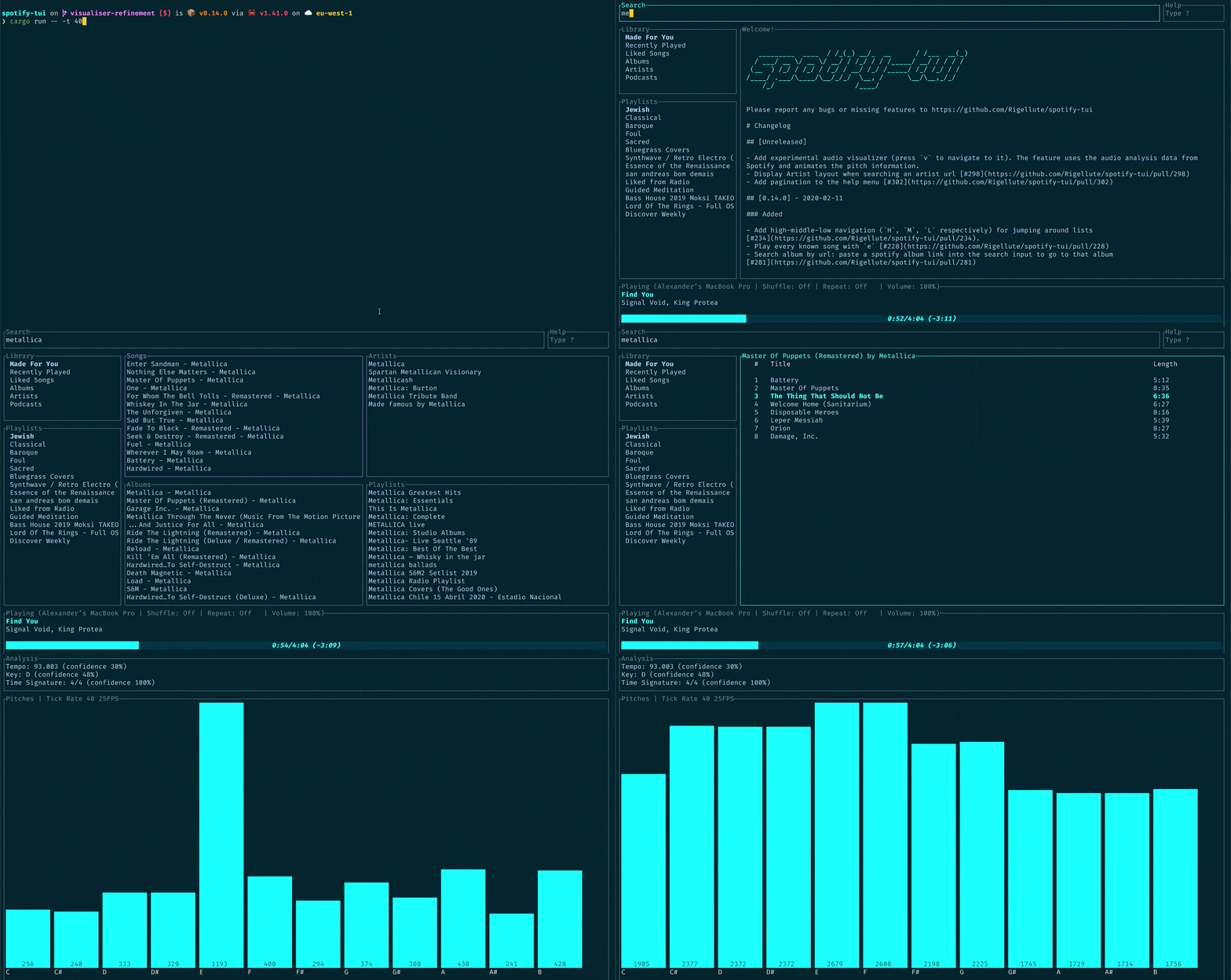
The terminal in the demo above is using the Rigel theme.
- Spotify TUI
- Installation
- Connecting to Spotify’s API
- Usage
- Configuration
- Limitations
- Using with spotifyd
- Libraries used
- Development
- Contributors
- Roadmap
Installation
The binary executable is spt.
Homebrew
For both macOS and Linux
brew install spotify-tui
To update, run
brew upgrade spotify-tui
Snap
For a system with Snap installed, run
snap install spt
The stable version will be installed for you automatically.
If you want to install the nightly build, run
snap install spt --edge
AUR
For those on Arch Linux you can find the package on AUR here. If however you're using an AUR helper you can install directly from that, for example (in the case of yay), run
yay -S spotify-tui
Nix
Available as the package spotify-tui. To install run:
nix-env -iA nixpkgs.spotify-tui
Where nixpkgs is the channel name in your configuration. For a more up-to-date installation, use the unstable channel.
It is also possible to add the package to environment.systemPackages (for NixOS), or home.packages when using home-manager.
Void Linux
Available on the official repositories. To install, run
sudo xbps-install -Su spotify-tui
Fedora/CentOS
Available on the Copr repositories. To install, run
sudo dnf copr enable atim/spotify-tui -y && sudo dnf install spotify-tui
Cargo
Use this option if your architecture is not supported by the pre-built binaries found on the releases page.
First, install Rust (using the recommended rustup installation method) and then
cargo install spotify-tui
This method will build the binary from source.
To update, run the same command again.
Note on Linux
For compilation on Linux the development packages for libssl are required.
For basic installation instructions, see install OpenSSL.
In order to locate dependencies, the compilation also requires pkg-config to be installed.
If you are using the Windows Subsystem for Linux, you'll need to install additional dependencies.
Windows 10
Scoop installer
First, make sure scoop installer is on your windows box, for instruction please visit scoop.sh
Then open powershell and run following two commands:
scoop bucket add scoop-bucket https://github.com/Rigellute/scoop-bucket
scoop install spotify-tui
After that program is available as: spt or spt.exe
Manual
- Download the latest binary for your OS.
cdto the file you just downloaded and unzipcdtospotify-tuiand run with./spt
Connecting to Spotify’s API
spotify-tui needs to connect to Spotify’s API in order to find music by
name, play tracks etc.
Instructions on how to set this up will be shown when you first run the app.
But here they are again:
- Go to the Spotify dashboard
- Click
Create an app- You now can see your
Client IDandClient Secret
- You now can see your
- Now click
Edit Settings - Add
http://localhost:8888/callbackto the Redirect URIs - Scroll down and click
Save - You are now ready to authenticate with Spotify!
- Go back to the terminal
- Run
spt - Enter your
Client ID - Enter your
Client Secret - Press enter to confirm the default port (8888) or enter a custom port
- You will be redirected to an official Spotify webpage to ask you for permissions.
- After accepting the permissions, you'll be redirected to localhost. If all goes well, the redirect URL will be parsed automatically and now you're done. If the local webserver fails for some reason you'll be redirected to a blank webpage that might say something like "Connection Refused" since no server is running. Regardless, copy the URL and paste into the prompt in the terminal.
And now you are ready to use the spotify-tui 🎉
You can edit the config at anytime at ${HOME}/.config/spotify-tui/client.yml. (for snap ${HOME}/snap/spt/current/.config/spotify-tui/client.yml)
Usage
The binary is named spt.
Running spt with no arguments will bring up the UI. Press ? to bring up a help menu that shows currently implemented key events and their actions.
There is also a CLI that is able to do most of the stuff the UI does. Use spt --help to learn more.
Here are some example to get you excited.
spt --completions zsh # Prints shell completions for zsh to stdout (bash, power-shell and more are supported)

spt play --name "Your Playlist" --playlist --random # Plays a random song from "Your Playlist"
spt play --name "A cool song" --track # Plays 'A cool song'

spt playback --like --shuffle # Likes the current song and toggles shuffle mode
spt playback --toggle # Plays/pauses the current playback

spt list --liked --limit 50 # See your liked songs (50 is the max limit)

# Looks for 'An even cooler song' and gives you the '{name} from {album}' of up to 30 matches
spt search "An even cooler song" --tracks --format "%t from %b" --limit 30
Configuration
A configuration file is located at ${HOME}/.config/spotify-tui/config.yml, for snap ${HOME}/snap/spt/current/.config/spotify-tui/config.yml
(not to be confused with client.yml which handles spotify authentication)
The following is a sample config.yml file:
# Sample config file

# The theme colours can be an rgb string of the form "255, 255, 255" or a string that references the colours from your terminal theme: Reset, Black, Red, Green, Yellow, Blue, Magenta, Cyan, Gray, DarkGray, LightRed, LightGreen, LightYellow, LightBlue, LightMagenta, LightCyan, White.
theme:
  active: Cyan # current playing song in list
  banner: LightCyan # the "spotify-tui" banner on launch
  error_border: Red # error dialog border
  error_text: LightRed # error message text (e.g. "Spotify API reported error 404")
  hint: Yellow # hint text in errors
  hovered: Magenta # hovered pane border
  inactive: Gray # borders of inactive panes
  playbar_background: Black # background of progress bar
  playbar_progress: LightCyan # filled-in part of the progress bar
  playbar_progress_text: Cyan # song length and time played/left indicator in the progress bar
  playbar_text: White # artist name in player pane
  selected: LightCyan # a) selected pane border, b) hovered item in list, & c) track title in player
  text: "255, 255, 255" # text in panes
  header: White # header text in panes (e.g. 'Title', 'Artist', etc.)

behavior:
  seek_milliseconds: 5000
  volume_increment: 10
  # The lower the number the higher the "frames per second". You can decrease this number so that the audio visualisation is smoother but this can be expensive!
  tick_rate_milliseconds: 250
  # Enable text emphasis (typically italic/bold text styling). Disabling this might be important if the terminal config is otherwise restricted and rendering text escapes interferes with the UI.
  enable_text_emphasis: true
  # Controls whether to show a loading indicator in the top right of the UI whenever communicating with Spotify API
  show_loading_indicator: true
  # Disables the responsive layout that makes the search bar smaller on bigger
  # screens and enforces a wide search bar
  enforce_wide_search_bar: false
  # Determines the text icon to display next to "liked" Spotify items, such as
  # liked songs and albums, or followed artists. Can be any length string.
  # These icons require a patched nerd font.
  liked_icon: ♥
  shuffle_icon: 🔀
  repeat_track_icon: 🔂
  repeat_context_icon: 🔁
  playing_icon: ▶
  paused_icon: ⏸

keybindings:
  # Key stroke can be used if it only uses two keys:
  # ctrl-q works,
  # ctrl-alt-q doesn't.
  back: "ctrl-q"

  jump_to_album: "a"

  # Shift modifiers use a capital letter (also applies with other modifier keys
  # like ctrl-A)
  jump_to_artist_album: "A"

  manage_devices: "d"
  decrease_volume: "-"
  increase_volume: "+"
  toggle_playback: " "
  seek_backwards: "<"
  seek_forwards: ">"
  next_track: "n"
  previous_track: "p"
  copy_song_url: "c"
  copy_album_url: "C"
  help: "?"
  shuffle: "ctrl-s"
  repeat: "r"
  search: "/"
  audio_analysis: "v"
  jump_to_context: "o"
  basic_view: "B"
  add_item_to_queue: "z"
Limitations
This app uses the Web API from Spotify, which doesn't handle streaming itself. So you'll need either an official Spotify client open or a lighter weight alternative such as spotifyd.
If you want to play tracks, Spotify requires that you have a Premium account.
Using with spotifyd
Follow the spotifyd documentation to get set up.
After that there is not much to it.
- Start running the spotifyd daemon.
- Start up
spt - Press
dto go to the device selection menu and the spotifyd "device" should be there - if not check these docs
Libraries used
Development
- Install OpenSSL
- Install Rust
- Install
xorg-dev(required for clipboard support) - Clone or fork this repo and
cdto it - And then
cargo run
Windows Subsystem for Linux
You might get a linking error. If so, you'll probably need to install additional dependencies required by the clipboard package
sudo apt-get install -y -qq pkg-config libssl-dev libxcb1-dev libxcb-render0-dev libxcb-shape0-dev libxcb-xfixes0-dev
Contributors
Thanks goes to these wonderful people (emoji key):
 Alexander Keliris
💻 📖 🎨 📝 🤔 🚇 🚧 📦 👀
Alexander Keliris
💻 📖 🎨 📝 🤔 🚇 🚧 📦 👀 |
 Mickael Marques
💵
Mickael Marques
💵 |
 Grzegorz Koperwas
📖
Grzegorz Koperwas
📖 |
 Austin Gassert
|
Core symbols most depended-on inside this repo
dispatchShape
Languages
Modules by API surface
For agents
$ claude mcp add spotify-tui \
  -- python -m otcore.mcp_server <graph>