github.com/RianNegreiros/AiShortsVideosGenerator @main
Chat with this repoBrowse by type
What it actually does AI analysis from the code graph — generated when you open this
README
AI Shorts Video Generator
A monorepo project for generating AI-powered short videos. The application combines multiple AI services to create videos from text prompts, including content generation, text-to-speech, image generation, and automated captioning.
Architecture
The application consists of two main components:
- Frontend (docs): Next.js application that provides the user interface and handles video rendering using Remotion on AWS Lambda
- Backend (docs): ASP.NET Core API that orchestrates AI services and manages video data
Video Generation Workflow
- User submits video topic, style, and duration
- Backend generates script using Gemini API
- Backend converts script to audio using Google Cloud Text-to-Speech
- Backend generates images for each scene using Cloudflare Workers AI
- Backend creates captions using AssemblyAI
- Frontend triggers Remotion Lambda to render final video
- Rendered video is stored in Cloudinary
Table of Contents
- Architecture
- Features
- Requirements
- Installation
- Environment Variables
- Development
- Docker
- API Reference
- Deployment
- Usage
Features
Frontend
- Video Creation: Users can create short videos by selecting topics, styles, and durations.
- Video Preview: After generating a video, users can preview it with generated captions and images.
- Video Deletion: Users can delete the video from the database and the cloud if video was once rendered.
- Export Video: Users can export the generated video once the rendering is completed.
- Theming: Supports light and dark themes using
next-themes.
Backend
- Content Generation: Create video content based on user input using Google's Gemini API.
- Audio Synthesis: Convert text input to speech using Google Cloud Text-to-Speech API.
- Caption Generation: Generate captions for audio or video files using AssemblyAI.
- Image Generation: Generate images from text prompts using Cloudflare's AI API.
- Video Storage: Save and retrieve video data, including associated content and captions.
Requirements
Local Development
- Node.js (v20.x LTS or later)
- .NET 9 SDK
- PostgreSQL (or use Neon Serverless Postgres)
- Docker and Docker Compose (optional, for containerized development)
External Services
- Cloudinary account and API key
- Cloudflare Workers AI account and API key (using flux-1-schnell Model)
- AssemblyAI API key
- Google Cloud project with Text-to-Speech and Gemini APIs enabled
- AWS Account for Remotion Lambda (video rendering)
Installation
-
Clone the repository to your local machine:
bash git clone https://github.com/yourusername/AiShortsVideoGenerator.git cd AiShortsVideoGenerator -
Install frontend dependencies:
bash cd frontend npm install -
Install backend dependencies:
bash
cd ../backend
dotnet restore
Environment Variables
Frontend (.env.local)
NEXT_PUBLIC_API_URL=http://localhost:8080
REMOTION_AWS_SERVE_URL=<Your AWS Serve URL for Remotion>
REMOTION_AWS_BUCKET_NAME=<Your AWS Bucket Name for Remotion>
See Remotion Lambda setup guide for AWS configuration.
Backend (User Secrets for Development)
For local development, use .NET user secrets instead of committing API keys:
cd backend
dotnet user-secrets init
dotnet user-secrets set "GoogleApi:GeminiKey" "your-gemini-api-key"
dotnet user-secrets set "GoogleApi:TextToSpeechKey" "your-text-to-speech-api-key"
dotnet user-secrets set "AssemblyAi:ApiKey" "your-assemblyai-api-key"
dotnet user-secrets set "CloudinaryUrl" "your-cloudinary-url"
dotnet user-secrets set "Cloudflare:ApiKey" "your-cloudflare-api-key"
dotnet user-secrets set "Cloudflare:AccountId" "your-cloudflare-account-id"
dotnet user-secrets set "ConnectionStrings:DefaultConnection" "your-postgresql-connection-string"
For production, use appsettings.Production.json or environment variables.
Google Cloud Setup
- Create a service account in Google Cloud Console
- Download the service account JSON key
- Set
GOOGLE_APPLICATION_CREDENTIALSenvironment variable to the key path - Enable Text-to-Speech and Gemini APIs in your project
Development
Frontend
To run the frontend application in development mode:
cd frontend
npm install
npm run dev
The frontend will be available at http://localhost:3000.
Backend
To run the backend application:
cd backend
dotnet restore
dotnet ef database update
dotnet run
The backend API will be available at http://localhost:8080.
CORS Configuration
Ensure the backend is configured to accept requests from the frontend. Update appsettings.Development.json or use user secrets to configure CORS if needed.
Docker
To run the application in Docker:
- Configure environment variables in
.env.local:
NEXT_PUBLIC_API_URL=http://localhost:8080
-
Set backend secrets or create
appsettings.Production.jsonwith API keys -
Run the containers:
docker compose up
This starts:
- Backend API on http://localhost:8080
- Frontend on http://localhost:3000
- PostgreSQL database (if configured in compose.yaml)
API Reference
Base URL
http://localhost:8080
Endpoints
- GET /videos: Retrieve a list of all videos stored in the database.
- POST /generate-content: Generate video content from user input using Google's Gemini API.
- POST /generate-audio: Convert text input to audio (MP3) using Google Cloud Text-to-Speech API.
- POST /generate-captions: Generate captions for an audio or video file using AssemblyAI.
- POST /generate-image: Generate an image from a text prompt using Cloudflare's AI API.
- POST /save-video: Save a video record to the database.
- PUT /videos/{id}: Update video Output File and Render Id.
- DELETE /videos/{id}: Delete video from the database.
Dependencies
Frontend
- Next.js: React framework for building server-side rendered applications.
- TailwindCSS: Utility-first CSS framework for styling the app.
- Remotion: Library for creating videos programmatically with React.
- Axios: HTTP client for making requests to the API.
- shadcn: A collection of re-usable components that you can copy and paste into your apps.
Backend
- Google.Cloud.TextToSpeech.V1: Google Cloud Text-to-Speech client.
- AssemblyAI: Client library for AssemblyAI services.
- CloudinaryDotNet: Cloudinary SDK for uploading media.
- Npgsql.EntityFrameworkCore.PostgreSQL: PostgreSQL support for Entity Framework Core.
Deployment
Frontend
Deploy to Vercel or similar platforms:
cd frontend
npm run build
Set environment variables in your deployment platform:
- NEXT_PUBLIC_API_URL: Production backend URL
- REMOTION_AWS_SERVE_URL: AWS Lambda endpoint
- REMOTION_AWS_BUCKET_NAME: S3 bucket for video outputs
Backend
Deploy to Azure App Service, AWS, or similar:
- Build the application:
cd backend
dotnet publish -c Release -o ./publish
-
Set production environment variables or use
appsettings.Production.json -
Ensure database migrations run on startup or manually:
dotnet ef database update --configuration Release
AWS Lambda (Remotion)
Follow the Remotion Lambda setup guide to configure video rendering on AWS Lambda.
Usage
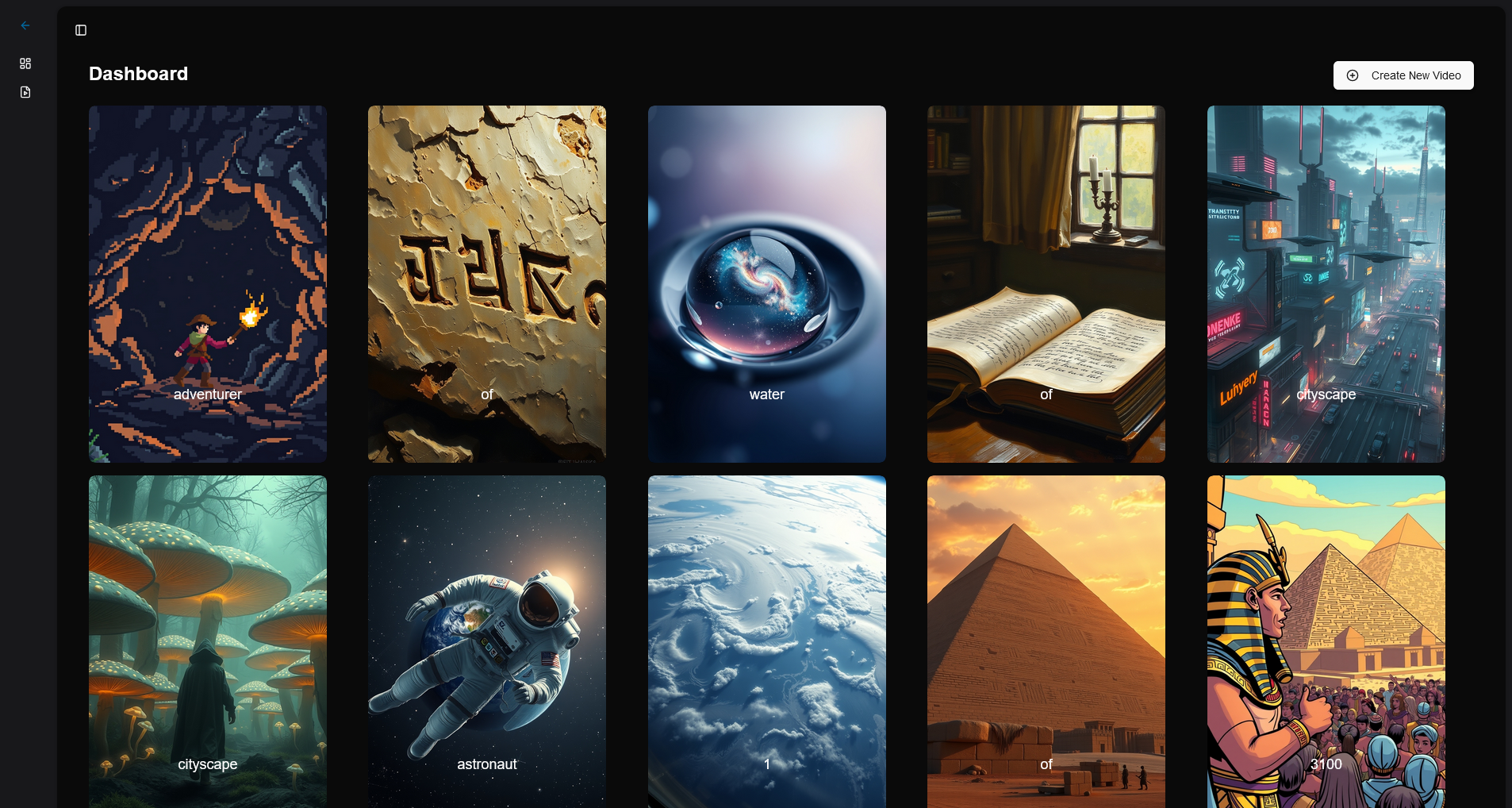
- Dashboard: Users can view and manage generated short videos.

- Create New Video: Users can define the video topic, style, and duration, and the app will generate the video content, audio, captions, and images using AI.

- Video Preview & Export: After the video is generated, users can preview it in the dialog and export it once rendered.

Extension points exported contracts — how you extend this code
browse all types & interfaces →
Core symbols most depended-on inside this repo
Shape
Languages
Modules by API surface
For agents
$ claude mcp add AiShortsVideosGenerator \
  -- python -m otcore.mcp_server <graph>