github.com/MicrosoftEdge/WebView2Browser @main
Chat with this repoBrowse by type
What it actually does AI analysis from the code graph — generated when you open this
README
description: "A web browser built with the Microsoft Edge WebView2 control." extendedZipContent: - path: LICENSE target: LICENSE languages: - cpp - javascript page_type: sample products: - microsoft-edge urlFragment: webview2browser
WebView2Browser
A web browser built with the Microsoft Edge WebView2 control.
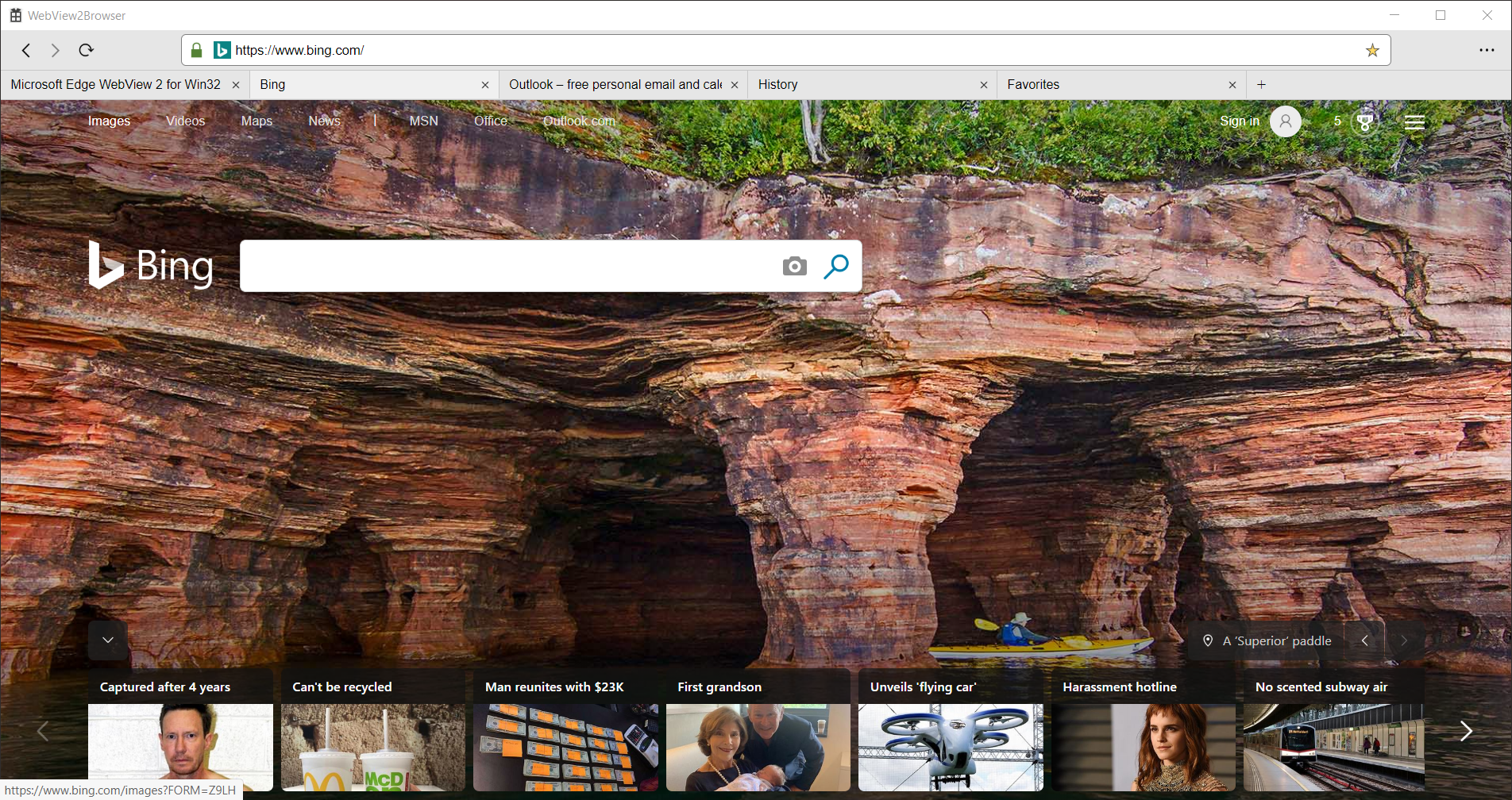
WebView2Browser is a sample Windows desktop application demonstrating the WebView2 control capabilities. It is built as a Win32 Visual Studio 2019 project and makes use of both C++ and JavaScript in the WebView2 environment to power its features.
WebView2Browser shows some of the simplest uses of WebView2 -such as creating and navigating a WebView, but also some more complex workflows like using the PostWebMessageAsJson API to communicate WebViews in separate environments. It is intended as a rich code sample to look at how you can use WebView2 APIs to build your own app.
For more information, see the article in the Microsoft Edge Developer documentation: WebView2Browser.
Requisites
- Microsoft Edge (Chromium) installed on a supported OS.
- Visual Studio with C++ support installed.
The WebView2 Runtime is recommended for the installation and the minimum version is 86.0.622.38.
Build the browser
Clone the repository and open the solution in Visual Studio. WebView2 is already included as a NuGet package* in the project!
- Clone this repository
- Open the solution in Visual Studio 2019**
- Make the changes listed below if you're using a Windows version below Windows 10.
- Set the target you want to build (Debug/Release, x86/x64)
- Build the solution
That's it. Everything should be ready to just launch the app.
You can get the WebView2 NuGet Package through the Visual Studio NuGet Package Manager.
*You can also use Visual Studio 2017 by changing the project's Platform Toolset in Project Properties/Configuration properties/General/Platform Toolset. You might also need to change the Windows SDK to the latest version available to you.
Using versions below Windows 10
There's a couple of changes you need to make if you want to build and run the browser in other versions of Windows. This is because of how DPI is handled in Windows 10 vs previous versions of Windows.
In WebViewBrowserApp.cpp, you will need to replace the call to SetProcessDpiAwarenessContext and call SetProcessDPIAware instead.
int APIENTRY wWinMain(_In_ HINSTANCE hInstance,
                      _In_opt_ HINSTANCE hPrevInstance,
                      _In_ LPWSTR    lpCmdLine,
                      _In_ int       nCmdShow)
{
    UNREFERENCED_PARAMETER(hPrevInstance);
    UNREFERENCED_PARAMETER(lpCmdLine);

    // Call SetProcessDPIAware() instead when using Windows 7 or any version
    // below 1703 (Windows 10).
    SetProcessDpiAwarenessContext(DPI_AWARENESS_CONTEXT_PER_MONITOR_AWARE_V2);

    BrowserWindow::RegisterClass(hInstance);

    // ...
In BrowserWindow.cpp, you will need to remove the call to GetDpiForWindow.
int BrowserWindow::GetDPIAwareBound(int bound)
{
    // Remove the GetDpiForWindow call when using Windows 7 or any version
    // below 1607 (Windows 10). You will also have to make sure the build
    // directory is clean before building again.
    return (bound * GetDpiForWindow(m_hWnd) / DEFAULT_DPI);
}
Browser layout
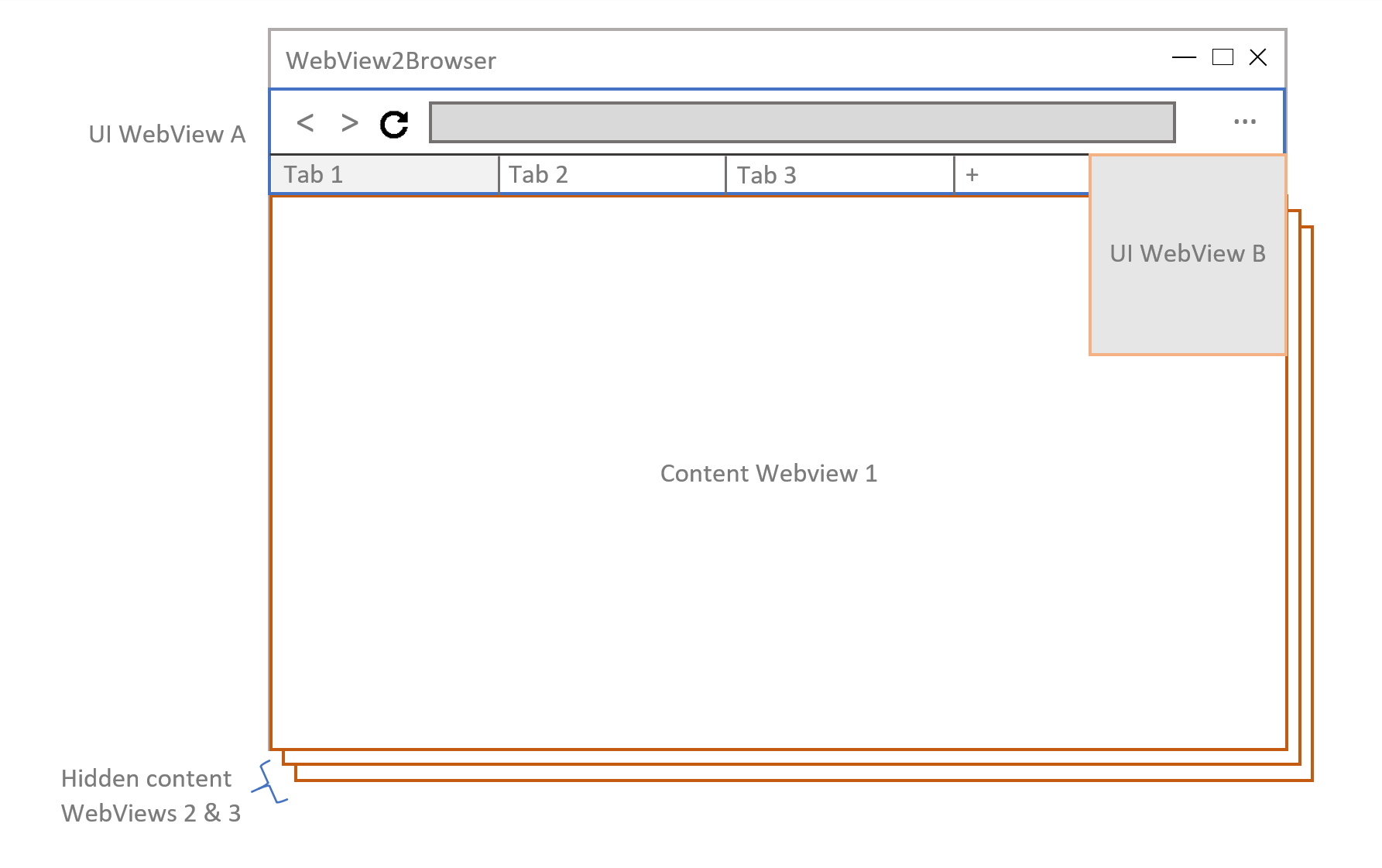
WebView2Browser has a multi-WebView approach to integrate web content and application UI into a Windows Desktop application. This allows the browser to use standard web technologies (HTML, CSS, JavaScript) to light up the interface but also enables the app to fetch favicons from the web and use IndexedDB for storing favorites and history.
The multi-WebView approach involves using two separate WebView environments (each with its own user data directory): one for the UI WebViews and the other for all content WebViews. UI WebViews (controls and options dropdown) use the UI environment while web content WebViews (one per tab) use the content environment.
Features
WebView2Browser provides all the functionalities to make a basic web browser, but there's plenty of room for you to play around.
- Go back/forward
- Reload page
- Cancel navigation
- Multiple tabs
- History
- Favorites
- Search from the address bar
- Page security status
- Clearing cache and cookies
WebView2 APIs
WebView2Browser makes use of a handful of the APIs available in WebView2. For the APIs not used here, you can find more about them in the Microsoft Edge WebView2 Reference. The following is a list of the most interesting APIs WebView2Browser uses and the feature(s) they enable.
| API | Feature(s) |
|---|---|
| CreateCoreWebView2EnvironmentWithOptions | Used to create the environments for UI and content WebViews. Different user data directories are passed to isolate UI from web content. |
| ICoreWebView2 | There are several WebViews in WebView2Browser and most features make use of members in this interface, the table below shows how they're used. |
| ICoreWebView2DevToolsProtocolEventReceivedEventHandler | Used along with add_DevToolsProtocolEventReceived to listen for CDP security events to update the lock icon in the browser UI. |
| ICoreWebView2DevToolsProtocolEventReceiver | Used along with add_DevToolsProtocolEventReceived to listen for CDP security events to update the lock icon in the browser UI. |
| ICoreWebView2ExecuteScriptCompletedHandler | Used along with ExecuteScript to get the title and favicon from the visited page. |
| ICoreWebView2FocusChangedEventHandler | Used along with add_LostFocus to hide the browser options dropdown when it loses focus. |
| ICoreWebView2HistoryChangedEventHandler | Used along with add_HistoryChanged to update the navigation buttons in the browser UI. |
| ICoreWebView2Controller | There are several WebViewControllers in WebView2Browser and we fetch the associated WebViews from them. |
| ICoreWebView2NavigationCompletedEventHandler | Used along with add_NavigationCompleted to update the reload button in the browser UI. |
| ICoreWebView2Settings | Used to disable DevTools in the browser UI. |
| ICoreWebView2SourceChangedEventHandler | Used along with add_SourceChanged to update the address bar in the browser UI. |
| ICoreWebView2WebMessageReceivedEventHandler | This is one of the most important APIs to WebView2Browser. Most functionalities involving communication across WebViews use this. |
| ICoreWebView2 API | Feature(s) |
|---|---|
| add_NavigationStarting | Used to display the cancel navigation button in the controls WebView. |
| add_SourceChanged | Used to update the address bar. |
| add_HistoryChanged | Used to update go back/forward buttons. |
| add_NavigationCompleted | Used to display the reload button once a navigation completes. |
| ExecuteScript | Used to get the title and favicon of a visited page. |
| PostWebMessageAsJson | Used to communicate WebViews. All messages use JSON to pass parameters needed. |
| add_WebMessageReceived | Used to handle web messages posted to the WebView. |
| CallDevToolsProtocolMethod | Used to enable listening for security events, which will notify of security status changes in a document. |
| ICoreWebView2Controller API | Feature(s) |
|---|---|
| get_CoreWebView2 | Used to get the CoreWebView2 associated with this CoreWebView2Controller. |
| add_LostFocus | Used to hide the options dropdown when the user clicks away of it. |
Implementing the features
The sections below describe how some of the features in WebView2Browser were implemented. You can look at the source code for more details about how everything works here.
- The basics
- Set up the environment, create a WebView
- Navigate to web page
- Updating the address bar
- Going back, going forward
- Some interesting features
- Communicating the WebViews
- Tab handling
- Updating the security icon
- Populating the history
- Handling JSON and URIs
The basics
Set up the environment, create a WebView
WebView2 allows you to host web content in your Windows app. It exposes the globals CreateCoreWebView2Environment and CreateCoreWebView2EnvironmentWithOptions from which we can create the two separate environments for the browser's UI and content.
    // Get directory for user data. This will be kept separated from the
    // directory for the browser UI data.
    std::wstring userDataDirectory = GetAppDataDirectory();
    userDataDirectory.append(L"\\User Data");

    // Create WebView environment for web content requested by the user. All
    // tabs will be created from this environment and kept isolated from the
    // browser UI. This environment is created first so the UI can request new
    // tabs when it's ready.
    HRESULT hr = CreateCoreWebView2EnvironmentWithOptions(nullptr, userDataDirectory.c_str(),
        L"", Callback<ICoreWebView2CreateCoreWebView2EnvironmentCompletedHandler>(
            [this](HRESULT result, ICoreWebView2Environment* env) -> HRESULT
    {
        RETURN_IF_FAILED(result);

        m_contentEnv = env;
        HRESULT hr = InitUIWebViews();

        if (!SUCCEEDED(hr))
        {
            OutputDebugString(L"UI WebViews environment creation failed\n");
        }

        return hr;
    }).Get());
HRESULT BrowserWindow::InitUIWebViews()
{
    // Get data directory for browser UI data
    std::wstring browserDataDirectory = GetAppDataDirectory();
    browserDataDirectory.append(L"\\Browser Data");

    // Create WebView environment for browser UI. A separate data directory is
    // used to isolate the browser UI from web content requested by the user.
    return CreateCoreWebView2EnvironmentWithOptions(nullptr, browserDataDirectory.c_str(),
        L"", Callback<ICoreWebView2CreateCoreWebView2EnvironmentCompletedHandler>(
            [this](HRESULT result, ICoreWebView2Environment* env) -> HRESULT
    {
        // Environment is ready, create the WebView
        m_uiEnv = env;

        RETURN_IF_FAILED(CreateBrowserControlsWebView());
        RETURN_IF_FAILED(CreateBrowserOptionsWebView());

        return S_OK;
    }).Get());
}
We use the ICoreWebView2CreateCoreWebView2EnvironmentCompletedHandler to create the UI WebViews once the environment is ready.
HRESULT BrowserWindow::CreateBrowserControlsWebView()
{
    return m_uiEnv->CreateCoreWebView2Controller(m_hWnd, Callback<ICoreWebView2CreateCoreWebView2ControllerCompletedHandler>(
        [this](HRESULT result, ICoreWebView2Controller* controller) -> HRESULT
    {
        if (!SUCCEEDED(result))
        {
            OutputDebugString(L"Controls WebView creation failed\n");
            return result;
        }
        // WebView created
        m_controlsController = controller;
        CheckFailure(m_controlsController->get_CoreWebView2(&m_controlsWebView), L"");

        wil::com_ptr<ICoreWebView2Settings> settings;
        RETURN_IF_FAILED(m_controlsWebView->get_Settings(&settings));
        RETURN_IF_FAILED(settings->put_AreDevToolsEnabled(FALSE));

        RETURN_IF_FAILED(m_controlsController->add_ZoomFactorChanged(Callback<ICoreWebView2ZoomFactorChangedEventHandler>(
            [](ICoreWebView2Controller* controller, IUnknown* args) -> HRESULT
        {
            controller->put_ZoomFactor(1.0);
            return S_OK;
        }
        ).Get(), &m_controlsZoomToken));

        RETURN_IF_FAILED(m_controlsWebView->add_WebMessageReceived(m_uiMessageBroker.Get(), &m_controlsUIMessageBrokerToken));
        RETURN_IF_FAILED(ResizeUIWebViews());

        std::wstring controlsPath = GetFullPathFor(L"wvbrowser_ui\\controls_ui\\default.html");
        RETURN_IF_FAILED(m_controlsWebView->Navigate(controlsPath.c_str()));

        return S_OK;
    }).Get());
}
We're setting up a few things here. The ICoreWebView2Settings interface is used to disable DevTools in the WebView powering the browser controls. We're also adding a handler for received web messages. This handler will enable us to do something when the user interacts with the controls in this WebView.
Navigate to web page
You can navigate to a web page by entering its URI in the address bar. When pressing Enter, the controls WebView will post a web message to the host app so it can navigate the active tab to the specified location. Code below shows how the host Win32 application will handle that message.
```cpp case MG_NAVIGATE: { std::wstring uri(args.at(L"uri").as_string()); std::wstring browserScheme(L"browser://");
if (uri.substr(0, browserScheme.size()).compare(browserScheme) == 0)
Core symbols most depended-on inside this repo
Shape
Languages
Modules by API surface
For agents
$ claude mcp add WebView2Browser \
  -- python -m otcore.mcp_server <graph>