github.com/MaxAlyokhin/audio-motion-interface @v1.1.0
Chat with this repoWhat it actually does AI analysis from the code graph — generated when you open this
README
Audio-motion interface (AMI)
Sonification interface for motion and orientation


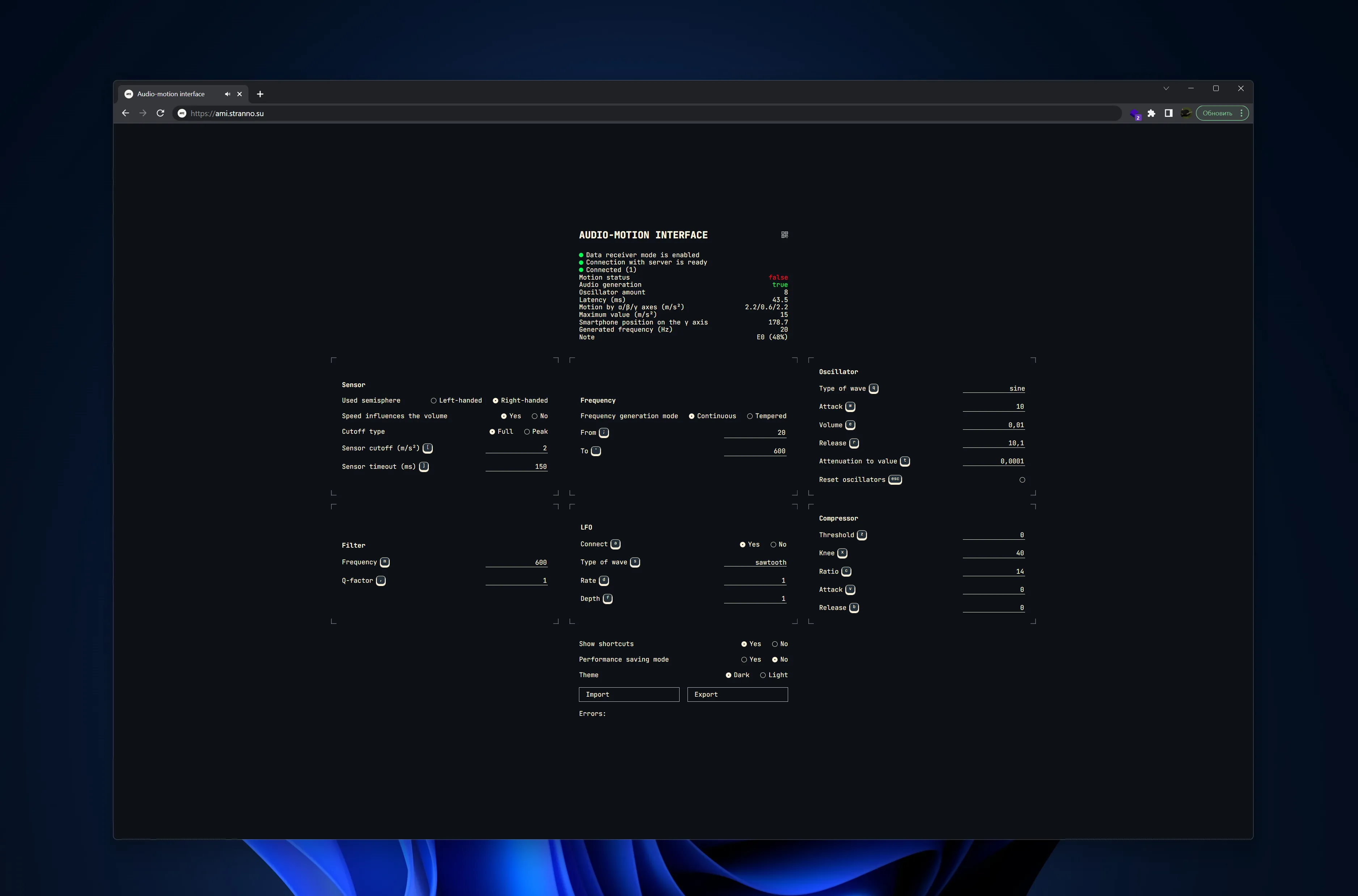
Demo: https://ami.stranno.su
Video: https://youtu.be/H1ryDYgeoOs
Note: Bug in Firefox — on default settings there are problems with sound. It is recommended to put the attack value at least 0.1 to fix. Also, Firefox is not recommended because of the slower refresh rate of motion parameters.
Эта страница есть также на русском
The system synthesizes sound based on data from smartphone motion sensors: speed determines the volume, position determines the frequency. In other words, it is a musical instrument (synthesizer) that uses hand gestures instead of keys or strings.
There are so-called local mode, when the sound is generated by the smartphone and distributed mode, when the smartphone transmits data about the movement to the computer and the computer generates sound.
The algorithm has a minimal number of internal settings, leaving it up to you to process the sound (it can be both pedals/effects and a variety of DAWs like Ableton, Cubase, FL Studio, etc.).
Briefly how to use
The easiest option is to open from your smartphone at https://ami.stranno.su. The smartphone will ask for access to the sensors — it must be allowed. After that it will immediately start generating sound from the built-in speaker with a slight shake. Here it is better to either connect headphones, or connect to a bluetooth speaker, or use a mini-jack to mini-jack cable (or with a jack adapter) to connect to the speakers/amplifier/combo. There are the following disadvantages with this option:
- you are constrained by a cable
- your smartphone has a noticeable delay
- you cannot see what you are playing (the note/frequency being generated)
- it is not very convenient to change the settings
All these disadvantages are solved by a distributed mode. To do so:
- switch the synthesis strategy on the smartphone to the distributed mode
- enter additionally from the computer to https://ami.stranno.su. The computer will automatically turn on the special data receiver mode. This will display the line "Connected (1)" (the number may be higher if someone else has visited the site with you)
- The smartphone now transmits the motion data to the computer. This is where both the smartphone and the computer start synthesizing sound. The smartphone does this with more delay, so you can hear something like an echo when the sound is on in both devices. Here you can turn down the volume on the smartphone to zero, and connect the computer to your audio system.
From the computer, therefore, the sound can be transferred to the DAW via Virtual Audio Cabel (VAC) and processed there, letting the input VAC operating system sounds (as the browser gives sound there), and the output VAC connect to the DAW. Then the sound can be taken either from the mini-jack of the computer, or from an external audio-interface, and from there process further.
Some possible schemes of work: - smartphone → built-in speaker - smartphone → headphones - smartphone → bluetooth-speaker - smartphone → padals/effects → speakers/combo - smartphone → computer → DAW on computer → padals/effects → speakers/combo
You can also load presets into the system (you need to download as a file and use the Import button in the system): - electronica.json - ambient.json - noise.json
Note: Using https://ami.stranno.su is demo. Its main disadvantage is the synchronization between all users; your sound and your settings can be interrupted by random users. Plus, since the traffic information goes over the internet (at least to Frankfurt, where the server is located, and back), there can be a delay (about 20-100ms, depending on the quality of the connection). To solve all these disadvantages it is recommended to deploy the system locally (see section Recommended use (running on a local computer)).
Contents
- Run
- Simple usage (running the web version at ami.stranno.su)
- Recommended usage (running on a local computer)
- Advanced usage (running on local computer + sound processing)
- Running the development version
- Theory and terms
- "Interface" instead of "synthesizer"
- Synthesis strategy
- Synthesis point
- Local mode
- Distributed mode
- Batch
- Motion event
- Cutoff
- Gesture
- Audio-graph
- Used semisphere
- AMI instance
- State
- User guide
- System control
- Generated frequency
- Note
- Cutoff
- Speed influences the volume
- Release
- Oscillator amount
- Latency
- Used semisphere
- Frequency range
- Notes range
- Frequency generation mode
- Tempered mode
- Motion by α/β/γ axes
- Smartphone position on the γ axis
- Motion status
- Maximum value
- Data receiver mode enabled
- Data source mode enabled
- Connecting to server
- Connection with server is ready
- Connection with server is failed
- Connected (х)
- Waiting for connections
- Performance saving mode
- Cutoff type
- Sensor timeout
- Attack
- Volume
- Attenuation to value
- Filter
- LFO
- Compressor
- Reset oscillators
- Errors
- Fullscreen-mode
- Audio generation
- MIDI
- Storing the interface state (settings) (Import / Export)
- Tech guide
- Secure context
Run
Simple usage (running the web version at ami.stranno.su)
In local mode: 1. Go to https://ami.stranno.su from your smartphone
Note: in local mode, the delay in sound synthesis can be quite noticeable due to the fact that the computing resource of a smartphone is quite limited compared to even the most average laptop
In distributed mode: 1. Go to https://ami.stranno.su from your computer 2. Go to https://ami.stranno.su from your smartphone
(in any order)
Note: in distributed mode, sound synthesis becomes shared by all who are currently logged into the site, and the settings are synchronized between all users. That is, if several people came to the site at the same time and someone changed the synthesis settings, they will be changed at all participants; sounds generated by one participant will be played at all devices of all visitors
Recommended usage (running on a local computer)
The recommended use is to run your own instance of AMI on your computer and work in distributed mode.
Note: smartphone and computer must be connected to the same wifi network. Or you can run a virtual router on your laptop (using a third-party service a la Connectify) and connect your smartphone to your laptop. The most ideally you would run the hotspot on a laptop to even out the latency of the router. On Windows you can use the "Mobile Hotspot" function.
Note: the latency with this startup option is the shortest possible
The purpose of both installations is this: Node.js is already in the folders. You need to use it to open the index.js file. This is convenient to do with a script. In MacOS you need to additionally make the script executable with chmod -R 755 app.
Perhaps there are easier ways to install. I would be glad to hear your suggestions.
Windows:
1. Download archive
2. Unpack
3. Click on run.bat
MacOS:
1. Download archive
2. Unpack
3. Move the folder to Documents
4. cmd + Space
5. Enter "terminal.app", start the Terminal
6. In the terminal enter cd and drag the folder "audio-motion-interface" from Finder to the terminal. The terminal will automatically insert the path to the folder. You will get something like:
cd /User/User Name/Documents/audio-motion-interface
Press Enter
7. Input chmod -R 755 app and press Enter
8. Right-click the run.command file, then "open with Terminal".
9. Give permission to execute the file. In the future you can run AMI simply by clicking on run.command*
*In general you can move it to any folder, but then you need to edit the run.command file with any text editor and fix the paths to Node.js and to index.js
On Linux the installation will be similar to MacOS, only you will need to download Node.js binaries for Linux and put them in the /app/node folder. If Node.js is already installed globally, you just need to run the index.js file with it.
Node: because a self-signed certificate is used to encrypt the traffic the API requires, the browsers will show a warning about an invalid (untrusted) certificate. This is normal for working within local network. Read more in the Secure context section
Advanced usage (running on local computer + sound processing)
It must be said that the most effective use case is the distributed mode on the local computer. In fact, the smartphone here is used solely as an interface to transmit data from the sensors, and the computer is used as an interface to manage this data.
After getting to the computer, this data can be processed in any convenient way. For example, you can send the sound to a DAW (Ableton, Cubase, FL Studio) via Virtual Audio Cabel (VAC) and process it there, letting the operating system sounds in of the VAC (since the browser gives the sound there), and out of the VAC connect to the DAW. Then the sound can be taken either from the computer's mini-jack or from an external audiointerface, and processed further from there.
If you do not have an external audiointerface (sound card), you will see a delay in sound processing (at least on Windows). To avoid this, it is recommended to use ASIO.
It is also possible to make your local AMI instance available from the Internet without having to deploy it to a remote server. To do this, you need to share your local AMI instance to the Internet using tunneling, for example with ngrok (it's free):
ngrok http https://localhost
On the computer, open https://localhost
On your smartphone, open the link to the tunnel that ngrok generated.
Running the development version
If you want to refine or rework the code, you must run the required development environment.
First run:
git clone https://github.com/MaxAlyokhin/audio-motion-interface.git- Open folder in terminal
npm inodemon index(or justnode index)- Open second terminal
cd clientnpm igulp
Further launches:
1. In the first terminal: nodemon index (or just node index)
2. In the second terminal: cd client.
3. gulp.
The first terminal is the backend, the second terminal is the frontend.
It is also necessary to remove the automatic launch of the browser on server restart. To do this, you need to comment out this line in the index.js:
server.listen(443, '0.0.0.0', function () {
  console.log(`${getDate()} Audio-motion interface is up and running`)
  lookup(hostname, options, function (err, ips, fam) {
    ips.forEach(ip => {
      if (ip.address.indexOf('192.168') === 0) {
        address = ip.address
        console.log(`${getDate()} Opening https://${address} in default browser`)
        // open(`https://${address}`) <-- This line
        console.log(`${getDate()} Close terminal for exit from AMI`)
      } else {
        address = 'ami.stranno.su'
      }
    })
  })
})
Note: For development purposes, it is better to globally install Nodemon. That way, it will be responsible for restarting code changes in the backend, and Gulp will be responsible for frontend code changes.
The repository already contains the private and public keys to run the https server. See the Secure context section below for details.
Theory and terms
"Interface" instead of "synthesizer"
The word "synthesizer" refers to an electronic musical instrument, often with a keyboard, which generates sound by means of electrical conversions by circuitry (analog) or by means of mathematical calculations by a microprocessor (digital). An important feature here is that such instruments are not acoustic (unlike classical guitars, violins, or woodwinds), but rather provide a control system for the electric current supplied to the acoustic system (an acoustic system here means any sound-producing device: speakers, combos, headphones, built-in speakers). Moreover, this is also true for devices that have a sensor as part of them. The electric guitar, for example, is also not an acoustic instrument: its central element is the pickup, and the strings are j
Core symbols most depended-on inside this repo
syncSettingsShape
Languages
Modules by API surface
For agents
$ claude mcp add audio-motion-interface \
  -- python -m otcore.mcp_server <graph>