github.com/JoseExposito/touchegg @2.0.18
Chat with this repoBrowse by type
What it actually does AI analysis from the code graph — generated when you open this
README
Follow Touchégg on... 

Touchégg
Touchégg is an app that runs in the background and transform the gestures you make on your touchpad or touchscreen into visible actions in your desktop.
For example, you can swipe up with 3 fingers to maximize a window or swipe left with 4 finger to switch to the next desktop.
Many more actions and gestures are available and everything is easily configurable.

:movie_camera: elementary OS demo
:movie_camera: Touchscreen demo
Table of contents
- Installation
- Configuration
- Using Touché
- Manual configuration
- Global settings
- Available gestures
- Swipe
- Pinch
- Tap
- Available actions
- Maximize or restore a window
- Minimize a window
- Tile/snap a window
- Fullscreen a window
- Close a window
- Switch desktops/workspaces
- Show desktop
- Keyboard shortcut
- Execute a command
- Mouse click
- Custom animations
- Daemon configuration
- FAQ
- Copyright
Installation
On the releases page you will find a package for your distribution.
Otherwise you can compile the source code yourself by following the instructions available in the HACKING.md file.
Ubuntu, Debian and derivatives
On Ubuntu, it is recommended to use the official PPA to install Touchégg and receive updates:
$ sudo add-apt-repository ppa:touchegg/stable
$ sudo apt update
$ sudo apt install touchegg
Running add-apt-repository may fail because of temporary server issues; try again a few times, it should work.
The PPA is signed with key
7EA12677D47B593CE22727D4C0FCE32AF6B96252
in case you want to install it manually.
If PPAs are not available on your operating system,
download the .deb package and install it.
Double click on the package may work, otherwise install it from the terminal:
$ cd ~/Downloads # Or to the path where the deb package is placed at
$ sudo apt-get install ./touchegg_*.deb # Install the package
Run Touchégg manually by running the command touchegg or reboot to get started.
Included by default on elementary OS 6, Zorin OS 16, Pop!_OS 21.04+ and Linux Mint 21.2
Fedora, CentOS, RHEL and derivatives
On Fedora, Touchegg is available in the official repository:
$ dnf install touchegg
# You may also need to manually start the service
$ sudo systemctl start touchegg
$ sudo systemctl enable touchegg
On CentOS (EPEL) it is recommended to use the official COPR to install Touchégg and receive updates.
$ sudo dnf copr enable joseexposito/touchegg
$ sudo dnf install touchegg
On other RPM based operating systems,
download the .rpm package and install it.
Double click on the package may work, otherwise install it from the terminal:
$ cd ~/Downloads # Or to the path where the rpm package is placed at
$ sudo dnf install touchegg-*.rpm # Install the package
Run Touchégg manually by running the command touchegg or reboot to get started.
Arch Linux, Manjaro and derivatives
Install the touchegg package from Arch Linux Packages Registry.
Notice that on Arch services are not enabled or started by default, so you'll have to do it manually:
$ sudo systemctl enable touchegg.service
$ sudo systemctl start touchegg
Once the service is enabled, run Touchégg manually by running the command touchegg or reboot to get started.
A version for Arch based distributions without systemd support, like Artix, is also available on AUR
openSUSE
Touchégg is available in the official repositories.
$ sudo zypper install touchegg
$ sudo systemctl enable touchegg.service
$ sudo systemctl start touchegg
If the version of Touchégg included for your distro is too old (v1.x) it is recommended to use the official COPR to install Touchégg and receive updates.
Alpine Linux
Uncomment the url for the testing repository in /etc/apk/repositories, then install:
$ sudo apk update
$ sudo apk add touchegg
The Touchégg package includes an Openrc init script for starting the Touchégg daemon at boot. To enable:
$ sudo rc-update add touchegg
The init script can also be used to manually start and stop the Touchégg daemon as required:
$ sudo rc-service touchegg start
$ sudo rc-service touchegg stop
Void Linux
Touchégg is available from the main repository. To use it, you have to enable its service after installing.
$ sudo xbps-install touchegg
$ sudo ln -s /etc/sv/touchegg /var/service
NixOS
Add the touchegg package in your configuration.nix file and enable the services.
# configuration.nix
...
environment.systemPackages = with pkgs; [
  touchegg
];

services.touchegg.enable = true;
...
GNOME
If you are using the GNOME Desktop Environment it is recommended to also install this extension:
https://github.com/JoseExposito/gnome-shell-extension-x11gestures
Both Touchégg and the extension need to installed, so don't forget to follow the install instructions for your distro!
Configuration
After installing Touchégg you'll notice that you can start using multi-touch gestures. However, you are not forced to use the gestures and actions that come out of the box, you can configure the gestures you'd like to use and the actions they'll trigger.
Using Touché
Touché is a desktop application to easily configure your touchpad and touchscreen multi-touch gestures.
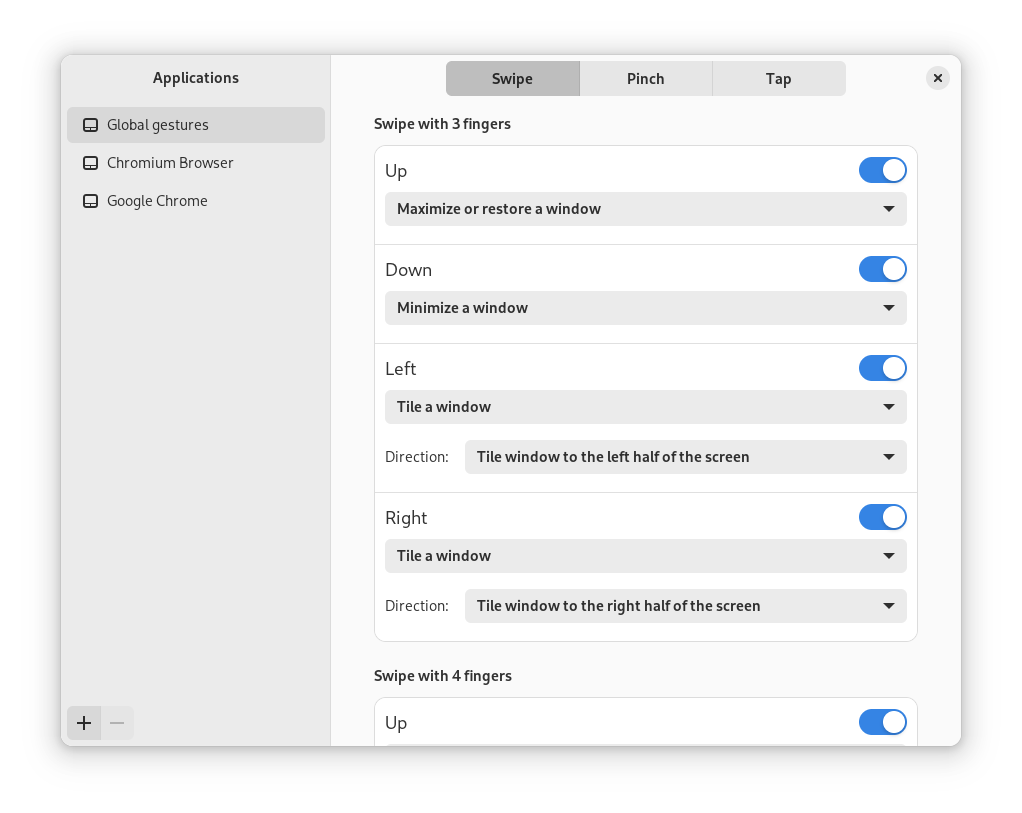
Follow the instructions on the project page to install it.
Manual configuration
Touché is the recommended way of configuring your gestures. However, you can also manually configure Touchégg by editing an XML file.
Start by copying the default configuration from /usr/share/touchegg/touchegg.conf to
~/.config/touchegg/touchegg.conf. You can do it using your file manager or by running this command
in your terminal:
$ mkdir -p ~/.config/touchegg && cp -n /usr/share/touchegg/touchegg.conf ~/.config/touchegg/touchegg.conf
Now open ~/.config/touchegg/touchegg.conf with your favorite text editor.
It is a XML document with 3 main sections:
- Global settings
- Global gestures:
<application name="All">...</application> -
Application specific gestures:
<application name="Google-chrome,Firefox"></application>The application name can be obtained by running this command and clicking on the target application window:
bash
$ xprop | grep WM_CLASS
Find more information in the sections below.
Global settings
| Option | Value | Default | Description | Example |
|---|---|---|---|---|
| animation_delay | Number | 150 | Delay, in milliseconds, since the gesture starts before the animation is displayed | Use the MAXIMIZE_RESTORE_WINDOW action. You will notice that no animation is displayed if you complete the action quick enough. This property configures that time |
| action_execute_threshold | Number | 20 | Percentage of the gesture to be completed to apply the action. Set to 0 to execute actions unconditionally | Use the MAXIMIZE_RESTORE_WINDOW action. You will notice that, even if the animation is displayed, the action is not executed if you did not move your fingers far enough. This property configures the percentage of the gesture that must be reached to execute the action |
| color | Hex color | 3E9FED | Color of the animation | #909090 |
| borderColor | Hex color | 3E9FED | Color of the animation | FFFFFF |
Available gestures
Swipe
From libinput documentation: Swipe gestures are executed when three or more fingers are moved synchronously in the same direction.
Note that three is the minimum number of fingers that Touchégg allows for swipe gestures on touchpads and two on touchscreens.
Example:
<gesture type="SWIPE" fingers="3" direction="UP">
  <action type="MAXIMIZE_RESTORE_WINDOW">
    <animate>true</animate>
  </action>
</gesture>
Pinch
From libinput documentation: Pinch gestures are executed when two or more fingers are located on the touchpad and are either changing the relative distance to each other (pinching) or are changing the relative angle (rotate).
Example:
<gesture type="PINCH" fingers="4" direction="IN">
  <action type="CLOSE_WINDOW">
    <animate>true</animate>
    <color>F84A53</color>
    <borderColor>F84A53</borderColor>
  </action>
</gesture>
Tap
Tap gestures are executed when two or more fingers "click" on the touchscreen.
Only available on touchscreens
Example:
<gesture type="TAP" fingers="2">
  <action type="MOUSE_CLICK">
    <button>3</button>
    <on>begin</on>
  </action>
</gesture>
Available actions
Maximize or restore a window (MAXIMIZE_RESTORE_WINDOW)
Maximize the window under the pointer. If it is already maximized, restore it.
Options:
| Option | Value | Description |
|---|---|---|
| animate | true/false |
Set it to true to display the animation. false otherwise. |
| color | Hex color | Color of the animation. For example: 909090 |
| borderColor | Hex color | Border color of the animation. For example: #FFFFFF |
Example:
<gesture type="SWIPE" fingers="3" direction="UP">
  <action type="MAXIMIZE_RESTORE_WINDOW">
    <animate>true</animate>
    <color>3E9FED</color>
    <borderColor>3E9FED</borderColor>
  </action>
</gesture>

Minimize a window (MINIMIZE_WINDOW)
Minimize the window under the pointer.
Options:
| Option | Value | Description |
|---|---|---|
| animate | true/false |
Set it to true to display the animation. false otherwise. |
| color | Hex color | Color of the animation. For example: 909090 |
| borderColor | Hex color | Border color of the animation. For example: #FFFFFF |
Example:
<gesture type="SWIPE" fingers="3" direction="DOWN">
  <action type="MINIMIZE_WINDOW">
    <animate>true</animate>
    <color>3E9FED</color>
    <borderColor>3E9FED</borderColor>
  </action>
</gesture>

Tile/snap a window (TILE_WINDOW)
Resize and move the window under the pointer to use half of the screen.
Options:
| Option | Value | Description |
|---|---|---|
| direction | left/right |
Use the left or right half of the screen |
| animate | true/false |
Set it to true to display the animation. false otherwise. |
| color | Hex color | Color of the animation. For example: 909090 |
| borderColor | Hex color | Border color of the animation. For example: #FFFFFF |
Example:
<gesture type="SWIPE" fingers="3" direction="LEFT">
  <action type="TILE_WINDOW">
    <direction>left</direction>
    <animate>true</animate>
    <color>3E9FED</color>
    <borderColor>3E9FED</borderColor>
  </action>
</gesture>

<gesture type="SWIPE" fingers="3" direction="RIGHT">
  <action type="TILE_WINDOW">
    <direction>right</direction>
    <animate>true</animate>
    <color>3E9FED</color>
    <borderColor>3E9FED</borderColor>
  </action>
</gesture>

Fullscreen a window (FULLSCREEN_WINDOW)
Toggles fullscreen mode for the window under the pointer.
Options:
| Option | Value | Description |
|---|---|---|
| animate | true/false |
Set it to true to display the an |
Core symbols most depended-on inside this repo
Shape
Languages
Modules by API surface
For agents
$ claude mcp add touchegg \
  -- python -m otcore.mcp_server <graph>