github.com/Huachao/vscode-restclient @v0.25.0 sqlite
README
REST Client




REST Client allows you to send HTTP request and view the response in Visual Studio Code directly.
Main Features
- Send/Cancel/Rerun HTTP request in editor and view response in a separate pane with syntax highlight
- Send GraphQL query and author GraphQL variables in editor
- Send cURL command in editor and copy HTTP request as
cURL command - Auto save and view/clear request history
- Compose MULTIPLE requests in a single file (separated by
###delimiter) - View image response directly in pane
- Save raw response and response body only to local disk
- Fold and unfold response body
- Customize font(size/family/weight) in response preview
- Preview response with expected parts(headers only, body only, full response and both request and response)
- Authentication support for:
- Basic Auth
- Digest Auth
- SSL Client Certificates
- Azure Active Directory
- Microsoft Identity Platform
- AWS Signature v4
- Environments and custom/system variables support
- Use variables in any place of request(URL, Headers, Body)
- Support environment, file, request and prompt custom variables
- Interactively assign prompt custom variables per request
- Auto completion and hover support for both environment, file and request custom variables
- Diagnostic support for request, file and prompt custom variables
- Go to definition support for request and file custom variables
- Find all references support ONLY for file custom variables
- Provide system dynamic variables
{{$guid}}{{$randomInt min max}}{{$timestamp [offset option]}}{{$datetime rfc1123|iso8601 [offset option]}}{{$localDatetime rfc1123|iso8601 [offset option]}}{{$processEnv [%]envVarName}}{{$dotenv [%]variableName}}{{$aadToken [new] [public|cn|de|us|ppe] [<domain|tenantId>] [aud:<domain|tenantId>]}}- Easily create/update/delete environments and environment variables in setting file
- File variables can reference both custom and system variables
- Support environment switch
- Support shared environment to provide variables that available in all environments
- Generate code snippets for HTTP request in languages like
Python,JavaScriptand more! - Remember Cookies for subsequent requests
- Proxy support
- Send SOAP requests, as well as snippet support to build SOAP envelope easily
HTTPlanguage support.httpand.restfile extensions support- Syntax highlight (Request and Response)
- Auto completion for method, url, header, custom/system variables, mime types and so on
- Comments (line starts with
#or//) support - Support
jsonandxmlbody indentation, comment shortcut and auto closing brackets - Code snippets for operations like
GETandPOST - Support navigate to symbol definitions(request and file level custom variable) in open
httpfile - CodeLens support to add an actionable link to send request
- Fold/Unfold for request block
- Support for Markdown fenced code blocks with either
httporrest
Usage
In editor, type an HTTP request as simple as below:
https://example.com/comments/1
Or, you can follow the standard RFC 2616 that including request method, headers, and body.
POST https://example.com/comments HTTP/1.1
content-type: application/json

{
    "name": "sample",
    "time": "Wed, 21 Oct 2015 18:27:50 GMT"
}
Once you prepared a request, click the Send Request link above the request (this will appear if the file's language mode is HTTP, by default .http files are like this), or use shortcut Ctrl+Alt+R(Cmd+Alt+R for macOS), or right-click in the editor and then select Send Request in the menu, or press F1 and then select/type Rest Client: Send Request, the response will be previewed in a separate webview panel of Visual Studio Code. If you'd like to use the full power of searching, selecting or manipulating in Visual Studio Code, you can also preview response in an untitled document by setting rest-client.previewResponseInUntitledDocument to true. Once a request is issued, the waiting spin icon will be displayed in the status bar until the response is received. You can click the spin icon to cancel the request. After that, the icon will be replaced with the total duration and response size.
You can view the breakdown of the response time when hovering over the total duration in status bar, you could view the duration details of Socket, DNS, TCP, First Byte and Download.
When hovering over the response size in status bar, you could view the breakdown response size details of headers and body.
All the shortcuts in REST Client Extension are ONLY available for file language mode
httpandplaintext.Send Request link above each request will only be visible when the request file is in
httpmode, more details can be found in http language section.
Select Request Text
You may even want to save numerous requests in the same file and execute any of them as you wish easily. REST Client extension could recognize requests separated by lines begin with three or more consecutive # as a delimiter. Place the cursor anywhere between the delimiters, issuing the request as above, and the underlying request will be sent out.
GET https://example.com/comments/1 HTTP/1.1

###

GET https://example.com/topics/1 HTTP/1.1

###

POST https://example.com/comments HTTP/1.1
content-type: application/json

{
    "name": "sample",
    "time": "Wed, 21 Oct 2015 18:27:50 GMT"
}
REST Client extension also provides the flexibility that you can send the request with your selected text in editor.
Install
Press F1, type ext install then search for rest-client.
Making Request
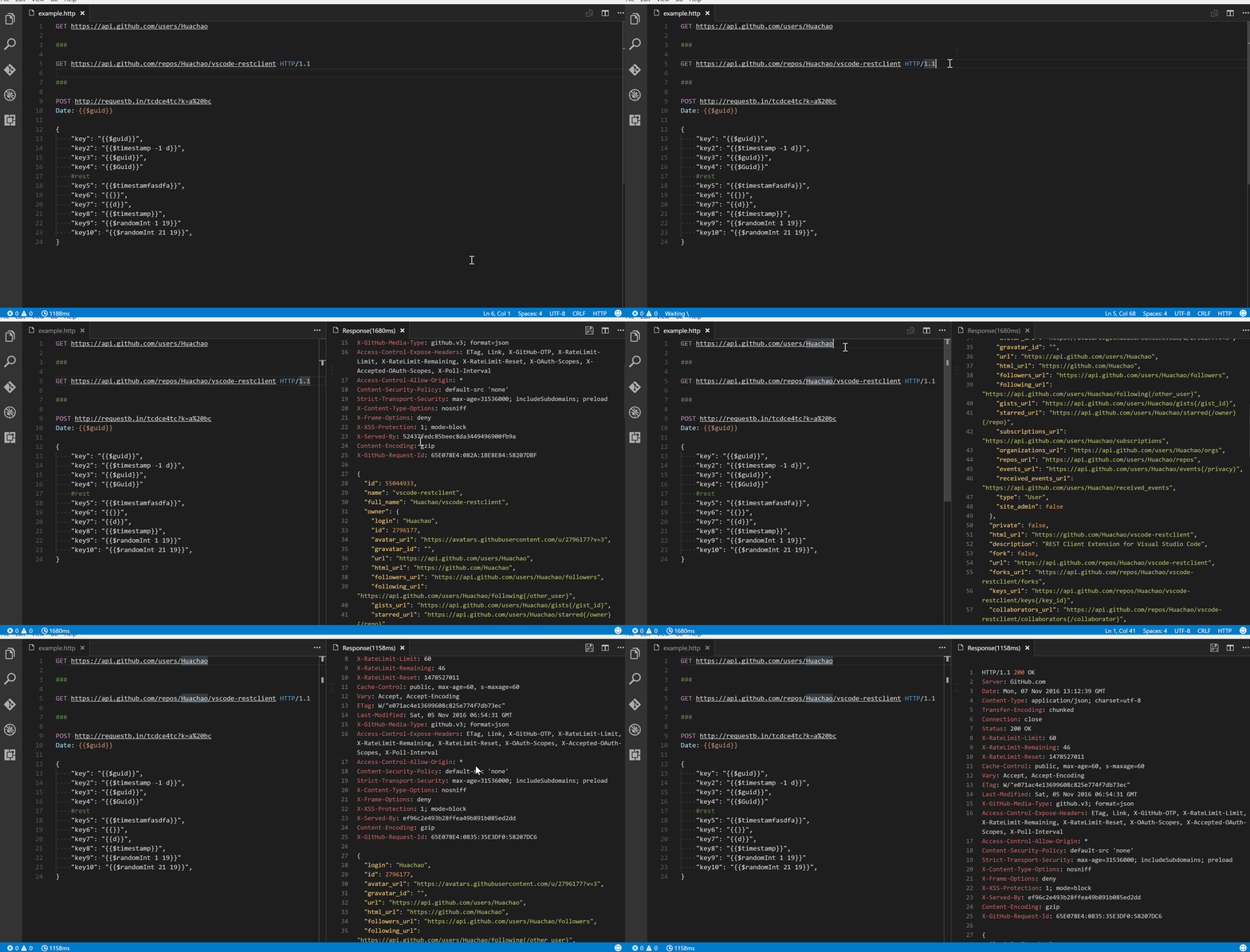
Request Line
The first non-empty line of the selection (or document if nothing is selected) is the Request Line. Below are some examples of Request Line:
GET https://example.com/comments/1 HTTP/1.1
GET https://example.com/comments/1
https://example.com/comments/1
If request method is omitted, request will be treated as GET, so above requests are the same after parsing.
Query Strings
You can always write query strings in the request line, like:
GET https://example.com/comments?page=2&pageSize=10
Sometimes there may be several query parameters in a single request, putting all the query parameters in Request Line is difficult to read and modify. So we allow you to spread query parameters into multiple lines(one line one query parameter), we will parse the lines in immediately after the Request Line which starts with ? and &, like
GET https://example.com/comments
    ?page=2
    &pageSize=10
Request Headers
The lines immediately after the request line to first empty line are parsed as Request Headers. Please provide headers with the standard field-name: field-value format, each line represents one header. By default REST Client Extension will add a User-Agent header with value vscode-restclient in your request if you don't explicitly specify. You can also change the default value in setting rest-client.defaultHeaders.
Below are examples of Request Headers:
User-Agent: rest-client
Accept-Language: en-GB,en-US;q=0.8,en;q=0.6,zh-CN;q=0.4
Content-Type: application/json
Request Body
If you want to provide the request body, please add a blank line after the request headers like the POST example in usage, and all content after it will be treated as Request Body. Below are examples of Request Body:
POST https://example.com/comments HTTP/1.1
Content-Type: application/xml
Authorization: token xxx

<request>
    <name>sample</name>
    <time>Wed, 21 Oct 2015 18:27:50 GMT</time>
</request>
You can also specify file path to use as a body, which starts with <, the file path(whitespaces should be preserved) can be either in absolute or relative(relative to workspace root or current http file) formats:
POST https://example.com/comments HTTP/1.1
Content-Type: application/xml
Authorization: token xxx

< C:\Users\Default\Desktop\demo.xml
POST https://example.com/comments HTTP/1.1
Content-Type: application/xml
Authorization: token xxx

< ./demo.xml
If you want to use variables in that file, you'll have to use an @ to ensure variables are processed when referencing a file (UTF-8 is assumed as the default encoding)
POST https://example.com/comments HTTP/1.1
Content-Type: application/xml
Authorization: token xxx

<@ ./demo.xml
to override the default encoding, simply type it next to the @ like the below example
POST https://example.com/comments HTTP/1.1
Content-Type: application/xml
Authorization: token xxx

<@latin1 ./demo.xml
When content type of request body is multipart/form-data, you may have the mixed format of the request body as follows:
POST https://api.example.com/user/upload
Content-Type: multipart/form-data; boundary=----WebKitFormBoundary7MA4YWxkTrZu0gW

------WebKitFormBoundary7MA4YWxkTrZu0gW
Content-Disposition: form-data; name="text"

title
------WebKitFormBoundary7MA4YWxkTrZu0gW
Content-Disposition: form-data; name="image"; filename="1.png"
Content-Type: image/png

< ./1.png
------WebKitFormBoundary7MA4YWxkTrZu0gW--
When content type of request body is application/x-www-form-urlencoded, you may even divide the request body into multiple lines. And each key and value pair should occupy a single line which starts with &:
POST https://api.example.com/login HTTP/1.1
Content-Type: application/x-www-form-urlencoded

name=foo
&password=bar
When your mouse is over the document link, you can
Ctrl+Click(Cmd+Clickfor macOS) to open the file in a new tab.
Making GraphQL Request
With GraphQL support in REST Client extension, you can author and send GraphQL query using the request body. Besides that you can also author GraphQL variables in the request body. GraphQL variables part in request body is optional, you also need to add a blank line between GraphQL query and variables if you need it.
You can specify a request as GraphQL Request by adding a custom request header X-Request-Type: GraphQL in your headers. The following code illustrates this:
POST https://api.github.com/graphql
Content-Type: application/json
Authorization: Bearer xxx
X-REQUEST-TYPE: GraphQL

query ($name: String!, $owner: String!) {
  repository(name: $name, owner: $owner) {
    name
    fullName: nameWithOwner
    description
    diskUsage
    forkCount
    stargazers(first: 5) {
        totalCount
        nodes {
            login
            name
        }
    }
    watchers {
        totalCount
    }
  }
}

{
    "name": "vscode-restclient",
    "owner": "Huachao"
}
Making cURL Request
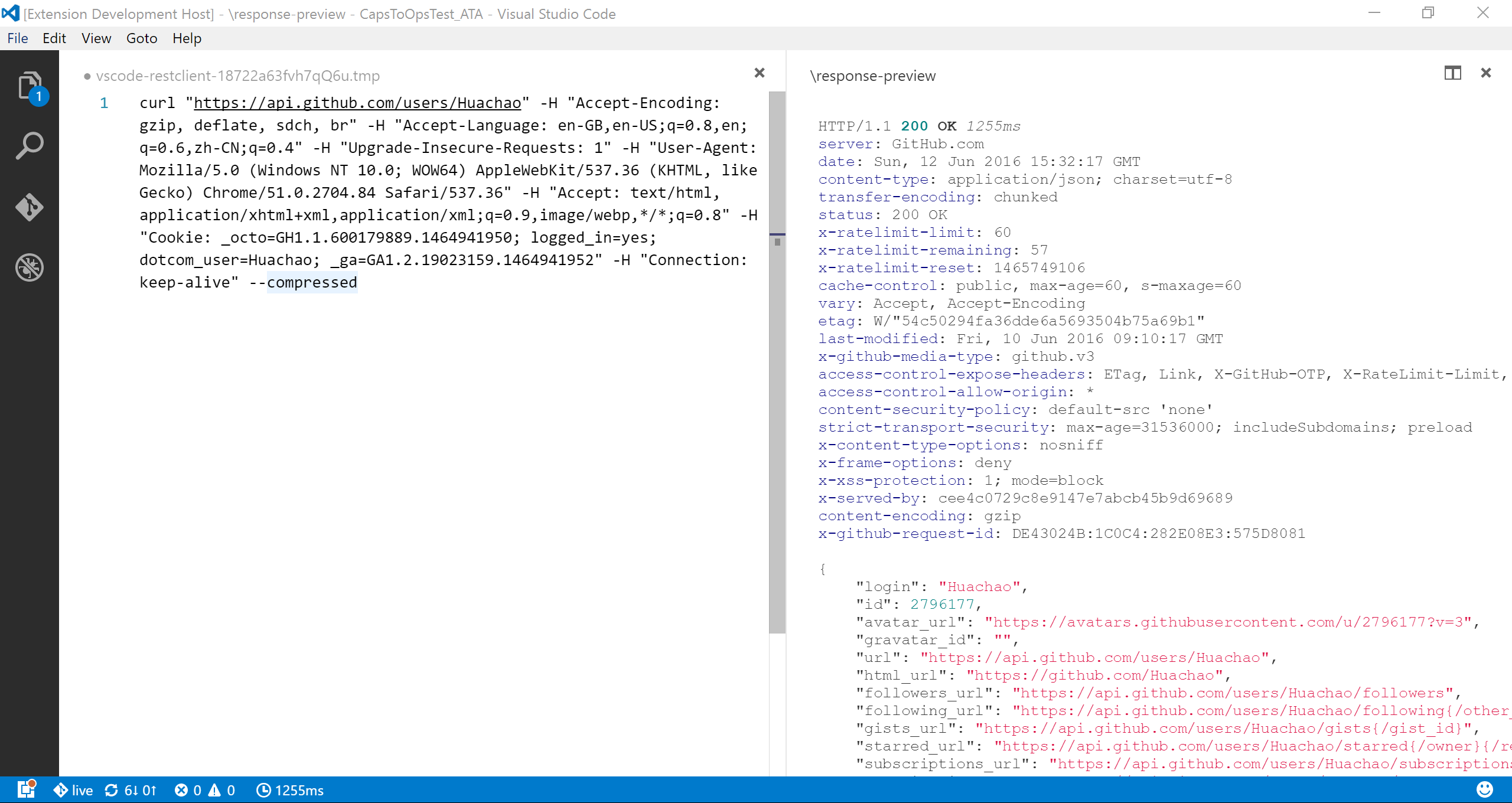 We add the capability to directly run curl request in REST Client extension. The issuing request command is the same as raw HTTP one. REST Client will automatically parse the request with specified parser.
REST Client doesn't fully support all the options of cURL, since underneath we use request library to send request which doesn't accept all the cURL options. Supported options are listed below:
* -X, --request
* -L, --location, --url
* -H, --header(no @ support)
* -I, --head
* -b, --cookie(no cookie jar file support)
* -u, --user(Basic auth support only)
* -d, --data, --data-ascii,--data-binary, --data-raw
Copy Request As cURL
Sometimes you may want to get the curl format of an http request quickly and save it to clipboard, just pressing F1 and then selecting/typing Rest Client: Copy Request As cURL or simply right-click in the editor, and select Copy Request As cURL.
Cancel Request
Once you want to cancel a processing request, click the waiting spin icon or use shortcut Ctrl+Alt+K(Cmd+Alt+K for macOS), or press F1 and then select/type Rest Client: Cancel Request.
Rerun Last Request
Sometimes you may want to refresh the API response, now you could do it simply using shortcut Ctrl+Alt+L(Cmd+Alt+L for macOS), or press F1 and then select/type `Rest Client: Rerun
Extension points exported contracts — how you extend this code
HttpVariableProvider (Interface)Core symbols most depended-on inside this repo
getShape
Languages
Modules by API surface
Dependencies from manifests, versioned
For agents
$ claude mcp add vscode-restclient \
  -- python -m otcore.mcp_server <graph>