github.com/HpWens/MeiWidgetView @v0.1.6
Chat with this repoWhat it actually does AI analysis from the code graph — generated when you open this
README







最新动态-网页动态背景“五彩蛛网”
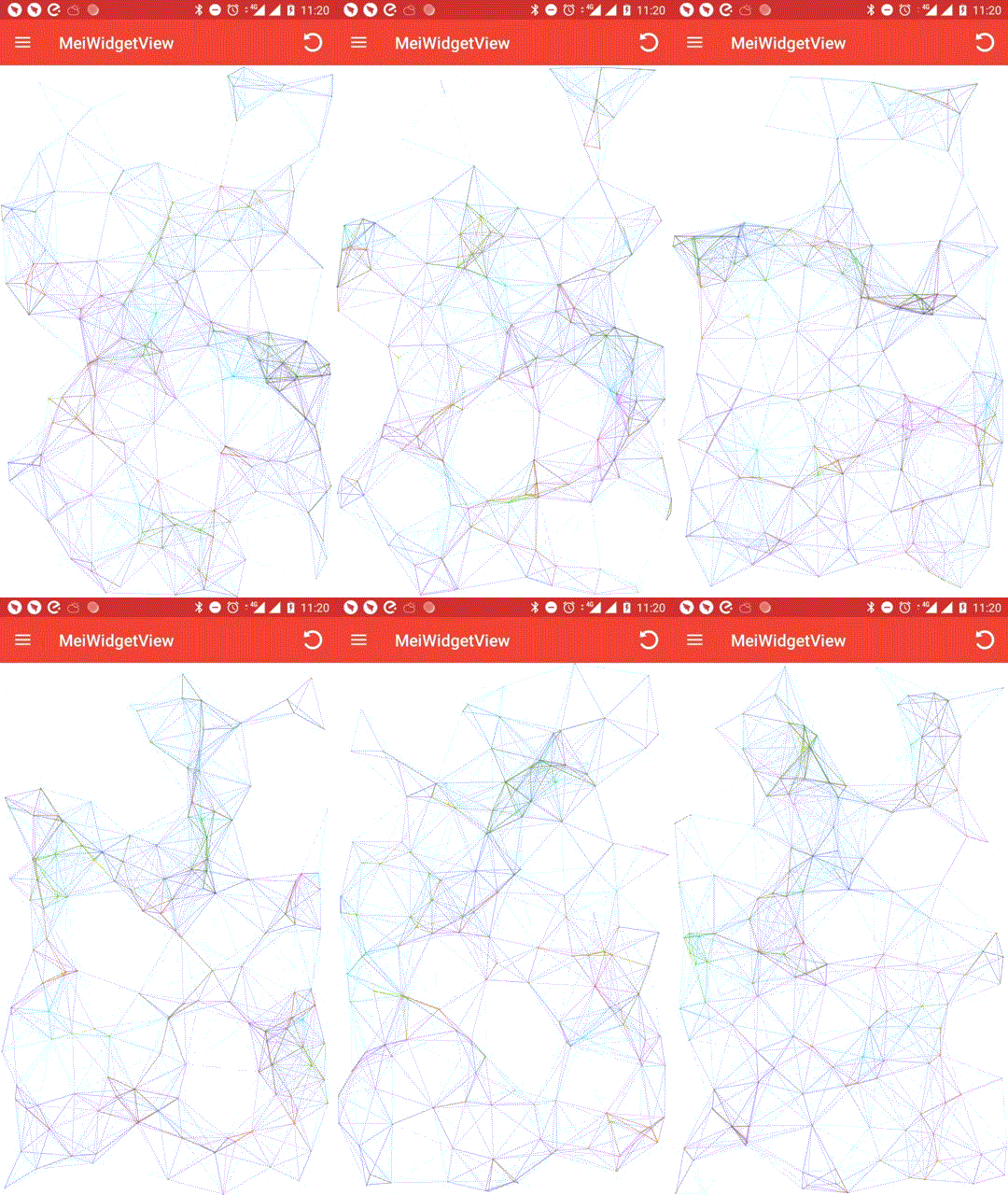
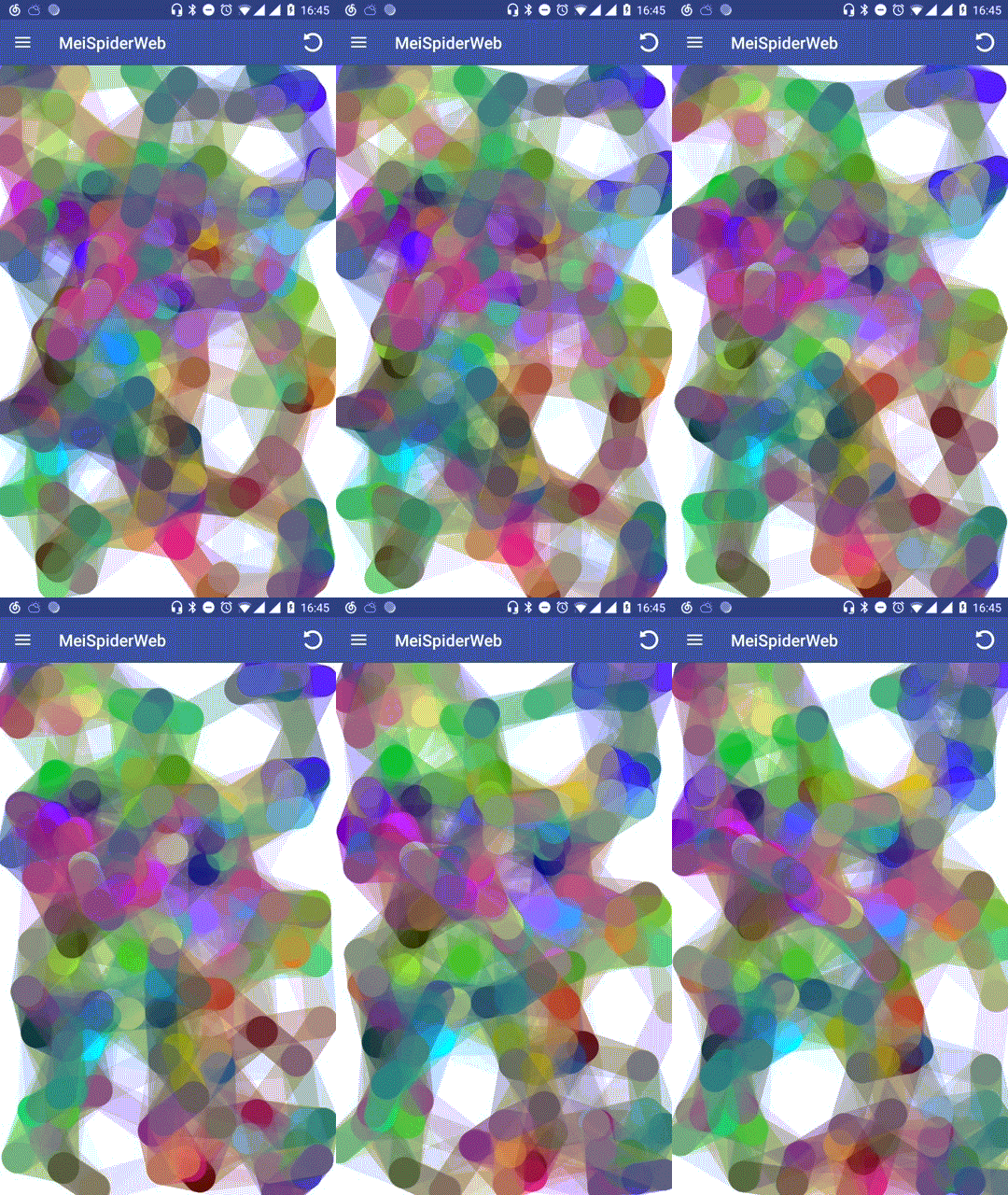
想了解更多大厂炫酷控件,请关注微信公众号:控件人生

扫一扫 关注我的公众号
不定期的发放现金红包 快到碗里来~
GIF圆角控件
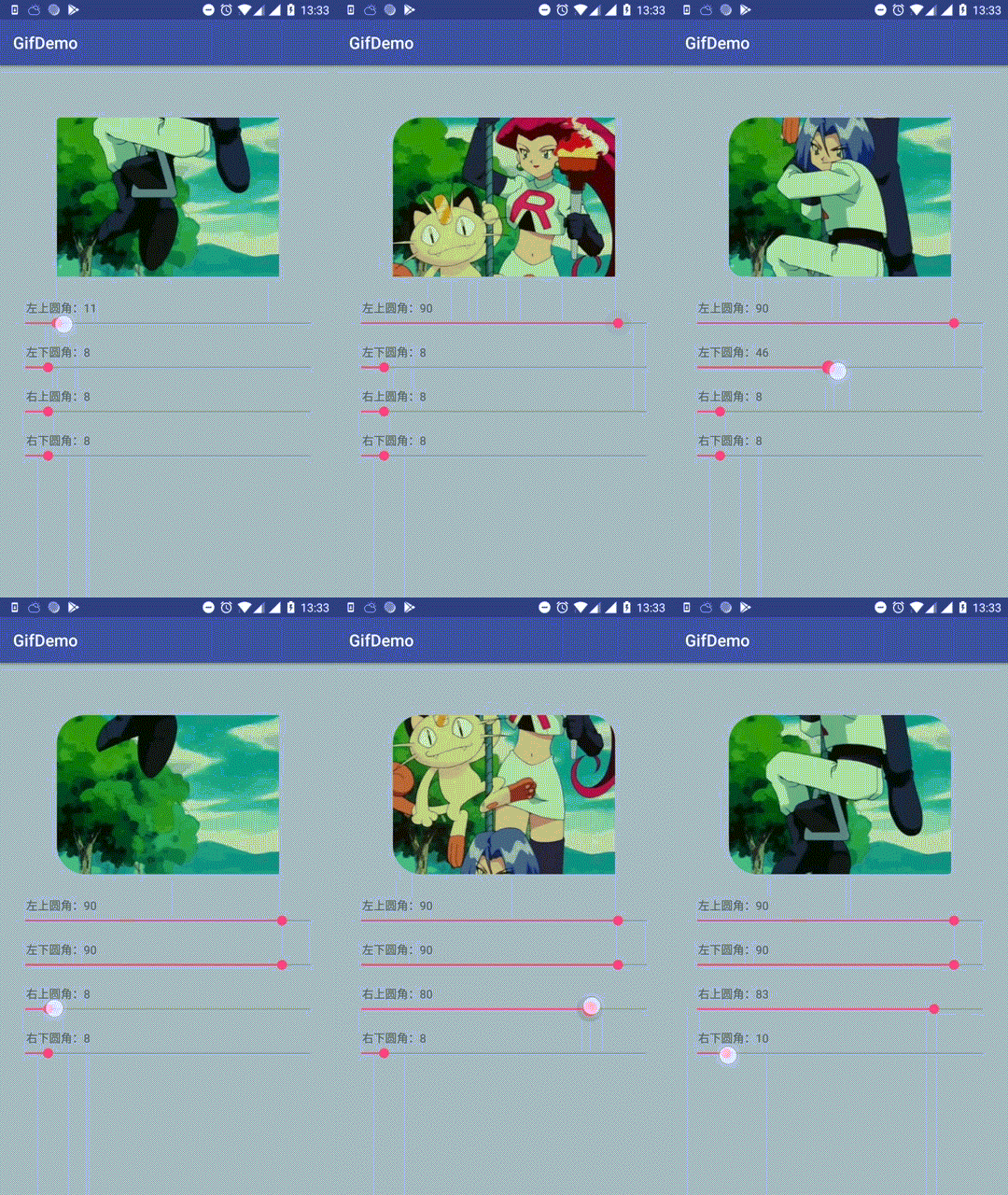
小红书任意拖拽标签控件
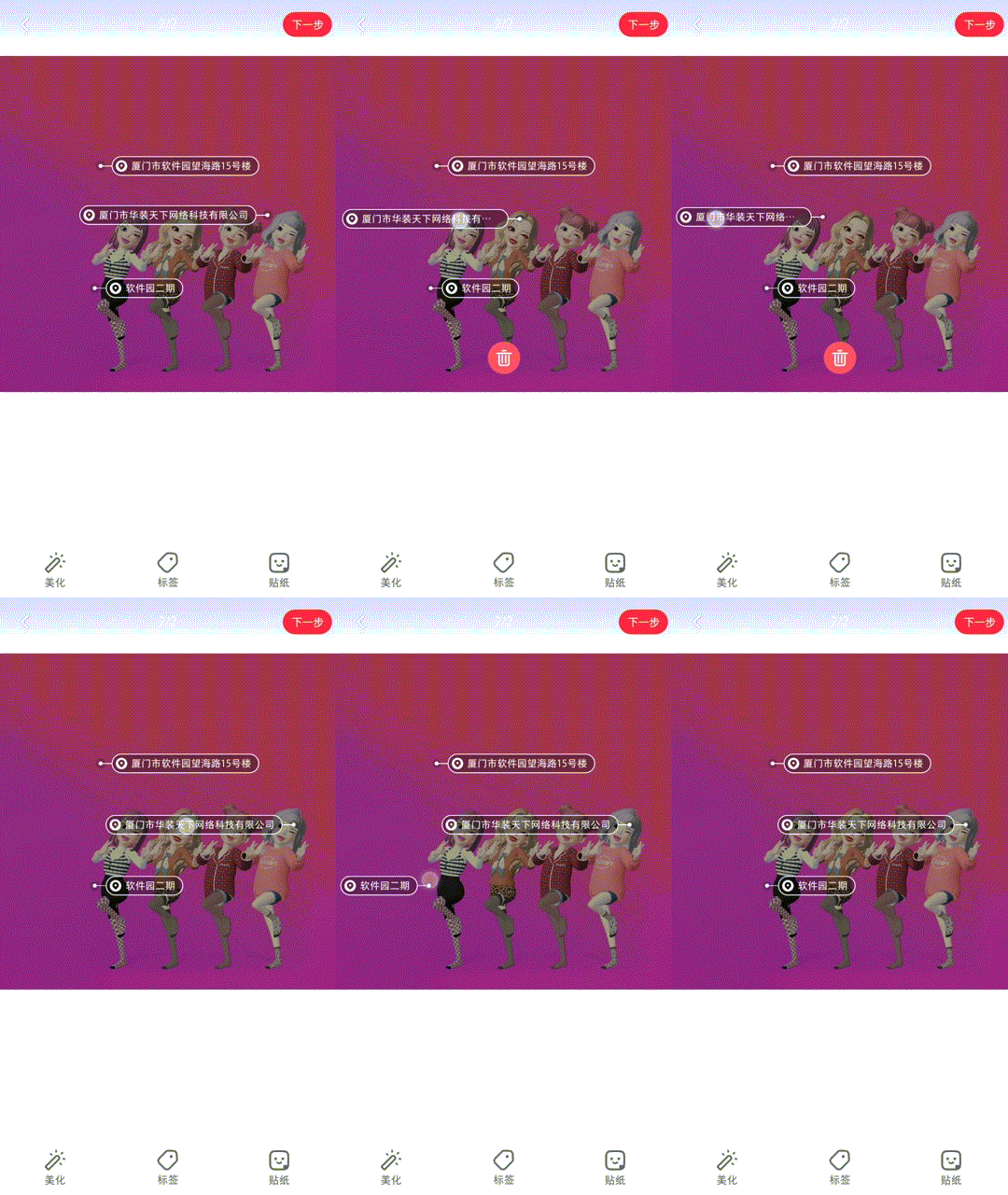
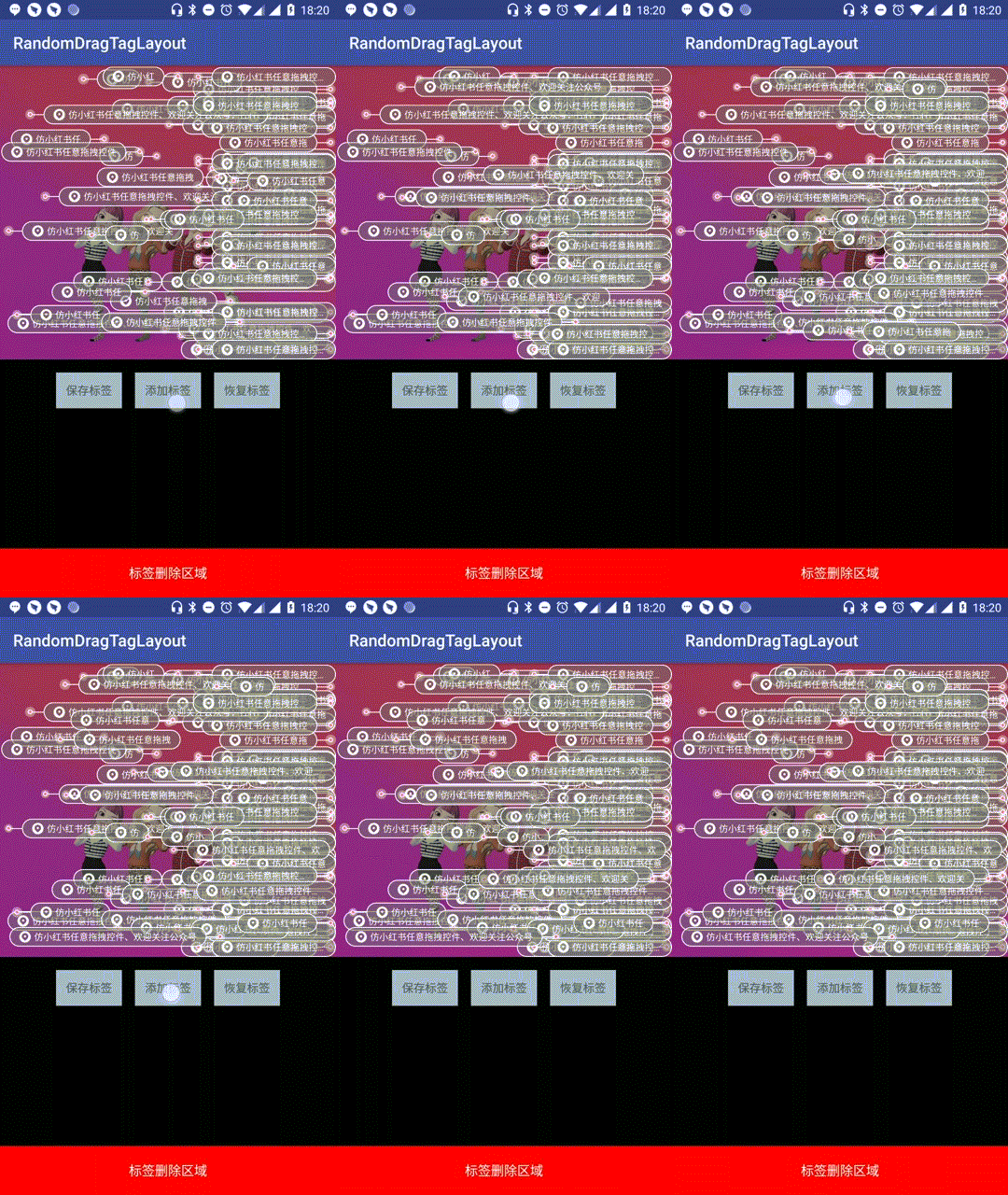
博客地址:Android控件人生第一站,小红书任意拖拽标签控件
小红书自定义CoordinatorLayout联动效果
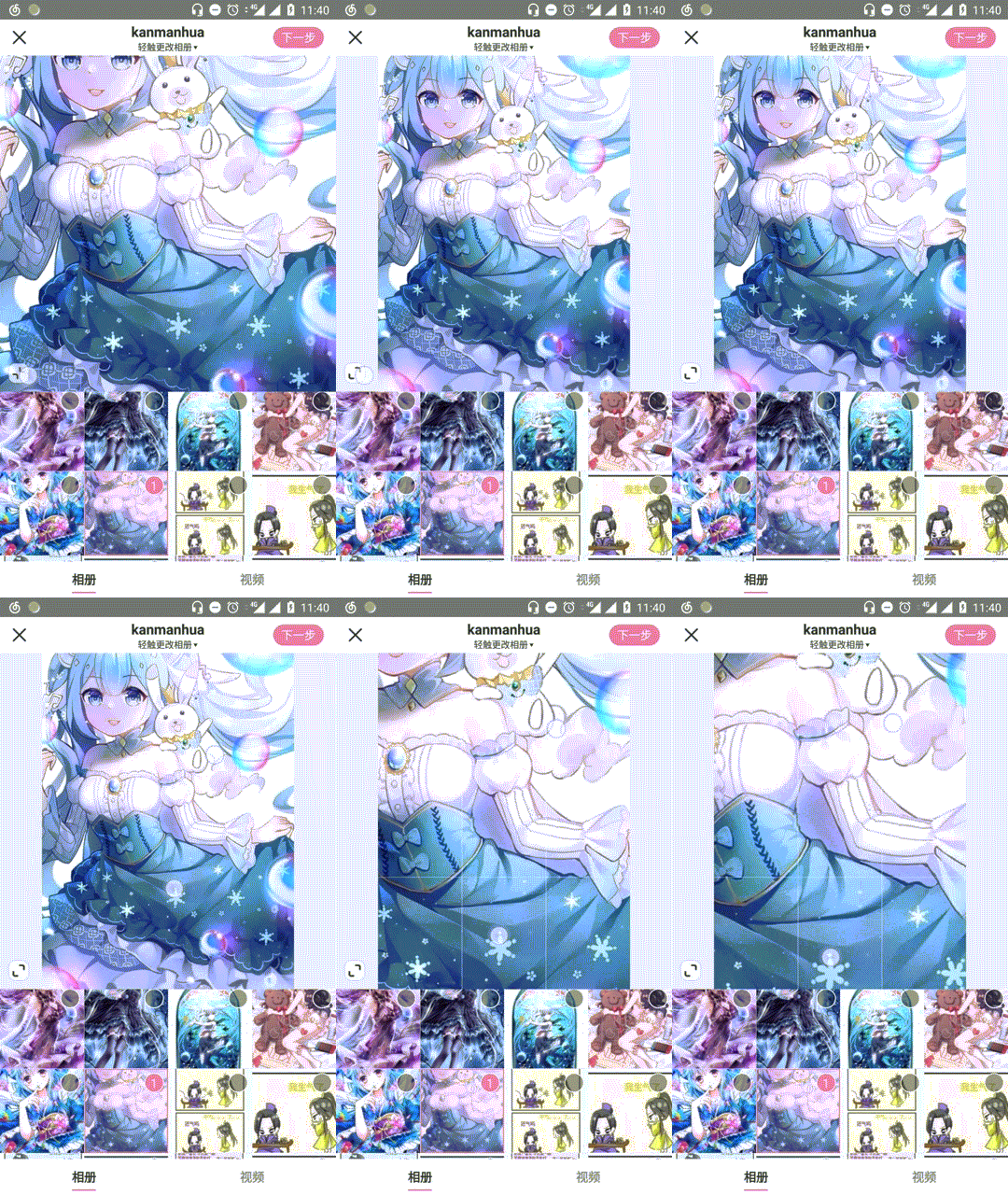
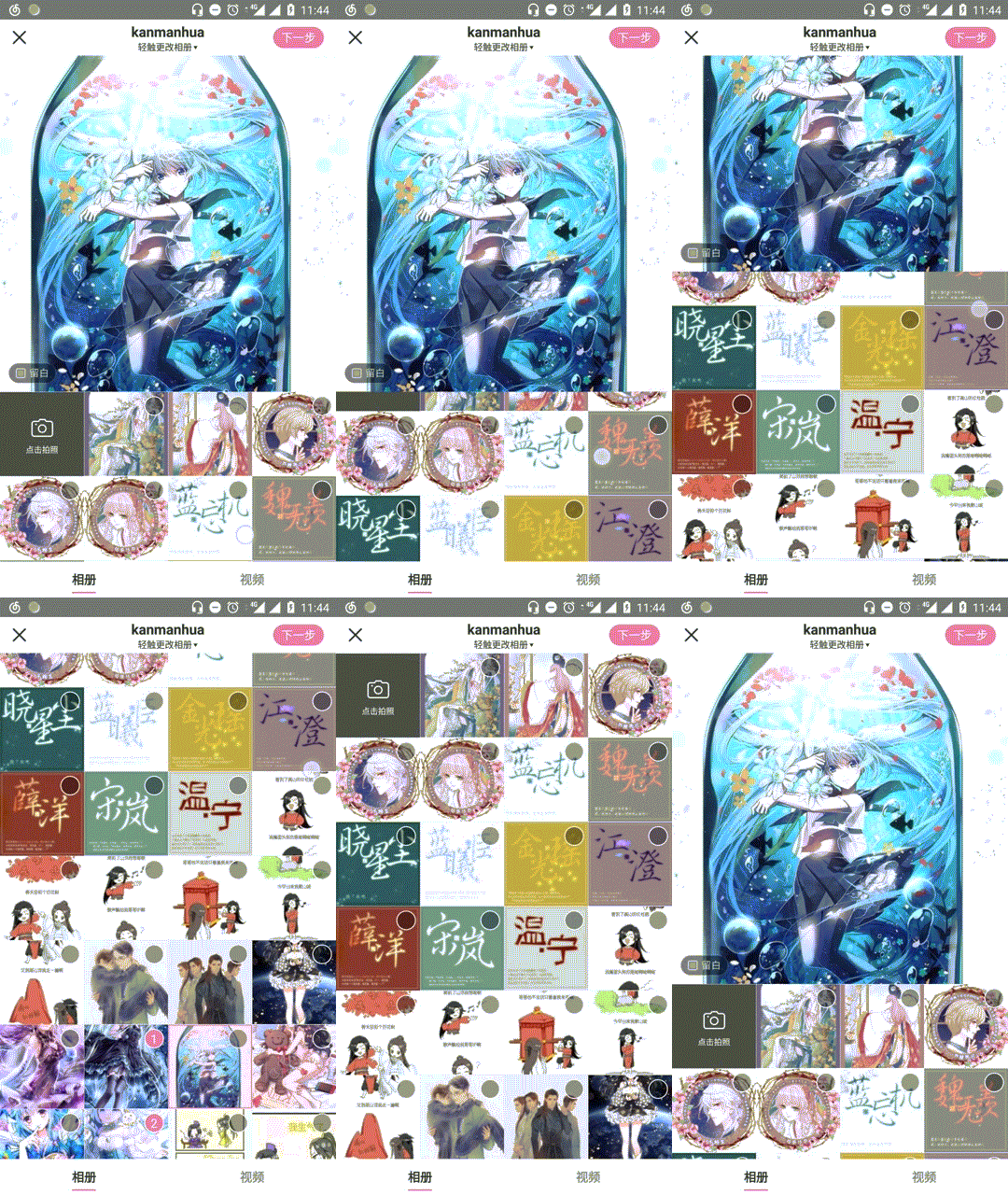
博客地址:第一站小红书图片裁剪控件之二,自定义CoordinatorLayout联动效果
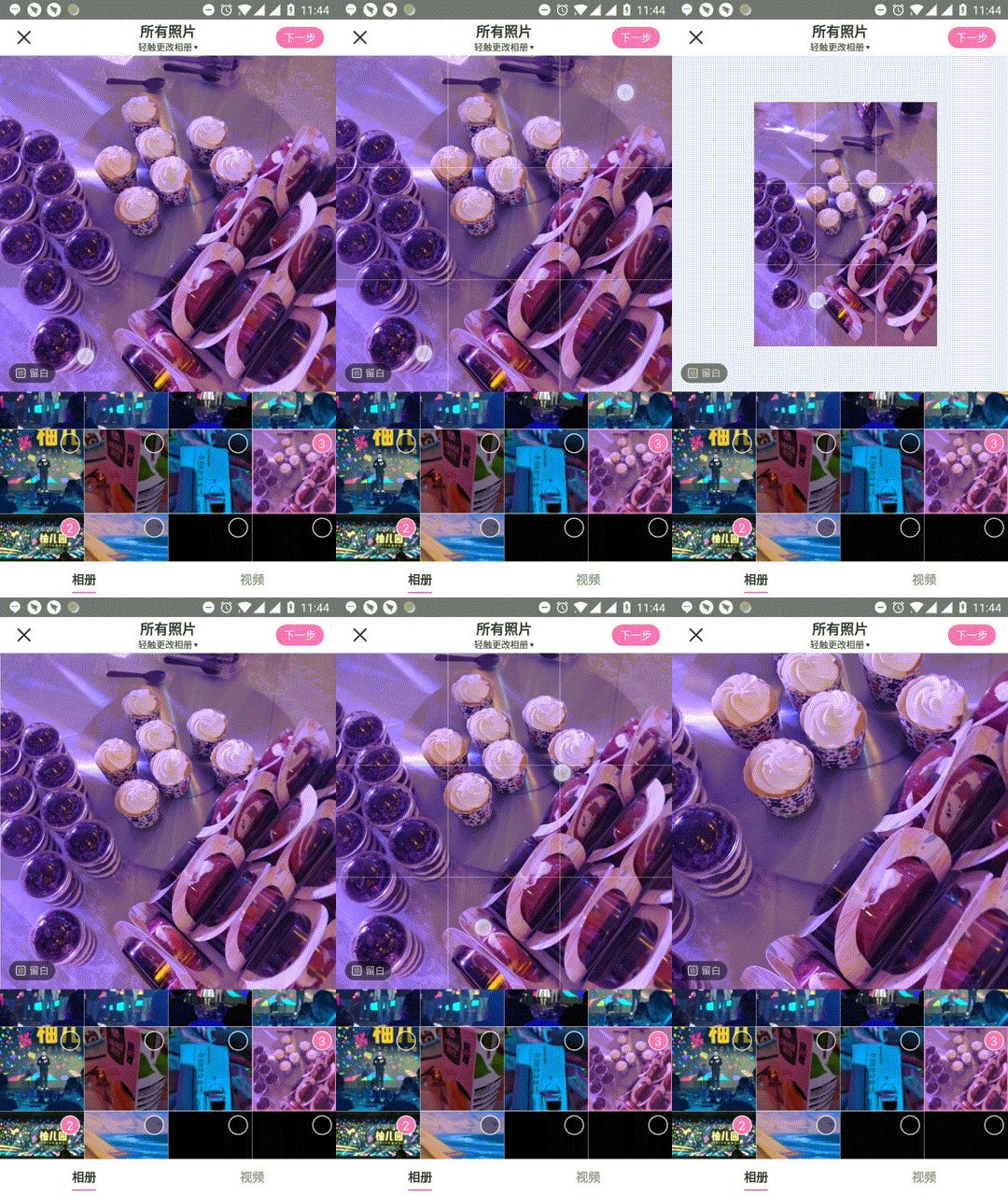
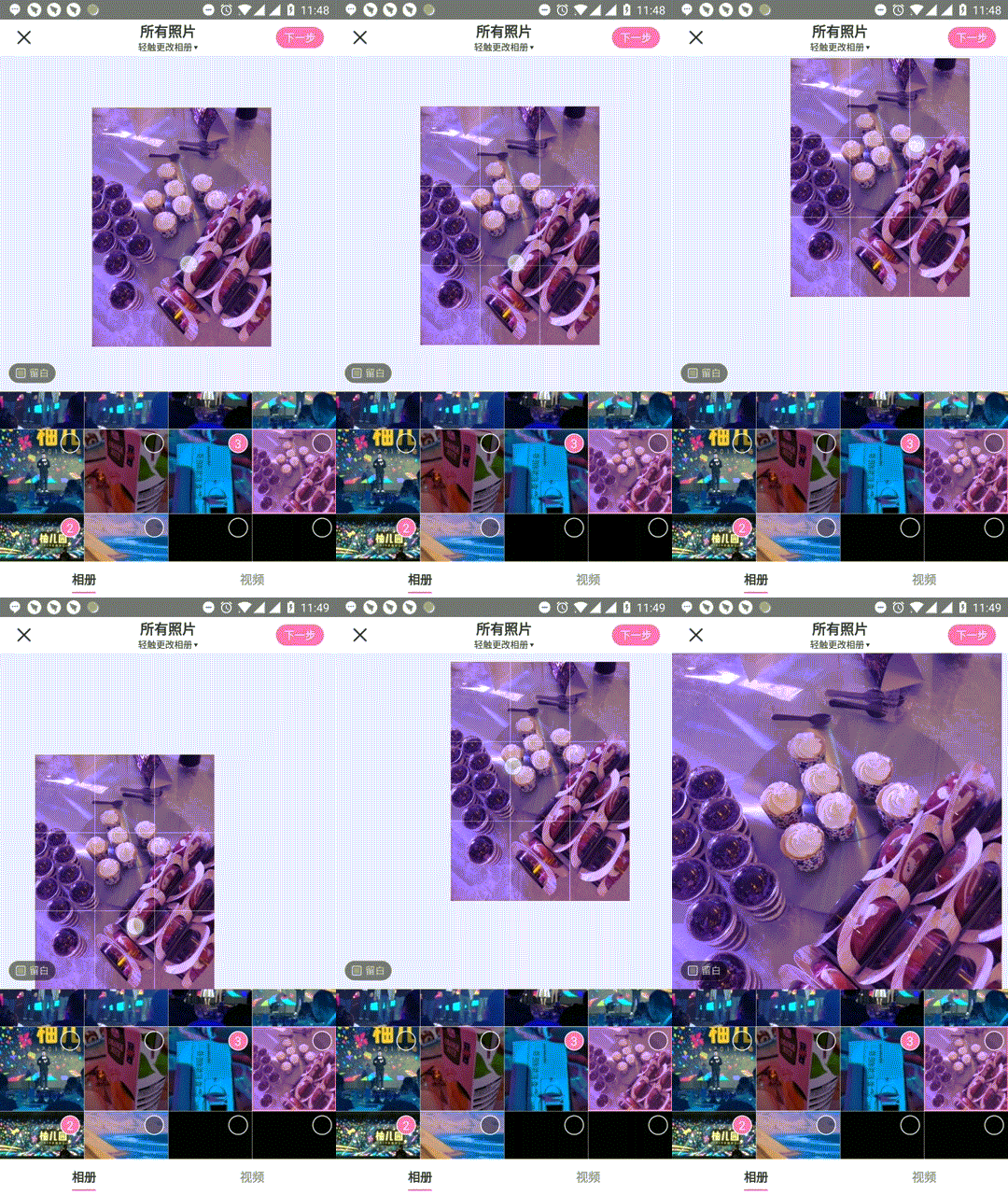
小红书图片裁剪控件
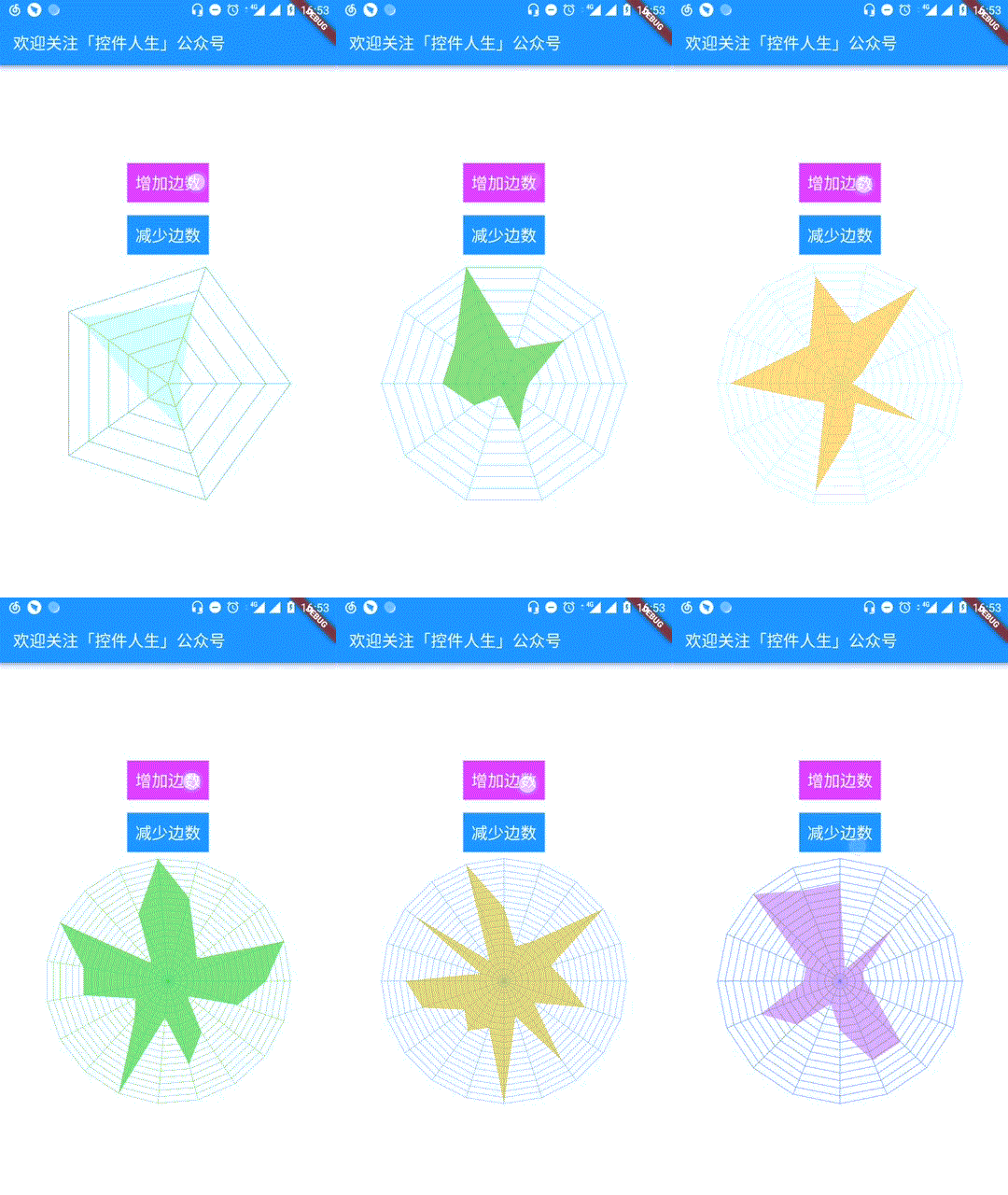
Flutter“蛛网”控件
MeiWidgetView
一款汇总了郭霖,鸿洋,以及自己平时收集的自定义控件的集合库。主旨帮助大家学习自定义控件中的一些技巧,分析问题解决问题的一种思路。
引入
Step 1. Add the JitPack repository to your build file
root build.gradle
    allprojects {
        repositories {
            ...
            maven { url "https://jitpack.io" }
        }
    }
Step 2. Add the dependency
app build.gradle
    dependencies {
           implementation 'com.github.HpWens:MeiWidgetView:v0.1.5'
    }
Download APK
使用
1、文字路径
a、效果预览

b、xml布局
    <com.meis.widget.MeiTextPathView
        ...
        android:layout_width="match_parent"
        android:layout_height="wrap_content"/>
c、xml属性
    <declare-styleable name="MeiTextPathView">

        <attr name="text" format="string"/>

        <attr name="textSize" format="dimension"/>

        <attr name="textColor" format="color"/>

        <attr name="duration" format="integer"/>

        <attr name="strokeWidth" format="dimension"/>

        <attr name="cycle" format="boolean"/>

        <attr name="autoStart" format="boolean"/>
    </declare-styleable>
d、参考文章
2、弹跳小球
a、效果预览

b、xml布局
    <com.meis.widget.ball.BounceBallView
        ...
        android:layout_width="match_parent"
        android:layout_height="wrap_content">
c、属性
- bounce_count :小球弹跳次数
- ball_color:小球颜色
- ball_count:小球数量
- ball_radius:小球半径
- ball_delay:小球出现时间间隔(当小球数大于1时)
- anim_duration:小球一次动画时长
- physic_mode : 开启物理效果(下落加速上升减速)
- random_color: 开启小球颜色随机
- random_radius: 开启小球大小随机(在基础大小上下浮动)
- random_path: 开启小球路径随机(在基础路径坐标上下浮动)
d、参考文章
3、扩散圆(主题切换)
a、效果预览

b、xml布局
    <com.meis.widget.MeiRippleView
        ...
        android:layout_width="match_parent"
        android:layout_height="wrap_content" />
c、相关方法
    /**
     * @param startX      被点击view相对屏幕的 view中心点x坐标
     * @param startY      被点击view相对屏幕的 view中心点y坐标
     * @param startRadius 开始扩散的半径
     */
    public void startRipple(int startX, int startY, int startRadius)
d、参考文章
Android自定义View实现炫酷的主题切换动画(仿酷安客户端)
4、酷炫的路径
a、效果预览

b、xml布局
    <com.meis.widget.MeiLinePathView
        ...
        android:layout_width="match_parent"
        android:layout_height="wrap_content" />
c、相关方法
    //设置路径
    public void setPath(Path path) {
        mKeyframes = new Keyframes(path);
        mAlpha = 0;
    }
d、参考文章
5、MEI-图片滚动视差控件
a、效果预览

b、xml布局
    <com.meis.widget.MeiScrollParallaxView
        ...
        android:layout_width="match_parent"
        android:layout_height="wrap_content"/>
c、属性
    <declare-styleable name="MeiScrollParallaxView">

        <attr name="parallaxRate" format="float"/>

        <attr name="enableParallax" format="boolean"/>

        <attr name="roundWidth" format="dimension"/>

        <attr name="enableCircle" format="boolean"></attr>

        <attr name="outRoundColor" format="color"/>
    </declare-styleable>
d、参考文章
打造丝滑的滑动视差控件(ScrollParallaxView)
6、MEI-直播间送爱心
a、效果预览

b、xml布局
    <com.meis.widget.heart.MeiHeartView
        ...
        android:layout_width="match_parent"
        android:layout_height="wrap_content"/>
c、属性
    <declare-styleable name="MeiHeartView">

        <attr name="heartDuration" format="integer"/>

        <attr name="heartEnableAlpha" format="boolean"/>

        <attr name="heartEnableScale" format="boolean"/>
    </declare-styleable>
d、参考文章
7、Mei-selector控件集
a、效果预览

通过 xml 布局的方式替换掉 selector 文件 , 这么做的优势在于 , 减少 apk 体积 , 避免后期维护大量的 selector 文件 , 扩展性更强 , 易修改 , 直观 , 功能更加强大
b、特性
- 支持圆角(单独设定四个角角度,圆角半径是高度的一半)
- 支持背景Pressed,Disabled,Selected,Checked四种状态切换
- 支持描边(虚线,四种状态切换)
- 支持文本(四种状态切换)
- 支持涟漪(水波纹)
- 支持leftDrawable,topDrawable,rightDrawable,bottomDrawable四种状态切换
c、支持原生控件
- RadiusTextView
- RadiusCheckBox
- RadiusEditText
- RadiusFrameLayout
- RadiusLinearLayout
- RadiusRelativeLayout
d、扩展
委托的扩展方式(Delegate), 参考的是(AppCompatActivity实现方式), 具体请参考(RadiusTextView)
8、MEI-仿百度浏览器图片拖拽控件
a、效果预览

b、xml布局
//PhotoDragRelativeLayout 继承 RelativeLayout 委托的方式 易扩展
<com.meis.widget.photodrag.PhotoDragRelativeLayout xmlns:android="http://schemas.android.com/apk/res/android"
    xmlns:app="http://schemas.android.com/apk/res-auto"
    android:id="@+id/pdr_content"
    android:layout_width="match_parent"
    android:layout_height="match_parent"
    android:background="#000">

    <android.support.v7.widget.Toolbar
        android:id="@+id/toolbar"
        android:layout_width="match_parent"
        android:layout_height="wrap_content"
        android:background="@color/colorPrimary"
        app:navigationIcon="@mipmap/ic_arrow_back_white_24dp"
        app:title="仿百度浏览器图片拖拽控件"
        app:titleTextColor="#FFF" />

    <me.relex.photodraweeview.PhotoDraweeView
        android:id="@+id/pdv_photo"
        android:layout_width="match_parent"
        android:layout_height="match_parent"
        android:layout_below="@+id/toolbar"
        android:src="https://github.com/HpWens/MeiWidgetView/raw/v0.1.6/@mipmap/ic_mei_ripple" />

</com.meis.widget.photodrag.PhotoDragRelativeLayout>
c、相关代码
   mPdrLayout.setDragListener(new PhotoDragHelper().setOnDragListener(new PhotoDragHelper.OnDragListener() {
       @Override
       public void onAlpha(float alpha) {
           //透明度的改变
           mPdrLayout.setAlpha(alpha);
       }
       @Override
       public View getDragView() {
           //返回需要拖拽的view
           return mPdvView;
       }
       @Override
       public void onAnimationEnd(boolean isRestoration) {
           //isRestoration true 执行恢复动画  false 执行结束动画
           if (!isRestoration) {
               finish();
               overridePendingTransition(0, 0);
           }
       }
   }));
9、MEI-仿头条小视频拖拽控件
针对头条效果做了如下优化
- 列表图片没有完全展示点击的转场动画图片明显变形压缩
- 详情页往顶部拖拽有明显的卡顿现象
a、效果预览

b、xml布局
<com.meis.widget.photodrag.VideoDragRelativeLayout
    ...
    android:layout_width="match_parent"
    android:layout_height="match_parent"/>
c、属性
    <declare-styleable name="VideoDragRelativeLayout">


        <attr name="mei_self_intercept_event" format="boolean"></attr>


        <attr name="mei_start_anim_duration" format="integer"></attr>


        <attr name="mei_end_anim_duration" format="integer"></attr>


        <attr name="mei_restoration_ratio" format="float"></attr>


        <attr name="mei_offset_rate_y" format="integer"></attr>


        <attr name="mei_start_offset_ratio_y" format="float"></attr>


        <attr name="mei_start_anim_enable" format="boolean"></attr>

    </declare-styleable>
VideoDragRelativeLayout 继承 RelativeLayout 默认拦截并消费事件 , 若子控件想消费事件请在 xml 布局文件中设置子控件 android:tag="dispatch"
d、回调接口
    public interface OnVideoDragListener {

        //开始拖拽
        void onStartDrag();

        /**
         * 释放拖拽
         * @param isRestoration 是否恢复 true 则执行恢复动画  false 则执行结束动画
         */
        void onReleaseDrag(boolean isRestoration);

        /**
         * 动画结束
         * @param isRestoration 是否恢复 true 执行的恢复动画结束  false执行的结束动画结束
         */
        void onCompleteAnimation(boolean isRestoration);
    }
10、仿膜拜单车贴纸效果
基于jbox2d引擎实现 , 文中有相应的代码注释请查阅
a、效果图

b、xml布局
    <com.meis.widget.mobike.MoBikeView
        android:layout_width="0dp"
        android:layout_height="0dp"
    ...
    />
11、LOVE玫瑰
a、效果预览

b、xml布局
    <com.meis.widget.rose.RoseGiftSurfaceView
        android:id="@+id/rose"
        android:layout_width="0dp"
        android:layout_height="0dp"
        ... />
c、开始动画
mRoseGiftSurfaceView.startAnimation();
12、浮动粒子
通过三阶贝塞尔曲线,绘制每个粒子的运动轨迹

b、xml布局
    <com.meis.widget.particle.FireflyView
        android:id="@+id/firfly"
        android:layout_width="0dp"
        android:layout_height="0dp"
        ... />
c、属性
    <declare-styleable name="FireflyView">

        <attr name="firefly_num" format="integer"></attr>

        <attr name="firefly_max_radius" format="integer"></attr>

        <attr name="firefly_move_rate" format="integer"></attr>
    </declare-styleable>
13、直播间点赞控件
贝塞尔曲线来计算点赞小图标的位置

b、相关代码
// 初始化
mPraiseAnimator = new BezierPraiseAnimator(this);
// 开始动画
mPraiseAnimator.startAnimation(mIvPraise);
14、文本跳动控件
一款炫酷的文本跳动控件

文章博客地址:一篇文本跳动控件,为你打开一扇大门,学会这两点心得,控件你也会写
15、豆瓣弹性滑动控件
<img src="https://github.com/HpWens/MCropImageView/blob/master/gif/mei_scroll.gif" width
Extension points exported contracts — how you extend this code
DragListener (Interface)Core symbols most depended-on inside this repo
getDrawableShape
Languages
Modules by API surface
For agents
$ claude mcp add MeiWidgetView \
  -- python -m otcore.mcp_server <graph>