github.com/HiveNexus/HiveChat @main
Chat with this repoBrowse by type
What it actually does AI analysis from the code graph — generated when you open this
README


中文 | English
An AI chatbot designed specifically for small to medium-sized teams, supporting models such as Deepseek, OpenAI, Claude, and Gemini.
1. Feature Overview
One-time configuration by the administrator, easy for the entire team to use various AI models.
- LaTeX and Markdown rendering
- DeepSeek thought chain visualization
- Vision Recognition
- AI agents
- Cloud-based data storage
- Supported large model providers:
- OpenAI
- Claude
- Gemini
- DeepSeek
- Moonshot
- Volcengine Ark
- Alibaba Bailian (Qwen)
- Baidu Qianfan
- Ollama
- SiliconFlow
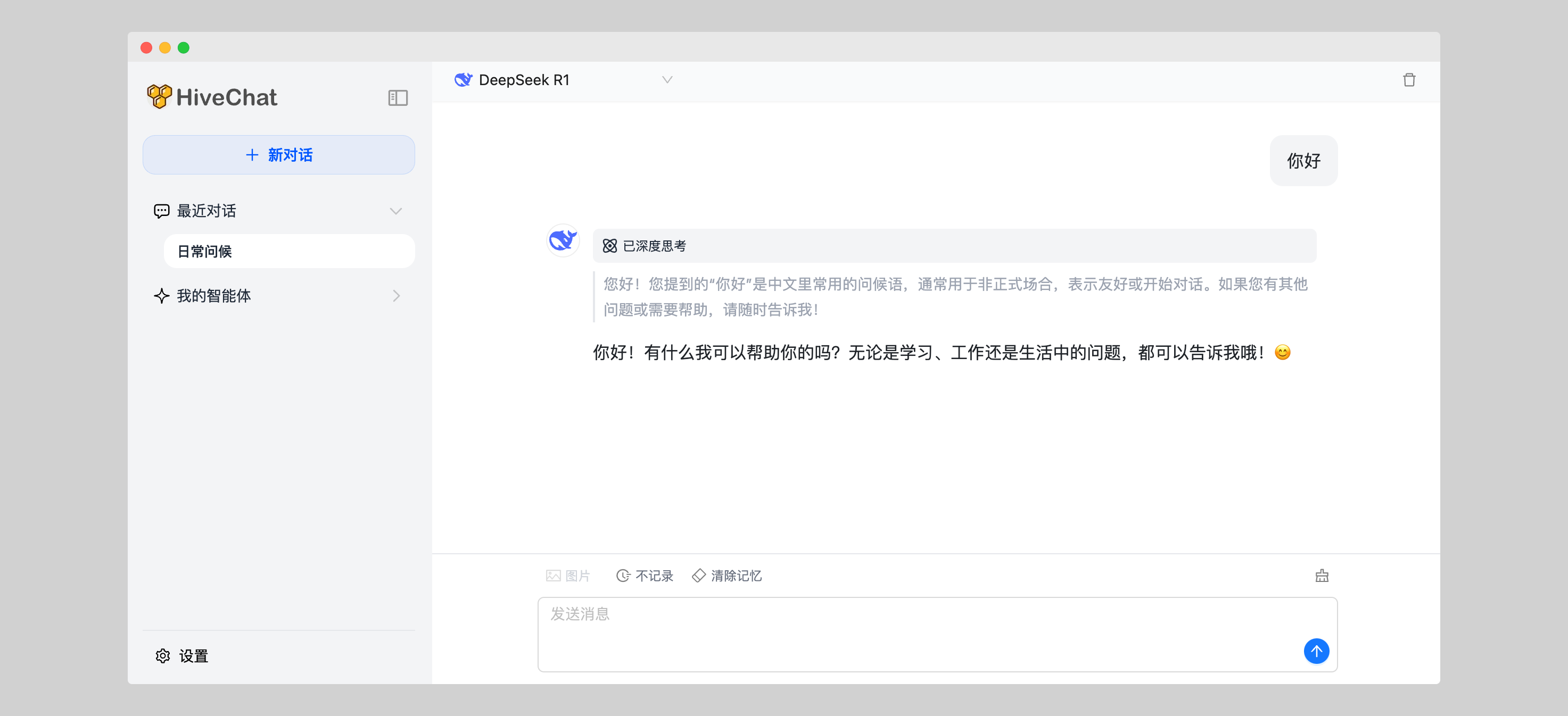
Regular Users
Log in to your account to start chatting.
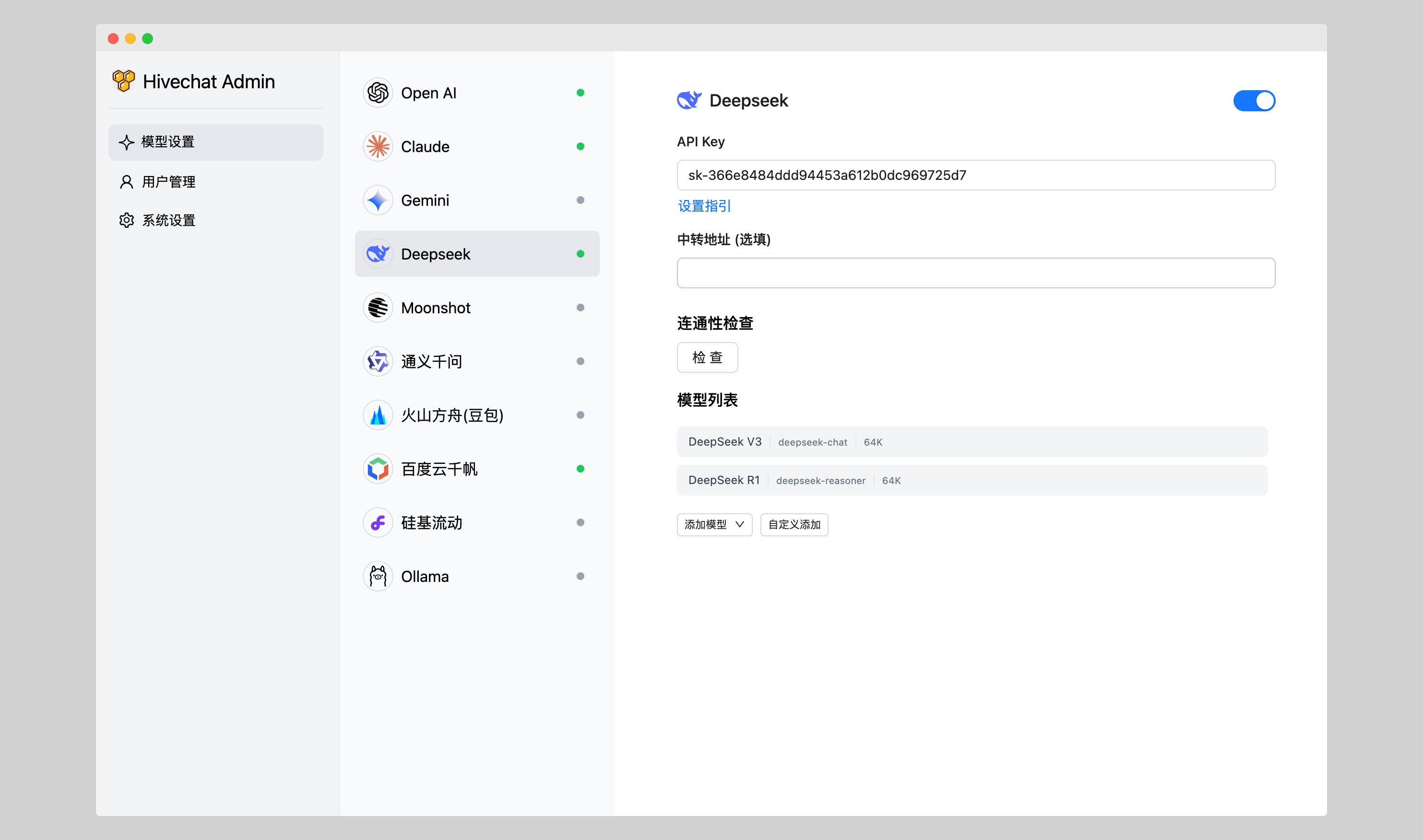
Admin Dashboard
- Admins can configure AI model providers
- Users can be added manually, and account registration can be enabled or disabled, suitable for small teams in companies, schools, or organizations
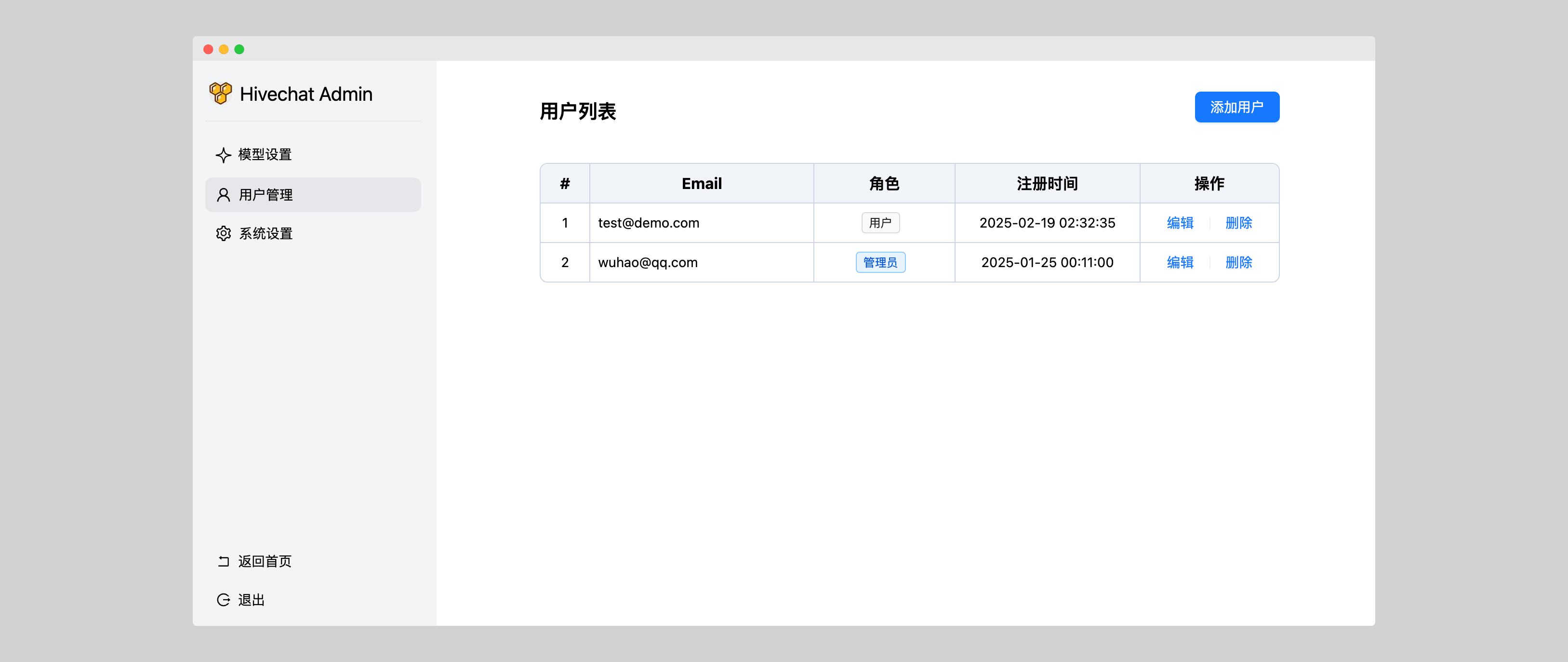
- View and manage all users
More Screenshot
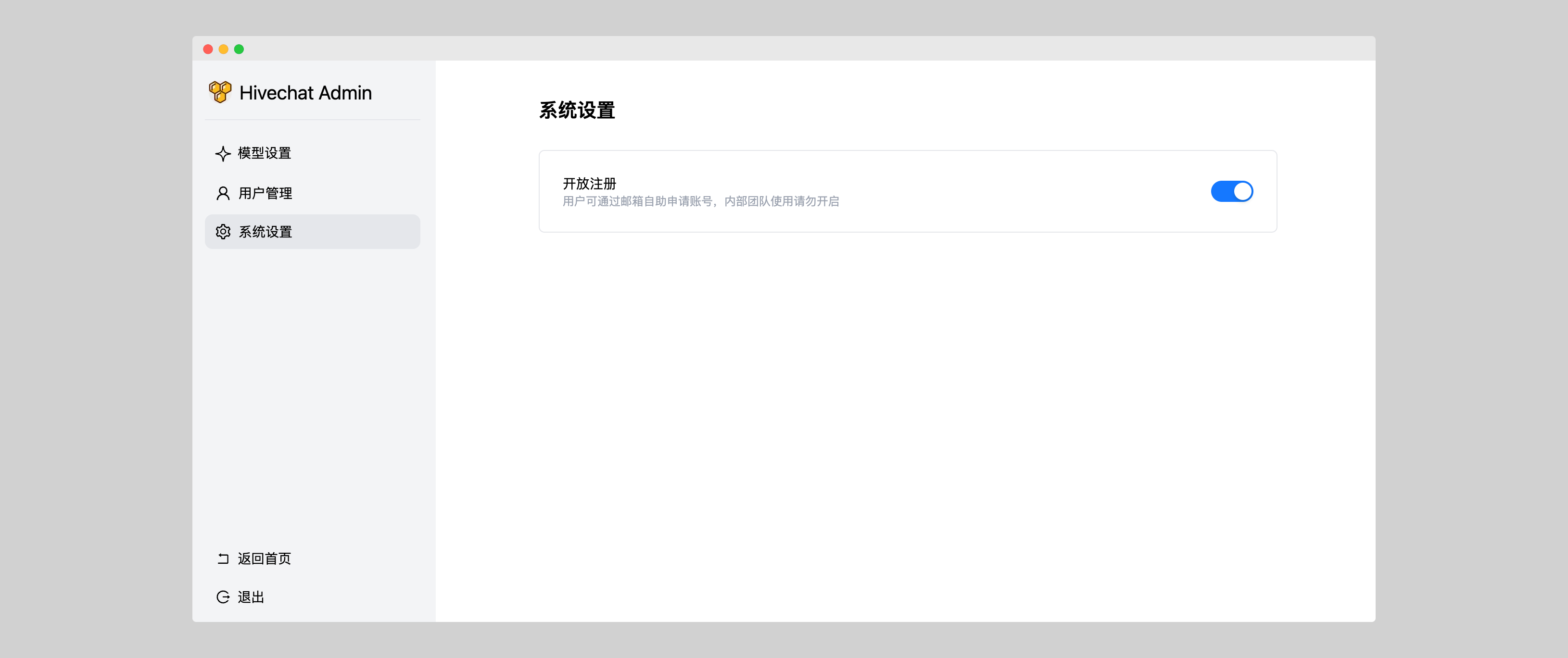
Users
 Enable or disable user registration.
2. Online Demo
Note: The following is a demo site, and data may be cleared at any time.
- User Portal:https://chat.yotuku.cn/
- You can register an account to try it out.
- Admin Portal:https://hivechat-demo.vercel.app/
- Email: admin@demo.com
- Password: helloHivechat
3. Tech stack
- Next.js
- Tailwindcss
- Auth.js
- PostgreSQL
- Drizzle ORM
- Ant Design
4. Installation and Deployment
Method 1: Local Deployment
- Clone this project to local.
git clone https://github.com/HiveNexus/hivechat.git
- Install the dependencies
cd hivechat
npm install
- Modify the local configuration file
Copy the sample .env file to .env
cp .env.example .env
Edit the .env file.
# PostgreSQL Database Connection URL. This is an example; you need to install PostgreSQL locally or connect to a remote PostgreSQL instance.
# Note: Local installations do not currently support Serverless PostgreSQL provided by Vercel or Neon.
DATABASE_URL=postgres://postgres:password@localhost/hivechat

# Used for encrypting sensitive information such as user data. You can generate a random 32-character string as a key using the command `openssl rand -base64 32`. This is an example; please replace it with the value you generate.
AUTH_SECRET=hclqD3nBpMphLevxGWsUnGU6BaEa2TjrCQ77weOVpPg=

# Admin authorization code. After initialization, use this value to set up the admin account. This is an example; please replace it with the value you generate.
ADMIN_CODE=22113344

# Set the production environment to the official domain. No changes are required for testing purposes.
NEXTAUTH_URL=http://127.0.0.1:3000
- Initialize the Database
npm run initdb
- Start the Application
// Development mode
npm run dev
// Production mode
npm run build
npm run start
- Initialize the Admin Account
Visit http://localhost:3000/setup (use the actual domain and port) to access the admin account setup page. Once set up, you can use the system normally.
Method 2: Docker Deployment
- Clone this project to your local machine
git clone https://github.com/HiveNexus/hivechat.git
- Modify the local configuration file
Copy the example file to .env
cp .env.example .env
Modify AUTH_SECRET and ADMIN_CODE as needed. Be sure to reset these for production environments; no changes are needed for testing.
- Build the Docker image
docker compose build
- Start the container
docker compose up -d
- Initialize the Admin Account
Visit http://localhost:3000/setup (use the actual domain and port) to access the admin account setup page. Once set up, you can use the system normally.
Method 3: Deploy on Vercel
Click the button below to begin deployment.
By default, the code is cloned to your own Github. Afterward, fill in the environment variables:
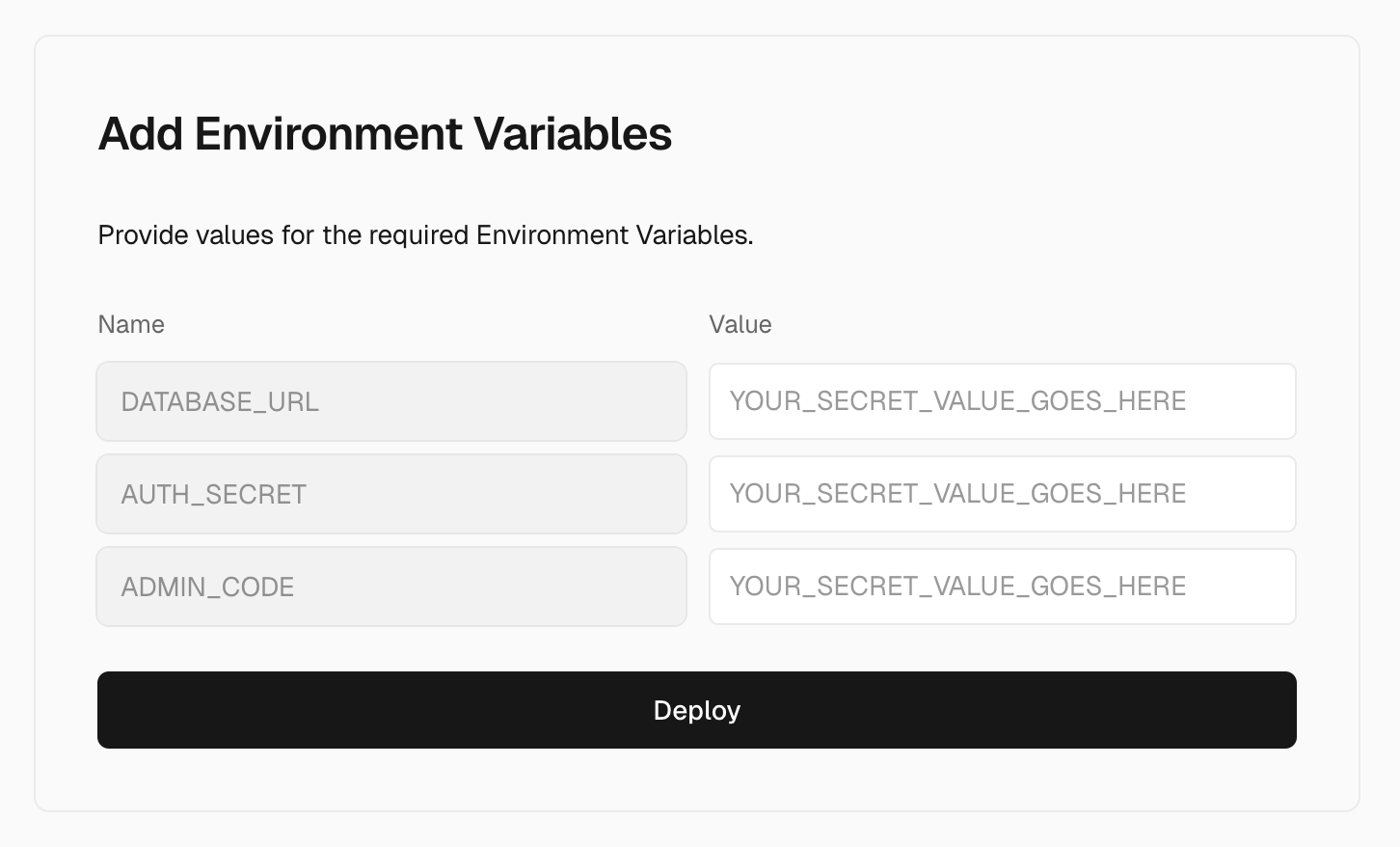
# PostgreSQL database connection URL. Vercel offers free hosting services. See further details below.
DATABASE_URL=postgres://postgres:password@localhost/hivechat

#Encryption key for sensitive information like user data. You can generate a random 32-character string using openssl rand -base64 32. This example key should be replaced with your generated value.
AUTH_SECRET=hclqD3nBpMphLevxGWsUnGU6BaEa2TjrCQ77weOVpPg=

# Admin authorization code. This value is used to set up the admin account. Replace this example with your generated value.
ADMIN_CODE=22113344
Appendix: Vercel (Neon) PostgreSQL Configuration
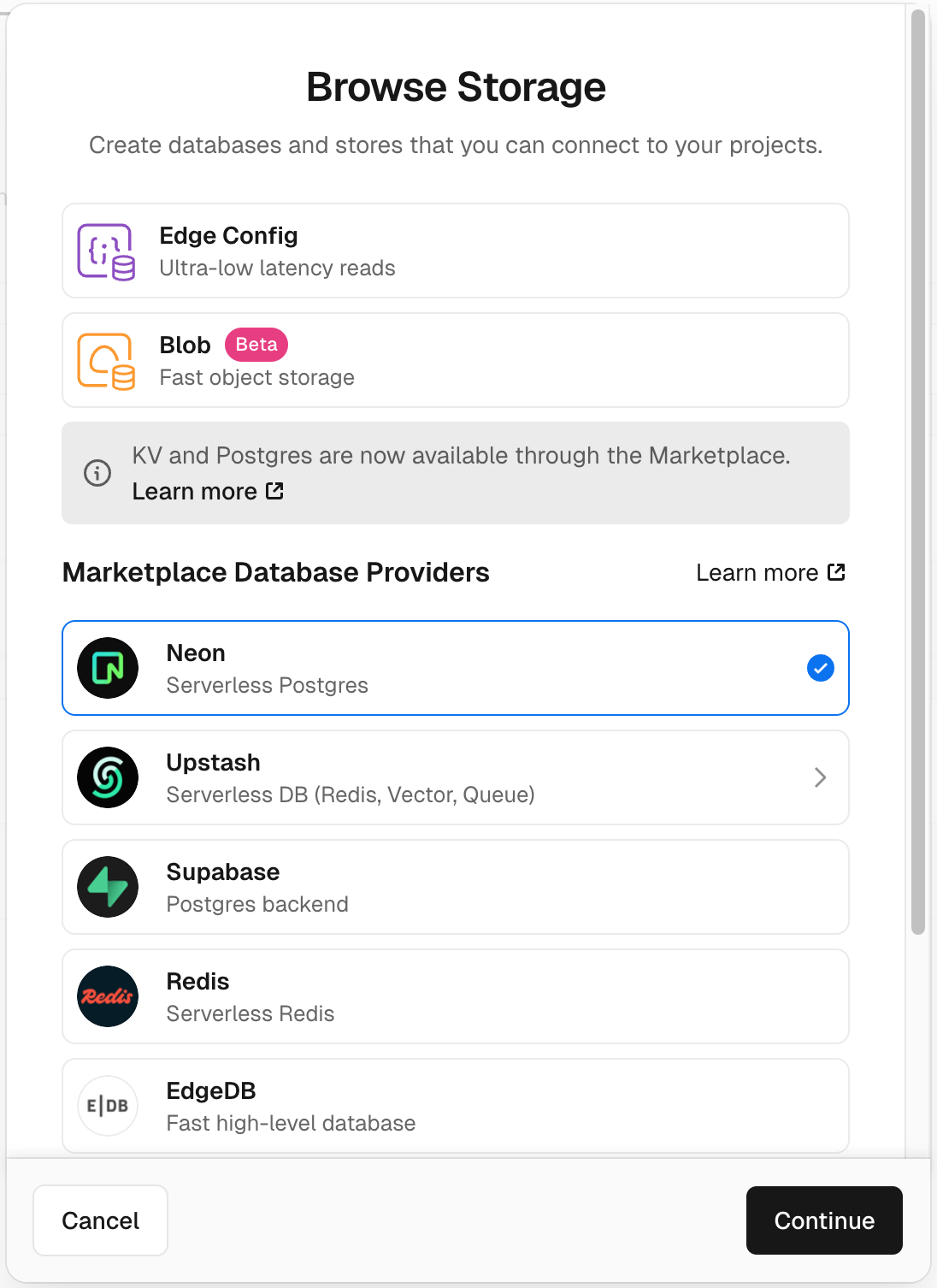
- In the Vercel dashboard, select the "Storage" tab and click "Create Database".
-
Choose Neon (Serverless Postgres)
-
Follow the instructions to complete the setup, then copy the
DATABASE_URLvalue from this step and paste it into theDATABASE_URLfrom the previous section.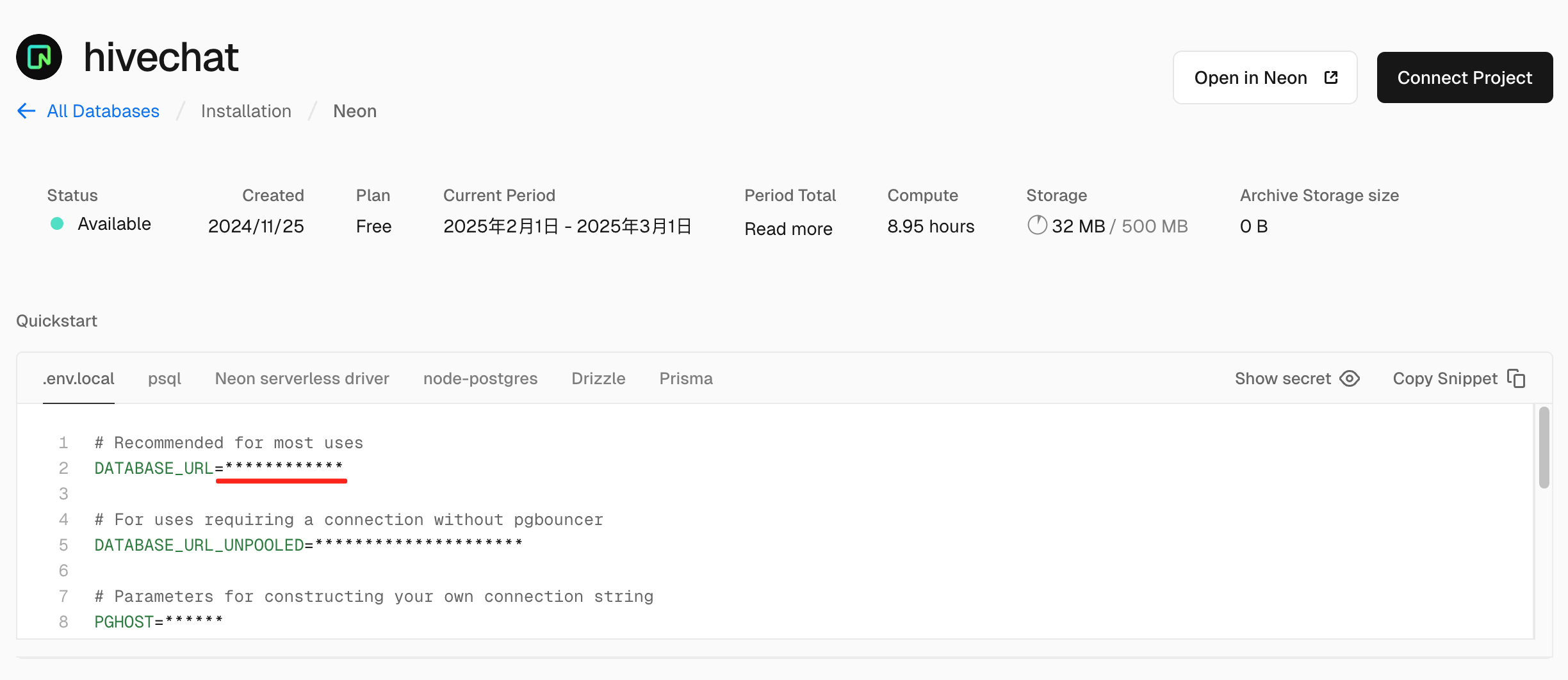
-
Initialize the Admin Account
Once the installation and deployment are complete using the above method, visit http://localhost:3000/setup (use the actual domain and port) to access the admin account setup page. Once set up, you can use the system normally.
Extension points exported contracts — how you extend this code
browse all types & interfaces →
Core symbols most depended-on inside this repo
Shape
Languages
Modules by API surface
Datastores touched
For agents
$ claude mcp add HiveChat \
  -- python -m otcore.mcp_server <graph>