github.com/Gruntfuggly/todo-tree @main
Chat with this repoBrowse by type
What it actually does AI analysis from the code graph — generated when you open this
README
Todo Tree
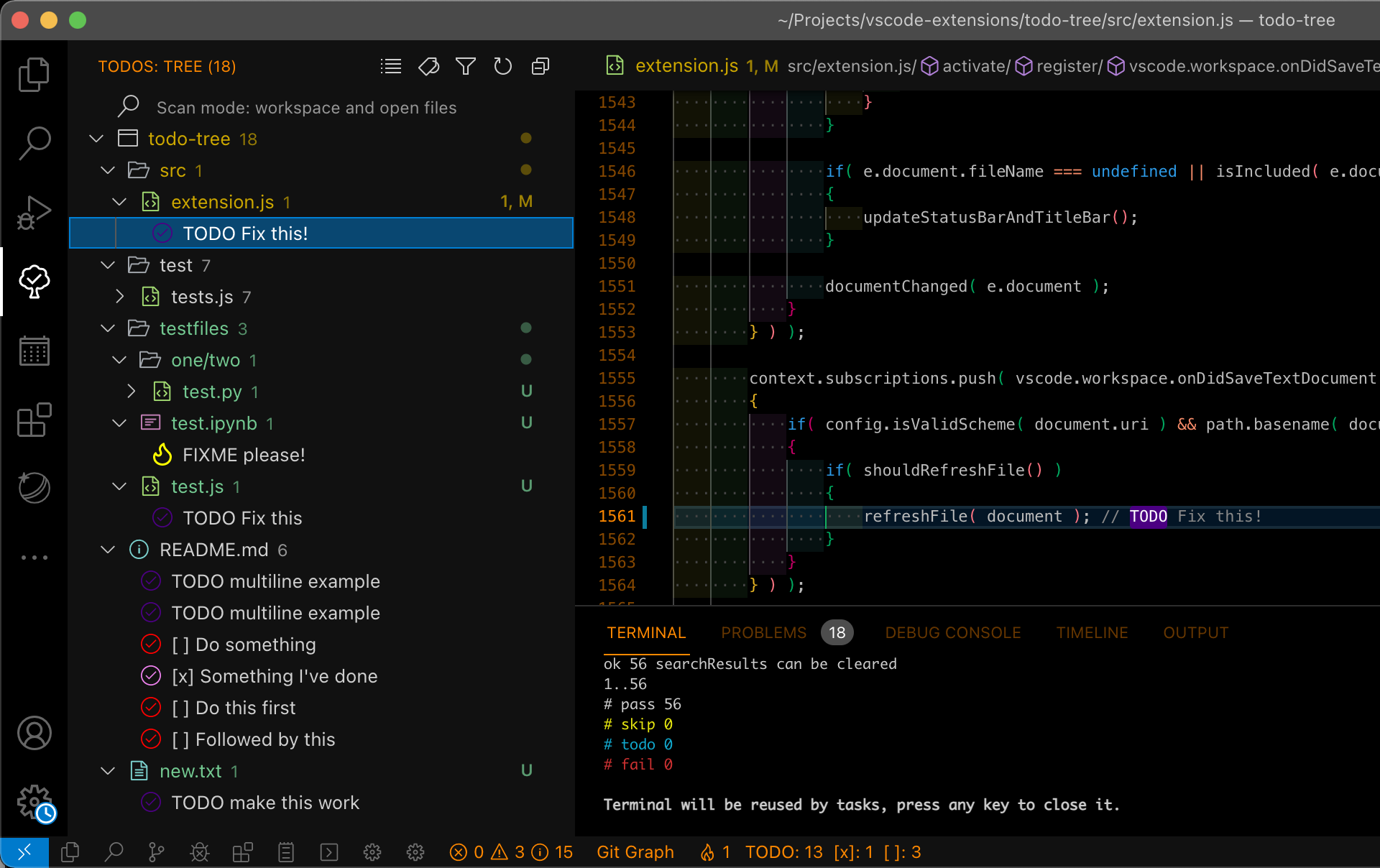
This extension quickly searches (using ripgrep) your workspace for comment tags like TODO and FIXME, and displays them in a tree view in the activity bar. The view can be dragged out of the activity bar into the explorer pane (or anywhere else you would prefer it to be).
Clicking a TODO within the tree will open the file and put the cursor on the line containing the TODO.
Found TODOs can also be highlighted in open files.
Please see the wiki for configuration examples.
Notes:
- User
rg.conffiles are ignored.
Highlighting
New!: If you just want to set different colours for tags, you can now enable
todo-tree.highlights.useColourScheme. This will apply a set of colours (which can be changed) to the tags in the order that they are defined.
Highlighting tags is configurable. Use defaultHighlight to set up highlights for all tags. If you need to configure individual tags differently, use customHighlight. If settings are not specified in customHighlight, the value from defaultHighlight is used.
Custom highlights can also be specified for sub tags (if used).
Note: defaultHighlight is not applied to sub tags.
Both defaultHighlight and customHighlight allow for the following settings:
foreground - used to set the foreground colour of the highlight in the editor and the marker in the ruler.
background - used to set the background colour of the highlight in the editor.
Note: Foreground and background colours can be specified using HTML/CSS colour names (e.g. "Salmon"), RGB hex values (e.g. "#80FF00"), RGB CSS style values (e.g. "rgb(255,128,0)" or colours from the current theme, e.g. peekViewResult.background. See Theme Color for the details. Hex and RGB values can also have an alpha specified, e.g. "#ff800080" or "rgba(255,128,0,0.5)".
opacity - percentage value used with the background colour. 100% will produce an opaque background which will obscure selection and other decorations.
Note: opacity can only be specified when hex or RGB colours are used.
fontWeight, fontStyle, textDecoration - can be used to style the highlight with standard CSS values.
borderRadius - used to set the border radius of the background of the highlight.
icon - used to set a different icon in the tree view. Must be a valid octicon (see https://octicons.github.com) or codicon (see https://microsoft.github.io/vscode-codicons/dist/codicon.html). If using codicons, specify them in the format "$(icon)". The icon defaults to a tick if it's not valid. You can also use "todo-tree", or "todo-tree-filled" if you want to use the icon from the activity view.
iconColour - used to set the colour of the icon in the tree. If not specified, it will try to use the foreground colour or the background colour. Colour can be specified as per foreground and background colours, but see note below.
Note: Theme colours are only supported when using codicons. Hex, RGB and HTML colours are only supported when using octicons or the default icon.
gutterIcon - set to true to show the icon in the editor gutter.
Note: Unfortunately, only octicons and the todo-tree icon can be displayed in the gutter.
rulerColour - used to set the colour of the marker in the overview ruler. If not specified, it will default to use the foreground colour. Colour can be specified as per foreground and background colours.
rulerOpacity - used to set the opacity of the ruler markers.
Note: Only works with hex and RGB colour settings.
rulerLane - used to set the lane for the marker in the overview ruler. If not specified, it will default to the right hand lane. Use one of "left", "center", "right", or "full". You can also use "none" to disable the ruler markers.
type - used to control how much is highlighted in the editor. Valid values are:
tag- highlights just the tagtext- highlights the tag and any text after the tagtag-and-comment- highlights the comment characters (or the start of the match) and the tagtag-and-subTag- as above, but allows the sub tag to be highlight too (with colours defined in custom highlights)text-and-comment- highlights the comment characters (or the start of the match), the tag and the text after the tagline- highlights the entire line containing the tagwhole-line- highlights the entire line containing the tag to the full width of the editorcapture-groups:n,m...- highlights capture groups from the regex, where 'n' is the index into the regexnone- disable highlightling in the document
hideFromTree - used to hide tags from the tree, but still highlight in files
hideFromStatusBar - prevents the tag from being included in the status bar counts
hideFromActivityBar - prevents the tag from being included in the activity bar badge count
Example:
"todo-tree.highlights.defaultHighlight": {
    "icon": "alert",
    "type": "text",
    "foreground": "red",
    "background": "white",
    "opacity": 50,
    "iconColour": "blue"
},
"todo-tree.highlights.customHighlight": {
    "TODO": {
        "icon": "check",
        "type": "line"
    },
    "FIXME": {
        "foreground": "black",
        "iconColour": "yellow",
        "gutterIcon": true
    }
}
Note: The highlight configuration is separate from the settings for the search. Adding settings in customHighlight does not automatically add the tags into todo-tree.general.tags.
*Note: Using the capture-groups setting in type may have an impact on performance with large files.
Installing
You can install the latest version of the extension via the Visual Studio Marketplace here.
Alternatively, open Visual Studio code, press Ctrl+P or Cmd+P and type:
ext install Gruntfuggly.todo-tree
Source Code
The source code is available on GitHub here.
Controls
The tree view header can contain the following buttons:
 - Collapse all tree nodes
 - Expand all tree nodes
 - Show the tree view as a flat list, with the full filename for each TODO
 - Show the view as a list of tags
 - Show the tree view as a tree with expandable nodes for each folder (default)
 - Group the TODOs in the tree by the tag
 - Organise the TODOs by file (default)
 - Only show items in the tree which match the entered filter text
 - Remove any active filter
 - Rebuild the tree
 - Show tags from open files only
 - Show tags from the current file
 - Show tags from workspace only
 - Show tags from workspace and open files
 - Show the current file in the tree
 - Export the tree content to a file
Folder Filter Context Menu
Right clicking in the tree view will bring up a context menu with the following options:
Hide This Folder/Hide This File - removes the folder or file from the tree
Only Show This Folder - remove all other folders and subfolders from the tree
Only Show This Folder And Subfolders - remove other folders from the tree, but keep subfolders
Reset Folder Filter - reset any folders previously filtered using the above
Toggle Badges - enable/disable SCM decorations
Toggle Compact Folders - enable/disable compressed folder names
Toggle Item Counts - enable/disable counts of tags
Scan Open Files Only - show TODOs from files open in VSCode (no search)
Scan Current File Only - show TODOs from the current open file only
Scan Workspace And Open Files - show TODOs from the workspace and any open files
Scan Workspace Only - show TODOs from the workspace only (requires manual refresh)
Expand Tree/Collapse Tree - expand or collapse the whole tree Show Tree View/Show Flat View/Show Tags Only View - change the tree view style Group by Tag/Ungroup by Tag - toggle grouping of items by tag Group by Sub Tag/Ungroup by Sub Tag - toggle grouping of items by sub tag Export Tree - dump the tree contents into a file Reveal Current File in Tree - show the current editor file in tree (if present)
Note: The current filters are shown in the debug log. Also, the filter can always be reset by right clicking the Nothing Found item in the tree. If your tree becomes invisible because everything is filtered and hideTreeWhenEmpty is set to true, you can reset the filter by pressing F1 and selecting the Todo Tree: Reset Folder Filter command.
Commands
Tags
To make it easier to configure the tags, there are two commands available:
Todo Tree: Add Tag - allows entry of a new tag for searching
Todo Tree: Remove Tag - shows a list of current tags which can be selected for removing
Note: The Remove Tag command can be used to show current tags - just press Escape or Enter with out selecting any to close it.
Export
The contents of the tree can be exported using Todo Tree: Export Tree. A read-only file will be created using the path specified with todo-tree.general.exportPath. The file can be saved using File: Save As.... Note: Currently File: Save does not work which seems to be a VSCode bug (see https://github.com/microsoft/vscode/issues/101952).
Switch Scope
Todo Tree: Switch Scope - shows a list of configured scopes which can be selected
Navigation
The commands Todo Tree: Go To Next and Todo Tree: Go To Previous can be used to move to the next and previous TODO within the current editor.
Configuration
The extension can be customised as follows (default values in brackets):
todo-tree.general.debug (false)
Show a debug channel in the output view.
todo-tree.general.periodicRefreshInteval (0)
Interval (in minutes) for automatically refreshing the tree. Set to '0' to disable, or to the number of minutes between refreshes. Note: This is not typically needed as the tree will be refreshed when files change.
todo-tree.general.automaticGitRefreshInterval (0)
Polling interval (in seconds) for automatically refreshing the tree when your repository is updated. This will check if your repository HEAD has changed and trigger a rescan of the workspace if it has. This replaces the file watcher functionality. Set to '0' to disable, or to the number of seconds between checks.
todo-tree.general.exportPath (~/todo-tree-%Y%m%d-%H%M.txt)
Path to use when exporting the tree. Environment variables will be expanded, e.g ${HOME} and the path is passed through strftime (see https://github.com/samsonjs/strftime). Set the extension to .json to export as a JSON record.
todo-tree.general.rootFolder ("")
By default, any open workspaces will have a tree in the view. Use this to force another folder to be the root of the tree. You can include environment variables and also use ${workspaceFolder}. e.g.
"todo-tree.general.rootFolder": "${workspaceFolder}/test"
or
"todo-tree.general.rootFolder": "${HOME}/project".
Note: Other open files (outside of the rootFolder) will be shown (as they are opened) with their full path in brackets.
todo-tree.general.schemes (['file','ssh','untitled'])
Editor schemes to find TODOs in. To find TODOs in settings files, for instance, add vscode-userdata or for output windows, add output.
todo-tree.general.tags (["TODO","FIXME","BUG"])
This defines the tags which are recognised as TODOs. This list is automatically inserted into the regex.
todo-tree.general.tagGroups ({})
This setting allows multiple tags to be treated as a single group. Example:
```json "todo-tree.general.tagGroups": {
Core symbols most depended-on inside this repo
Shape
Languages
Modules by API surface
Dependencies from manifests, versioned
For agents
$ claude mcp add todo-tree \
  -- python -m otcore.mcp_server <graph>