github.com/FX-HAO/keycloak-phone-authenticator @v9.0.2
Chat with this repoWhat it actually does AI analysis from the code graph — generated when you open this
README
keycloak-phone-authenticator
To install the SMS Authenticator one has to:
- Build and package the project:
-
$ mvn package -
Add the jar to the Keycloak server:
$ cp target/keycloak-phone-authenticator-*.jar _KEYCLOAK_HOME_/providers/
Log in via SMS
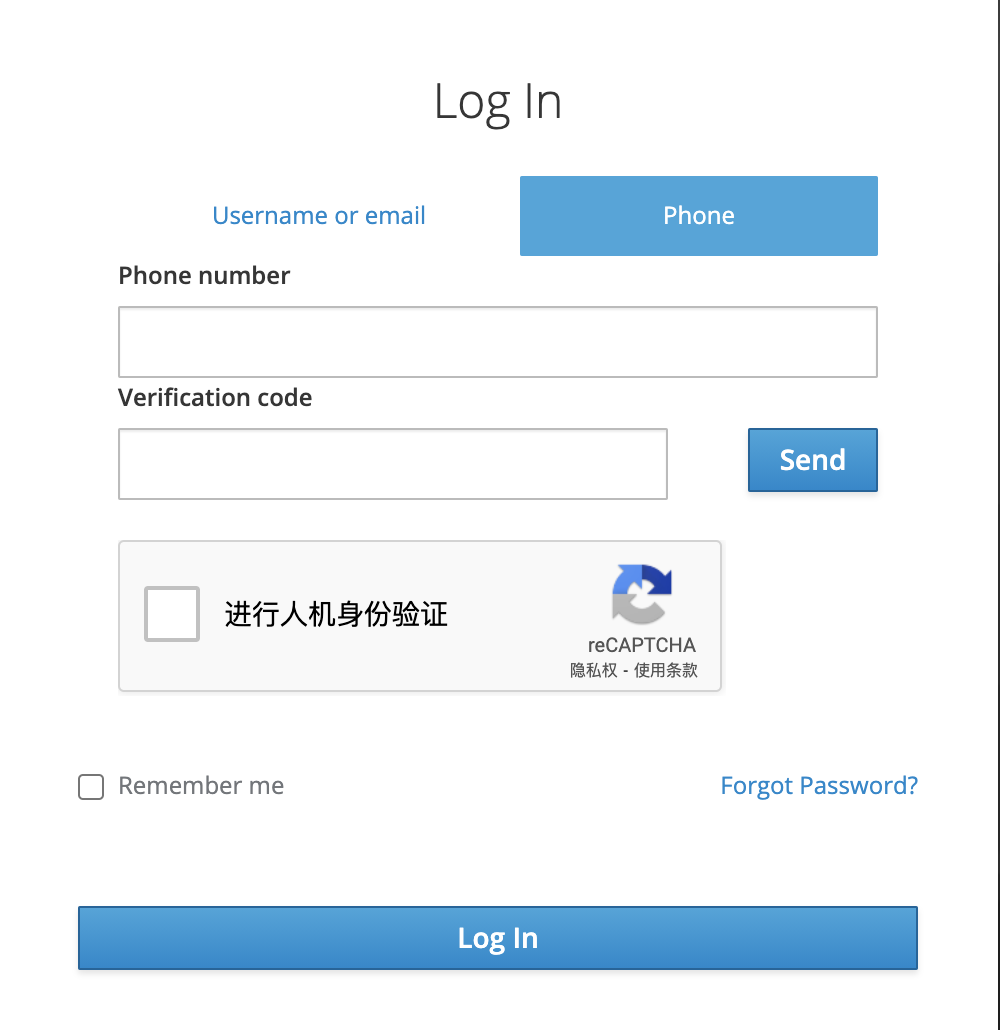
To enable this you need to:
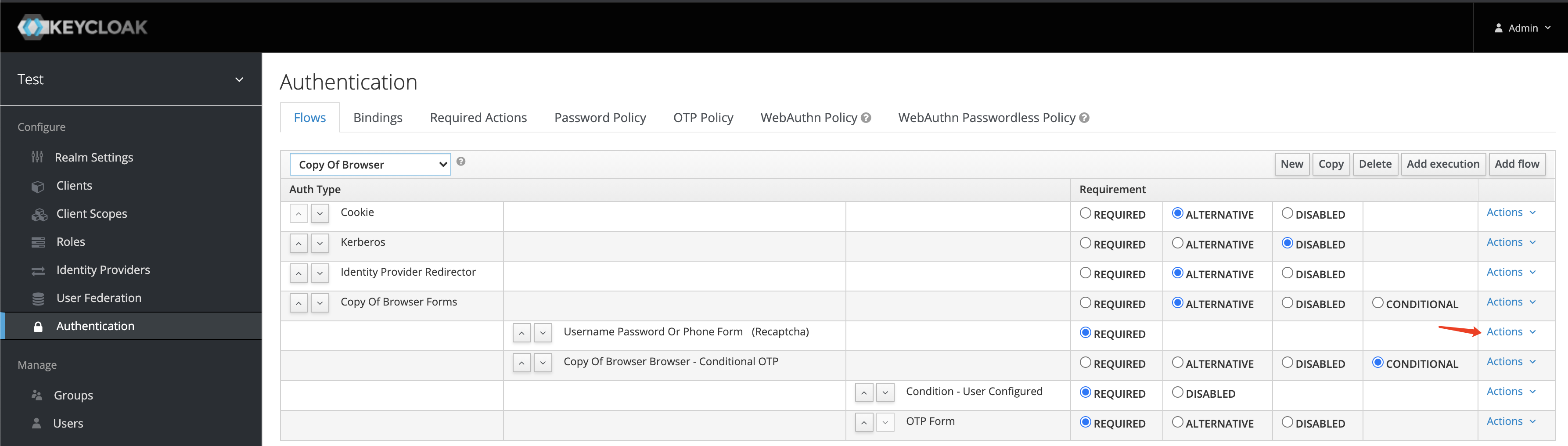
- copy the 'Browser' flow to 'Copy Of Browser' flow (Under Authentication > Flows)
- Using the
Actionsmenu on the right-hand side of the 'Copy Of Browser Forms' subflow, select 'Add execution', using the drop-down select 'Username Password Or Phone Form'. Move it up to be the top. (Optional: if you want to enable Google Recaptcha, using theActionsmenu on the right-hand side of the 'Username Password Or Phone Form', select 'Config' and enter in the site key and secret, see more: Google Recaptcha) - Remove 'Username Password Form'
- In the 'Bindings' menu, change the browser flow from 'Browser' to 'Copy Of Browser'
'Copy Of Reset Credentials' flow shoule be like this:
Reset credentials via SMS
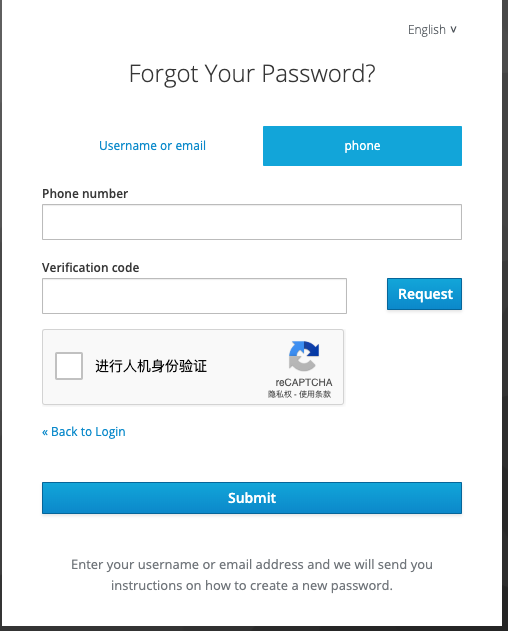
To enable this you need to:
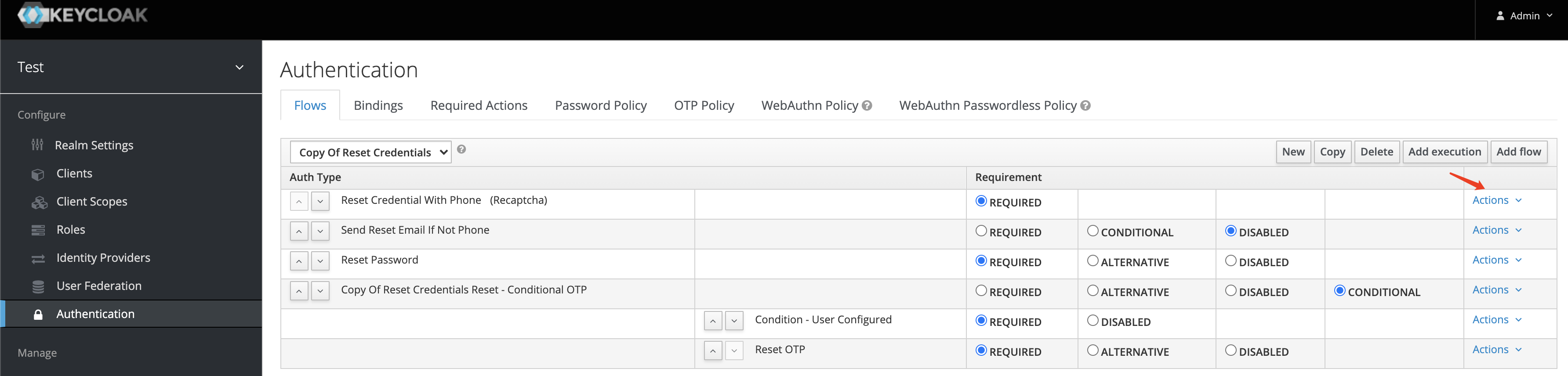
- copy the 'Reset Credentials' flow to 'Copy Of Reset Credentials' flow (Under Authentication > Flows)
- Click 'Add execution' to add provider 'Reset Credential With Phone' and move it to be the top (Optional: if you want to enable Google Recaptcha, using the
Actionsmenu on the right-hand side of the 'Reset Credential With Phone', select 'Config' and enter in the site key and secret, see more: Google Recaptcha) - Click 'Add execution' to add provider 'Send Reset Email If Not Phone' and move it to be the second
- Remove 'Choose User' and 'Send Reset Email'
- In the 'Bindings' menu, change the reset credential flow from 'reset credentials' to 'Copy Of Reset Credential'
'Copy Of Reset Credentials' flow shoule be like this:
Phone theme

To enable this you need to Select phone theme on the "Realm Settings > Themes" as below:

Build into keycloak
An example shows how to build this into keycloak using docker
Installation
This needs an SMS implementation to enable sending verification codes. There are some implementations below (thanks in advance if you'd like to add your implementation here):
Or you can implement your own SPIs.
Once you add an SMS SPI implementation, you can request a verification code with
curl -X POST \
  http://127.0.0.1:8081/auth/realms/$YOUR_REALM/verification_codes/ \
  -H 'content-type: application/json' \
  -d '{
    "phoneNumber": $PHONE_NUMBER
}'
And then use Verification Code authentication flow with the code to obtain an access code.
curl -X POST \
  http://localhost:8081/auth/realms/$YOUR_REALM/protocol/openid-connect/token \
  -H 'authorization: Basic c2h1bmRhby1hZG1pbjoxODc3MGYxMi02NjE4LTQwOTctYThmYi1kMjA0Mzg0Mzg4OTk=' \
  -H 'content-type: application/x-www-form-urlencoded' \
  -d 'grant_type=password&phone_number=$PHONE_NUMBER&code=$VERIFICATION_CODE'
Configuration
Configure your REALM to use the phone number and verification code Authentication. First create a new REALM (or select a previously created REALM).
Under Authentication > Flows: * Copy the 'Direct Grant' flow to 'Direct grant with phone' flow * Click on 'Actions > Add execution' on the 'Provide Phone Number' line * Click on 'Actions > Add execution' on the 'Provide Verification Code' line * Set both of 'Provide Phone Number' and 'Provide Verification Code' to 'REQUIRED'
Extension points exported contracts — how you extend this code
CaptchaService (Interface)Core symbols most depended-on inside this repo
getRealmShape
Languages
Modules by API surface
For agents
$ claude mcp add keycloak-phone-authenticator \
  -- python -m otcore.mcp_server <graph>