github.com/Cap-go/capacitor-native-audio @8.4.15
Chat with this repoWhat it actually does AI analysis from the code graph — generated when you open this
README
Native audio

➡️ Get Instant updates for your App with Capgo
Missing a feature? We’ll build the plugin for you 💪
Native Audio
@capgo/capacitor-native-audio
Capacitor plugin for playing sounds.






Capacitor Native Audio Plugin
Capacitor plugin for native audio engine. Capacitor V8 - ✅ Support!
Support local file, remote URL, and m3u8 stream
Click on video to see example 💥
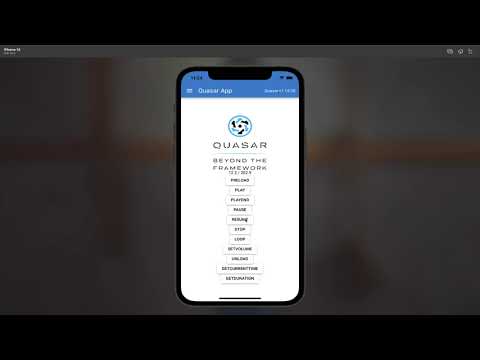
Why Native Audio?
The only free, full-featured audio playback plugin for Capacitor:
- HLS/M3U8 streaming - Play live audio streams and adaptive bitrate content
- Remote URLs - Stream from HTTP/HTTPS sources with built-in caching
- Low-latency playback - Optimized native audio engine for sound effects and music
- Full control - Play, pause, resume, loop, seek, volume, playback rate
- Multiple channels - Play multiple audio files simultaneously
- Background playback - Continue playing when app is backgrounded
- Notification center display - Show audio metadata in iOS Control Center and Android notifications
- Position tracking - Real-time currentTime events (100ms intervals)
- Modern package management - Supports both Swift Package Manager (SPM) and CocoaPods (SPM-ready for Capacitor 8)
- Same JavaScript API - Compatible interface with paid alternatives
- Support player notification center - Play, pause, show cover for your user when long playing audio.
Perfect for music players, podcast apps, games, meditation apps, and any audio-heavy application.
Maintainers
| Maintainer | GitHub | Social |
|---|---|---|
| Martin Donadieu | riderx | Telegram |
Mainteinance Status: Actively Maintained
Preparation
All audio files must be with the rest of your source files.
First make your sound file end up in your built code folder, example in folder BUILDFOLDER/assets/sounds/FILENAME.mp3
Then use it in preload like that assets/sounds/FILENAME.mp3
Documentation
The most complete doc is available here: https://capgo.app/docs/plugins/native-audio/
Compatibility
| Plugin version | Capacitor compatibility | Maintained |
|---|---|---|
| v8.*.* | v8.*.* | ✅ |
| v7.*.* | v7.*.* | On demand |
| v6.*.* | v6.*.* | ❌ |
| v5.*.* | v5.*.* | ❌ |
Note: The major version of this plugin follows the major version of Capacitor. Use the version that matches your Capacitor installation (e.g., plugin v8 for Capacitor 8). Only the latest major version is actively maintained.
Installation
You can use our AI-Assisted Setup to install the plugin. Add the Capgo skills to your AI tool using the following command:
npx skills add https://github.com/cap-go/capacitor-skills --skill capacitor-plugins
Then use the following prompt:
Use the `capacitor-plugins` skill from `cap-go/capacitor-skills` to install the `@capgo/capacitor-native-audio` plugin in my project.
If you prefer Manual Setup, install the plugin by running the following commands and follow the platform-specific instructions below:
To use npm
npm install @capgo/capacitor-native-audio
To use yarn
yarn add @capgo/capacitor-native-audio
Sync native files
npx cap sync
On iOS, Android and Web, no further steps are needed.
Swift Package Manager
You can also consume the iOS implementation via Swift Package Manager. In Xcode open File → Add Package…, point it at https://github.com/Cap-go/capacitor-native-audio.git, and select the CapgoCapacitorNativeAudio library product. The package supports iOS 14 and newer alongside Capacitor 8.
Configuration
Optional HLS/m3u8 Streaming (Android)
By default, HLS streaming support is enabled for backward compatibility. However, it adds approximately 4MB to your Android APK size due to the media3-exoplayer-hls dependency.
If you don't need HLS/m3u8 streaming support, you can disable it to reduce your APK size:
// capacitor.config.ts
import type { CapacitorConfig } from '@capacitor/cli';

const config: CapacitorConfig = {
  appId: 'com.example.app',
  appName: 'My App',
  plugins: {
    NativeAudio: {
      hls: false  // Disable HLS to reduce APK size by ~4MB
    }
  }
};

export default config;
After changing the configuration, run:
npx cap sync
Notes:
- iOS uses native AVPlayer for HLS, so this setting only affects Android
- If HLS is disabled and you try to play an .m3u8 file, you'll get a clear error message explaining how to enable it
- The default is hls: true to maintain backward compatibility
Supported methods
| Name | Android | iOS | Web |
|---|---|---|---|
| configure | ✅ | ✅ | ❌ |
| preload | ✅ | ✅ | ✅ |
| play | ✅ | ✅ | ✅ |
| pause | ✅ | ✅ | ✅ |
| resume | ✅ | ✅ | ✅ |
| loop | ✅ | ✅ | ✅ |
| stop | ✅ | ✅ | ✅ |
| unload | ✅ | ✅ | ✅ |
| setVolume | ✅ | ✅ | ✅ |
| getDuration | ✅ | ✅ | ✅ |
| setCurrentTime | ✅ | ✅ | ✅ |
| getCurrentTime | ✅ | ✅ | ✅ |
| isPlaying | ✅ | ✅ | ✅ |
Usage
Notification Center Display (iOS & Android)
You can display audio playback information in the system notification center. This is perfect for music players, podcast apps, and any app that plays audio in the background.
⚠️ Important iOS Behavior
Enabling
showNotification: truechanges how your app's audio interacts with other apps on iOS:
- With notifications enabled (showNotification: true): Your audio will interrupt other apps' audio (like Spotify, Apple Music, etc.). This is required for Now Playing controls to appear in Control Center and on the lock screen.
- With notifications disabled (showNotification: false): Your audio will mix with other apps' audio, allowing background music to continue playing.
When to use each: - ✅ Use
showNotification: truefor: Music players, podcast apps, audiobook players (primary audio source) - ❌ UseshowNotification: falsefor: Sound effects, notification sounds, secondary audio where mixing is preferredSee Issue #202 for technical details.
Step 1: Configure the plugin with notification support
import { NativeAudio } from '@capgo/capacitor-native-audio'

// Enable notification center display
await NativeAudio.configure({
  showNotification: true,
  background: true  // Also enable background playback
});
Step 2: Preload audio with metadata
await NativeAudio.preload({
  assetId: 'song1',
  assetPath: 'https://example.com/song.mp3',
  isUrl: true,
  notificationMetadata: {
    title: 'My Song Title',
    artist: 'Artist Name',
    album: 'Album Name',
    artworkUrl: 'https://example.com/artwork.jpg'  // Can be local or remote URL
  }
});
Step 3: Play the audio
// When you play the audio, it will automatically appear in the notification center
await NativeAudio.play({ assetId: 'song1' });
The notification will: - Show the title, artist, and album information - Display the artwork/album art (if provided) - Include media controls (play/pause/stop buttons) - Automatically update when audio is paused/resumed - Automatically clear when audio is stopped - Work on both iOS and Android
Media Controls: Users can control playback directly from: - iOS: Control Center, Lock Screen, CarPlay - Android: Notification tray, Lock Screen, Android Auto
The media control buttons automatically handle: - Play - Resumes paused audio - Pause - Pauses playing audio - Stop - Stops audio and clears the notification - Rewind 15s (Android only) - Skips backward 15 seconds - Forward 15s (Android only) - Skips forward 15 seconds
If you need to keep your app UI synchronized with Android notification or lock-screen controls,
listen for the playbackState event. It emits the assetId, resolved state, reason, and the latest
position/duration snapshot after remote transport actions.
Android Notification Controls: On Android, the notification displays three action buttons in this order: 1. ⏪ Rewind 15s - Skip backward 15 seconds 2. ▶️/⏸️ Play/Pause - Toggle playback (icon updates automatically) 3. ⏩ Forward 15s - Skip forward 15 seconds
The skip forward/backward buttons are automatically available when showNotification: true is configured. No additional setup is required.
Notes:
- All metadata fields are optional
- Artwork can be a local file path or remote URL
- The notification only appears when showNotification: true is set in configure()
- ⚠️ iOS: Enabling notifications will interrupt other apps' audio (see warning above)
- iOS: Uses MPNowPlayingInfoCenter with MPRemoteCommandCenter
- Android: Uses MediaSession with NotificationCompat.MediaStyle
Android Background Playback @since 8.2.0
By default, Android apps pause audio when the app is backgrounded or the screen is locked. To enable continuous audio playback in the background (for meditation apps, music players, podcast players, etc.), use the backgroundPlayback flag.
⚠️ Important Android Requirements
To use background playback on Android, your app must meet these requirements: 1. Declare the required permissions in
AndroidManifest.xml2. Start an Android Foreground Service with a media notification 3. Configure the plugin withbackgroundPlayback: true
Step 1: Add required permissions to AndroidManifest.xml
<manifest xmlns:android="http://schemas.android.com/apk/res/android">

    <uses-permission android:name="android.permission.FOREGROUND_SERVICE" />
    <uses-permission android:name="android.permission.FOREGROUND_SERVICE_MEDIA_PLAYBACK" />
    <uses-permission android:name="android.permission.WAKE_LOCK" />

    <application>

    </application>
</manifest>
Step 2: Configure the plugin with background playback enabled
import { NativeAudio } from '@capgo/capacitor-native-audio';

// Enable background playback and notification center
await NativeAudio.configure({
  backgroundPlayback: true,  // Prevent automatic pause when backgrounded
  showNotification: true,    // Show playback controls in notification
  focus: true                // Request audio focus (optional but recommended)
});
Step 3: Start a Foreground Service (your responsibility)
The plugin does NOT automatically create or manage the Android Foreground Service. You must create and start your own foreground service using a Capacitor plugin like @capacitor/local-notifications or a custom Android service.
Here's a conceptual example:
```typescript // 1. Configure the audio plugin await NativeAudio.configure({ backgroundPlayback: true, showNotification: true });
// 2. Start your foreground service (implementation depends on your app) // This is typically done with a native Android service or a plugin // that provides foreground service capabilities await startForegroundService();
// 3. Preload and play audio as normal await NativeAudio.preload({ assetId: 'meditation', assetPath: 'audio/meditation.mp3', notificationMetadata: { title: 'Meditation Session', artist: 'Your App Name' } });
await NativeAudio.play({ assetId: 'meditation' });
// Audio will continue playing when app is backgrounded // The foreground
Extension points exported contracts — how you extend this code
AudioCompletionListener (Interface)Core symbols most depended-on inside this repo
debugShape
Languages
Modules by API surface
For agents
$ claude mcp add capacitor-native-audio \
  -- python -m otcore.mcp_server <graph>