github.com/AdnanHodzic/auto-cpufreq @v3.0.0 sqlite
README
auto-cpufreq


Automatic CPU speed & power optimizer for Linux. Actively monitors laptop battery state, CPU usage, CPU temperature, and system load, ultimately allowing you to improve battery life without making any compromises.
For tl;dr folks:
Youtube: auto-cpufreq v2.0 release & demo of all available features and options
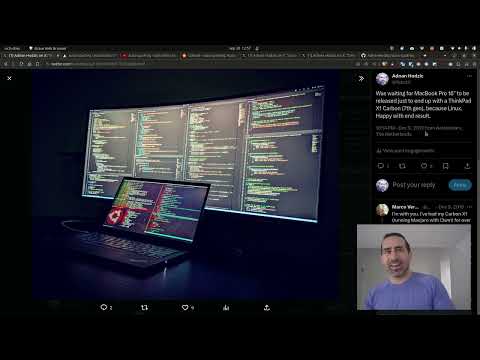
Youtube: auto-cpufreq - tool demo
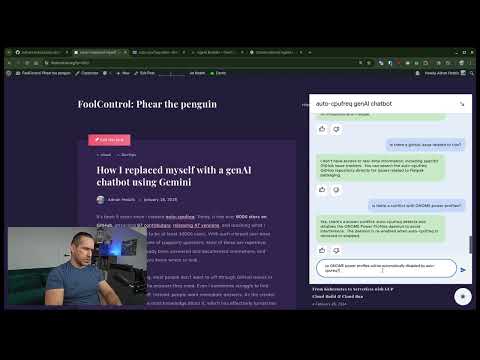
If you're having a problem with auto-cpufreq, before (submitting an issue), it is strongly recommended to use the auto-cpufreq-genAI-chatbot to get an immediate answer to your question.
Example of auto-cpufreq GUI (available >= v2.0)
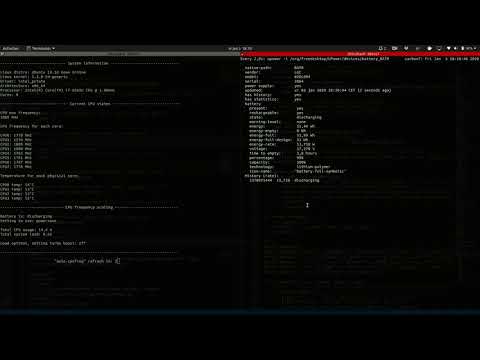
Example of auto-cpufreq --stats CLI output
Looking for developers and co-maintainers
- If you would like to discuss anything regarding auto-cpufreq or its development, please join the auto-cpufreq Discord server!
- auto-cpufreq is looking for co-maintainers & open source developers to help shape the future of the project!
Index
- Why do I need auto-cpufreq?
- Supported architectures and devices
- Features
- Installing auto-cpufreq
- auto-cpufreq-installer
- Snap Store
- AUR package (Arch based distributions)
- NixOS
- For developers
- Post-installation
- Configuring auto-cpufreq
- 1: power_helper.py script (Snap package install only)
- 2:
--forcegovernor override - 3:
--turbomode override - 4: auto-cpufreq config file
- How to run auto-cpufreq
- auto-cpufreq modes and options
- monitor
- live
- overriding governor
- overriding turbo mode
- Install - auto-cpufreq daemon
- Update - auto-cpufreq update
- Remove - auto-cpufreq daemon
- stats
- bluetooth_boot_off
- bluetooth_boot_on
- Battery charging thresholds
- Supported Devices
- Battery config
- Ignoring power supplies
- Troubleshooting
- AUR
- Discussion
- Donate
- Financial donation
- Code contribution
Why do I need auto-cpufreq?
One of the problems with Linux today on laptops is that the CPU will run in an unoptimized manner which will negatively impact battery life. For example, the CPU may run using the "performance" governor with turbo boost enabled regardless of whether it's plugged into a power outlet or not.
These issues can be mitigated by using tools like indicator-cpufreq or cpufreq, but those still require manual action from your side which can be daunting and cumbersome.
Tools like TLP (which I used for numerous years) can help extend battery life, but may also create their own set of problems, such as losing turbo boost.
Given all of the above, I needed a simple tool that would automatically make CPU frequency-related changes and save battery life, but let the Linux kernel do most of the heavy lifting. That's how auto-cpufreq was born.
Please note: auto-cpufreq aims to replace TLP in terms of functionality, so after you install auto-cpufreq it's recommended to remove TLP. Using both for the same functionality (i.e., to set CPU frequencies) will lead to unwanted results like overheating. Hence, only use both tools in tandem if you know what you're doing.
One tool/daemon that does not conflict with auto-cpufreq in any way, and is even recommended to have running alongside, is thermald.
Supported architectures and devices
Only devices with an Intel, AMD, or ARM CPU are supported. This tool was developed to improve performance and battery life on laptops, but running it on desktops/servers (to lower power consumption) should also be possible.
Features
- Monitoring
- Basic system information
- CPU frequency (system total & per core)
- CPU usage (system total & per core)
- CPU temperature (total average & per core)
- Battery state
- System load
- CPU frequency scaling, governor, and turbo boost management based on
- Battery state
- CPU usage (total & per core)
- CPU temperature in combination with CPU utilization/load (to prevent overheating)
- System load
- Automatic CPU & power optimization (temporary and persistent)
- Settings battery charging thresholds (limited support)
Installing auto-cpufreq
auto-cpufreq-installer
As auto-cpufreq relies on git based versioning, users are advised to install
auto-cpufrequsinggit clonemethod only. Downloading source code as a zip/from release will emit build error like these.
Get source code, run installer, and follow on-screen instructions:
git clone https://github.com/AdnanHodzic/auto-cpufreq.git
cd auto-cpufreq && sudo ./auto-cpufreq-installer
Snap Store
Please note: while all auto-cpufreq >= v2.0 CLI functionality will work as intended, the GUI won't be available on Snap package installs due to Snap package confinement limitations. Hence, please consider installing auto-cpufreq using auto-cpufreq-installer.
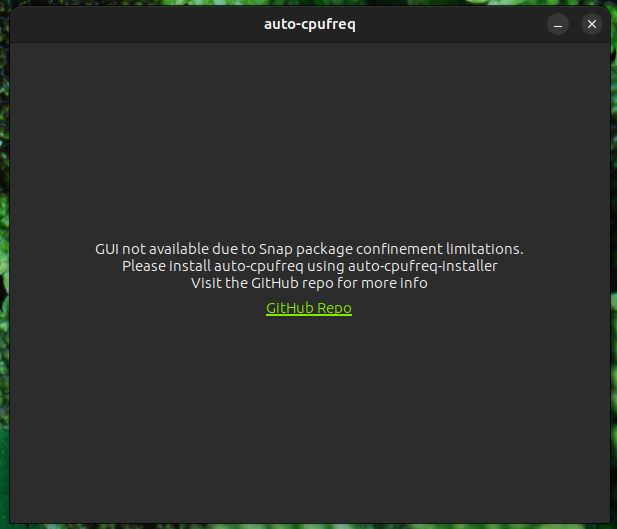
auto-cpufreq is available on the Snap Store or via CLI:
sudo snap install auto-cpufreq
Please note:
- Make sure snapd is installed and snap version is >= 2.44 for auto-cpufreq to fully work due to recent snapd changes.
- Fedora users will encounter the following error due to
cgroups v2being in development. This problem can be resolved by either runningsudo snap run auto-cpufreqafter the snap installation or by using the auto-cpufreq-installer which doesn't have this issue.
AUR package (Arch based distributions)

The AUR Release Package is currently being maintained by MusicalArtist12, liljaylj, and parmjotsinghrobot.
Notices
- The Git Package is seperately maintained and was last updated on version 1.9.6.
- The build process links to
/usr/share/instead of/usr/local/share/ - The daemon installer provided does not work, instead start the daemon with
# systemctl enable --now auto-cpufreq
- The GNOME Power Profiles daemon is automatically disabled by auto-cpufreq-installer due to it's conflict with auto-cpufreq.service. However, this doesn't happen with AUR installs, which can lead to problems (e.g., #463) if not masked manually.
- Open a terminal and run
sudo systemctl mask power-profiles-daemon.service(thenenableandstartthe auto-cpufreq.service if you haven't already). - The TuneD daemon(enabled by default with Fedora 41) is automatically disabled by auto-cpufreq-installer due to it's conflict with auto-cpufreq.service.
Gentoo Linux (GURU Repository)
New versions of auto-cpufreq were recently added to GURU, Gentoo's official community-maintained ebuild repository. The ebuild is maintaned by S41G0N and other GURU contributors, who can respond in case of issues.
In order to build auto-cpufreq, it is necessary to add & sync GURU repository first. Adding ~amd64 keyword is also needed to unmask the package.
# echo "sys-power/auto-cpufreq ~amd64" >> /etc/portage/package.accept_keywords
# eselect repository enable guru
# emaint sync -r guru
# emerge --ask auto-cpufreq
Notices
- The build process links to
/usr/share/instead of/usr/local/share/ - The build works on both systemd/OpenRC systems (both systemd and OpenRC will have a service called auto-cpufreq which can be started automatically)
- The daemon installer provided does work, but it is RECOMMENDED to install the daemon with:
# systemctl enable --now auto-cpufreq
# rc-update add auto-cpufreq default && rc-service auto-cpufreq start
NixOS
Flakes
This repo contains a flake that exposes a NixOS Module that manages and offers options for auto-cpufreq. To use it, add the flake as an input to your flake.nix file and enable the module:
# flake.nix

{

    inputs = {
        # ---Snip---
        auto-cpufreq = {
            url = "github:AdnanHodzic/auto-cpufreq";
            inputs.nixpkgs.follows = "nixpkgs";
        };
        # ---Snip---
    }

    outputs = {nixpkgs, auto-cpufreq, ...} @ inputs: {
        nixosConfigurations.HOSTNAME = nixpkgs.lib.nixosSystem {
            specialArgs = { inherit inputs; };
            modules = [
                ./configuration.nix
                auto-cpufreq.nixosModules.default
            ];
        };
    }
}
Then you can enable the program in your configuration.nix file:
# configuration.nix

{inputs, pkgs, ...}: {
    # ---Snip---
    programs.auto-cpufreq.enable = true;
    # optionally, you can configure your auto-cpufreq settings, if you have any
    programs.auto-cpufreq.settings = {
    charger = {
      governor = "performance";
      turbo = "auto";
    };

    battery = {
      governor = "powersave";
      turbo = "auto";
    };
  };
    # ---Snip---
}
Nixpkgs
There is a nixpkg available, but it is more prone to being outdated, whereas the flake pulls from the latest commit. You can install it in your configuration.nix and enable the system service:
# configuration.nix

# ---Snip---
environment.systemPackages = with pkgs; [
    auto-cpufreq
];

services.auto-cpufreq.enable = true;
# ---Snip---
Installation (development mode only)
-
If you have
poetryinstalled:bash git clone https://github.com/AdnanHodzic/auto-cpufreq.git cd auto-cpufreq poetry install poetry run auto-cpufreq --help -
Alternatively, we can use an editable pip install for development purposes:
bash git clone https://github.com/AdnanHodzic/auto-cpufreq.git cd auto-cpufreq # set up virtual environment (details removed for brevity) pip3 install -e . auto-cpufreq - Regularly run
poetry updateif you get any inconsistent lock file issues.
Post-installation
After installation, auto-cpufreq is available as a binary. Refer to auto-cpufreq modes and options for detailed information on how to run and configure auto-cpufreq.
Configuring auto-cpufreq
auto-cpufreq makes all decisions automatically based on various factors such as CPU usage, temperature, and system load. However, it's possible to perform additional configurations:
1: power_helper.py script (Snap package install only)
When installing auto-cpufreq via [auto-cpufreq-i
Core symbols most depended-on inside this repo
footerShape
Languages
Modules by API surface
For agents
$ claude mcp add auto-cpufreq \
  -- python -m otcore.mcp_server <graph>