github.com/0xJacky/nginx-ui @v2.4.1 sqlite
README
<img src="https://github.com/0xJacky/nginx-ui/raw/v2.4.1/resources/logo.png" alt="Nginx UI Logo">
Nginx UI
Yet another Nginx Web UI, developed by 0xJacky, Hintay and Akino.



 Proudly hosted on AtomGit — a part of the G-Star program.













Documentation
To check out docs, visit nginxui.com.
Sponsor
If you find this project helpful, please consider sponsoring us to support ongoing development and maintenance.


Official Community Group
Join the official Nginx UI WeChat community group to discuss usage, deployment ideas, and troubleshooting with other community members.
Scan the QR code below to add us on WeChat, and include Nginx UI Community Group in your request. The administrator will invite you to the official community group.

Your support helps us: - 🚀 Accelerate the development of new features - 🐛 Fix bugs and improve stability - 📚 Enhance documentation and tutorials - 🌐 Provide better community support - 💻 Maintain infrastructure and demo servers
Tooling Support

Thanks to JetBrains for supporting us with free open source licenses.
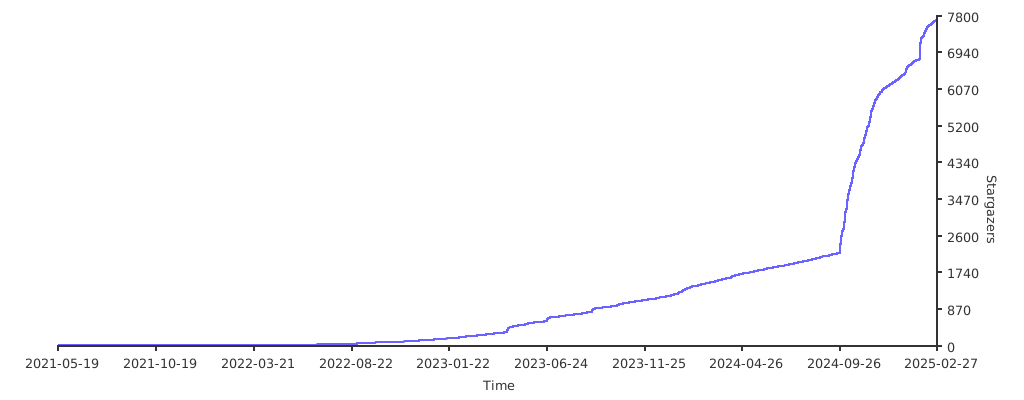
Stargazers over time
English | Español | 简体中文 | 繁體中文 | Tiếng Việt | 日本語
Table of Contents
- About The Project
- Getting Started
- Manual Build
- Script for Linux
- Example of Nginx Reverse Proxy Configuration
- Contributing
- License
About The Project

Demo
URL:https://demo.nginxui.com - Username:admin - Password:admin
Features
- Online statistics for server indicators such as CPU usage, memory usage, load average, and disk usage.
- Automatic configuration backup after changes, with version comparison and restore capabilities
- Cluster management supporting mirroring operations to multiple nodes, making multi-server environments easy to manage
- Export encrypted Nginx / Nginx UI configurations for quick deployment and recovery to new environments
- Enhanced online ChatGPT assistant supporting multiple models, including Deepseek-R1's chain-of-thought display to help you better understand and optimize configurations
- MCP (Model Context Protocol) provides special interfaces for AI agents to interact with Nginx UI, enabling automated configuration management and service control.
- One-click deployment and automatic renewal Let's Encrypt certificates.
- Online editing websites configurations with our self-designed NgxConfigEditor which is a user-friendly block editor for nginx configurations or Ace Code Editor which supports LLM Code Completion and highlighting nginx configuration syntax.
- Online view Nginx logs
- Written in Go and Vue, distribution is a single executable binary.
- Automatically test configuration file and reload nginx after saving configuration.
- Web Terminal
- Dark Mode
- Responsive Web Design
Internationalization
We proudly offer official support for:
- English
- Simplified Chinese
- Traditional Chinese
As non-native English speakers, we strive for accuracy, but we know there's always room for improvement. If you spot any issues, we'd love your feedback!
Thanks to our amazing community, additional languages are also available! Explore and contribute to translations on Weblate.
Getting Started
Before Use
The Nginx UI follows the Debian web server configuration file standard. Created site configuration files will be placed in the sites-available folder that under the Nginx configuration folder (auto-detected). The configuration files for an enabled site will create a soft link to the sites-enabled folder. You may need to adjust the way the configuration files are organised.
For non-Debian (and Ubuntu) systems, you may need to change the contents of the nginx.conf configuration file to the Debian style as shown below.
http {
    # ...
    include /etc/nginx/conf.d/*.conf;
    include /etc/nginx/sites-enabled/*;
}
For more information: debian/conf/nginx.conf
Installation
Nginx UI is available on the following platforms:
- macOS 11 Big Sur and later (amd64 / arm64)
- Windows 10 and later (amd64 / arm64)
- Linux 2.6.23 and later (x86 / amd64 / arm64 / armv5 / armv6 / armv7 / mips32 / mips64 / riscv64 / loongarch64)
- Including but not limited to Debian 7 / 8, Ubuntu 12.04 / 14.04 and later, CentOS 6 / 7, Arch Linux
- FreeBSD
- OpenBSD
- Dragonfly BSD
- Openwrt
You can visit latest release to download the latest distribution, or just use installation scripts for Linux.
Usage
In the first runtime of Nginx UI, please visit http://<your_server_ip>:<listen_port>
in your browser to complete the follow-up configurations.
From Executable
Run Nginx UI in Terminal
nginx-ui -config app.ini
Press Control+C in the terminal to exit Nginx UI.
Run Nginx UI in Background
nohup ./nginx-ui -config app.ini &
Stop Nginx UI with the follow command.
kill -9 $(ps -aux | grep nginx-ui | grep -v grep | awk '{print $2}')
With Systemd
If you are using the installation script for Linux, the Nginx UI will be installed as nginx-ui service in systemd. Please use the systemctl command to control it.
Start Nginx UI
systemctl start nginx-ui
Stop Nginx UI
systemctl stop nginx-ui
Restart Nginx UI
systemctl restart nginx-ui
With Docker
Our docker image uozi/nginx-ui:latest is based on the latest nginx image and can be used to replace the Nginx on the host. By publishing the container's port 80 and 443 to the host, you can easily make the switch.
Note
- When using this container for the first time, ensure that the volume mapped to /etc/nginx is empty.
- If you want to host static files, you can map directories to container.
- If you are upgrading from an older image, see the Docker WebSocket fix guide for required
conf.d/nginx-ui.confupdates.
Deploy with Docker
-
Then deploy nginx-ui like this:
docker run -dit \
  --name=nginx-ui \
  --restart=always \
  -e TZ=Asia/Shanghai \
  -v /mnt/user/appdata/nginx:/etc/nginx \
  -v /mnt/user/appdata/nginx-ui:/etc/nginx-ui \
  -v /var/run/docker.sock:/var/run/docker.sock \
  -p 8080:80 -p 8443:443 \
  uozi/nginx-ui:latest
- When your docker container is running, Log in to nginx-ui panel with
http://<your_server_ip>:8080/install. If you change the port mapping, access Nginx UI through the host port mapped to container port80instead.
Deploy with Docker-Compose
-
Create a docker-compose.yml file like this:
```yml services: nginx-ui: stdin_open: true tty: true container_name: nginx-ui
Extension points exported contracts — how you extend this code
GeoIPService (Interface)Core symbols most depended-on inside this repo
ErrorShape
Languages
Modules by API surface
Dependencies from manifests, versioned
Datastores touched
For agents
$ claude mcp add nginx-ui \
  -- python -m otcore.mcp_server <graph>